
What are Default Role Settings?
Default Role Settings allow administrators to specify which role (or roles) are automatically assigned to newly created users in Manor. This streamlines the onboarding process by eliminating the need to manually assign roles to each new employee.
Default roles apply in two key scenarios:
- Single Sign-On (SSO) / Just-In-Time (JIT) Provisioning: When a new employee signs into Manor via corporate SSO for the first time, Manor automatically creates their user account and assigns the default roles configured here.
- Manual User Creation: When administrators add a user manually via Administration → Users → New user, the default roles are automatically pre-selected in the role checklist.
Why Default Roles Matter
Setting up default roles helps you:
- Streamline onboarding - New users automatically receive the appropriate role without manual assignment
- Maintain consistency - Ensure all new employees start with the correct access level
- Reduce configuration errors - Prevent users from being created without proper roles
- Save time - Eliminate the need to assign roles after user creation
Accessing Default Role Settings
To configure default roles:
-
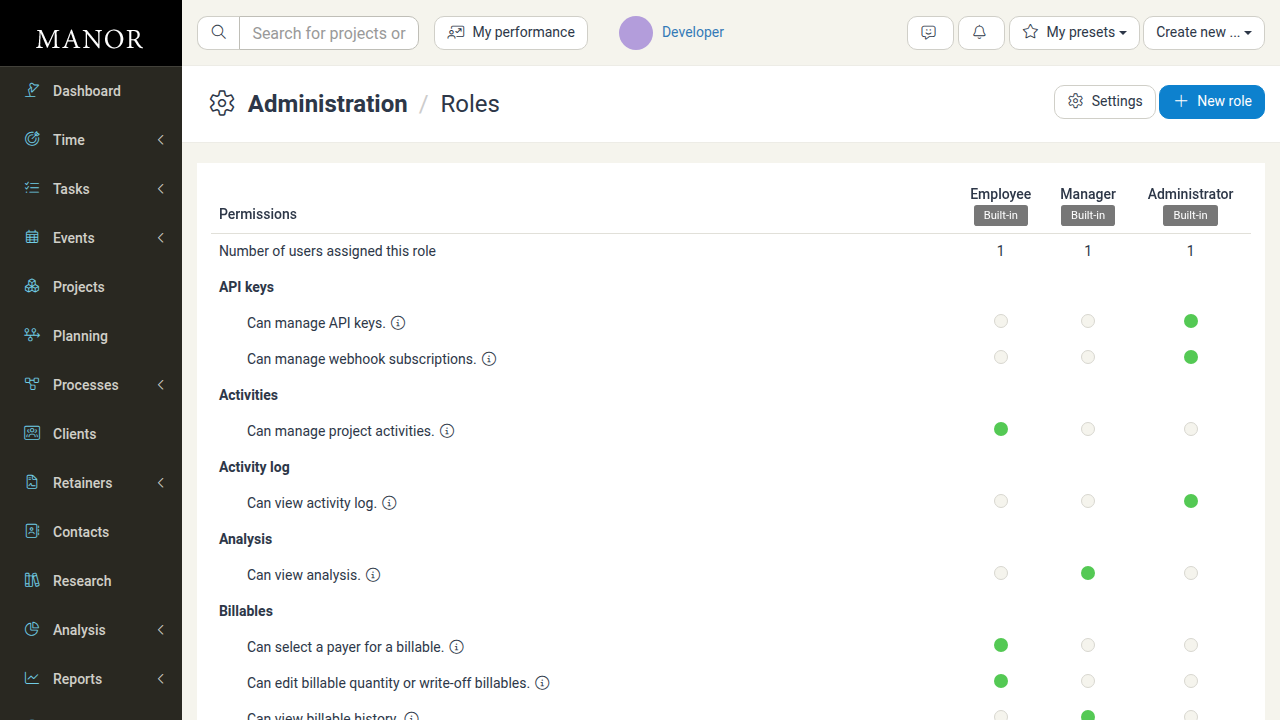
Navigate to Administration from the main menu.
-
Click on Roles.
-
Click the Settings button in the top-right corner of the Roles page.
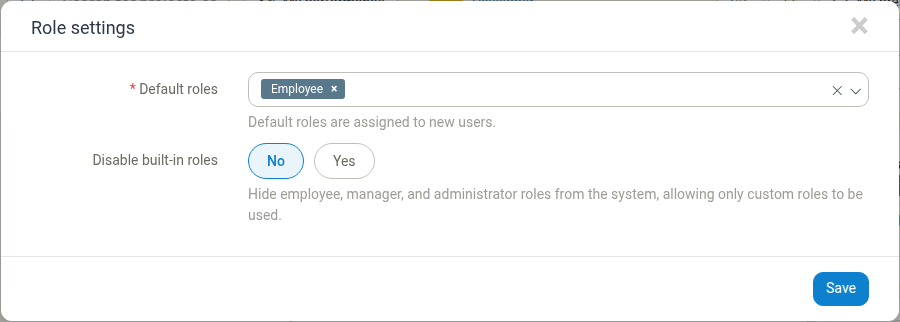
A dialog titled Role settings will appear with default role configuration options.
Configuring Default Roles
Default roles for new users are configurable. Settings are accessible from the roles page for administrators. Out of the box, only the Employee role is selected as a default role.
To configure default roles:
- In the Role settings dialog, locate the Default roles field.
- Click in the field to see available roles (built-in roles like Employee, Manager, Administrator, or any custom roles).
- Select or deselect roles according to your organization's policy.
- Choose whether to hide the built-in roles using the Disable built-in roles option (see Hiding Built-in Roles below).
- Click Save to apply the changes.
Multiple roles can be selected if your organization requires new users to have multiple role assignments.
Hiding Built-in Roles
The Role settings dialog also contains a Disable built-in roles setting that lets you prevent built-in roles from being used at all.
- No (default) - The built-in Employee, Manager, and Administrator roles remain available and can be assigned to users.
- Yes - The Employee, Manager, and Administrator roles are hidden from the system, so that only custom roles are available. Users can then only be assigned custom roles.
The helper text for this setting describes it as: "Hide employee, manager, and administrator roles from the system, allowing only custom roles to be used."
Click Save to apply your changes.
Note: Default roles are only assigned to users created after the setting is changed. Existing users are not affected by changes to default role settings.
Understanding the Role Options
The default roles setting allows you to select from:
- Employee - Standard access focused on time tracking and project participation (selected by default out of the box)
- Manager - Broader access for managing projects, invoices, and team members
- Administrator - Full system access for administrative and management tasks
- Custom Roles - Any custom roles you have created in your organization
Note: Vacation permissions are off by default for every role, including any role you set as a default for new users. New users therefore cannot see the Vacation area — vacation requests, the vacation overview, and the manager vacation view — until an administrator explicitly grants the permissions Can manage vacation requests, Can manage vacation requests as department manager, Can view vacation overview, and Can view vacation overview as department manager. This applies to the built-in roles as well as any custom role.
Best Practices
Choose Appropriate Defaults
Select the role that matches the typical user profile of employees being added to your organization. Out of the box, Manor defaults to the Employee role, which aligns with the principle of least privilege.
Review Periodically
If your organization's typical user profile changes, review and update default role settings accordingly.
Document Your Choice
Keep a note of which roles are set as defaults and why, to maintain consistency in user management.
Manual Override Available
Even with default roles set, administrators can still manually assign different roles when creating or editing users if needed for special cases.