
What are Events?
Events are scheduled appointments, meetings, or important dates tracked within Manor. They help you keep track of client meetings, court dates, deadline reminders, and other time-sensitive activities. Events can be linked to projects and include reminders to alert you before they occur.
Why Events Matter
Using events helps you:
- Never miss appointments — Set reminders so you receive alerts before meetings
- Stay organized — See all upcoming commitments in one place
- Link to projects — Connect meetings and appointments to relevant projects
- View attendees — See who created or was assigned to each event
- Plan your time — Account for meetings when planning project work
Key Fields
Name (required) The title of the event. Use clear, descriptive names like "Client Meeting - ABC Corp" or "Court Hearing - Case #123" so you can identify events quickly.
Project The project this event is associated with. Linking events to projects keeps all project-related activities organized together.
Date (required) The start and end date and time for the event. This determines when the event appears on your calendar.
Location Where the event takes place. For virtual meetings, include the video conference link or dial-in information.
Description What the event is about. Include the agenda, expected duration, and any preparation needed.
First alert / Second alert Reminders before the event starts. Options include:
- No alert
- When the task is due
- 5, 10, 15, 30 minutes before
- 1, 2, 3, 4, 8, 12 hours before
- 1, 2, 3 days before
- 1, 2 weeks before
- 1, 2 months before
Created at The date the event was created. This field is automatically filled and cannot be edited.
Creating a New Event
To create a new event:
-
Navigate to the Events page from the main menu.
-
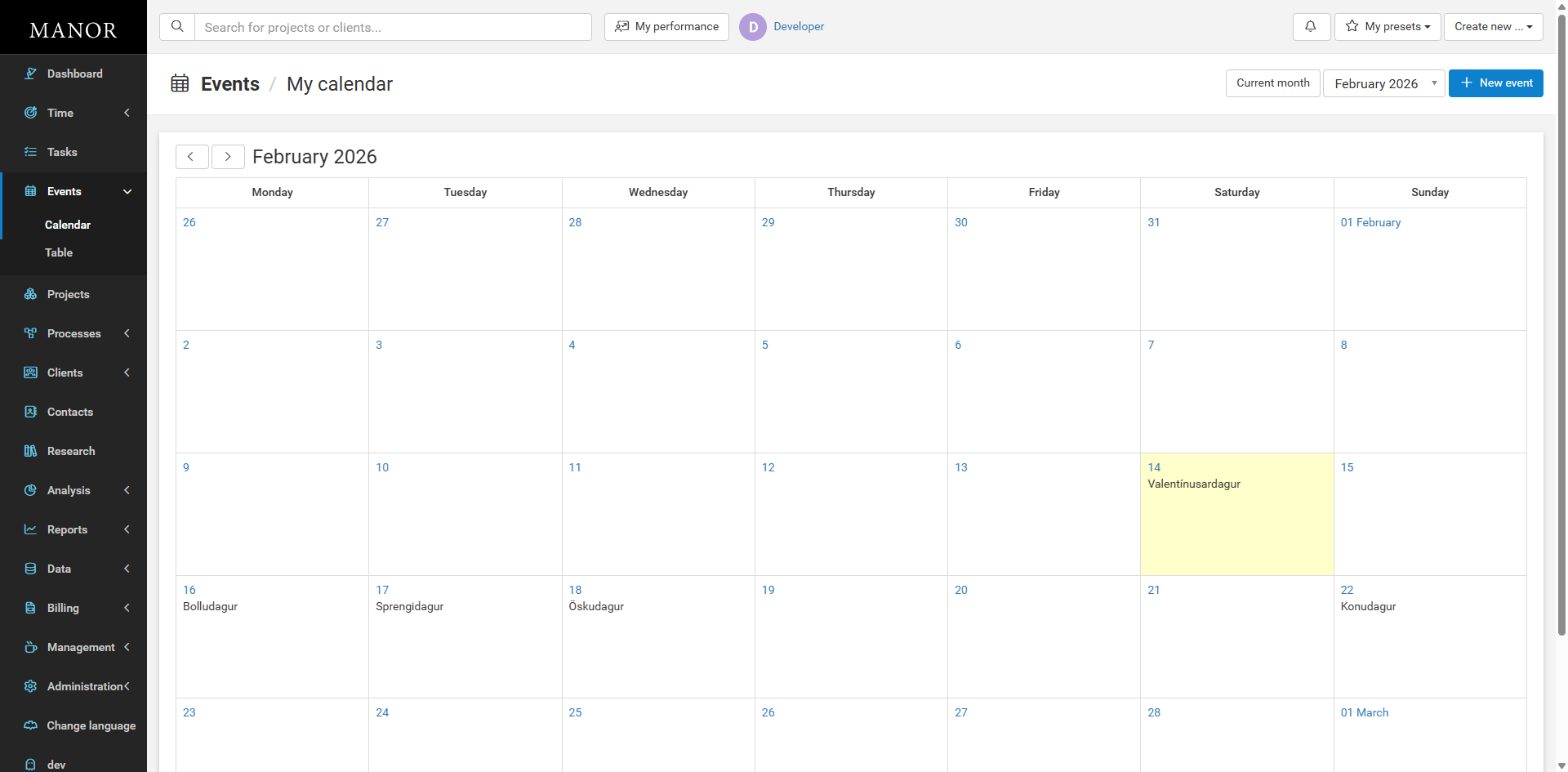
Click the New event button in the top right corner, or click directly on a calendar date.
-
Fill in the event details:
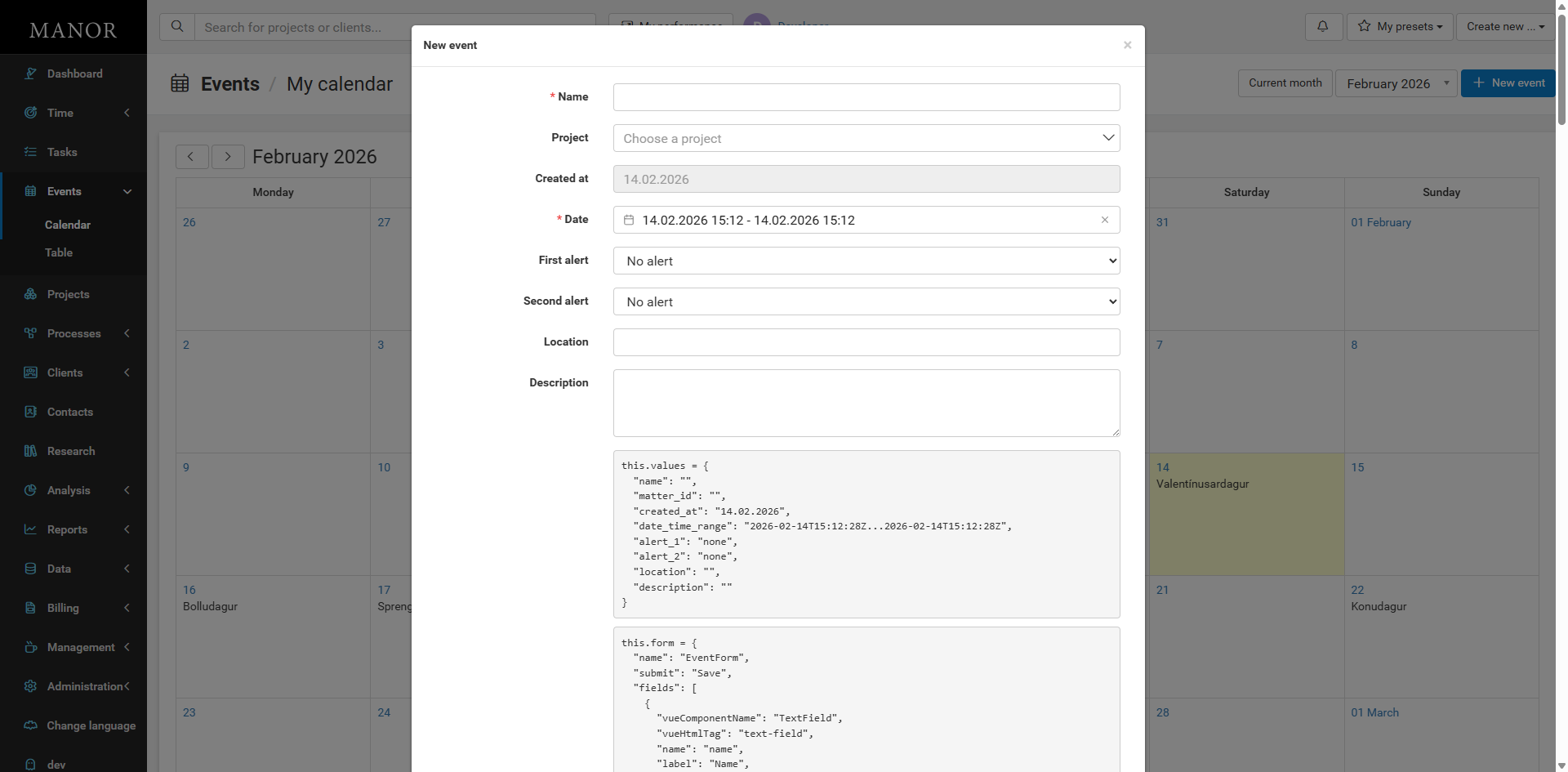
- Name: A clear, descriptive title (e.g., "Client Meeting with ABC Corp")
- Project: The project this event relates to (optional)
- Date: Start and end date/time (required)
- Location: Physical address or virtual meeting link (optional)
- Description: Agenda or purpose of the meeting (optional)
-
Add reminders:
- First alert: First reminder (e.g., 15 minutes, 1 hour, 1 day before)
- Second alert: Second reminder for additional notice (optional)
-
Click Save event.
Managing Events
Viewing the Calendar
The calendar shows all events in a monthly format. You can:
- Navigate to previous or future months using the arrow buttons
- Filter by specific assignees
- Click on any date to view events for that day
Viewing as a List
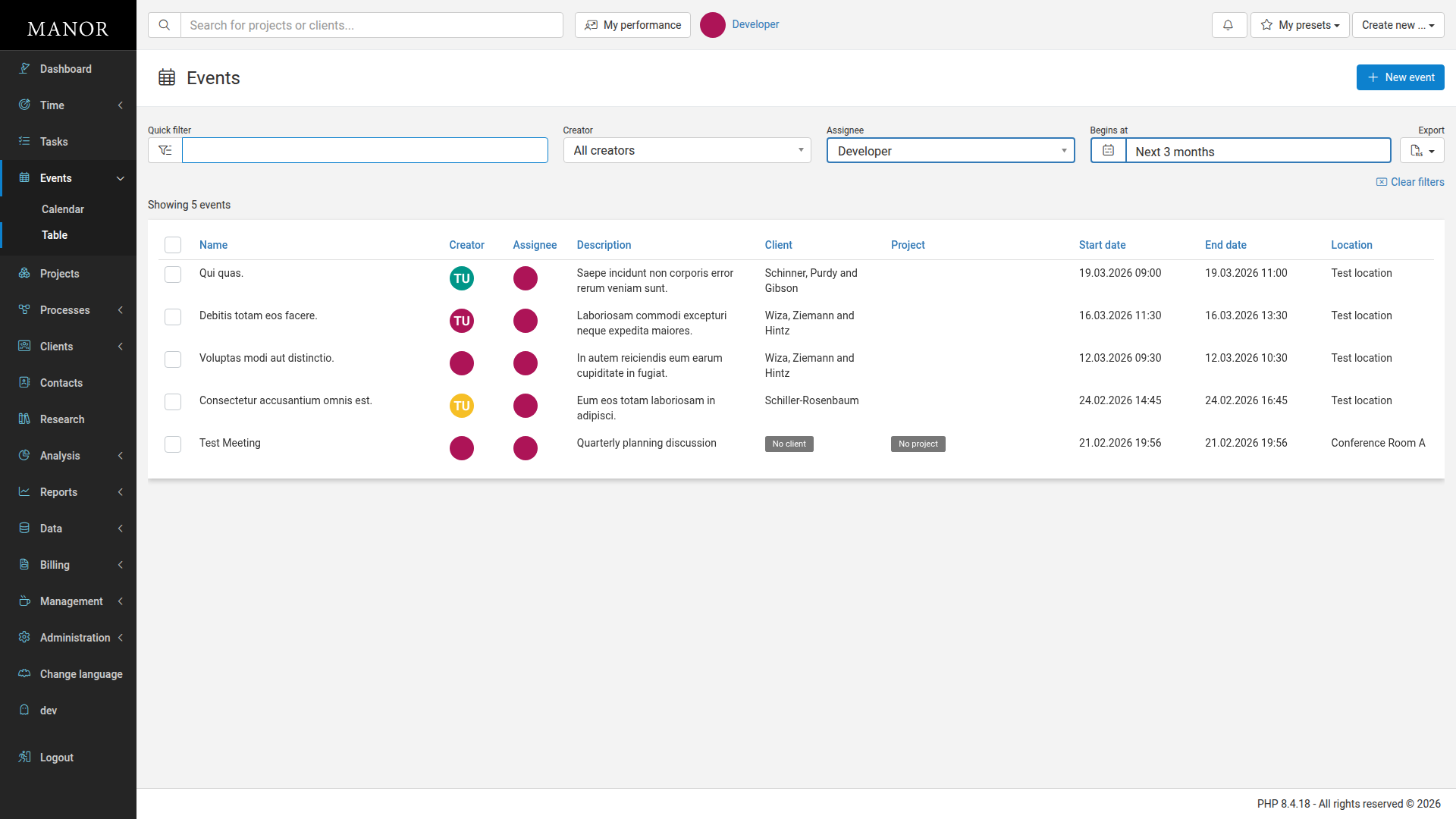
Switch to table view to see all events in a searchable list format with filtering options by creator, assignee, and date range.
Editing an Event
- Click on the event in the calendar or table view
- Make your changes in the form
- Click Save event
Deleting an Event
- Open the event from the table or calendar view
- Click Delete event in the event details
- Confirm the deletion
Quick Navigation
Click on any date in the calendar to:
- Add a new event for that date
- View all events scheduled for that day
Best Practices
Use Clear Event Names Include the client name and purpose in every event title for easy identification.
Set Appropriate Reminders Give yourself enough time to prepare (e.g., 1 day for important meetings, 15 minutes for quick calls).
Link to Relevant Projects Associate events with projects to keep all related activities together and maintain project context.
Include Meeting Details Add virtual meeting links, dial-in numbers, and agendas in the description field so all necessary information is in one place.
Review Your Calendar Daily Check upcoming events each morning to prepare for the day's commitments and plan your workload accordingly.
Use Both Views Switch between calendar view for visual planning and table view for quick filtering and searching based on dates or assignees.