
What is Internal Settlement?
Internal Settlement is a feature that allows organizations with multiple firms, departments, or divisions to manage invoicing and settlement between internal entities. When enabled, the system can generate settlement invoices that track work billed between different parts of your organization.
This is useful for:
- Multi-firm organizations — Billing between sister companies or divisions
- Department allocation — Tracking costs and revenue across departments
- Internal cost tracking — Understanding true costs when work is performed across multiple organizational units
- Profit analysis — Calculating profit by segment when billable work crosses organizational boundaries
Accessing Internal Settlement Settings
- Navigate to Management → Settings
- Scroll to the Internal Settlement section
- Click Edit to configure internal settlement options
Configuring Internal Settlement
Enable Internal Settlement
First, you must enable the feature:
- In the Internal Settlement settings dialog, select Enable internal settlement
- Choose from the dropdown:
- No — Internal settlement is disabled (default)
- Yes — Internal settlement is enabled
When enabled, the system can generate settlement invoices between internal entities.
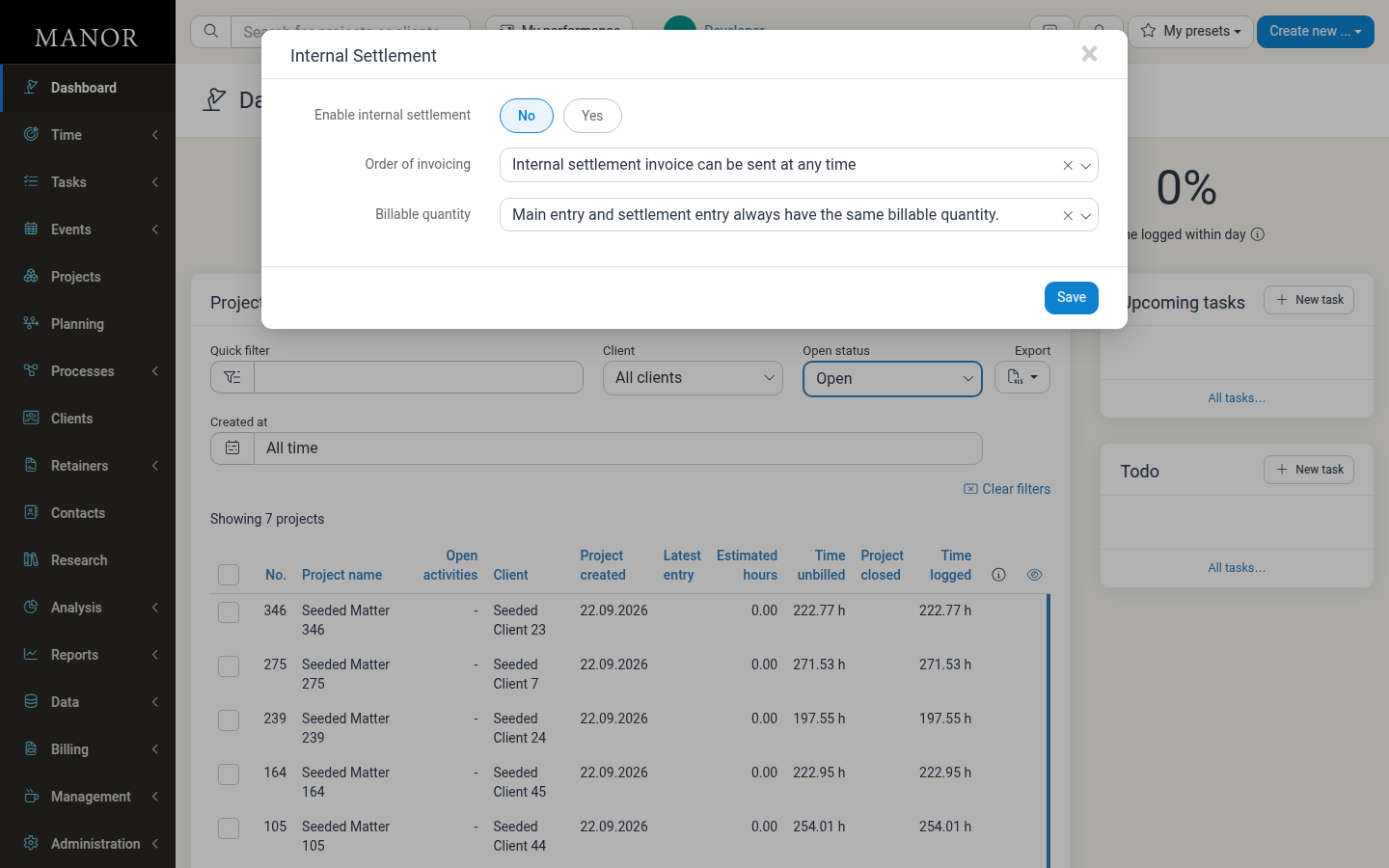
Order of Invoicing
This setting determines the sequence in which invoices are created:
| Option | Behavior |
|---|---|
| Internal settlement invoice can be sent at any time | The settlement invoice can be created independently without requiring a client invoice first. Useful for flexible internal billing processes. |
| Client must be billed before settlement invoice is sent | The client invoice must be created first, then the settlement invoice is generated after. This ensures the client is billed for work before internal settlement occurs. |
Use case: If you bill a client for work performed across multiple departments, you might want to bill the client first, then create an internal settlement invoice between departments for cost allocation.
Billable Quantity
This setting controls how quantities are treated in settlement invoices:
| Option | Behavior |
|---|---|
| Main entry and settlement entry always have the same billable quantity | The settlement invoice uses the same quantity as the original billable entry. Both the client invoice and settlement invoice bill the same amount. |
| Main entry and settlement entry can have different billable quantities | The settlement invoice can specify a different billable quantity than the original entry. Allows separate quantity tracking for client billing vs. internal settlement. |
Use case: If you bill a client for 10 hours of work, but internally allocate 12 hours across departments for cost tracking, you might want settlement entries to show the actual internal hours (12) while the client is billed for the agreed amount (10).
How Internal Settlement Works
Without Internal Settlement
Time Entry (10 hours) → Client Invoice (10 hours)
With Internal Settlement (Enabled)
Time Entry (10 hours) → Client Invoice (10 hours) → Settlement Invoice (internal allocation)
When internal settlement is enabled, you can:
- Create time entries for work performed
- Bill the client the agreed amount via a client invoice
- Create settlement invoices to track how work and costs were allocated internally
Settlement Invoice Generation
Settlement invoices are typically created in the Billing section after client invoices. They serve as internal records for:
- Billing between departments
- Cost allocation
- Profit analysis by department or firm
- Internal accountability
Best Practices
Enable when you have multi-entity billing
If your organization has multiple firms, departments, or cost centers that need to bill each other, enable this feature to track internal transactions.
Plan your invoicing order
Decide upfront whether to bill clients first or allow flexible settlement timing. This affects your accounting workflow.
Use consistent billable quantities
Start with "same billable quantity" unless you have a specific need to track different quantities internally vs. externally.
Test with one project
Before rolling out to your entire organization, test the settlement workflow on a single project to ensure your process works as intended.
When Internal Settlement Is Not Needed
You can disable internal settlement if:
- Your organization is a single firm with no inter-department billing
- You don't need to track internal cost allocation
- Work always stays within a single organizational unit
Related Features
- Firms — Define multiple firms if your organization has separate legal entities
- Hierarchy (Departments) — Organize teams by department for cost allocation
- Profit Analysis — View profitability by department or firm when internal settlement is enabled
- Invoices — Create and manage both client and settlement invoices in the Billing section