
The Hierarchy page lets you organize your firm into departments and nested sub-departments that reflect your company's organizational structure. Splitting employees into units makes department-based reporting, resource planning, and accounting segmentation possible.
Why Hierarchy Matters
Organizing your firm into departments helps you:
- Structure teams — Mirror your organization's business units, practices, and subsidiaries.
- Enable reporting — Filter revenue, hours, and other reports by department or firm.
- Assign managers — Designate department heads responsible for oversight.
- Track employees — View how many employees belong to each unit and list them.
- Plan resources — Allocate work and balance workloads across teams.
Accessing Hierarchy
To open the Hierarchy page:
- Click Management in the main sidebar menu.
- Select Hierarchy.
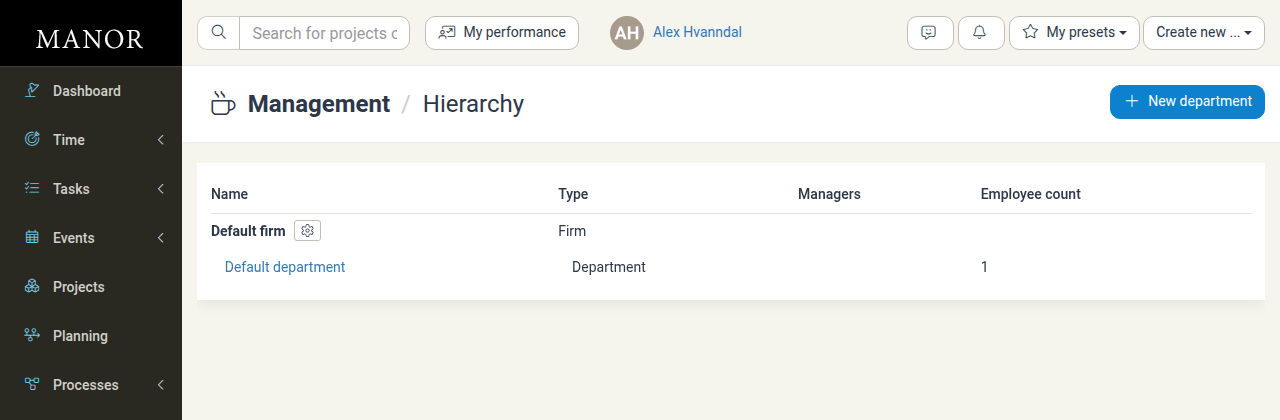
Hierarchy Overview Table
The table lists your firms and departments in their hierarchical order. Each row shows:
- Name — The name of the firm or department. Departments are indented under their parent.
- Type — Whether the row is a Firm or a Department.
- Managers — The manager(s) assigned to the unit.
- Employee count — The number of employees assigned to that department.
A firm row also has a Hierarchy settings link next to its name, which opens the terminology settings for that firm.
Creating a Department
To create a department:
- On the Hierarchy page, click New department.
- Fill in the form:
- Name (required) — The department name, for example Litigation, Advisory, or Corporate Finance.
- Firm and/or department (required) — Select the firm or the parent department to place this department under. This field determines where the new department sits in the hierarchy.
- Department managers (optional) — Select one or more users to act as department managers.
- Click Save department.
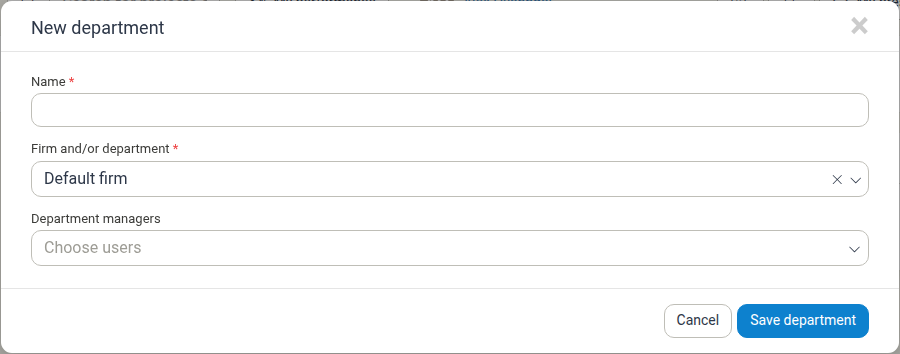
To create a sub-department, open the parent department first, then click New department there. The current department is pre-selected as the parent.
Department Details
Clicking a department name in the table opens its detail page:
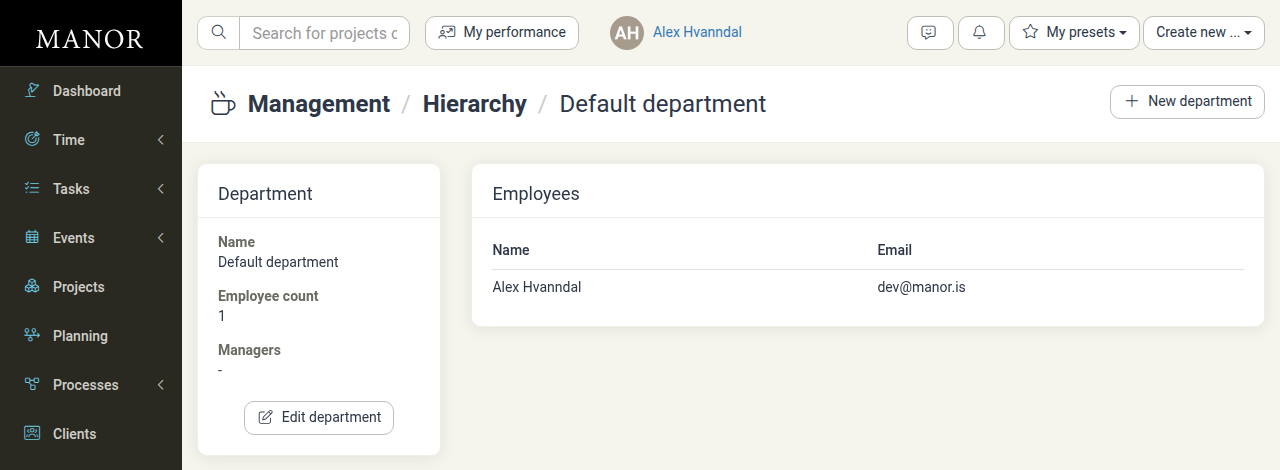
On the department page you can:
- Review the department — The Department card shows the department name, its employee count, and its assigned managers.
- View employees — The Employees card lists everyone assigned to the department with their Name and Email.
- Edit the department — Click Edit department to rename the department, change its parent, or update its managers.
- Create a sub-department — Click New department to add a nested department under the current one.
Editing and Deleting a Department
The Edit department form lets you change the department's Name, its Firm and/or department (the parent unit), and its Department managers. The Created date is shown for reference and cannot be changed.
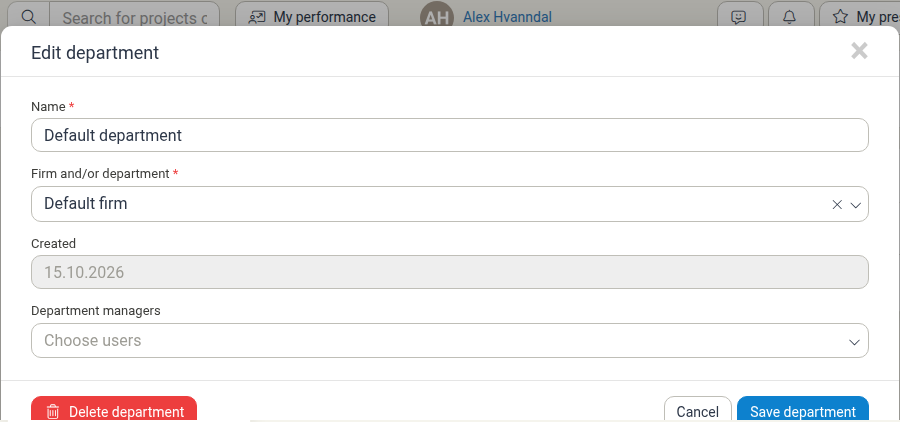
The form also includes a Delete department button. A department can only be deleted once it has no employees and no sub-departments; if either exists, reassign the employees and delete the sub-departments first.
Hierarchy Terminology Settings
The names used for organizational units can be customized to match your firm's own vocabulary. Next to a firm's name in the table, click Hierarchy settings.
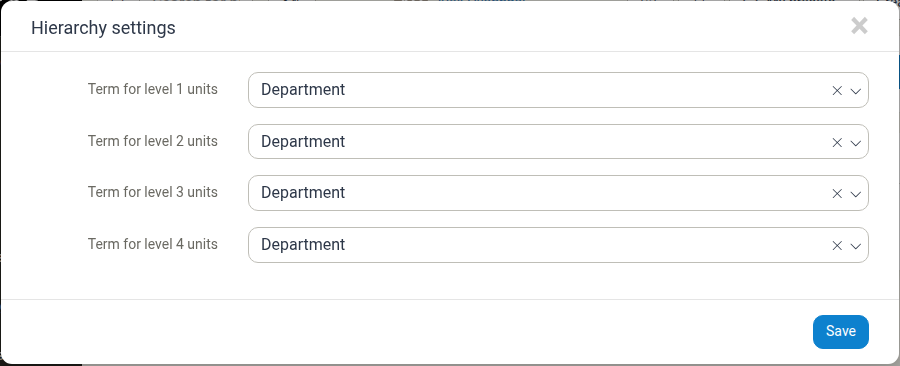
The dialog lets you set the term used for each level of the hierarchy:
- Term for level 1 units
- Term for level 2 units
- Term for level 3 units
- Term for level 4 units
Each level can be set to Department, Division, Team, Group, or Unit. Click Save to apply the terminology. The chosen terms are used throughout Manor wherever an organizational unit is referred to, for example in the Hierarchy table and in the unit field on user profiles.
Assigning Employees to Departments
Employees are assigned to a department through their user profile:
- Go to Administration → Users.
- Open the user you want to assign.
- In the Unit field, select the department.
- Save the user.
Each employee belongs to a single primary unit at a time.
Departments in Reporting and Operations
Once configured, your hierarchy is used across Manor:
- Reports — Filter reports by firm and department.
- Resource planning — Filter schedules and availability by unit.
- Data tables — Filter billable items, time entries, and expenses by Firm and department.
- Analysis — Group and compare results by organizational unit.
Best Practices
- Keep the structure manageable — One or two levels (Firm > Department, or Firm > Department > Team) is usually enough for reporting and administration.
- Assign responsible managers — Named managers make departmental oversight and approvals clearer.
- Keep assignments up to date — Update the Unit field when people change roles or teams so reporting stays accurate.
- Use consistent naming — Standardize department names across offices and divisions.