
Introduction
Your personal date and time settings decide how Manor shows dates and times to you: the timezone you work in, the order and separators used in dates, and whether the clock is 12-hour or 24-hour. The settings belong to your user account, so changing them affects what you see rather than what your colleagues see.
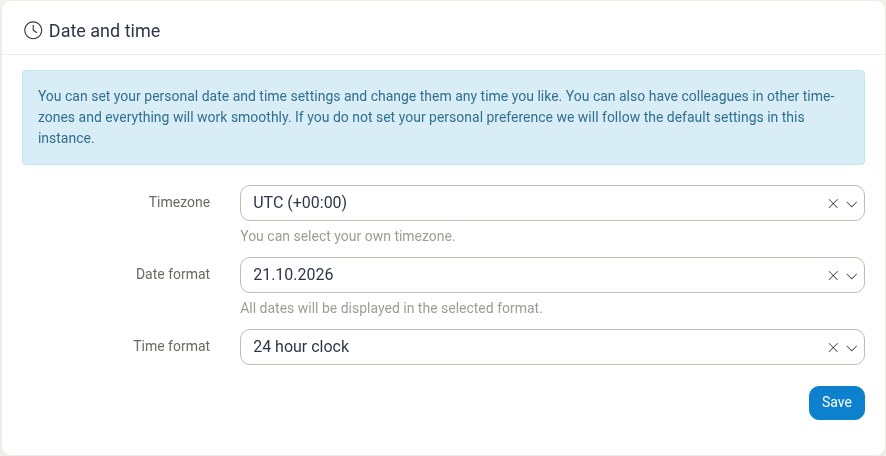
The page has three dropdowns — Timezone, Date format and Time format — and a Save button.
Opening the page
- Click your name or avatar in the top bar to open your profile.
- In the profile sub-menu, select Date and time.
The page is also available at /profile/date-and-time.
Timezone
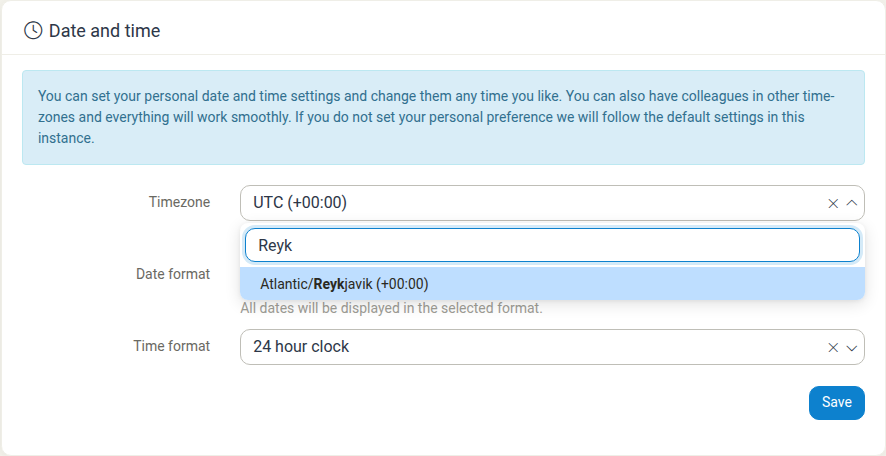
Manor lists timezones by region and city, followed by the current UTC offset — for example Atlantic/Reykjavik (+00:00) or Asia/Tokyo (+09:00). The list is long, so instead of scrolling, open the dropdown and start typing in the search box at the top of the list to filter it; type Reyk to narrow the list down to Reykjavik, for example.
- Open the Timezone dropdown.
- Type part of a city or region name in the search box, then select the timezone from the filtered list.
- Click Save.
The helper text under the field reads "You can select your own timezone."
Date format
Manor offers three date formats. Each option in the dropdown is shown as today's date written in that format, so what you see depends on the date:
| Option shown | Format |
|---|---|
Oct 21, 2026 |
Month abbreviation, day, year |
21.10.2026 |
Day.month.year |
2026-10-21 |
Year-month-day |
The helper text under the field reads "All dates will be displayed in the selected format." Once you save your choice, dates are shown that way throughout Manor — for example the day and week headings and the period selector on the Time pages.
Time format
Manor offers two time formats:
- 24 hour clock — for example
14:30. - 12 hour clock — for example
2:30 PM, with an AM/PM marker.
Open the Time format dropdown, select the format you want, and click Save. With the 24 hour clock the day view in Time shows slots such as 14:00; with the 12 hour clock it shows 2:00 PM.
Saving your changes
The three settings are saved together with the single Save button at the bottom of the card. Your selection is applied the next time you open a page.
Defaults
If you never change these settings, Manor uses the defaults configured for your instance. An administrator can see and change those defaults in Management → Settings, on the Date and time settings card. On this page your own selections simply override the instance defaults.
Related Documentation
- User Profile Settings — The rest of your profile, including language, start page and daily target
- Global Settings — The instance-wide Date and time settings card that supplies the defaults
- Time Tracking — Where your date and time formats are most visible