
What are Retainers?
Retainers are pre-paid service agreements with clients for ongoing work. Clients pay in advance for a set amount of services, and the retainer balance is drawn down as work is completed. This provides predictable revenue for your firm and simplifies billing for the client.
Why Retainers Matter
Using retainers helps you:
- Improve cash flow - Receive payment before delivering services
- Build client relationships - Provide predictable billing for ongoing work
- Reduce administrative overhead - Don't invoice for every hour worked
- Plan workload - Know how much work is committed for each client
- Track utilization - See how quickly retainer hours are consumed
Creating a Retainer
To create a new retainer:
- Navigate to Data > Retainers and click New Retainer.
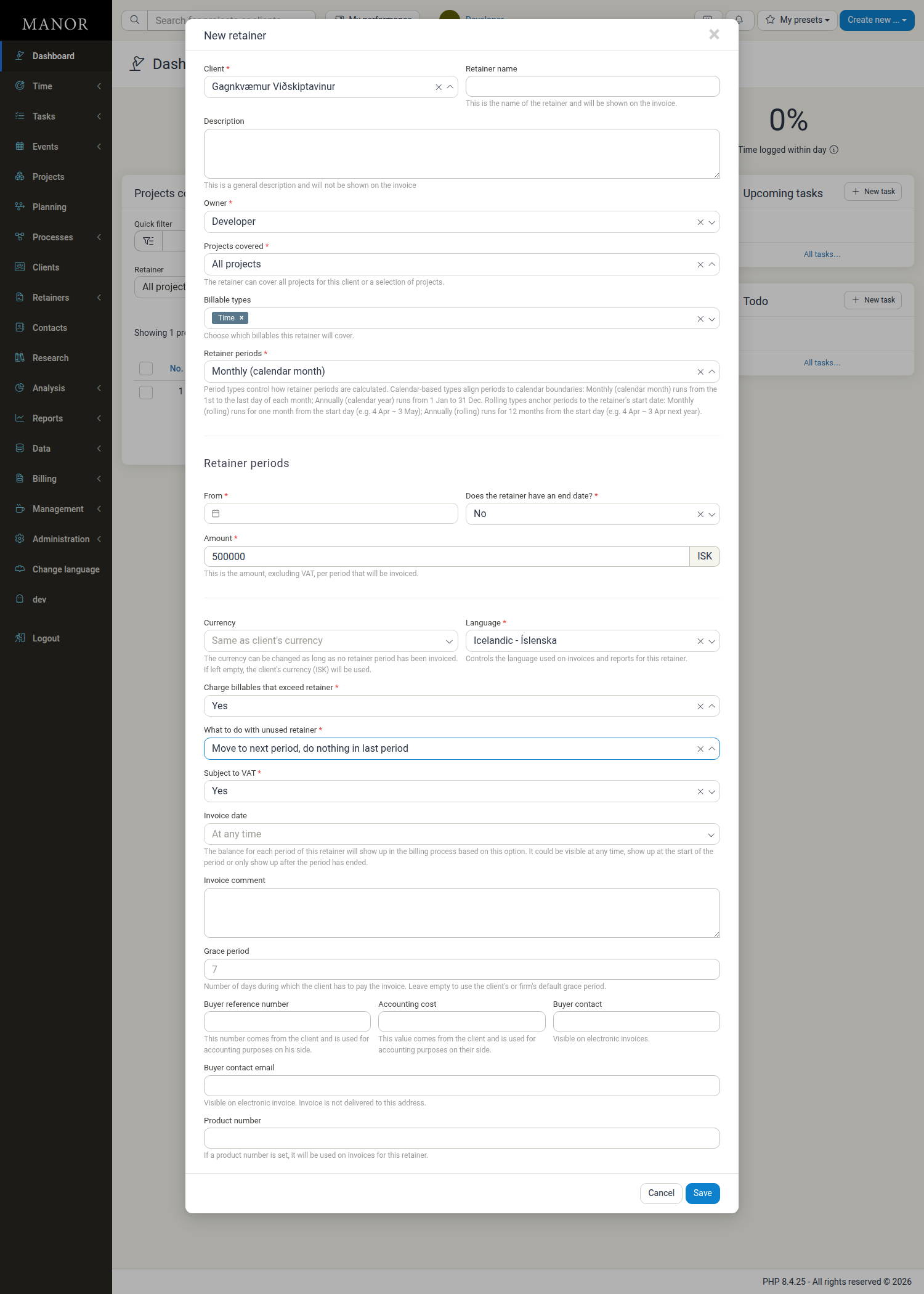
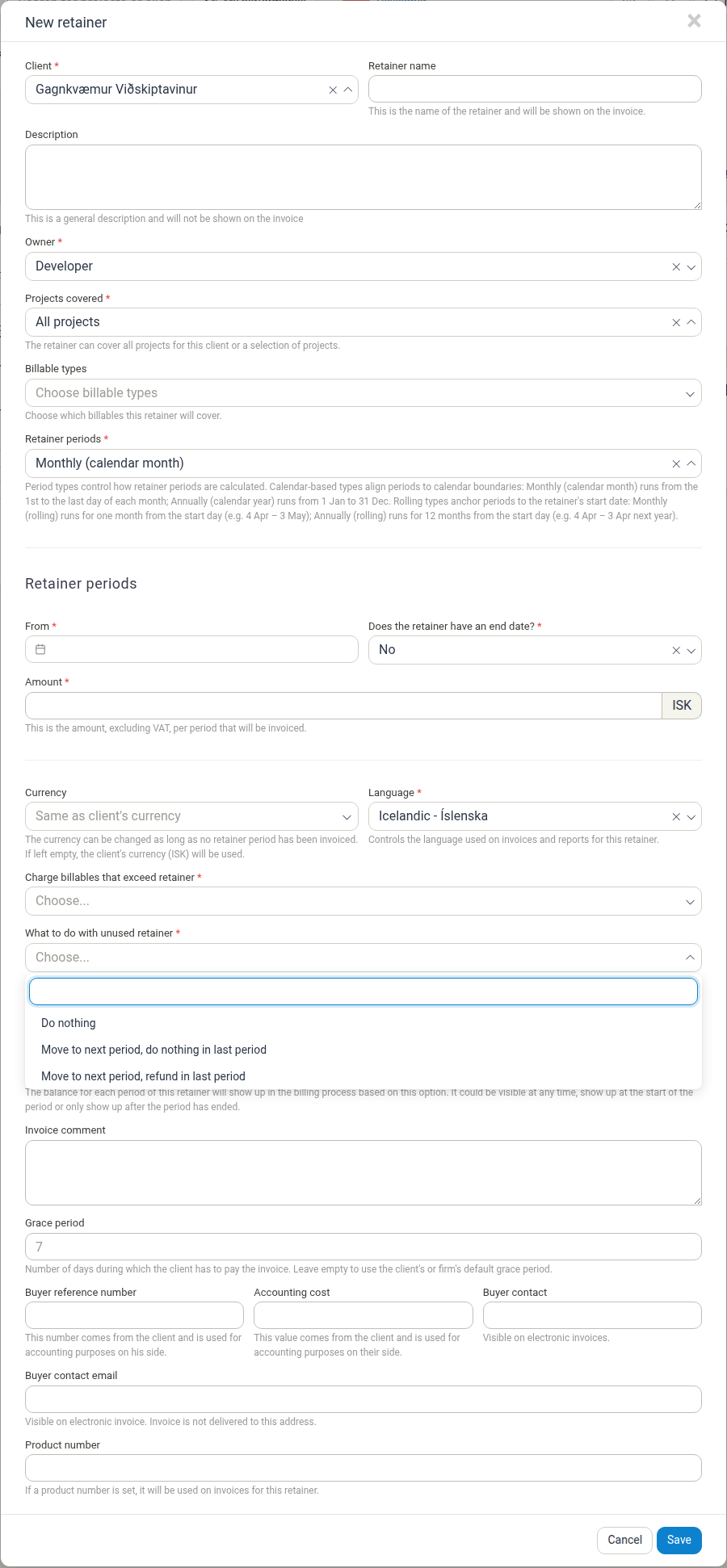
- Fill in the form. Fields are revealed progressively — the Amount, Billable types, Charge billables that exceed retainer, and What to do with unused retainer fields only appear after you have chosen the client, the projects covered, and the retainer periods type.
- Click Save.
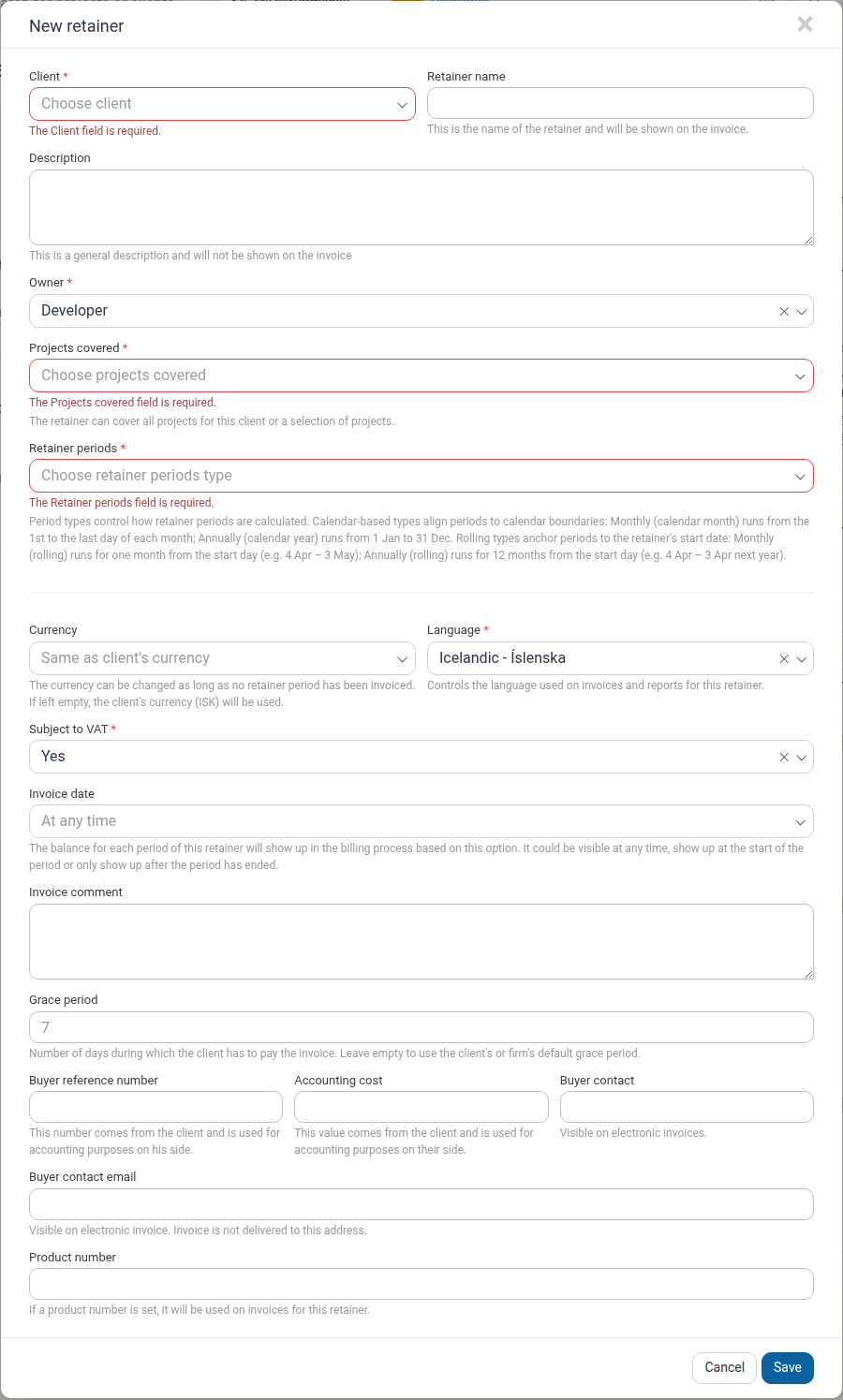
Note: If required fields are still empty when you click Save, the form does not save silently — it shows a visible inline validation message below each missing field (for example "The Client field is required."), the field is outlined in red, and the form stays open so you can correct it. The save request is rejected by the server. Which fields are required depends on what you have selected so far: Client, Owner, Projects covered, Retainer periods, Language, and Subject to VAT are always required, and once a periods type is chosen the From/start date and Amount become required too (for Custom periods: Start date, End date, and Amount), along with Charge billables that exceed retainer and What to do with unused retainer.
Retainer Form Fields
Client (required) The client this retainer is for.
Retainer name The name of the retainer. It is shown on the invoice.
Description A general description that is not shown on the invoice.
Owner (required) The user responsible for the retainer.
Projects covered (required) Choose All projects, Selected projects, or No projects. A retainer can cover all of the client's projects or a selection of them.
Retainer periods (required) How retainer periods are calculated. The options are Single period, Custom periods, Weekly, Monthly (calendar month), Monthly (rolling), Annually (calendar year), and Annually (rolling).
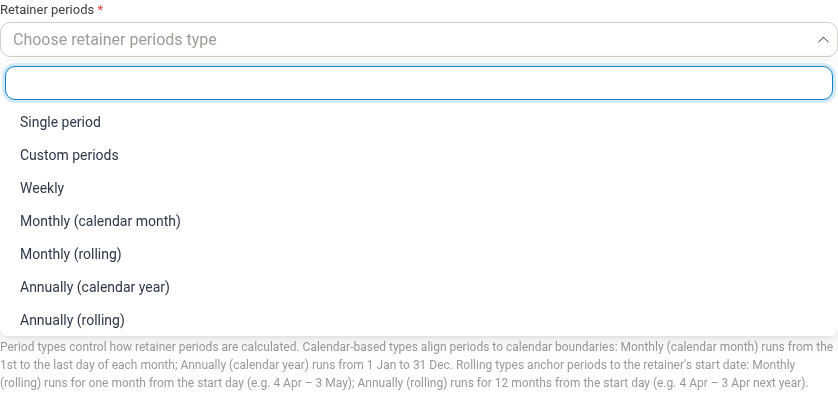
Calendar-based types align periods to calendar boundaries: Monthly (calendar month) runs from the 1st to the last day of each month, and Annually (calendar year) runs from 1 January to 31 December. Rolling types anchor periods to the retainer's start date: Monthly (rolling) runs for one month from the start day (for example 4 April – 3 May), and Annually (rolling) runs for 12 months from the start day.
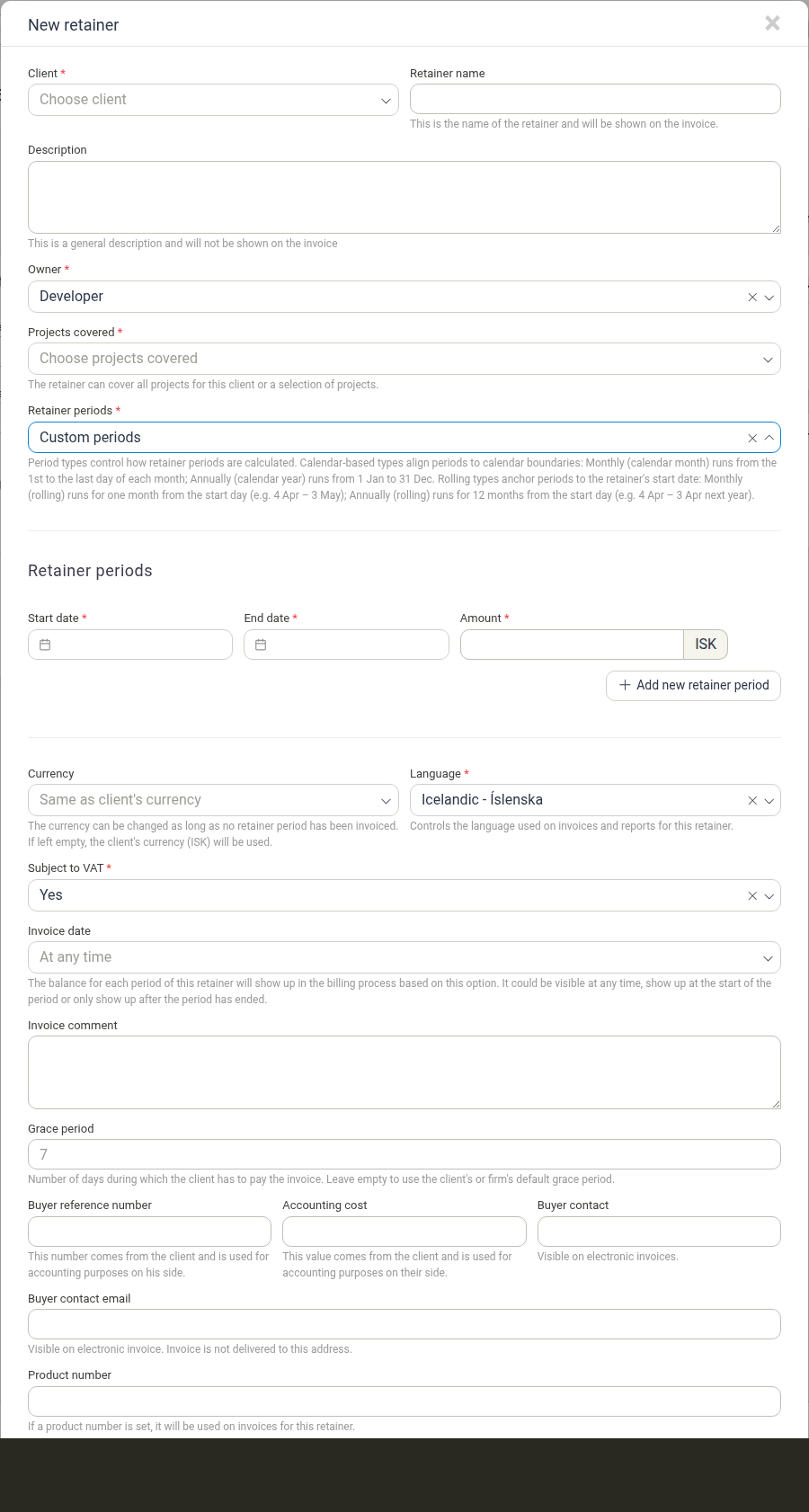
When you choose Custom periods, the form shows a period row with Start date (required), End date (required), and Amount (required), plus an Add new retainer period button for adding further periods.
For the other period types, the form shows From (required) — the start date — then Does the retainer have an end date? (No or Yes), and Amount (required). Choosing Yes reveals an end date field.
Billable types Which billables this retainer covers: Time, Travels, Products, Expenses, and Per diems.
Amount (required) The amount, excluding VAT, per period that will be invoiced. This field only appears once a retainer periods type has been chosen.
Currency The currency for this retainer. It can be changed as long as no period has been invoiced. If left empty, the client's currency is used.
Language (required) Controls the language used on invoices and reports for this retainer.
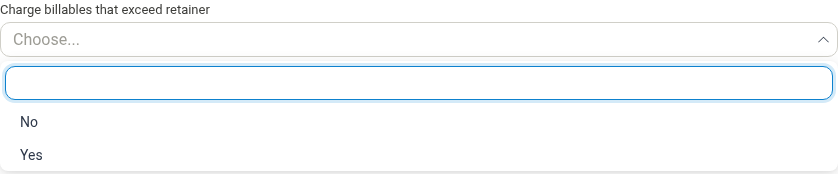
Charge billables that exceed retainer (required) Whether billable work above the retainer amount is charged to the client. Choose No or Yes.
What to do with unused retainer (required) What happens to any unused retainer balance. Choose Do nothing, Move to next period, do nothing in last period, or Move to next period, refund in last period.
Subject to VAT (required) Whether the retainer amount is subject to value-added tax.
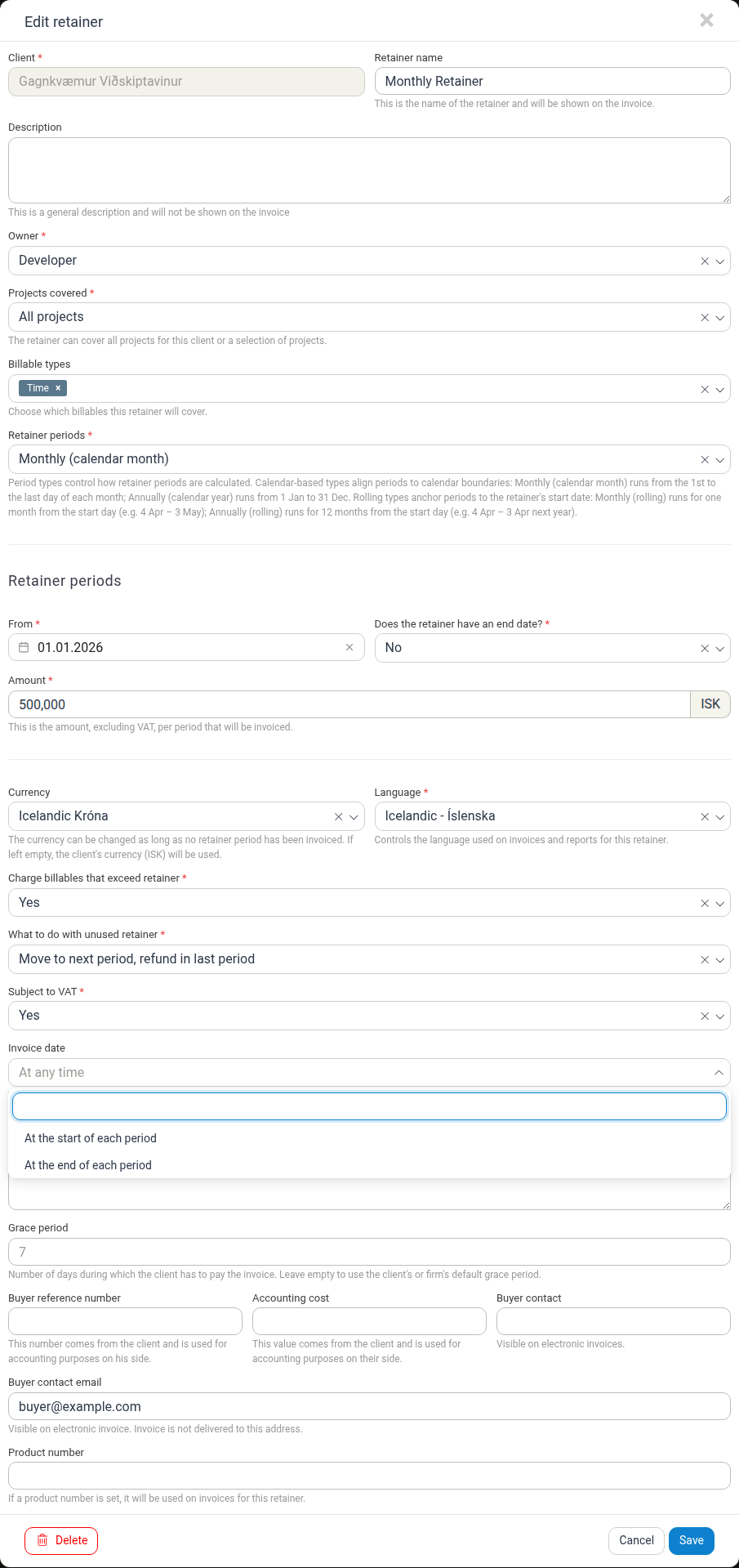
Invoice date When each period's balance becomes available in the billing process: At any time, At the start of each period, or At the end of each period.
Invoice comment An optional comment to include on invoices.
Grace period The number of days the client has to pay the invoice. Leave empty to use the client's or firm's default grace period.
Buyer reference number A reference number that comes from the client and is used for accounting on the client's side.
Accounting cost A value that comes from the client and is used for accounting on the client's side.
Buyer contact The contact person, shown on electronic invoices.
Buyer contact email An email address shown on the electronic invoice. The invoice is not delivered to this address.
Product number If a product number is set, it is used on invoices for this retainer.
Important Retainer Fields
Retainer periods type How periods are defined: Single period, Custom periods, Weekly, Monthly (calendar month), Monthly (rolling), Annually (calendar year), or Annually (rolling).
Amount per period The fixed amount, excluding VAT, charged for each period.
Billable types Which services count against the retainer (Time, Travels, Products, Expenses, Per diems).
Projects covered Whether the retainer applies to all of the client's projects, a selection of them, or none.
Charge billables that exceed retainer Whether billable work above the retainer amount is charged to the client (Yes) or not (No).
What to do with unused retainer What happens to any unused balance:
- Do nothing — the unused balance is discarded at the end of the period
- Move to next period, do nothing in last period — the unused balance is carried forward, and any remaining balance in the final period is discarded
- Move to next period, refund in last period — the unused balance is carried forward, and any remaining balance in the final period is refunded
Finding and Managing Retainers
Viewing Retainers
Navigate to Data > Retainers to see all retainers. You can filter by:
- Client — Filter by specific client
- Project — Filter by specific project
- User — Filter by retainer owner
- Retainer periods type — Filter by period type (Weekly, Monthly, etc.)
- Retainer type — Filter by retainer type
- Retainer period — Filter by specific time period
Viewing Retainer Details
- Navigate to Data > Retainers
- Click on a retainer row to open the detail view
- Review the sections described under Understanding the Retainer Detail View
Editing Retainers
- Click on a retainer to open the detail view
- Click Edit retainer at the bottom of the view
- Modify settings as needed
- Click Save
Managing Invoice Automation
- Click on a retainer to open the detail view
- Click Edit invoice automation to configure automatic invoice generation
- Set the date when invoices should be generated
- Enable or disable automation as needed
Renewing and Closing Retainers
Create new periods when existing ones expire. Close a retainer when it's no longer active by setting the end date or marking it as inactive.
Understanding the Retainer Detail View
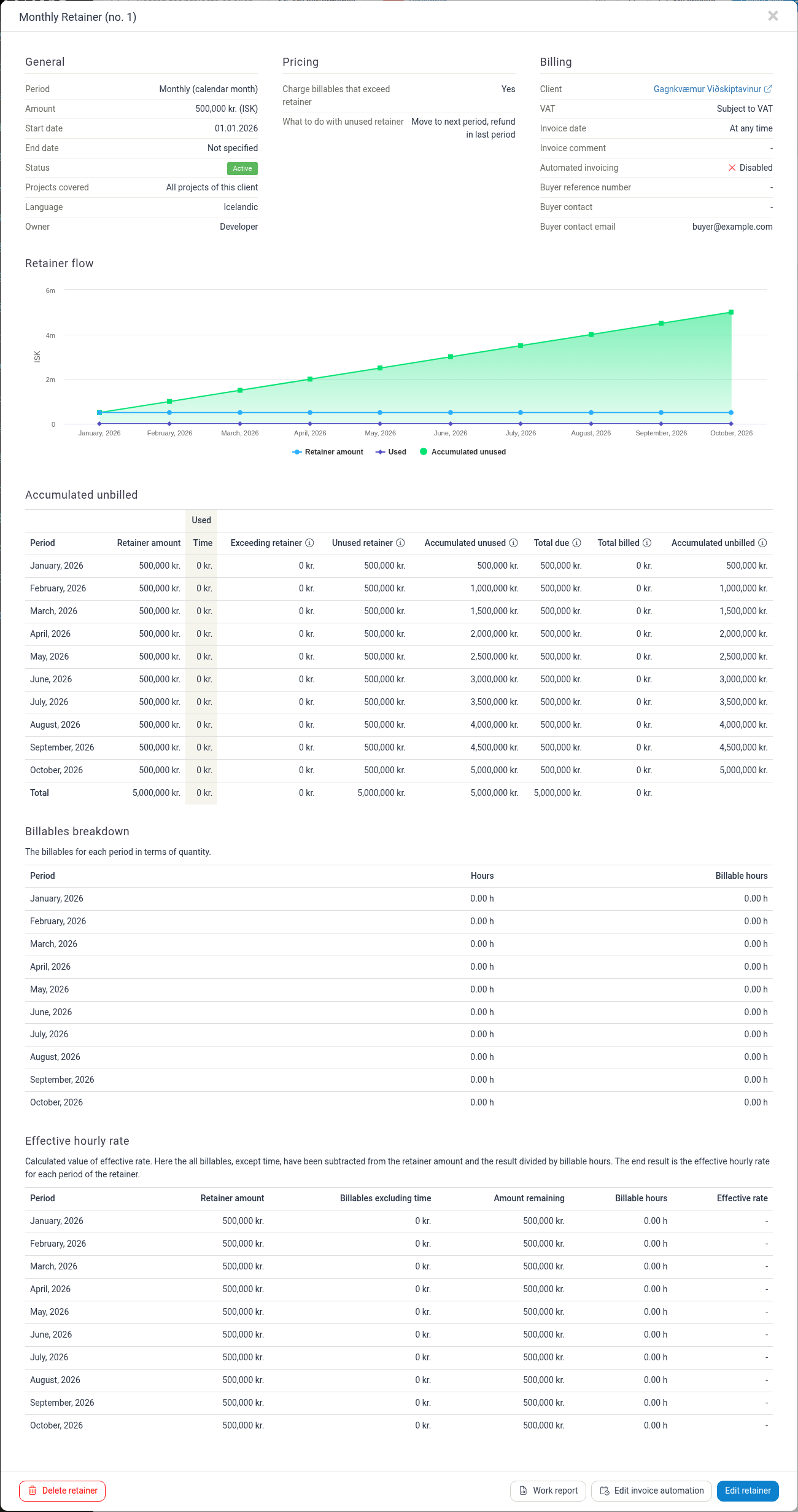
The retainer detail view is divided into several sections that summarise the retainer and its usage.
General
Summary information about the retainer itself:
- Period — The retainer periods type (for example, Monthly (calendar month))
- Amount — The amount per period, with its currency
- Start date — When the retainer begins
- End date — When the retainer ends, or Not specified
- Status — Active or inactive
- Projects covered — All projects of the client, a selection, or none
- Language — The language used on invoices and reports
- Owner — The user responsible for the retainer
Pricing
How the retainer handles amounts above and below its limit:
- Charge billables that exceed retainer — Yes or No
- What to do with unused retainer — Do nothing, Move to next period, do nothing in last period, or Move to next period, refund in last period
Billing
Invoice and accounting information:
- Client — The client for this retainer
- VAT — Whether the retainer is subject to VAT
- Invoice date — At any time, At the start of each period, or At the end of each period
- Invoice comment — The comment included on invoices
- Automated invoicing — Enabled or Disabled
- Buyer reference number — Reference from the client's accounting system
- Buyer contact — Contact person at the client organization
- Buyer contact email — Email address for the buyer contact
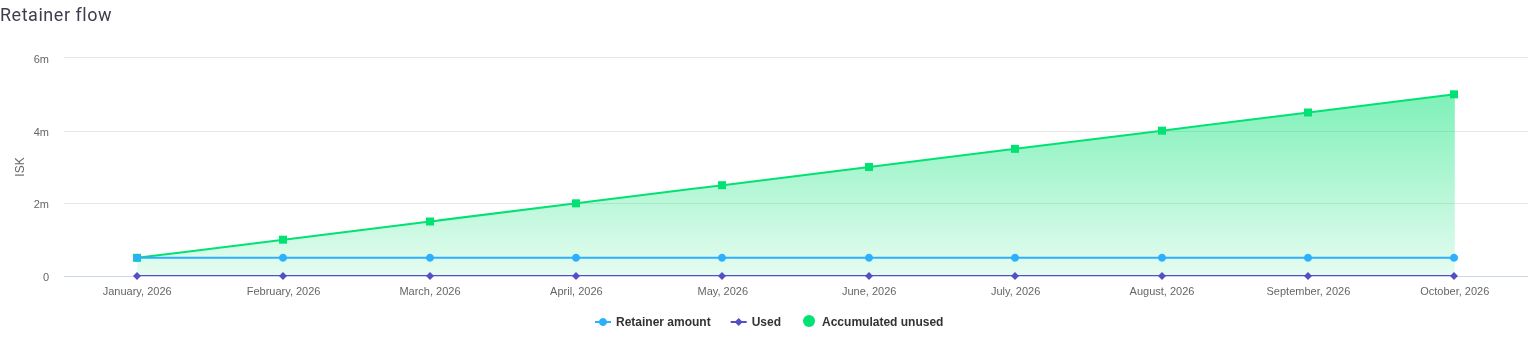
Retainer flow
A chart showing how the retainer balance moves over time, across periods. It plots three series: Retainer amount, Used, and Accumulated unused.
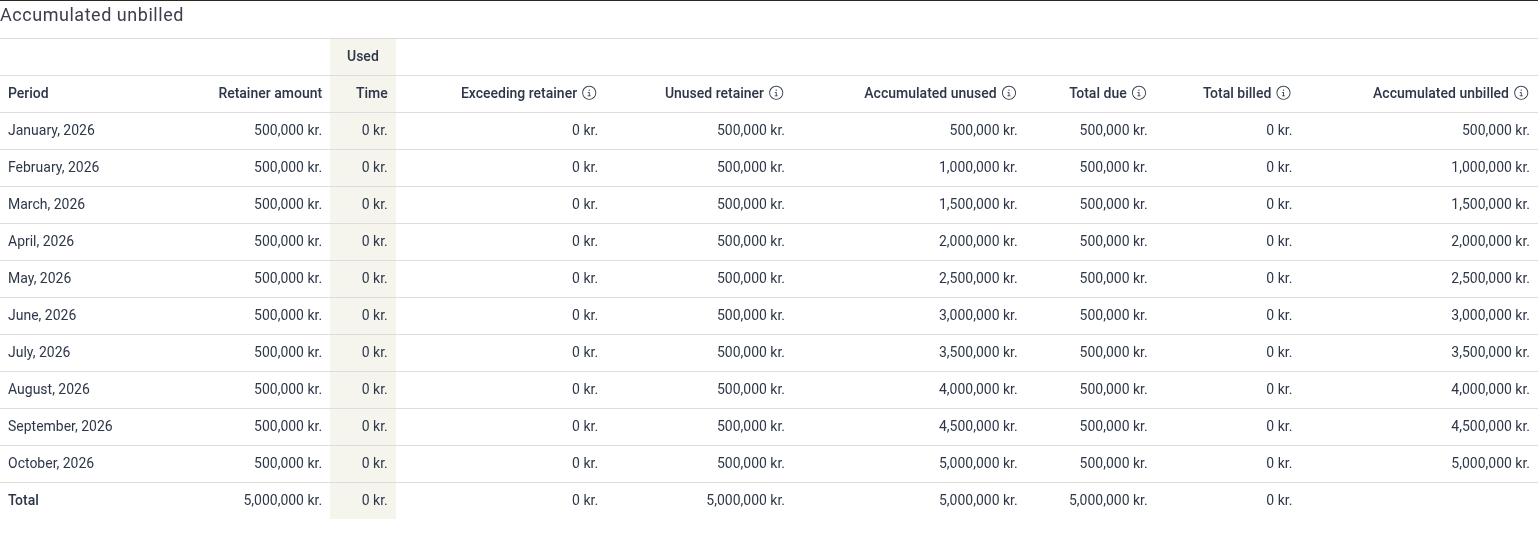
Accumulated unbilled
A period-by-period table of the retainer's financials, with a Total row. The columns are:
- Period — The retainer period
- Retainer amount — The amount for the period
- Time (under the Used group) — The time used against the retainer
- Exceeding retainer — Amount billed beyond the retainer limit
- Unused retainer — Amount remaining in the period
- Accumulated unused — Unused amount carried forward over time
- Total due — Total amount owed for the period
- Total billed — Amount already invoiced
- Accumulated unbilled — Amount not yet billed
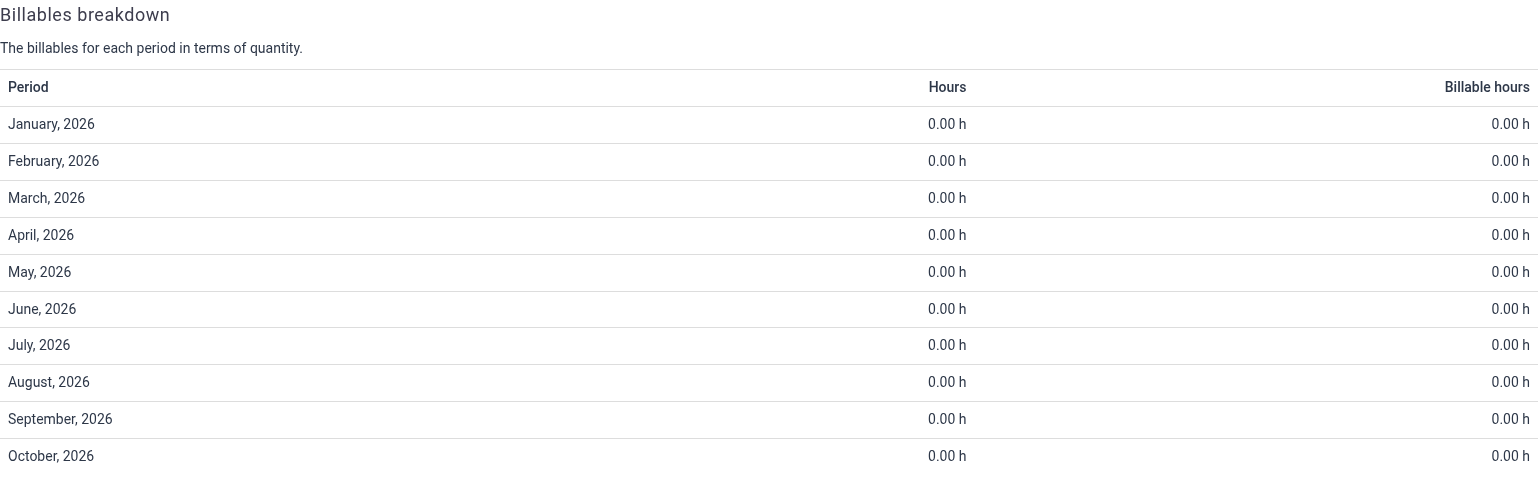
Billables breakdown
The billables for each period in terms of quantity. The columns are Period, Hours, and Billable hours.
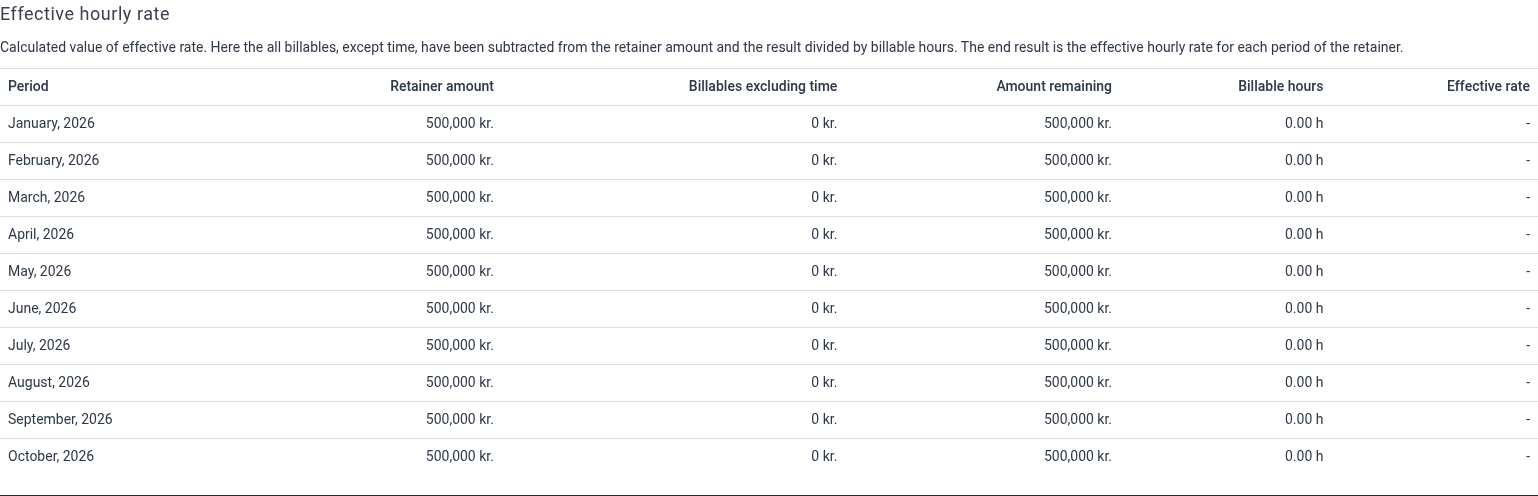
Effective hourly rate
A calculated value of the effective rate. All billables except time are subtracted from the retainer amount and the result is divided by billable hours, giving the effective hourly rate for each period. The columns are Period, Retainer amount, Billables excluding time, Amount remaining, Billable hours, and Effective rate.
Work report
The retainer detail view has a Work report action that summarises the work against the retainer, broken down by retainer period. It offers the same export actions as the project and client work reports:
- Download pdf — Export the report as a PDF
- Download xlsx — Export the report as an Excel spreadsheet
- Send via email ... — Send the report by email

The report is rendered in the retainer's Language (set on the retainer form), and the downloaded file is named like Work report - Retainer-Name - [Date].pdf, with the Excel export using the same name and an .xlsx extension.
Understanding Retainer Balance
The retainer balance breaks down usage across different categories:
Balance Tracking
- Retainer amount — The total prepaid amount for each period
- Used — Amount consumed by billable work (broken down by type)
- Unused — Amount remaining in the retainer
- Exceeding — Amount billed beyond the retainer limit (if allowed)
- Total due — Total amount owed including overages
- Total billed — Amount already invoiced to the client
- Balance — Remaining balance after billing
Billables Breakdown The retainer tracks usage by billable type:
- Time — Hours worked against the retainer
- Travels — Travel expenses and mileage
- Products — Product quantities sold
- Expenses — Out-of-pocket expenses
- Per diems — Daily allowances
Effective Hourly Rate Calculated value showing the true hourly rate when retainer amounts are divided by billable hours. This calculation subtracts non-time billables from the retainer amount, providing insight into the actual cost per hour worked.
Using Retainer Data
Financial Analysis
Track:
- Period-by-period revenue
- Balance depletion rates
- Effective hourly rates
- Overflow charges
Client Communication
Show clients how their retainer is being used with detailed breakdowns by period and billable type.
Workload Planning
See committed hours and budgets across all retainers to plan resource allocation.
Best Practices
Set Clear Expectations Tell clients what's included in the retainer and how overflow situations are handled.
Track Usage Depletion Regularly Monitor rates to discuss renewals early before balance runs out.
Calculate Effective Rates Understand the true value of each retainer period by reviewing effective hourly rates.
Review Annually Update retainer amounts to reflect current rates and scope of work.
Document Communication Use invoice comments and buyer contact information to maintain clear communication about retainer status.
Monitor Project Coverage Ensure the correct projects are linked to each retainer so usage is properly tracked.