
What is Client Management?
Client management involves creating and maintaining client records in Manor. Your client database is the foundation of your business — everything links back to clients, from projects to invoices. Good client management ensures accurate billing, smooth communication, and strong relationships.
Why Client Management Matters
Managing clients well helps you:
- Track all work — Every project connects to a client
- Bill accurately — Correct client details ensure proper invoicing
- Maintain relationships — Keep contact information current
- Report properly — Revenue reports depend on client data
- Stay compliant — Store required identification information
Managing Client Records
Creating New Clients
-
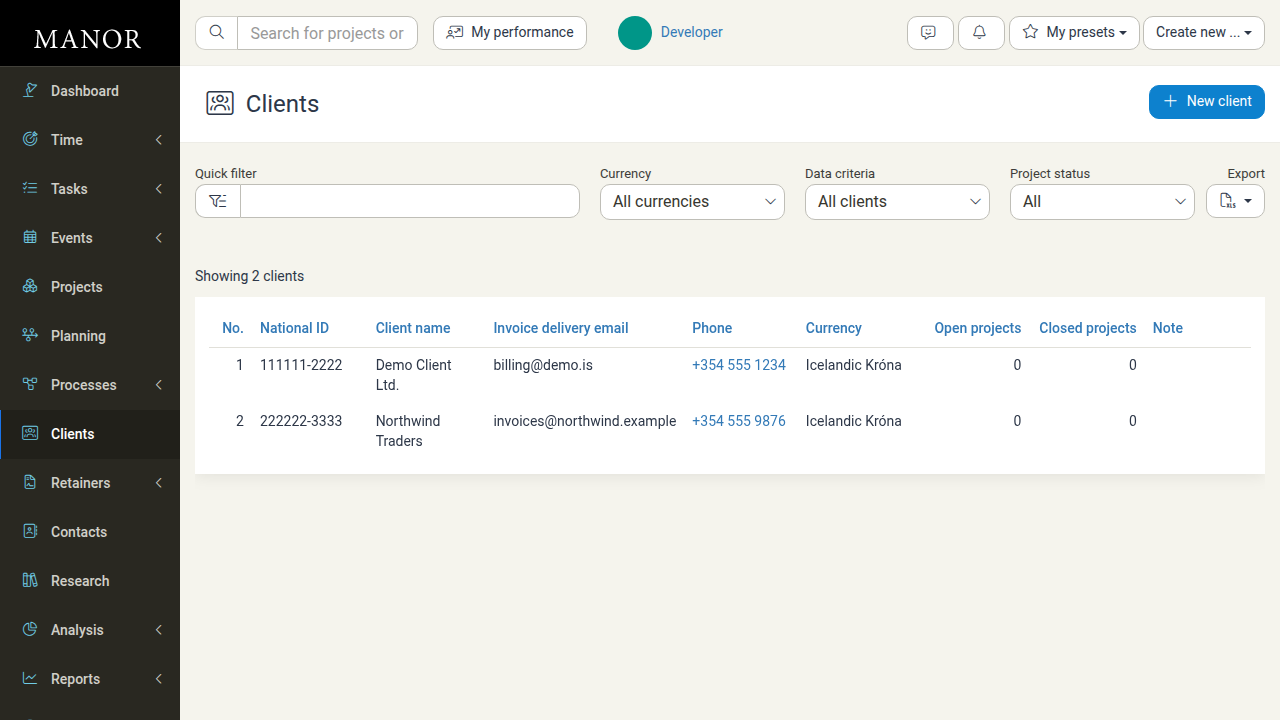
Navigate to Clients.
-
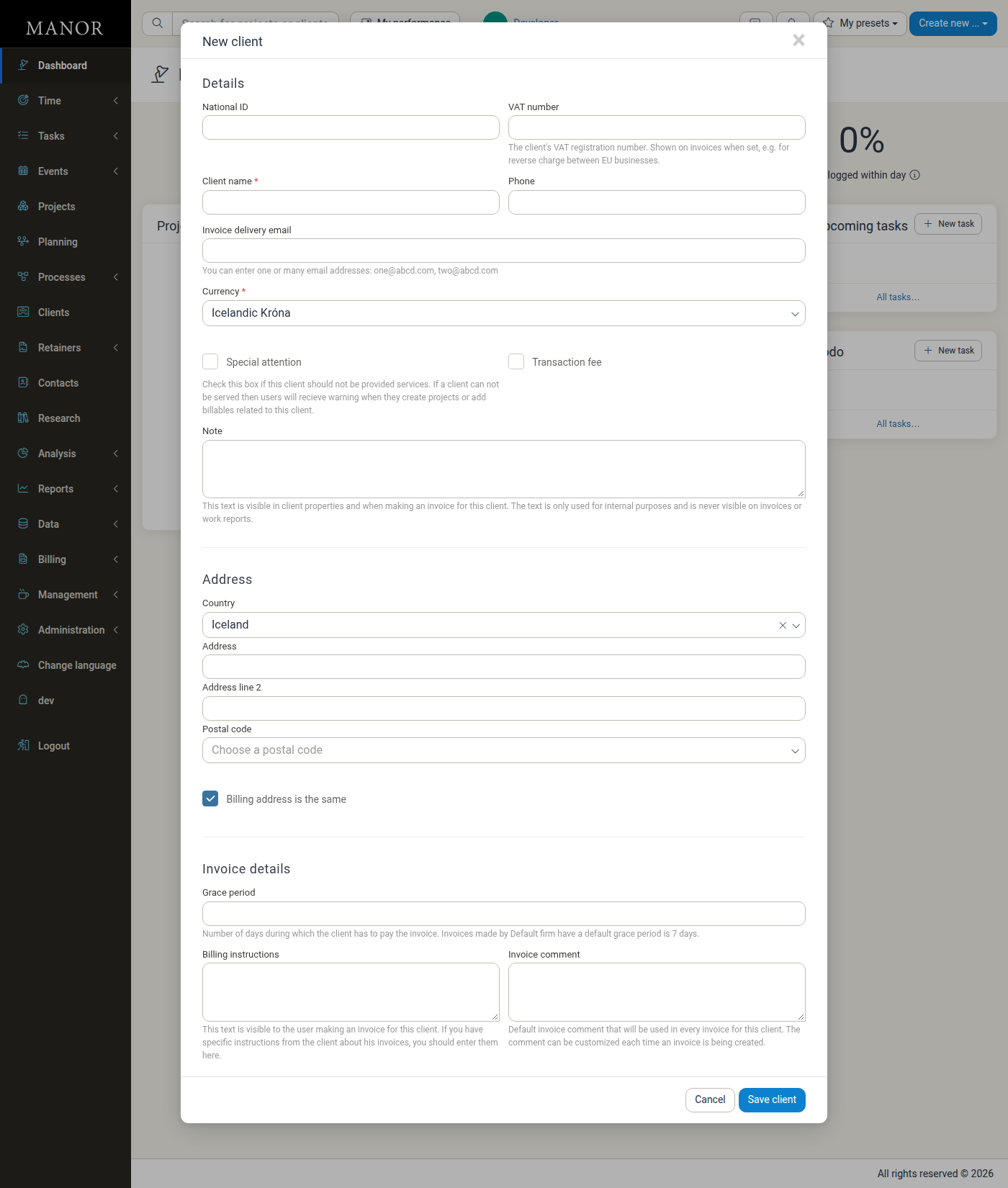
Click New client. The New client form opens with three sections: Details, Address, and Invoice details.
-
Fill in the Details section:
- Client name (required)
- Currency (required)
- National ID
- VAT number — VAT registration number, shown on invoices when set (for example for reverse charge between EU businesses)
- Phone
- Invoice delivery email — you can enter several addresses, separated by commas
- Labels — one or more labels for analysis and categorisation (only shown if client labels have been created)
- Special attention — flag clients who should not be provided services; users receive a warning when they create projects or add billables for this client
- Transaction fee — check Apply transaction fee to invoices to add a transaction fee to invoices for this client
- Note — internal note, visible in the client's properties and when making an invoice; it is never shown on invoices or work reports
-
Fill in the Address section:
- Country — defaults to your firm's country
- Address and Address line 2
- Postal code
- Billing address is the same — checked by default. Uncheck it to enter a separate Custom billing address.
-
Configure the Invoice details section:
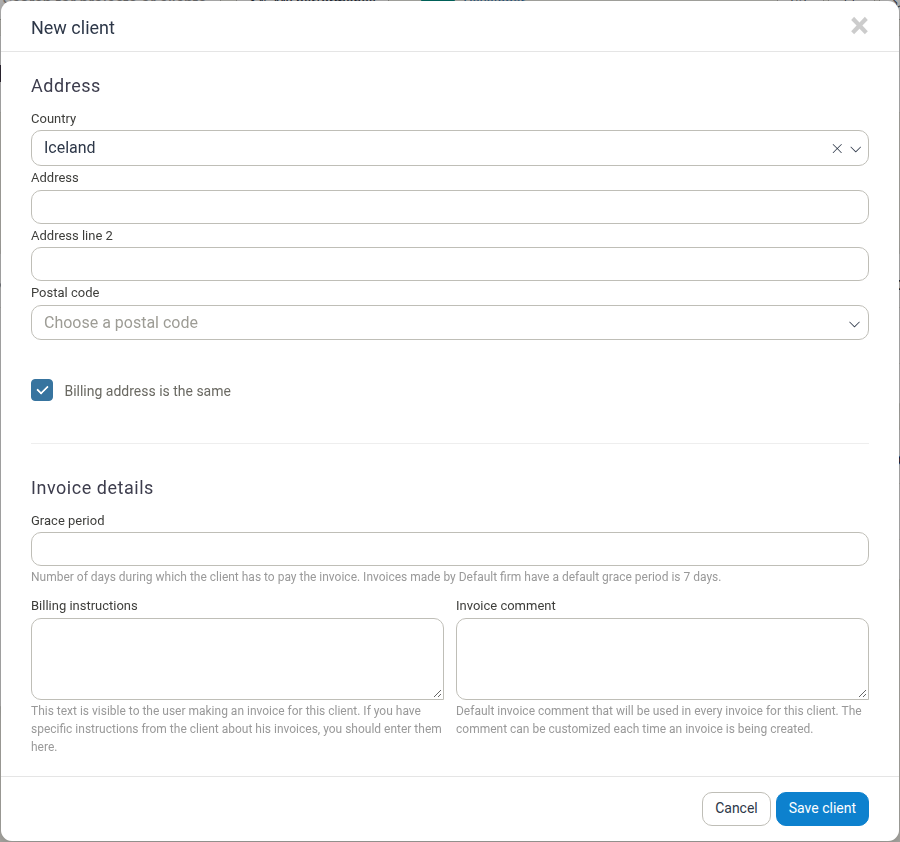
- Grace period — number of days the client has to pay an invoice; if left blank the firm's default grace period applies
- Billing instructions — text shown to the user making an invoice for this client, for client-specific invoicing instructions
- Invoice comment — default comment used on every invoice for this client; it can be customised each time an invoice is created
-
Click Save client.
Updating Client Information
-
Navigate to Clients and find the client.
-
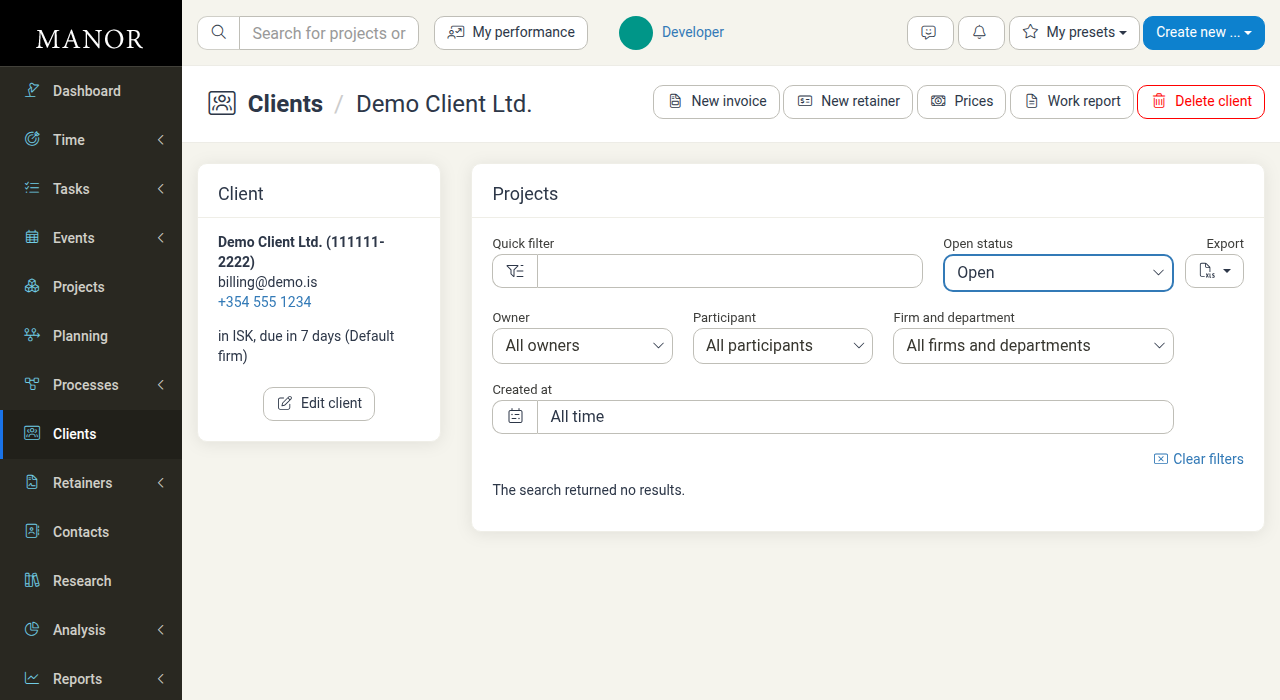
Click the client's row to open their detail page.
-
Click Edit client. The Edit client form contains the same fields as the New client form, plus a read-only Created at date.
-
Update any fields as needed, then click Save client to save your changes.
The Edit client form also has a Delete button, and the client detail page has a Delete client button in the action bar at the top of the page.
Setting Client Preferences
Configure billing settings per client through the Edit client form:
- Grace period — number of days the client has to pay invoices
- Billing instructions — invoicing instructions shown to whoever creates an invoice for this client
- Invoice comment — default comment added to all invoices for this client
- Transaction fee — whether to apply transaction fees to invoices
- Special attention — flag that warns users before they create projects or add billables for this client
Deleting a Client
- Open the client and click Delete client in the action bar.
- Confirm the deletion.
Deleting a client marks it as deleted but keeps it associated with its projects, so historical data is preserved. The client's projects, invoices, and time entries are not removed.
Best Practices for Client Management
Keep Information Current Review and update client records regularly.
Use Clear Naming Apply consistent naming conventions.
Set Appropriate Settings Configure grace periods, billing instructions, and invoice comments.
Link All Work Always associate projects with clients.
Document Special Requirements Use notes, billing instructions, and the special attention flag for special handling.