
What is a Profile Picture?
Your profile picture is your visual identity in Manor. It is used throughout your instance of Manor to identify you as a user. Until you upload a picture, Manor shows a circle with your initials instead.
Opening the Profile Picture Page
- In the top right corner, click your name or your avatar.
- In the profile settings menu on the left, click Profile picture.
- The Profile picture page opens and shows your current picture (or your initials if you have not uploaded one yet).
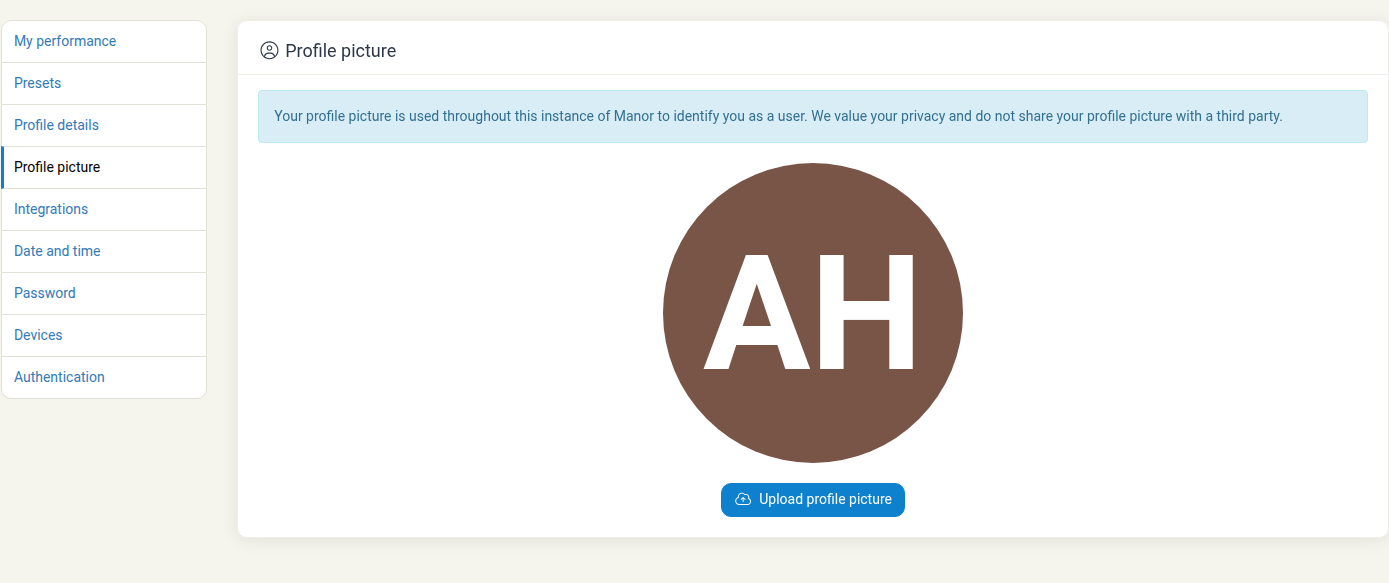
Manor displays this message at the top of the page:
Your profile picture is used throughout this instance of Manor to identify you as a user. We value your privacy and do not share your profile picture with a third party.
Uploading a Profile Picture
When you have no picture yet, the page shows the Upload profile picture button below your initials.
- Click Upload profile picture.
- Select an image file from your computer, for example a JPG or PNG.
- Manor adds the picture and shows the Crop profile picture and Delete profile picture actions.
Cropping Your Picture
After you upload an image, you can adjust the crop that is used for the small avatar.
- Click Crop profile picture to open the crop view.
- Drag the crop area and its handles to frame the part of the image you want to use.
- Click Crop profile picture to apply the crop.
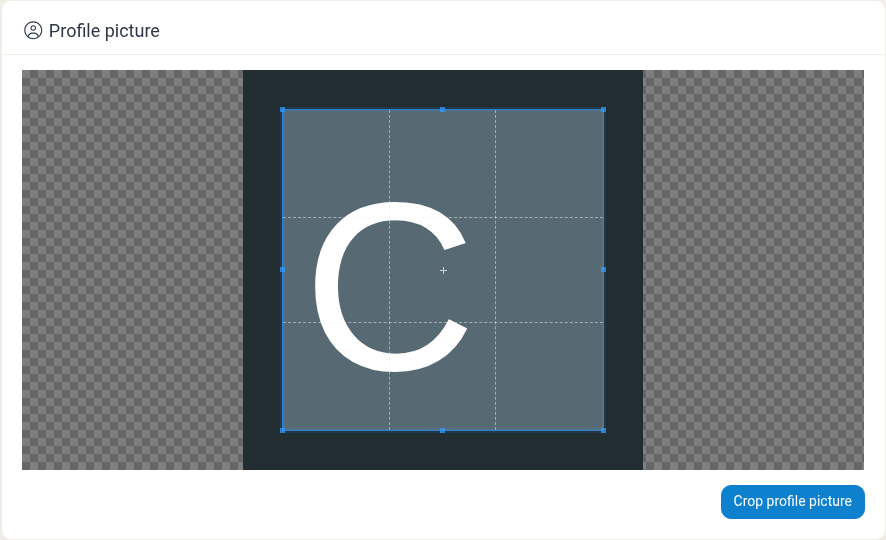
The cropped, square version is the picture used as your avatar throughout Manor.
Tip: Choose a clear, well-lit photo where your face is visible and easy to recognise, and remember that it is displayed as a small avatar.
Changing Your Picture
To change your picture, upload a new image using the same steps as above and crop it again. The new picture replaces the old one.
Deleting Your Picture
You can remove your profile picture yourself; you do not need to contact an administrator.
- Open the Profile picture page.
- Click Delete profile picture.
- Confirm by clicking Delete profile picture in the confirmation dialog.

Manor explains that deleting your picture replaces it with your initials, and that you can upload a new one afterwards. After you delete it, the Upload profile picture button appears again.
Where Your Profile Picture Appears
Your profile picture is shown:
- In the top navigation bar, next to your name.
- On your profile page.