
Introduction
Vacation requests lets you ask for time off — such as vacation, a day off or a longer holiday — without leaving Manor. You submit the dates you want to be away, your request is sent to the people who manage you, and once it is approved you can register the vacation days as time entries in one click.
The page is personal: it shows your own requests only. Managers and payroll administrators see and process everyone's requests from the Vacation area of the main navigation — see Vacation (manager view).
Note: This page appears in your profile only when payroll is enabled for your firm (see Enabling the feature). It is not available to service portal users.
Opening the page
- Open your profile by clicking your name or avatar in the top bar, or go to Profile.
- In the profile sub-menu, select Vacation requests.
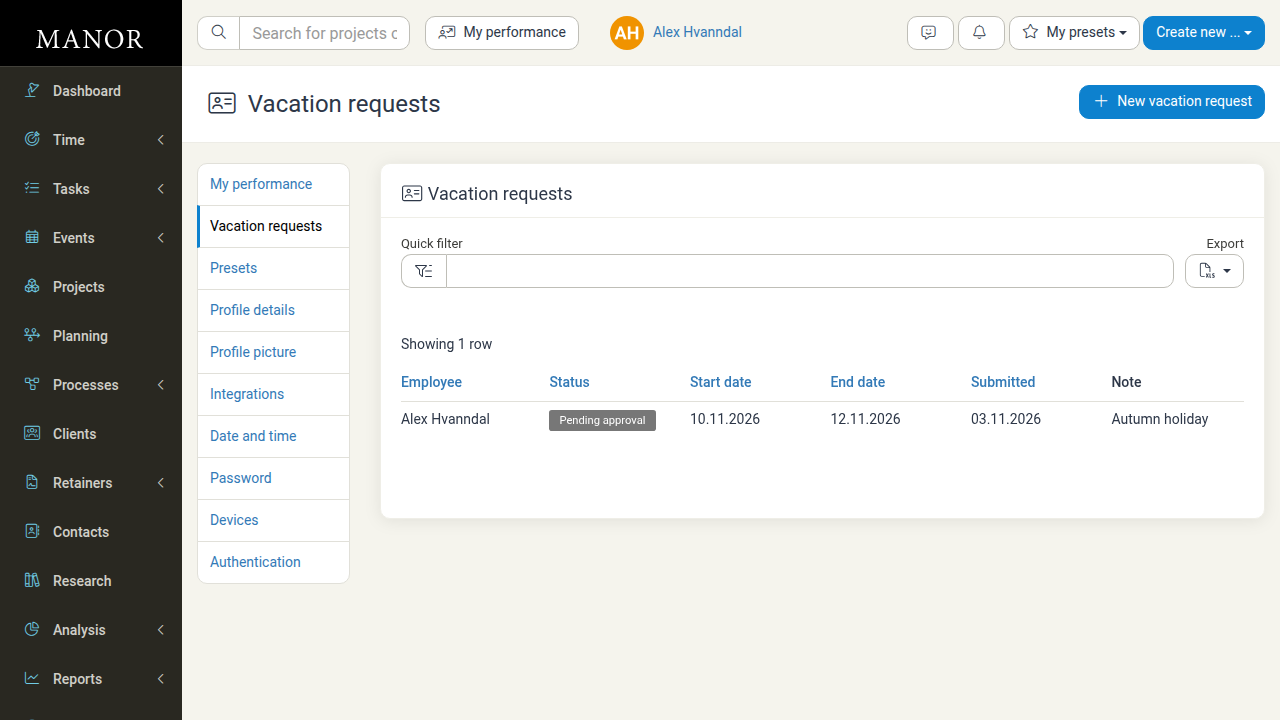
The page has a New vacation request button in the top-right corner and a table listing every request you have submitted. Use Quick filter to search the list, and Export to download it as an Excel spreadsheet.
When you have not submitted anything yet, the table shows the message "Nothing to see here."
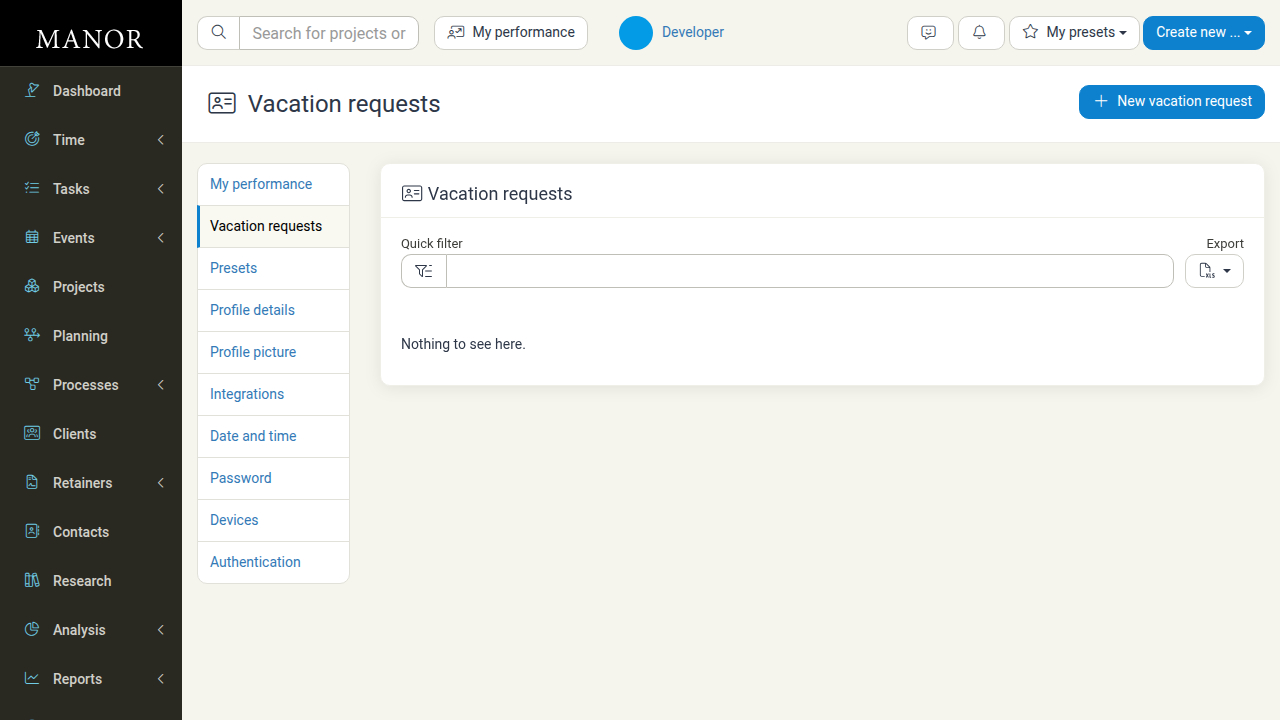
What the list shows
| Column | Description |
|---|---|
| Employee | The person the request belongs to. On your own page this is always you. |
| Status | Where the request is in the approval process — see Request statuses. |
| Start date | The first day of the requested time off. |
| End date | The last day of the requested time off. |
| Submitted | The date you submitted the request. |
| Note | Any comment you added, for example the reason for the absence. |
Requests are listed with the newest first. Click a row to open the request.
Submitting a new request
-
Click New vacation request.
-
Fill in the form:
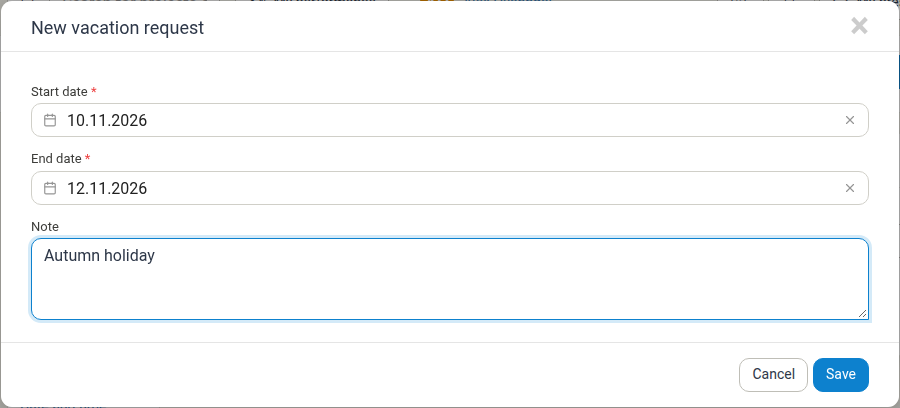
- Start date (required) — the first day you want to be away.
- End date (required) — the last day you want to be away. It must be the same as, or later than, the start date.
- Note (optional) — a short message for your manager, up to 1000 characters.
-
Click Save.
The request is created with the status Pending approval, appears at the top of your list, and your managers are notified. If the request is for a single day, set the start and end date to the same date.
Note: When the person filling in the form can manage other people's requests (see Vacation (manager view)), an extra Employee field appears at the top of the window so the request can be filed for someone else. For your own requests the field simply shows your name — you do not have to change it.
Validation
The form checks that both dates are filled in and are valid dates, and that the end date is not before the start date. If the end date is earlier, the request is not saved and the message "The End date must be a date after or equal to Start date." appears in red under the End date field.
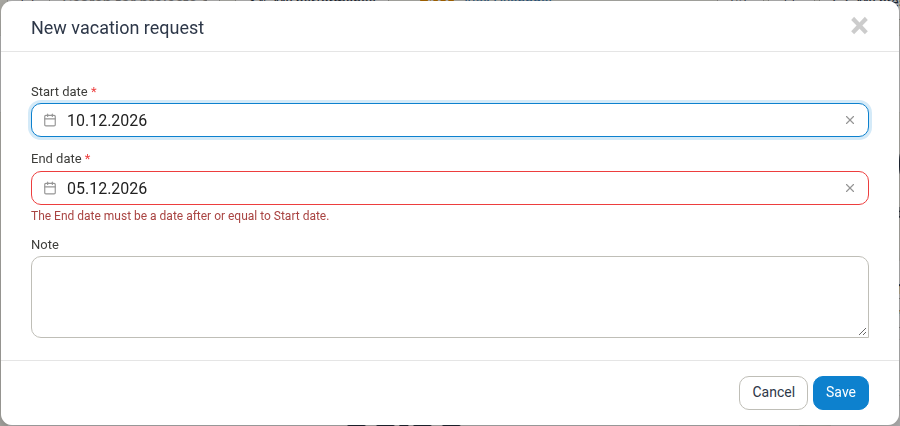
Manor does not otherwise check the dates you pick: a request is accepted even if it overlaps another of your own requests (approved or pending) or falls on a public holiday. Only the date order is enforced, so review the calendar yourself before saving.
Notifications
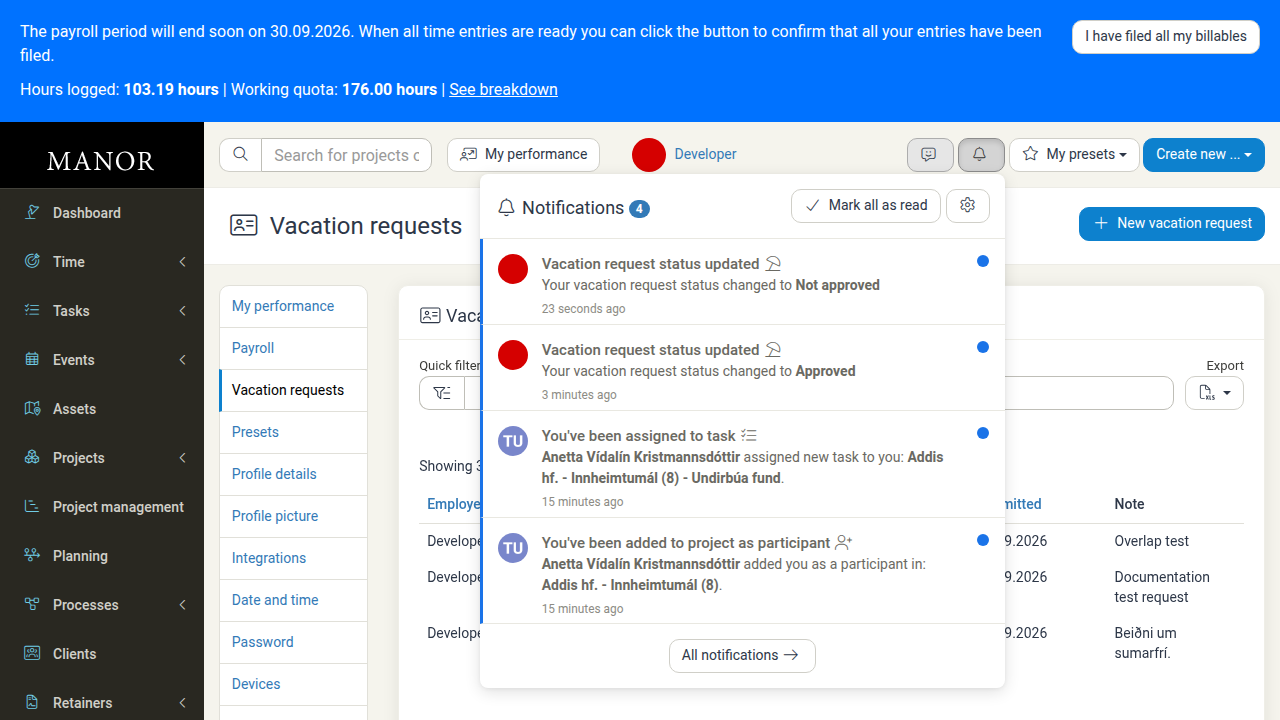
When a manager approves or denies one of your requests, a Vacation request status updated notification appears in the bell menu in the top bar, reading "Your vacation request status changed to Approved" or "Your vacation request status changed to Not approved".
Viewing and editing a request
Click a row in the list to open the request. What opens depends on the request's status.
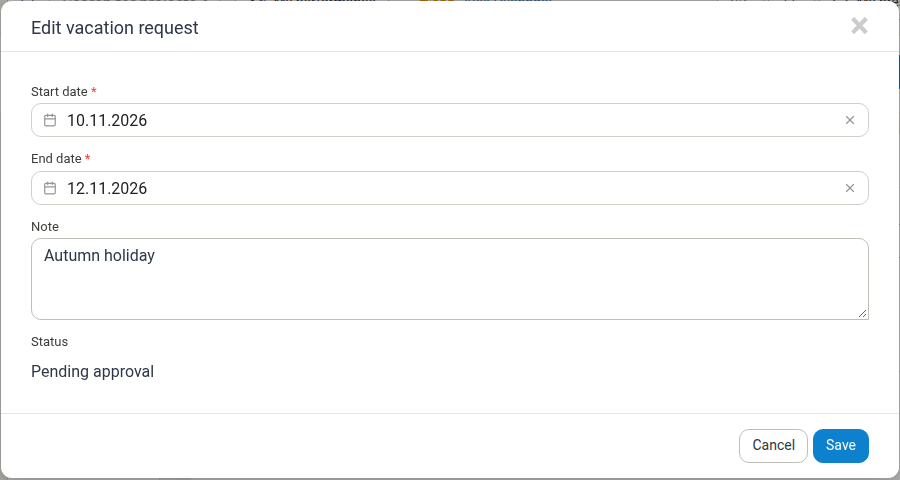
A request that is still Pending approval opens in an editable form titled Edit vacation request. You can change the Start date, End date or Note and click Save; the Status is shown as read-only text.
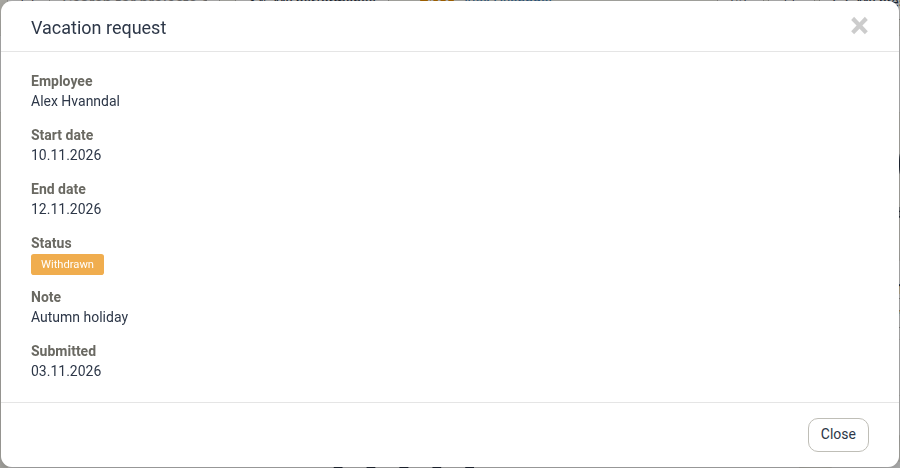
A request that has already been processed — Approved, Not approved or Withdrawn — opens in a read-only view titled Vacation request. It shows the Employee, Start date, End date, Status, the Note (only when you entered one) and the date it was Submitted. The dates and note cannot be changed here; if you need to change an already-processed request, withdraw it first (see below) and submit a new one.
Request statuses
| Status | Meaning |
|---|---|
| Pending approval | The request has been submitted and is waiting for a manager to respond. You can still edit it. |
| Approved | A manager has approved the time off. You can now register the vacation days as time entries and, if needed, withdraw the request. |
| Not approved | A manager has declined the request. |
| Withdrawn | You cancelled the request yourself. |
Withdrawing a request
An Approved request offers a Withdraw request button in its read-only detail view. Open the request and click it to cancel the time off — the status changes to Withdrawn and your managers are notified. Only you can withdraw your own request.
A request that is still Pending approval opens in the Edit vacation request form instead, which has no withdraw action, so while it is awaiting a response you can correct it but not cancel it here.
Who may respond to your request
Your request is answered by people holding one of the vacation request permissions — for example a manager or payroll administrator who has Can manage vacation requests, or a department manager with Can manage vacation requests as department manager. The Approve and Deny actions are theirs; the person who submitted the request does not approve it themselves.
Approving or denying a request only records the decision. It does not withdraw any hours from a balance, and it does not create or change time entries — that is what the Add vacation time entries shortcut is for.
After approval — adding vacation time entries
Once a request shows Approved, the request detail view offers an extra button, Add vacation time entries, which is visible to you as the owner of the request.
Clicking it opens a new time entry pre-filled from the request:
- The entry covers the approved period (a single day, or a multi-day range).
- The work hours from your firm's calendar settings are filled in.
- The project and activity are pre-selected from your firm's Summer vacation mapping, so the hours are classified as vacation in payroll.
Review the pre-filled entry, adjust it if necessary, and save it. You can repeat this for each approved request.
Tip: If you track other kinds of leave (such as paid leave, sick leave or parental leave), your firm maps those to their own projects in Payroll rules. Ask your payroll administrator which project to use if it is not pre-filled for you.
Relationship to pay periods and payroll
Approved vacation is registered as ordinary time entries on the firm's vacation project. From that point it behaves like any other logged time:
- The hours appear in the day-by-day breakdown of the relevant pay period and count towards the Summer vacation column in your self-service pay period list. See Confirming your hours (self-service).
- Because the hours are logged, they are included in the totals you review and confirm for the pay period.
- Payroll administrators see the classification when they process confirmations and payroll batches.
The Vacation requests page itself does not create pay periods or time entries — it only records the agreement to be away, and the optional shortcut gives you a head start on filing the hours.
Enabling the feature
The Vacation requests link is shown in your profile when the firm-level setting Enable payroll is switched on:
- Navigate to Management > Settings.
- In the Features card, click Edit next to Enable payroll.
- Choose Enabled or Enabled with advanced payroll batches and click Save.
The link then appears in the profile sub-menu for all non-service-portal users, whether or not any pay periods exist yet. Turning payroll back to Not enabled removes it again. See Payroll and Firm Payroll Settings for the rest of the payroll configuration.
Good practice
- Submit early — request vacation well before the dates so your manager has time to respond and you can plan the work around it.
- Keep the note short and useful — a few words about the occasion helps your manager decide.
- Keep pending requests accurate — while a request is awaiting a response you can edit it but not cancel it, so correct the dates if your plans change and let your manager know if it is no longer needed.
- File the hours after approval — use Add vacation time entries so the vacation shows up in your pay period instead of being missed.
- Check your pay period before confirming — verify that the vacation hours landed on the right days.
Related Documentation
- Confirming your hours (self-service) — Reviewing and confirming your logged hours for a pay period
- Payroll — Overview of the Payroll section
- Firm Payroll Settings — Leave mappings, working hours and payroll rules
- Employments — Employment records and employment ratio
- User Profile Settings — The rest of your profile
- Global Settings — Enabling optional features including payroll