
Overview
Employment records define each employee's working relationship with a specific firm in Manor. An employment contract specifies the employee's compensation model (Monthly, Hourly, or Contracted), full-time/part-time employment ratio percentage, contract duration (start and end dates), and organizational assignment.
These records serve as the foundation for:
- Calculating expected monthly working hours for pay periods.
- Flextime and overtime calculations.
- Tracking billable utilization and target ratios.
- Processing payroll batches and hour confirmations.
Employment records are managed centrally under Payroll > Employments.
Prerequisite: The Employments page is only available when payroll is enabled. See Payroll for how to enable it.
Accessing Employments
To view and manage employment contracts:
- Navigate to Payroll in the primary navigation menu.
- Select Employments from the secondary payroll menu (or navigate directly to
/payroll/employment). - If your organization operates multiple firms, select the desired firm from the firm selector dropdown at the top.
Employments List & Filtering
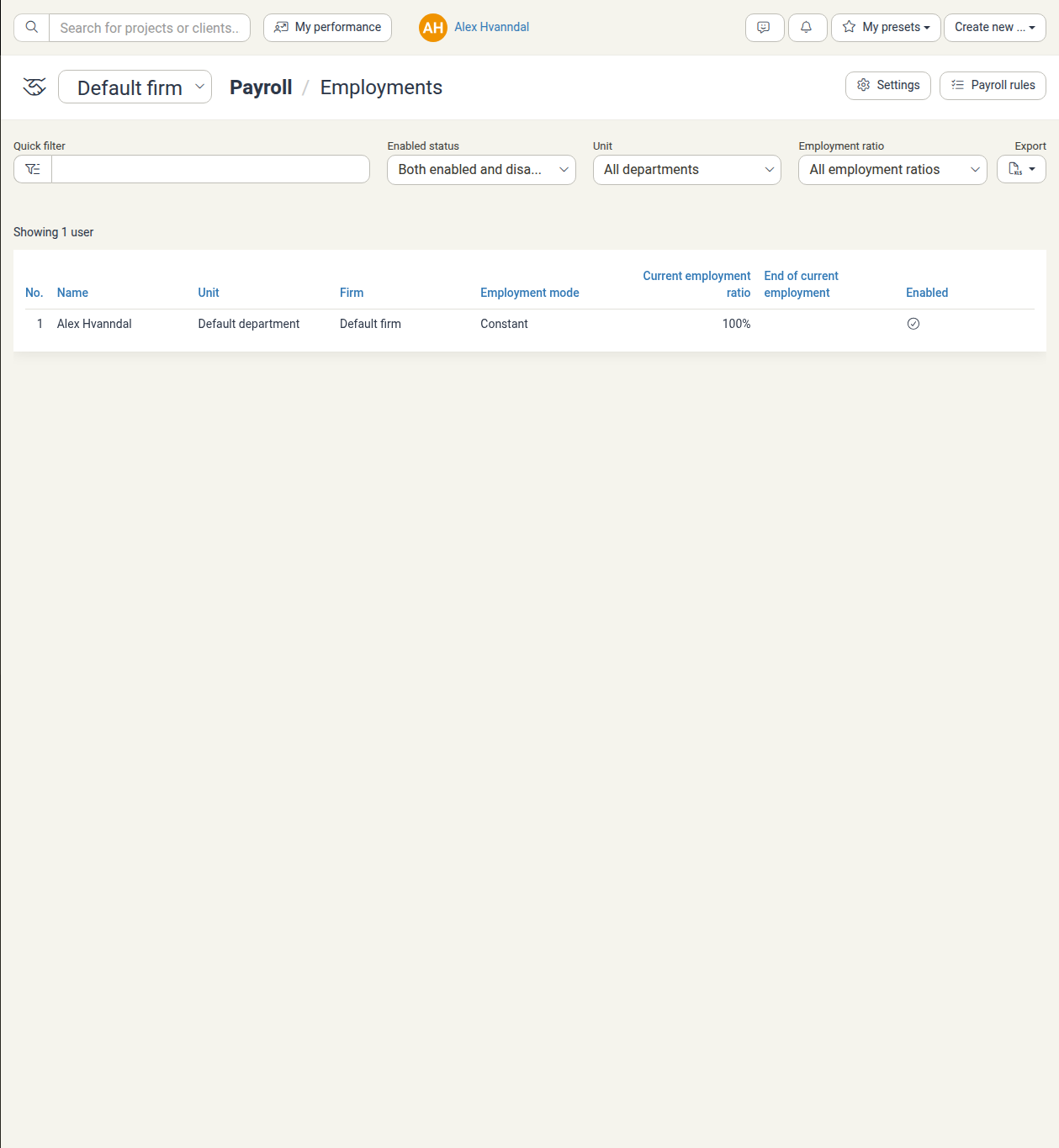
The Employments page lists the employees of the selected firm with the columns No., Name, Unit, Firm, Employment mode, Current employment ratio, End of current employment and Enabled. You can filter the view using:
- Quick filter: Search by employee name or keyword.
- Enabled status: Filter by Both enabled and disabled, Enabled, or Disabled.
- Unit (Department): Filter by specific organizational departments or All departments.
- Employment ratio: Filter by a specific ratio value or All employment ratios. The options list the ratio values in use (for example 100.00).
- Export: Export the filtered table to Excel.
Employment Modes
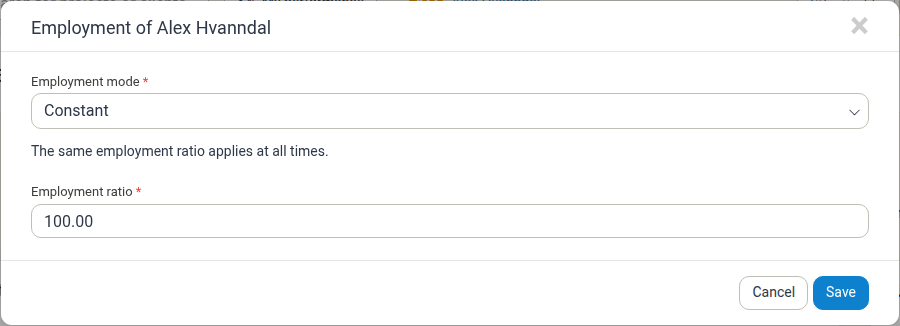
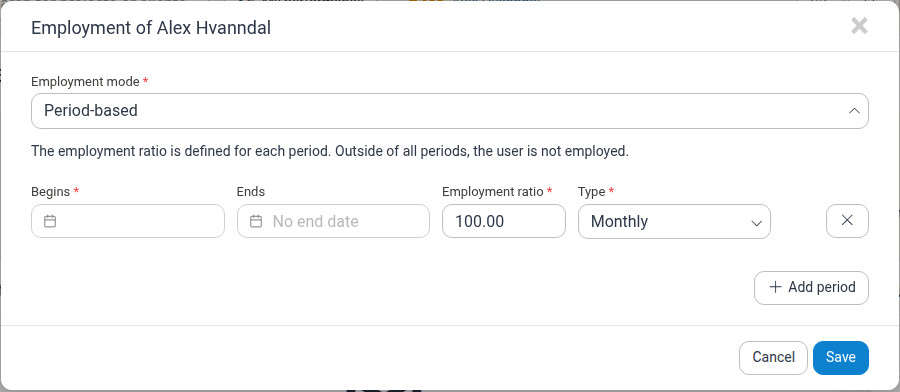
Employment is managed per employee. Click an employee's row to open the Employment of modal, where you choose one of two modes:
- Constant: The same Employment ratio applies at all times. Use
100.00for full-time,80.00for an 80% schedule, or50.00for half-time. - Period-based: The employment ratio is defined for each period. Outside of all periods, the user is not employed.
The mode is chosen independently for each employee, so constant and period-based employees can be used side by side.
Period Fields
In period-based mode, each period has the following fields:
| Field | Description | Requirement |
|---|---|---|
| Type | The compensation and engagement structure: • Monthly: Salaried employee working standard monthly hours based on firm work schedules. • Hourly: Paid per actual hour worked. • Contracted: Independent or milestone-based contractor. |
Required |
| Employment ratio | The percentage of full-time employment (FTE). Adjusts expected working hours accordingly. | Required |
| Begins | The effective start date of the period. | Required |
| Ends | The last day of the period. Leave empty (No end date) for an open-ended period. | Optional |
Periods of one employee can't overlap, and the end date can't be before the begin date.
Note (Working quota ratio): A user's Working quota for a period is the pay period's Daytime working hours summary scaled by that user's Employment ratio. If a period's Daytime working hours reads 170, a 100% employment shows a Working quota of 170.00, a 50% employment 85.00 and an 80% employment 136.00. This is the value shown in the pay period's Users table. Because the ratio scales that summary rather than the itemised total of the per-day Work quotas, the user's Working quota can differ from the sum of the per-day figures for the same period. See Pay Periods.
Editing an Employee's Employment
- Navigate to Payroll > Employments.
- Click the employee's row to open the modal.
- Choose Constant or Period-based.
- In period-based mode, click Add period to add a row. The new period begins on the next working day after the previous period's end date.
- Save your changes.
Tip on Schedule Changes: When an employee changes their working hours (e.g., moving from 100% to 80% FTE), set the Ends date on the current period to the last day of the old schedule, then click Add period and enter the new ratio. This preserves historical expected hour calculations for previous pay periods.
Note: If employment is managed by an integrated HR system, the modal is read-only.
Related Firm & Payroll Settings
Employment records interact directly with other payroll configurations:
- Firm Payroll Settings: Opened from the Settings link at the top of this page and the other Payroll pages that show it (or via firm administration). The Flextime report is the one Payroll page without it. Sets firm-wide daily working hours (e.g., 8.0 hrs/day, Friday overrides), period boundaries, flextime overdraft and maximum limits, and billable ratio rules.
- Payroll Rules: Opened from the Payroll rules link at the top of this page and the other Payroll pages that show it. The Flextime report is the one Payroll page without it. Maps specific leave types (Summer vacation, Sick leave, Parental leave, Flextime withdrawal) to projects, activities, and accounting salary codes.
- Pay Periods & Confirmations: Under Payroll > Overview and Payroll > Confirmations, employee logged hours are verified against their contract ratio and expected daily hours.
Related Documentation
- Payroll Overview — Comprehensive guide to Manor's payroll module
- Pay Periods — Managing payroll periods and schedules
- Payroll Batches — Generating and exporting payroll runs
- Confirmations — Employee and manager hour confirmation workflows
- Payroll Alerts — Reminders that prompt employees to confirm their hours
- Firm Payroll Settings — Configuring firm-level working hours and period defaults