
Introduction
Bank accounts store the banking information for your firm. The bank account set up for each currency is displayed on sales invoices issued in that same currency. This lets you receive payments in several currencies, each with the correct account details on the invoice.
Bank accounts are configured per firm.
Bank Account Fields
Domestic claim
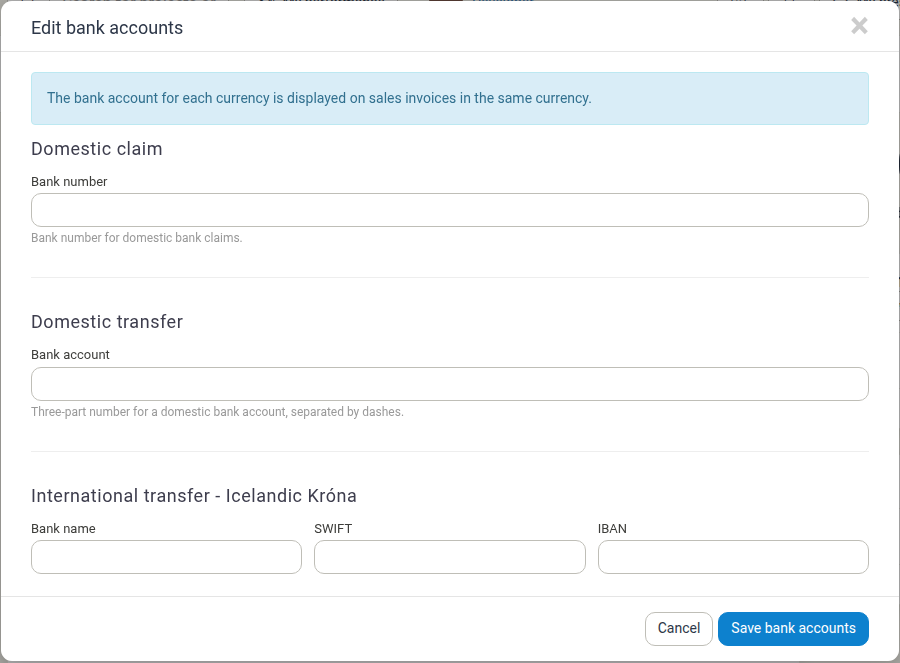
- Bank number — The bank number used for domestic bank claims.
Domestic transfer
- Bank account — A three-part number for a domestic bank account, separated by dashes, used for domestic transfers.
International transfer
- Bank name — The name of the bank.
- SWIFT — The SWIFT (BIC) code of the bank.
- IBAN — The IBAN of the bank account.
One International transfer section is shown for each currency that is enabled in Manor, so you can store separate Bank name, SWIFT, and IBAN details per currency.
Editing Bank Accounts
- Navigate to Management in the sidebar and click Firms.
- Click the firm's row to open its settings page.
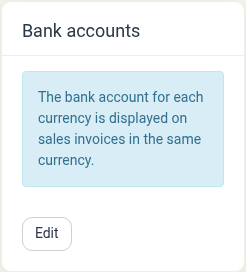
- In the Bank accounts card, click Edit.
-
In the Edit bank accounts dialog, fill in the fields that apply to your firm:
- Domestic claim and Domestic transfer for domestic banking.
- One International transfer section per currency for international payments. Scroll down inside the dialog to reach the sections below the first one.
-
Click Save bank accounts.
The dialog closes and the card shows the updated bank details.
Field Rules
- The Bank number and Bank account fields are optional, but when a Bank account is entered it must be three numbers separated by dashes (for example
1234-56-789012). - SWIFT and IBAN values are stored in uppercase and accept letters and numbers only.
- If you clear all three fields in an International transfer section, that currency's bank account is removed.