
What is Revenue Billed?
Revenue Billed shows the total value of invoices sent to clients. Use this view to track what has actually gone out in bills and compare it against accrued revenue to understand your outstanding work and billing pipeline. Where accrued revenue includes all logged billable work (invoiced or not), billed revenue shows only what clients have been charged.
Accessing Revenue Billed
- Click Analysis in the main navigation menu
- In the Analysis submenu, click Revenue billed
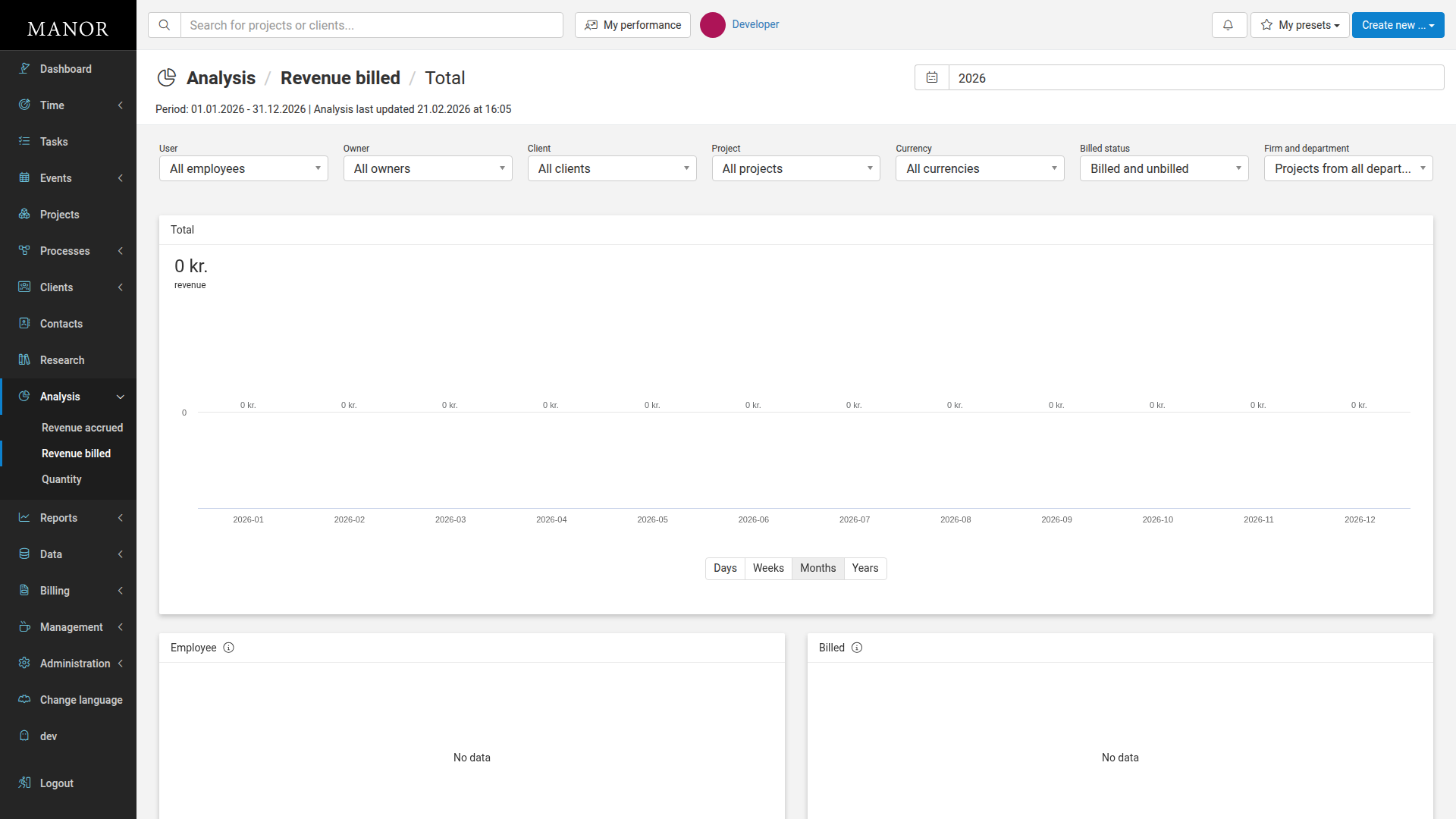
- You'll see the Revenue Billed analysis page for the current year with filters and chart
Choosing a Year and Period
At the top of the page, the current year is shown. Click the year to select a different period. The page also shows when the analysis data was last updated (typically within minutes of creating invoices).
Using Filters
Apply filters to focus on specific data. Click any filter dropdown to refine the view:
| Filter | What it shows |
|---|---|
| User | Revenue from invoices created or managed by a specific employee |
| Owner | Filter by project owner to see billed revenue for projects they own |
| Client | Focus on invoices sent to one or more specific clients |
| Project | See billed revenue for one or more projects |
| Currency | Filter by billing currency (useful for multi-currency firms) |
| Billed status | Show billed, unbilled, or all billables (note: this shows the billing status of individual billables, not invoices) |
| Firm and department | Filter to a specific department to isolate revenue by business unit |
Click Clear filters to reset all filters and see the complete view.
Understanding the Chart
The central chart displays total billed revenue over the selected year. Each bar or data point represents revenue invoiced in that time period.
Changing Time Resolution
Use the Days, Weeks, Months, or Years links below the chart to change how the data is grouped:
- Days - See day-by-day billing trends (useful for spotting when invoices go out)
- Weeks - View weekly billing patterns
- Months - Standard monthly view (best for most reporting)
- Years - Yearly overview for long-term trends
Understanding Breakdown Tables
Below the chart, revenue is broken down by different dimensions. Scroll down to see:
- Employee - Who created or managed the invoices (shows responsibility)
- Client - Which clients have been billed and how much
- Project - Which projects contributed to invoiced revenue
- Currency - Revenue split by billing currency
- Billed - Split between billed and unbilled billables within invoices
- Department - Revenue distribution across departments
- Project owner - Who owns the projects that generated billed revenue
- Billable type - Revenue split by time, travel, products, expenses, or per diems
Each table shows totals and allows you to click through to filter the main view.
Comparing with Revenue Accrued
To understand your billing pipeline:
- Note the total Revenue Billed
- Navigate to Revenue accrued by clicking it in the Analysis submenu
- Compare the two figures
The gap between accrued and billed revenue represents your outstanding work — billables that have been logged but not yet invoiced. If this gap is consistently large, it may indicate:
- A slow invoicing cycle — consider creating invoice proposals more frequently
- Pending projects — work logged but not yet ready to bill
- Projects awaiting client approval or sign-off before invoicing
Key Metrics to Monitor
Monthly Billing Trend Compare month-to-month billed revenue to understand seasonal patterns or identify months when invoicing lags.
Billed vs. Accrued Gap A healthy gap is 1-2 months of revenue. If it's larger, follow up with invoice proposals.
Revenue by Client Identify your top billing clients and monitor trends to ensure key client relationships are stable.
Revenue by Project Track which projects are generating the most billed revenue and which ones may need follow-up.
Best Practices
Review Revenue Billed Weekly Check this view weekly to stay on top of billing performance and catch any delays in proposal creation.
Compare with Revenue Accrued Run both views side-by-side to understand your billing pipeline. A growing gap signals delayed invoicing.
Use Client Filter for Follow-ups Filter by client to see their billed history and time gaps between invoices — use this to schedule follow-up billing.
Monitor by Department If your firm has multiple departments, use the Firm and department filter to ensure each unit is billing consistently.
Check Currency Split If you bill in multiple currencies, monitor the distribution to understand exposure to foreign exchange variations.
Use Data for Forecasting Review historical billed revenue patterns to forecast cash flow and revenue for budgeting purposes.
Troubleshooting
Revenue appears but invoice is unsent Invoices that have been created but not yet delivered are included in Revenue Billed. Check the invoice status in Billing > Invoices to see if it's been delivered to the client.
Revenue not updating Analysis data updates within minutes of invoice creation or modification. If data seems stale, check the timestamp shown below the year selector.
Missing invoices If an invoice isn't showing in this analysis, verify it hasn't been marked as deleted or archived in the Billing section.
See Also
- Analysis - Complete analysis guide covering all analysis types
- Revenue Accrued - View of earned revenue before invoicing
- Invoices - Create and manage invoices