
What are Beats?
Beats are automated time entry suggestions that Manor generates based on your activity patterns and integrations with external services. They appear in your Day view as pre-filled time entry suggestions, helping you log time faster without manual data entry. Beats learn from how you work and can integrate with services like Google Calendar and Microsoft Outlook to automatically suggest time entries based on your schedule and activity.
Why Beats Matter
Using beats helps you:
- Log time faster - Get suggested entries instead of manually entering every time entry
- Avoid forgotten entries - Automatic suggestions remind you of work you did
- Track activities automatically - Integrations with email and calendar pull in your actual activity
- Improve accuracy - Suggestions are based on real activity rather than memory
- Stay consistent - Regular automatic tracking ensures your time data is complete
How Beats Work
Beats appear as suggested time entries in your Day view. They are generated from two sources:
Activity Pattern-Based Beats Manor learns your typical work patterns and suggests entries based on when you usually work. These suggestions help fill gaps in your time tracking.
Integration-Based Beats External integrations can provide beats based on your actual activity:
- Google Calendar & Gmail - Suggest time entries based on calendar events and email activity
- Microsoft Outlook - Suggest time entries based on your Outlook calendar events and mail activity
Accessing and Using Beats
View Beats in Day View
- Navigate to Time from the main menu.
- Click Day to access the Day view.
- In Day view, you'll see sections for:
- Your beats — Displays suggested time entries (if any are available)
- Dismissed beats — Shows beats you've previously dismissed
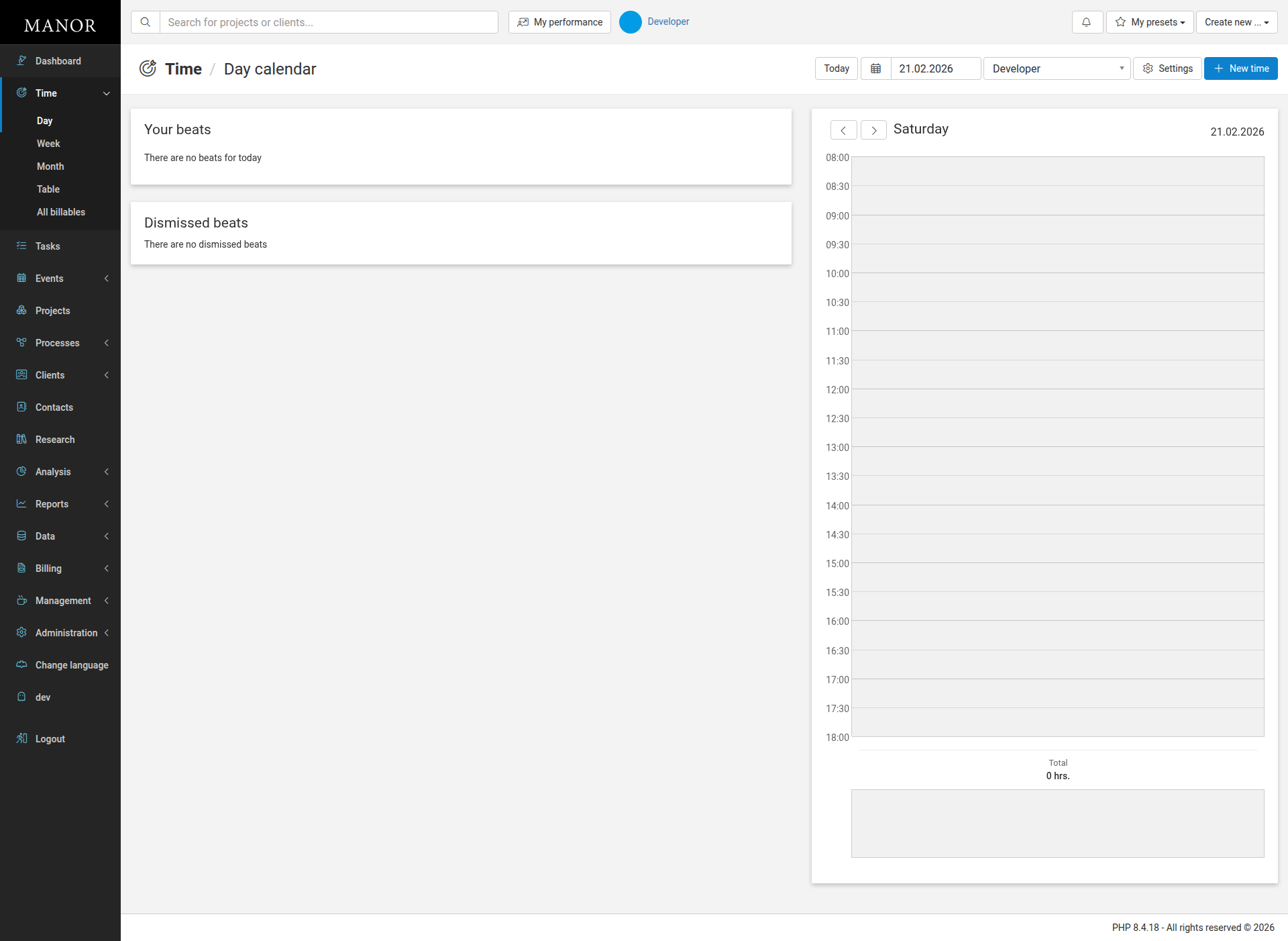
Configure Beat Sources
In the Day view, you can choose which beat sources to enable:
-
Click the Settings button in the Day view.
-
A dialog will open showing beat source options:
- Enable Court events beats
- Enable Outlook beats
- Enable Google beats

-
Set each source to Yes or No based on your preference.
-
Click Save to apply your settings.
This controls which types of beats appear in your Your beats section.
Accept a Beat
When you see a beat you want to log, click on the beat to open it. You can then review and modify the suggested details before saving it as a time entry.
Reject or Dismiss a Beat
If a beat is incorrect or something you don't want to log, you can dismiss it. Dismissed beats appear in the Dismissed beats section in Day view.
Beat Sources and Integrations
Court Events Integration
When you connect your court events integration through Profile > Integrations:
- Court calendar events appear as beats
- Beats suggest time based on your scheduled court appointments
- All communication with the court system is synchronous and secure
To enable Court events beats:
- Go to your Profile (top-right menu).
- Click Integrations.
- Click Connect next to Court events integration.
- Authorize Manor to access your court events.
- Court events beats will start appearing in your Day view.
Google Integration
When you connect your Google account through Profile > Integrations:
- Google Calendar events appear as beats
- Gmail activity can generate beats
- Beats suggest time based on your scheduled events and recent activity
- All communication with Google is synchronous and secure
To enable Google beats:
- Go to your Profile (top-right menu).
- Click Integrations.
- Click Connect next to Google.
- Authorize Manor to access your calendar and mail.
- Google beats will start appearing in your Day view.
Microsoft Outlook Integration
When you connect your Microsoft/Office 365 account:
- Outlook calendar events generate beats
- Beats suggest time based on your scheduled meetings and appointments
- All communication with Microsoft is synchronous
- Permissions are limited to calendar and mail access
To enable Outlook beats:
- Go to your Profile (top-right menu).
- Click Integrations.
- Click Connect next to Microsoft Office 365.
- Authorize Manor to access your calendar.
- Outlook beats will start appearing in your Day view.
Managing Beat Integration Settings
Enable/Disable Integrations
System administrators control which integrations are available:
- Go to Administration > Integrations.
- Under the User based integrations section, you can view which integrations are enabled (Court events, Outlook, and Google).
- For Outlook integration, there is an additional control to Enable or Disable the integration separately.
When an integration is disabled, users cannot connect to that service and no beats from that integration will appear.
User-Level Integration Settings
Individual users can connect/disconnect their accounts:
- Go to your Profile (top-right menu) > Integrations.
- For each available integration (Court events, Microsoft Office 365, Google):
- Click Connect to enable beats from that service.
- Click Disconnect to stop receiving beats from that service.
You can connect multiple integrations at once. After connecting, beats will appear in your Day view.
Best Practices with Beats
Review Beats Regularly
Check your Day view often to see new beat suggestions. The sooner you act on them, the fresher the context is in your mind.
Accept or Reject Quickly
Don't let beats pile up. Process them daily to keep your time tracking current and your Day view clean.
Use Beats to Complete Time Records
Beats are perfect for filling gaps at the end of the day. Use them to account for time you didn't manually log.
Connect the Right Integrations
If you spend time in Google Calendar or Outlook, connect those integrations to get the most helpful beats. The more accurate your calendar, the better the suggestions.
Modify Beats Before Saving
Don't just accept beats as-is. Ensure they're assigned to the right project and activity, and add clear descriptions that explain the work.
Keep Your Calendar Updated
The quality of beats depends on how current your calendar is. Keep your calendar events accurate and up-to-date for better suggestions.
Use Beats to Identify Patterns
If beats consistently suggest time for certain activities, this tells you where your time goes. Use this insight to better estimate and price future work.
Troubleshooting Beats
No Beats Appearing
If you're not seeing any beat suggestions:
- Check that integrations are enabled in Administration > Integrations.
- Verify your personal integrations are connected in Profile > Integrations.
- Ensure your connected calendar (Google Calendar, Outlook, or court events) has recent events or meetings scheduled.
- Check that beat sources are enabled in the Day view Settings.
Beats Showing Wrong Project
If beats are assigned to the wrong project:
- You can manually change the project before saving the beat as a time entry.
- If you frequently log time to different projects, use clearer calendar event titles.
- Ensure your calendar event titles reference the correct project.
Too Many Beats
If you're getting too many beat suggestions:
- Review your calendar for unnecessary events.
- Disconnect an integration if it's too noisy (in Profile > Integrations).
- Disable specific beat sources in the Day view Settings.
- Dismiss beats you don't want to see.
Integrations Not Connecting
If you can't connect an integration:
- Verify the integration is enabled in Administration > Integrations.
- Check that your account has the right permissions (e.g., access to your calendar in Google or Outlook).
- Try disconnecting and reconnecting in Profile > Integrations.
- Contact your system administrator if the integration remains unavailable.
Beats and Time Tracking Best Practices
Beats work best as part of a complete time tracking routine:
- Manual tracking - Enter time directly for work you do
- Beat acceptance - Accept suggested beats to fill gaps
- Timer - Use the timer for focused work sessions
- Review - Regularly review your entries to ensure completeness
This combination ensures comprehensive, accurate time records.
See Also
- Time Tracking - Complete guide to logging and managing time
- Calendar Sync - Connect your external calendars to Manor
- Integrations - Manage system integrations