
The Active currencies page is the administration screen where you control which currencies your company can use. It lists every currency that has been enabled, shows the latest exchange rates Manor is using, and lets you enable additional currencies so they become selectable throughout Manor — for example on clients, projects, rates, retainers and expense forms.
Note: This page is for enabling and configuring currencies. For a general introduction to what currencies are, see Currencies.
Opening the Active currencies page
- Navigate to Management in the main sidebar menu.
- Select Pricing.
- In the Pricing tab menu, select Active currencies.
The breadcrumb and page title of the opened page read Management > Pricing > Currencies, even though the menu entry that opens it is labelled Active currencies.
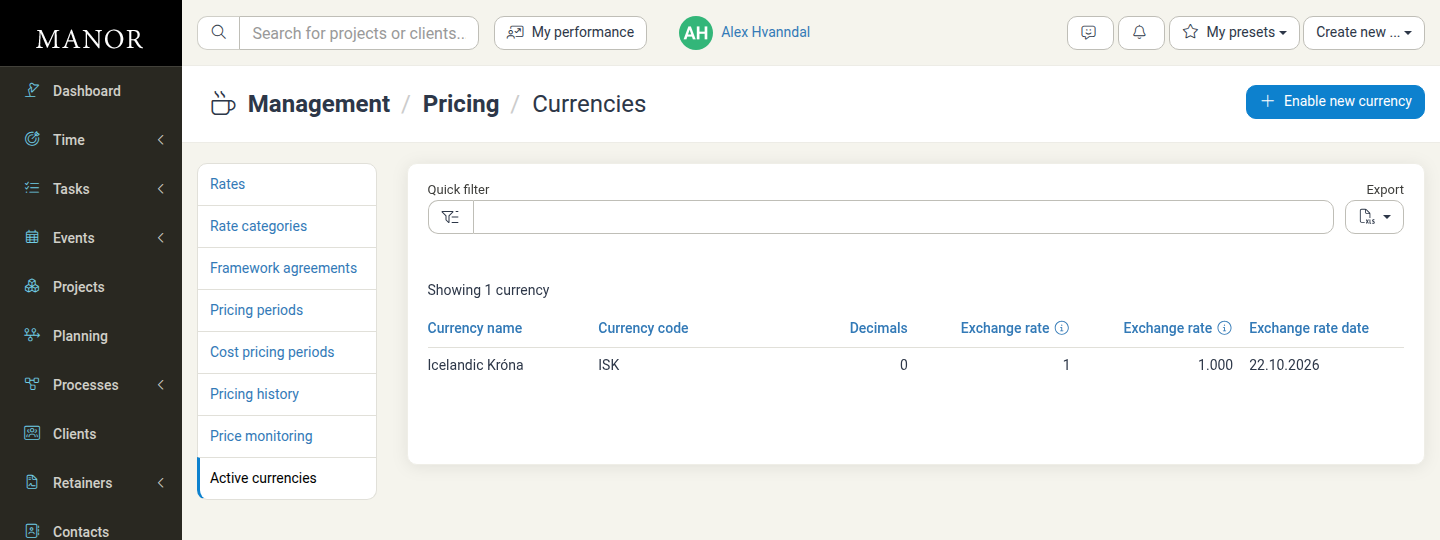
What the currency list shows
The main area is a table listing every currency that is currently active (enabled) for your company. At the top you can:
- Quick filter — Type in the box to narrow the list, for example to find a currency by name or code.
- Export — Download the list as a spreadsheet file.
- Enable new currency — Open the form for adding a currency (see below).
Above the table, Manor shows how many currencies are listed, for example Showing 3 currencies. Click any column heading to sort the list, or click a currency's name to open its properties.
Each currency row shows:
| Column | What it means |
|---|---|
| Currency name | The full name of the currency, for example Icelandic Króna or United States Dollar. Click it to edit the currency. |
| Currency code | The three-letter code for the currency, for example ISK, USD or EUR. This is the code used everywhere else in Manor. |
| Decimals | How many decimal places amounts in this currency are shown with, for example 2 for USD or 0 for ISK. |
| Exchange rate | The current exchange rate between this currency and your company's base (default) currency. Two columns show the rate in both directions. |
| Exchange rate date | The date the displayed exchange rate applies to. |
Understanding the exchange rate columns
Manor looks up exchange rates for you and keeps them up to date — you never type a rate by hand. The list shows the rate between each currency and your company's base currency in both directions, in two adjacent Exchange rate columns:
- The first Exchange rate column shows the price of the base currency quoted in the listed currency.
- The second Exchange rate column shows the price of the listed currency quoted in the base currency.
Hover the small info icon next to either column heading to see the same explanation as a tooltip.
Both rate columns are read-only in the list. When a currency is enabled, Manor fetches its rate automatically, and rates are refreshed as new published rates become available.
The exchange rate date
The Exchange rate date column tells you which day's rate is currently displayed for each currency. This is important because rates change daily:
- Manor uses the most recent published rate. On a weekend or public holiday, the most recent preceding business day's rate is used.
- If today's rate has not yet been published, the previous business day's rate is shown.
- Dates are displayed in the date format configured under Management > Settings.
When you record an amount in a foreign currency — for example an expense — Manor converts it using the rate that applies to the relevant date. The rate shown here is the rate Manor is currently working with.
Enabling a new currency
Only currencies that have been enabled appear in the dropdowns where you pick a currency (for example on a client, a project, a rate or an expense). To make a new currency available for use:
-
On the Active currencies page, click Enable new currency.
The form opens with a title such as Enable currency.
-
In the Currency name field, choose the currency you want to enable. The dropdown lists the standard currencies Manor supports that are not already active. Start typing its name or code to find it quickly.
-
Review the display fields, which are pre-filled with sensible defaults for the selected currency but can be adjusted:
- Prefix — Symbols or text placed before an amount, for example the
$in$100. - Suffix — Symbols or text placed after an amount, for example the
kr.in100 kr.. - Decimals — The number of decimals used in amounts, for example 2 for
100.00.
You must provide at least a prefix or a suffix, and the decimals field is required.
- Prefix — Symbols or text placed before an amount, for example the
-
Click Enable currency to save.
The currency is immediately enabled: it appears in the Active currencies list with its exchange rate and exchange rate date, and it becomes selectable everywhere a currency can be chosen.
Tip: If the currency you need is missing from a dropdown elsewhere in Manor, the most likely reason is that it has not been enabled yet. Enable it here and it will become available.
Editing or disabling a currency
To open a currency's properties, click its name in the list. From the edit form you can update the Prefix, Suffix and Decimals used to display amounts in that currency and then click Save currency.
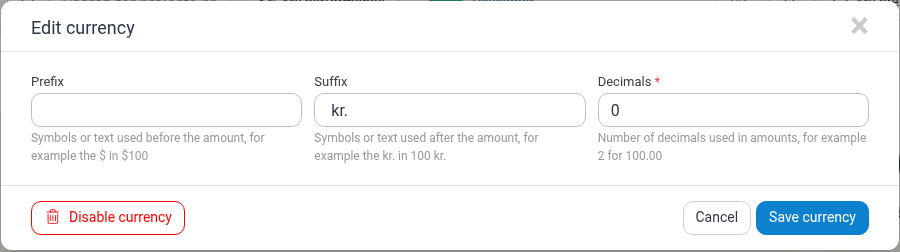
The edit form also provides a Disable currency action. Disabling a currency prevents it from being used for new entries while leaving existing transactions untouched.
Related documentation
- Currencies — Overview of currencies, codes, formatting and how they are used in Manor.
- Pricing — Overview of the Pricing section.
- Expenses — Recording expenses in a foreign currency and how Manor converts them.