
Introduction
Payroll alerts are reminders that prompt employees to confirm their logged hours before a pay period ends. As a period approaches its deadline, Manor progressively shows coloured alerts to any employee who has not yet confirmed. Once the employee confirms, the alert is replaced by a green confirmation.
Each firm has three alerts — blue, orange and red — that are created automatically. They can be edited but not added or removed.
Note: Payroll alerts are part of the optional Payroll feature and the page only appears once payroll is enabled. See Payroll for how to enable it.
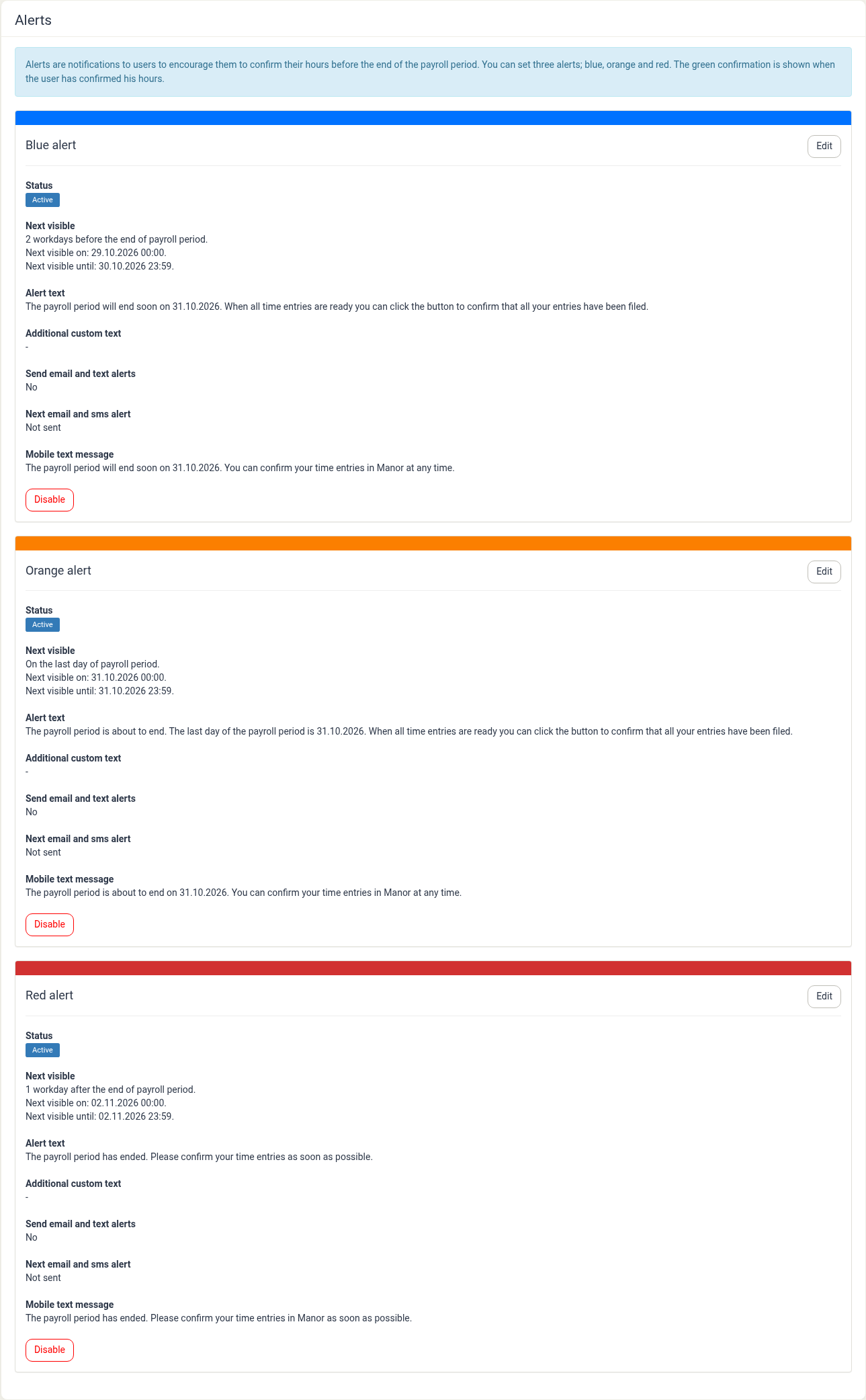
Alert Types and Default Timing
| Alert | Purpose | Default timing |
|---|---|---|
| Blue | A gentle early reminder that the period "will end soon". | 2 workdays before the end of the period. |
| Orange | A stronger reminder on the deadline. | On the last day of the period. |
| Red | A follow-up after the deadline for overdue confirmations. | 1 workday after the end of the period. |
Only one alert is shown at a time. Each alert stays visible until the next alert in the sequence becomes visible, or until the employee confirms — whichever happens first.
Viewing the Alerts
- Open Payroll in the main navigation.
- Select Alerts.
Each alert is shown in its own card with a coloured bar, displaying:
- Status — Active or Disabled.
- Next visible — the relative timing and the exact date/time window in which the alert will next appear. A disabled alert reads Not visible.
- Alert text — the standard wording shown to the employee.
- Additional custom text — any extra message added by an administrator (a dash means none).
- Send email and text alerts — whether the alert is also sent by email and SMS.
- Next email and sms alert — when the next email/SMS delivery is due.
- Mobile text message — the shorter wording used for SMS.
The Settings and Payroll rules links at the top of the page open the firm's payroll configuration.
Editing an Alert
Click Edit on an alert card to change its settings.
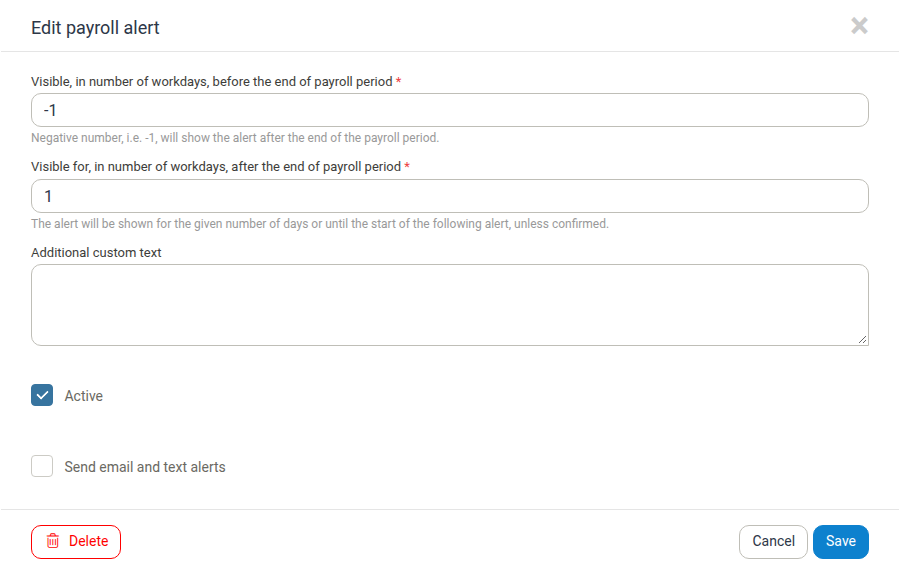
- Visible, in number of workdays, before the end of payroll period — controls when the alert appears. The value must be between −25 and 25 workdays:
- A positive number shows the alert that many workdays before the period ends (for example
2for the blue alert). - 0 shows the alert on the last day of the period (used by the orange alert).
- A negative number shows the alert that many workdays after the period ends (for example
-1for the red alert). The helper text explains: "Negative number, i.e. -1, will show the alert after the end of the payroll period."
- A positive number shows the alert that many workdays before the period ends (for example
- Visible for, in number of workdays, after the end of payroll period — appears only when the field above is negative, and controls how long the alert keeps showing after the period ends. Its helper text reads: "The alert will be shown for the given number of days or until the start of the following alert, unless confirmed."
- Additional custom text — an optional message appended to the standard alert wording and delivered with the alert.
- Active — turns the alert on or off. A disabled alert never appears and no messages are sent for it.
- Send email and text alerts — when selected, the alert is also delivered by email and SMS in addition to appearing in Manor. Alerts are dispatched once a day, around 11:00, and only to employees who are still enabled and have not yet confirmed the period.
Click Cancel to discard your changes or Save to apply them. The dialog also carries a Delete button that asks you to confirm with Do you wish to continue?; because a firm's three alerts are fixed, Delete does not remove the alert — use Disable to take it out of the sequence instead.
Tip: The alert text and mobile text message are generated automatically from the period dates. You cannot change the standard wording, but you can append your own message with Additional custom text.
Enabling and Disabling an Alert
Each alert card carries a button that toggles the alert:
- Disable — stops the alert from appearing and stops any email or SMS for it. The card's Status then reads Disabled and Next visible reads Not visible.
- Enable — the same button once the alert is disabled; it turns the alert back on.
Only enabled alerts take part in the blue → orange → red sequence.
Note: Every firm has exactly these three alerts, so they cannot be added or removed. To take an alert out of the sequence, use Disable rather than any delete action.
Permissions
Viewing and editing the Alerts page requires the payroll management permission — Can manage payroll (all firms) or Can manage payroll within own firm. Users without either permission do not see the Alerts page; if they have only the payroll analysis permission, the main navigation shows a single payroll analysis link instead of the Payroll menu. See Payroll.
Best Practices
- Keep the blue alert enabled so employees get an early nudge before the deadline.
- Enable email and SMS for the orange or red alert if your employees are often away from Manor near month-end.
- Add custom text for firm-specific instructions, such as who to contact about missing entries.
- Confirm working days — alert timing is calculated in workdays and respects the firm's default holiday calendar, so keep that calendar up to date. See Holiday Calendars.
Related Documentation
- Payroll — Overview of the Payroll section
- Pay Periods — Period dates, working quotas and closing periods
- Confirmations — Reviewing and confirming employee hours
- Confirming your hours (self-service) — How the alert appears to the employee
- Firm Payroll Settings — Period dates and working hours that alerts are based on
- Holiday Calendars — Non-working days used when counting workdays