
Introduction
The Management → Settings page holds organization-wide settings that apply across all projects, users, and firms. It is where administrators configure defaults that individual projects and users inherit, enable optional system features, and adjust how Manor behaves for everyone.
Editing these settings requires the Can manage settings. permission.
Configuring global settings properly helps you:
- Standardize business workflows — Ensure all users and departments operate under consistent rules.
- Support complex business models — Enable advanced operations such as inter-department settlements and non-standard billing cycles.
- Maintain system integrity — Keep system behavior aligned with company policies and external accounting requirements.
The Settings Page at a Glance
Open the page from Management in the main navigation, then select Settings. The page presents a stack of cards — each card is a group of related settings, with the current value of every setting shown and an Edit button at the bottom.
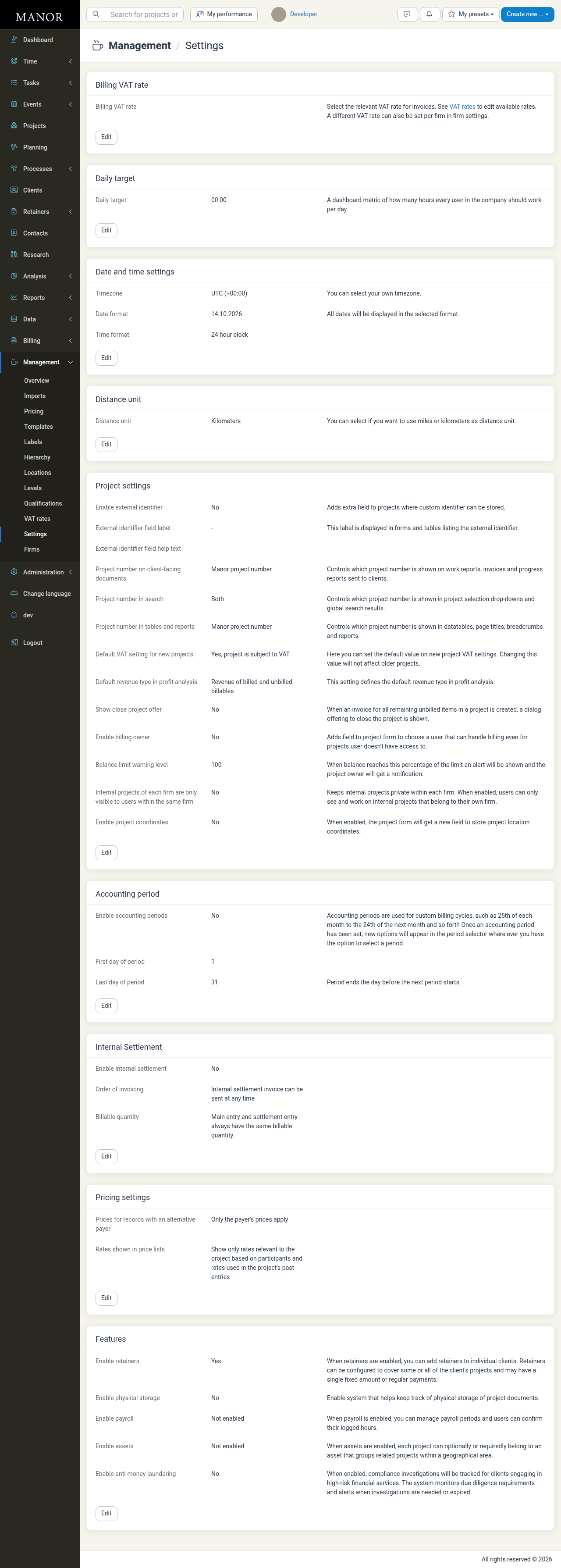
The cards are, in order:
- Billing VAT rate
- Daily target
- Date and time settings
- Distance unit
- Project settings
- Accounting period
- Internal Settlement
- Pricing settings
- Features
Billing VAT Rate
Sets the default VAT rate used on invoices.
- Billing VAT rate — The VAT rate applied to invoices by default. Available rates are maintained under VAT Rates. A different rate can also be set per firm in firm settings.
Daily Target
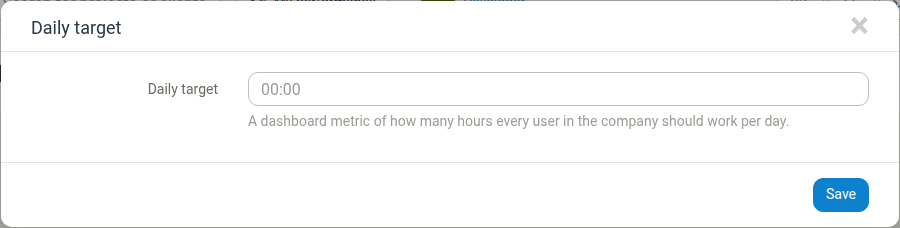
Sets the default number of hours every user in the company is expected to work per day. This is a dashboard metric used to judge whether a day is full, short, or over; individual users can override it in their own profile.
- Daily target — The expected hours per day, entered in
HH:MMformat (for example08:00). A value of00:00means no target is defined.
For how the company default interacts with per-user targets, firm calendar hours and payroll working hours, see Workday Length.
Date and Time Settings
Controls how dates and times are displayed across Manor by default. Users can set personal overrides in their own profile.
- Timezone — The timezone used for display.
- Date format — The order and separators used when dates are shown.
- Time format — Whether times use a 12-hour or 24-hour clock.
See Date and Time Settings for the personal equivalents.
Distance Unit
- Distance unit — Choose between Kilometers and Miles for distances recorded on travel entries.
Project Settings
Defaults and optional fields that apply to projects. The card groups settings for the external identifier, project numbers, VAT and revenue defaults, billing, and balance warnings.
- Enable external identifier — Adds an extra field to projects where a custom identifier can be stored. Its External identifier field label and External identifier field help text control the field's name and helper text. See External Project Number.
- Project number on client-facing documents — Controls which project number is shown on work reports, invoices and progress reports sent to clients.
- Project number in search — Controls which project number is shown in project selection drop-downs and global search results.
- Project number in tables and reports — Controls which project number is shown in data tables, page titles, breadcrumbs and reports.
- Default VAT setting for new projects — The default VAT treatment applied to new projects. Changing it does not affect existing projects.
- Default revenue type in profit analysis — The default revenue type used in profit analysis.
- Show close project offer — When an invoice for all remaining unbilled items in a project is created, a dialog offering to close the project is shown.
- Enable billing owner — Adds a field to the project form for choosing a user who can handle billing even for projects they do not have access to.
- Balance limit warning level — When a balance reaches this percentage of the limit, an alert is shown and the project owner is notified.
- Internal projects of each firm are only visible to users within the same firm — Keeps internal projects private within each firm.
- Enable project coordinates — Adds a field to the project form for storing the project's location coordinates.
For how the three project-number settings interact with Manor's automatic numbering, see Project Number Series.
Accounting Period
Defines custom billing periods (for example, the 25th of one month to the 24th of the next) instead of standard calendar months.
- Enable accounting periods — Turns custom billing cycles on or off.
- First day of period — The calendar day on which each period starts (1–31).
- Last day of period — The calendar day on which each period ends (1–31). Periods end the day before the next period starts.
For a complete guide on how accounting periods work across time tracking and invoicing, see Accounting Periods.
Internal Settlement
Controls invoicing and cost distribution between internal departments, firms, or business units.
- Enable internal settlement — Activates inter-entity billing workflows.
- Order of invoicing — Whether settlement invoices can be sent at any time, or only after the client has been billed.
- Billable quantity — Whether internal settlement entries must mirror the client's billable quantity, or may use a different allocated quantity.
For full setup instructions, see Internal Settlement.
Pricing Settings
Controls how prices and rates are applied and presented.
- Prices for records with an alternative payer — Whether only the payer's prices apply, or the project's prices as well.
- Rates shown in price lists — Whether price lists show all rates or only the rates relevant to the project based on its participants and past entries.
For the wider pricing configuration, see Pricing Management.
Features
Toggles that switch optional parts of Manor on or off.
- Enable retainers — Allows retainers to be added to individual clients, covering some or all of their projects. See Retainers.
- Enable physical storage — Enables tracking of the physical storage of project documents.
- Enable payroll — Turns payroll on, letting you manage payroll periods and letting users confirm their logged hours. Payroll must be configured before it is used; see Payroll.
- Enable assets — Lets projects optionally or mandatorily belong to an asset that groups related projects within a geographical area.
- Enable anti-money laundering — Tracks compliance investigations for clients engaging in high-risk financial services. See Anti-Money Laundering (AML).
Note: Several of these features require additional configuration before they can be used. Enabling a feature makes its pages and options appear; it does not by itself set them up.
Editing a Setting
All settings are edited the same way:
- Click Management in the main navigation menu.
- Select Settings.
- Find the card for the group you want to change.
- Click Edit on that card.
- Update the fields in the dialog.
- Click Save to apply the change immediately.
Best Practices
- Plan changes before modifying — Because global settings affect all users, schedule changes during low-activity windows and tell team leads in advance.
- Coordinate with accounting — Make sure period boundaries, VAT and settlement rules match your external general ledger requirements.
- Check firm-specific overrides — Review individual firm settings under Management → Firms to see how firm-level configuration interacts with global settings.
Related Documentation
- Workday Length — Setting the daily working hours and how they affect calendars and time entry
- Accounting Periods — Detailed guide to custom billing cycles
- Internal Settlement — Inter-firm and inter-department invoicing
- VAT Rates — The VAT rates available for invoices and expenses
- Pricing Management — Pricing setup and execution
- External Project Number — Enabling and labelling the optional project identifier
- Firms — Managing legal entities, logos, bank accounts, and firm-level invoicing
- Management — Central hub for organizational configuration
- Date and Time Settings — Personal timezone and date display settings