
What Are Prices?
Prices in Manor determine how much your clients are charged for work, products, or expenses. Setting the right prices helps you bill accurately, stay competitive, and keep your business running smoothly. Manor lets you set prices in several places, so you can customize them for each client, project, or even a specific activity.
Where Do I See and Set Prices?
You can view and manage prices in several areas of Manor:
| Location | Description |
|---|---|
| Rates | The main list of standard prices for each type of work or product. Found under Management > Pricing. |
| Client Prices | Each client has its own Prices button. Click it to open the pricing dialog and see or set custom prices for that client. |
| Project Prices | Each matter has its own Prices button for setting prices specific to that project. |
| Activity Prices | Each activity within a matter has its own Prices link for setting prices specific to that activity. |
| Pricing Periods | For special cases where prices change over time (like annual contracts), use Management > Pricing > Pricing Periods to set prices for specific months. |
| Cost Pricing Periods | Set cost prices for specific time periods under Management > Pricing > Cost Pricing Periods. |
| Invoices | While preparing an invoice you can override a billable group's subtotal or discount, or the invoice's total amount, before issuing it. |
How Pricing Works: The "Most Specific Wins" Rule
When Manor needs to decide what price to use, it looks for the most specific price available. Here's how it works:
- Activity Price: If you set a price for a specific activity, that price is used for that activity.
- Project Price: If there's no activity price, Manor checks if you set a price for the whole project.
- Client Price: If there's no project price, Manor checks if you set a price for the client.
- Pricing Period: If you've set up special prices for certain months, those are used if they apply.
- Standard Rate: If none of the above are set, Manor uses the standard price from the Rates list.
Tip: In the pricing dialog you can see which price each rate resolves to. When a more specific price is set, the price it overrides is shown crossed out, so a struck-through value is the one that no longer applies.
Types of Prices You Can Set
| Price Type | Description |
|---|---|
| Standard Price | The usual price for a type of work or product, set in the Rates area. |
| Client Price | A special price just for one client, set from the client's page. |
| Project Price | A special price for a specific project, set from the project's page. |
| Activity Price | The most specific price, set for a single activity. |
| Pricing Period Price | A price that only applies during a certain month or period. |
| Cost Price Period | Internal cost prices that apply during specific time periods. |
| Invoice override | A subtotal, discount or total amount you enter on the invoice form. |
How to View and Change Prices
1. In the Rates Area
-
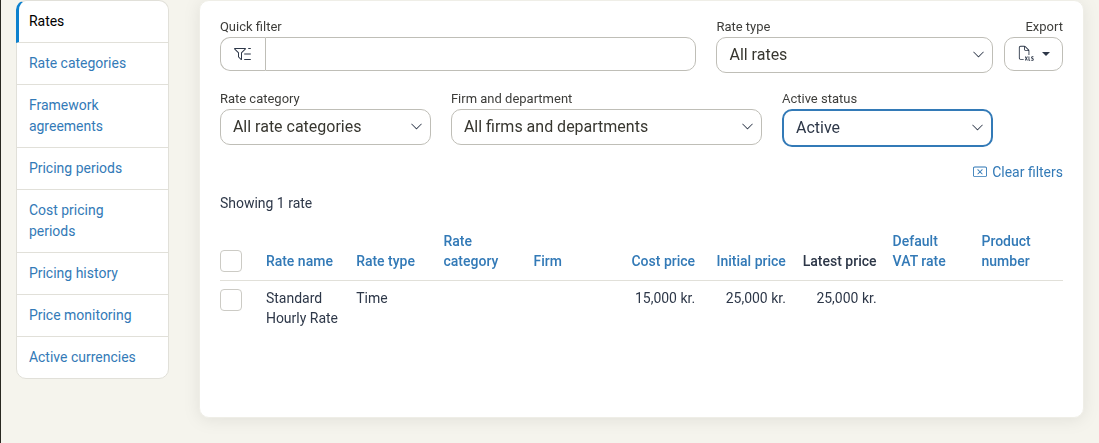
Go to Management > Pricing. You'll see the Rates page with a table of all your standard rates.
-
The Pricing area also has these pages, listed beside the Rates table:
- Rate categories: Group rates into categories
- Framework agreements: Manage contractual pricing agreements
- Pricing periods: Set prices for specific time periods
- Cost pricing periods: Set internal cost prices for specific periods
- Pricing history: View price change history
- Price monitoring: Monitor special prices and discounts
- Active currencies: Manage currencies and foreign prices
-
Click a rate in the table to edit it, or click New rate to create a new rate. See Rates for the full step-by-step procedure for creating and editing rates.
-
The table shows columns for:
- Rate name — The name of the rate
- Rate type — Time, Travel, Product, or Per diem
- Rate category — Optional grouping
- Firm — Which firm can use this rate
- Personal rate — Whether this is a personal rate for a specific employee (shown only when personal rates are in use)
- Cost price — Internal cost of delivering this work
- Initial price — The standard price for this rate
- Latest price — The most recent price from pricing periods
- Default VAT rate — VAT rate applied to this rate
- Product number — Product code (vörunúmer) used when this rate is posted to your accounting software
You can filter by rate type, rate category, firm and department, and active status to find the rates you need to update. Use Quick filter to search by name.
2. For a Client
-
Navigate to Clients and select a client.
-
Click the Prices button in the top section.
-
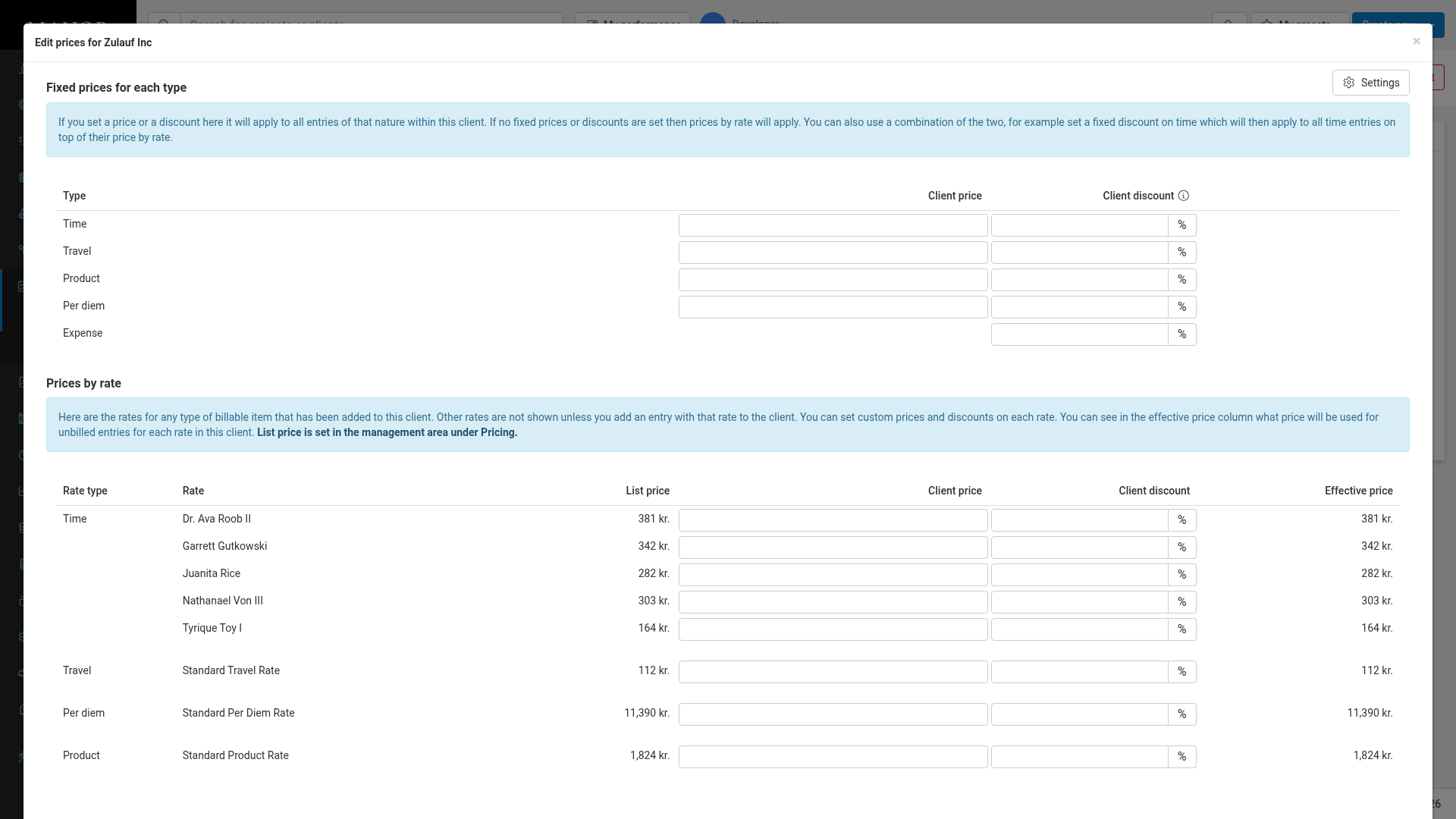
The pricing dialog has two sections:
Fixed prices for each type:
- Set a fixed price or discount that applies to all entries of that type (Time, Travel, Product, Per diem, Expense).
- If you set a price or discount here, it will apply to all entries of that nature for this client.
- You can also combine fixed prices with per-rate prices.
Prices by rate:
- Shows all rates that have been used with this client.
- You can set a custom Client price for each rate.
- You can set a Client discount as a percentage.
- The Effective price column shows the final price that will be used.
- List prices are set in Management > Pricing.
-
Enter new prices in the appropriate fields.
-
Click Save prices to apply changes.
3. For a Project
- Navigate to Projects and select a project.
- Click the Prices button.
- The pricing dialog works the same way as for clients, allowing you to set fixed prices and/or prices by rate.
- Click Save prices to apply changes.
4. For an Activity
- Open a project and expand the Activities section.
- Next to each activity, click the Prices link.
- Set custom prices specific to that activity.
- Click Save prices to apply changes.
5. For Pricing Periods (Special Dates)
- Go to Management > Pricing > Pricing Periods.
- Click New pricing period to add a new period.
- Set the start date and affected prices for that time period.
- Click Save to apply changes.
6. On an Invoice
- Open an invoice from Billing and review the billable lines. Line prices are calculated for you and are not typed in directly on the invoice.
- To change a single line, open that line's billable record from the invoice and edit its price there.
- To adjust a whole group, enter a Subtotal or Discount for that group. You can also override the invoice's Total amount.
- An override applies to that invoice only and does not change any saved price elsewhere in the system.
Product Numbers on Rates
Prices and product numbers sit on the same standard rates. A product number (also called an item code or, in Icelandic, vörunúmer) is the code your accounting software uses to identify what is being sold. Prices answer how much a line costs; the product number answers what the line is, so your accounting software can book it against the right item.
Because product numbers belong to rates, you set them wherever you manage your standard rates:
-
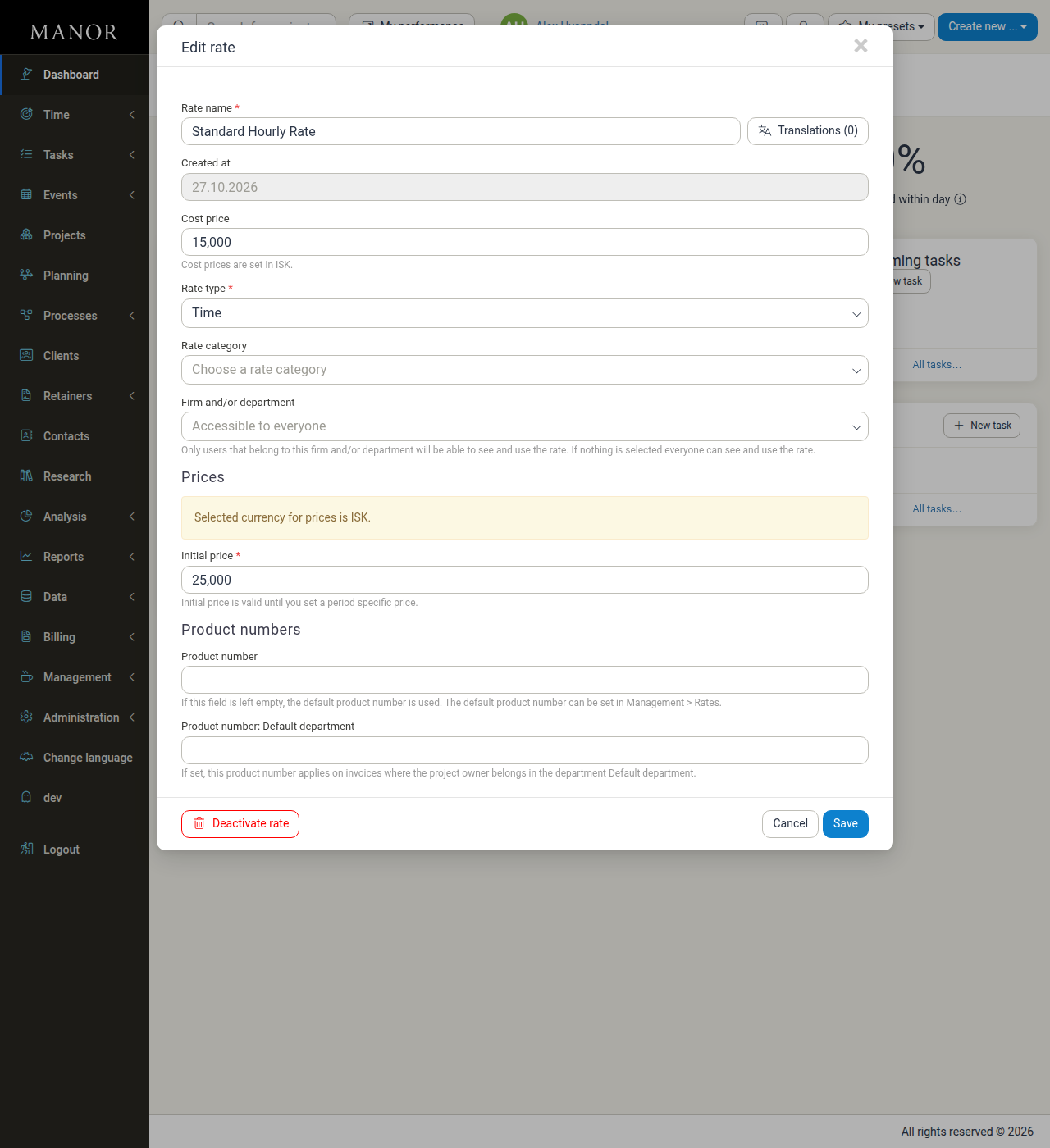
On a rate — open Management > Pricing, click a rate, and enter the Product number in the rate's Product numbers section. If you leave it empty, Manor uses the default product number for the rate type.
-
Per department — on the same rate, the Product number:
field sets a department-specific code that applies when the project owner belongs to that department. -
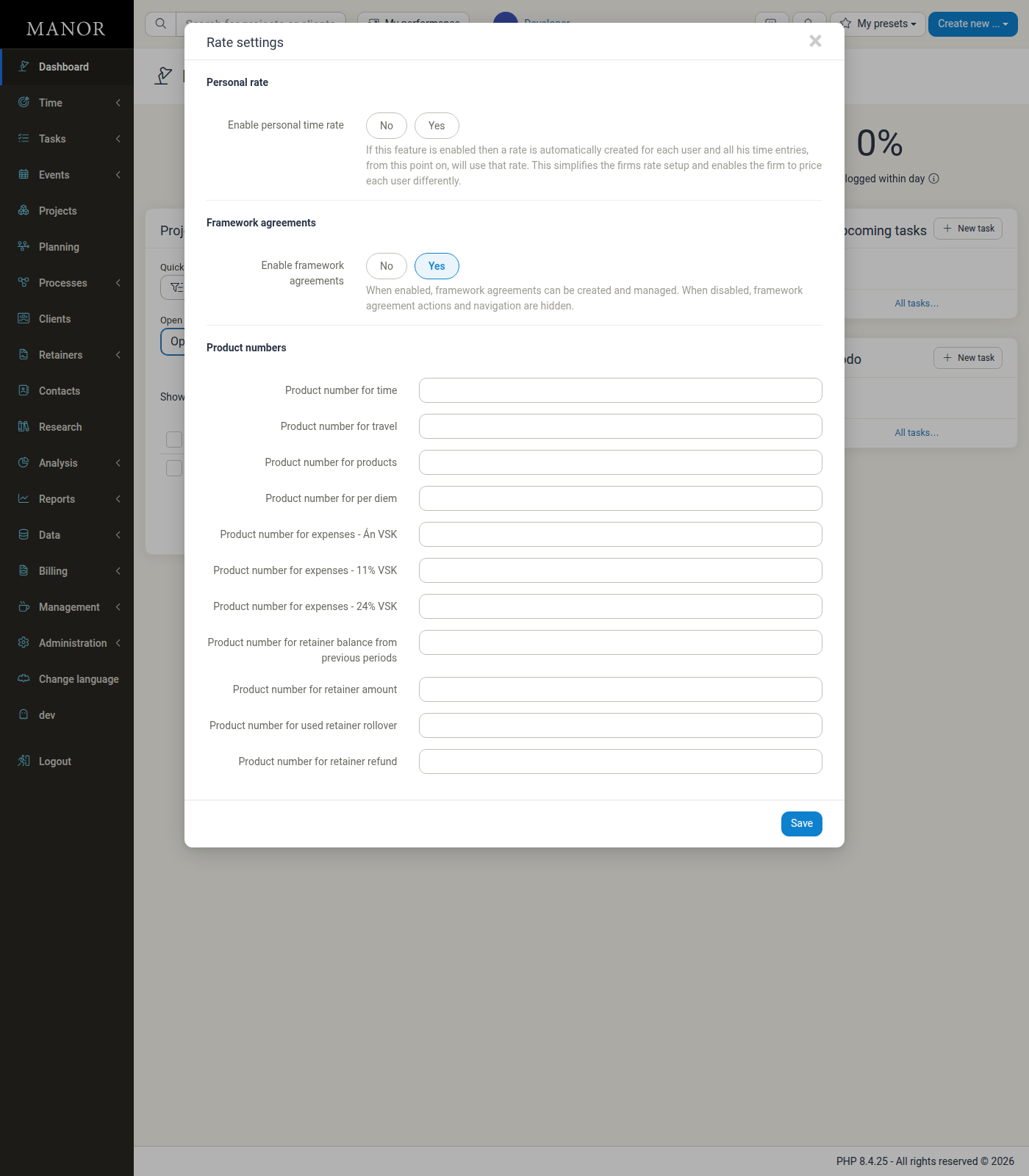
Defaults per billable type — set the fallback product numbers for time, travel, products, per diem, and each expense VAT rate (plus retainer product numbers) under Management > Pricing > Settings (the Rate settings page), in the Product numbers group.
Product numbers do not affect the price itself; they only determine how a line is posted to your accounting software. Accounting integrations such as DK and Regla require a product number on every invoice line. If one is missing, Manor does not post the invoice and warns you, for example:
This setting has not been set yet: Product number for time
See Connecting to DK and Connecting to Regla for the full integration details.
What Happens When You Change a Price?
| Action | Effect |
|---|---|
| Changing a standard rate | Updates the default price for all future work, unless a more specific price is set. |
| Setting a client, project, or activity price | Overrides the standard price for that context. |
| Overrides on an invoice | Only affect that invoice and do not change your saved prices. |
| Changing a price | Does not affect invoices that have already been sent or paid. |
Pricing Dialog Details
The pricing dialog for clients, projects, and activities contains:
Fixed Prices for Each Type
Set a price or discount that applies to all entries of that type within this context:
- Time - Hourly rates for work
- Travel - Travel-related costs
- Product - Product sales
- Per Diem - Daily allowances
- Expense - Expense reimbursements. Expenses support a discount percentage only, not a fixed unit price.
If no fixed prices or discounts are set, prices by rate will apply.
Prices by Rate
Shows all rates used by the client/project/activity with:
- List price - The standard rate price
- Client/Project price - Your custom price for this context
- Client/Project discount - A percentage discount
- Effective price - The final price that will be used
Tips and Best Practices
- Use standard rates for most clients to keep things simple.
- Set client prices for special agreements or volume discounts.
- Set project prices for project-specific pricing.
- Use pricing periods when prices should change based on the date of service (e.g., annual increases).
- Use activity prices for the most granular control over specific work types.
- Use an invoice override (a group subtotal, discount, or the total amount) for one-off situations or negotiations.
- Review the pricing dialog to see which price will be used before sending an invoice.
- Check Price Monitoring under Management > Pricing to track special prices and discounts.
- Set product numbers on your standard rates (or as defaults) before invoicing, so DK and Regla can post every invoice line.
Troubleshooting
Why is my price crossed out?
The crossed-out value is the price that is being overridden. A more specific price is set elsewhere (for example, a project or activity price). Check the pricing dialog to see which level is taking precedence.
Why isn't my new price showing up?
- Make sure you saved your changes by clicking Save prices.
- Clear your browser cache and refresh the page.
- Check if a more specific price (activity, project, or client) is overriding your change.
Can I see all prices in one place?
- Use Management > Pricing for an overview of all standard rates.
- Open the pricing dialog for a specific client, project, or activity to see all applicable prices.
- Check Price Monitoring to see special prices and discounts across the system.
How do I undo a price change?
Navigate to the same pricing dialog and clear the custom price field. The standard rate price will then apply.
Why does Manor ask for a product number when I invoice?
Your accounting integration (DK or Regla) needs a product number on every invoice line. Add it on the rate under Management > Pricing, or set defaults under Management > Pricing > Settings (Rate settings).
Summary
Manor's pricing system is flexible, letting you set prices at the level that makes sense for your business. Remember:
- The most specific price always wins
- Activity prices override project prices
- Project prices override client prices
- Client prices override standard rates
- You can always review prices before sending an invoice, and override a group subtotal, discount, or the invoice total if needed
- Product numbers live on the standard rates and tell your accounting software what each line is