
The Published rates view is a report that lists your rates together with their latest price and the date that price was last updated. Use it as a reference to check the pricing your firm is currently working with, and when each rate's price last changed.
It does not create or calculate prices — it shows the latest price already recorded for each rate. To add rates, set prices or manage categories, use Pricing Management instead.
The rate list
Each row describes one rate:
- Rate name — The name of the rate, for example Developer or Standard Travel Rate
- Rate type — The kind of billable the rate applies to: Time, Travel, Product or Per diem
- Firm — The firm the rate belongs to. Blank when the rate is not limited to a specific firm
- Personal rate — Shows a check mark icon when the rate belongs to a specific person. This column only appears when at least one personal rate exists
- Department — The department the rate is limited to. This column only appears when at least one rate is tied to a department
- Latest price — The current price for the rate, shown in the selected currency
- Last price update — The date the rate's latest price was last changed
Viewing published rates
- Click Data in the main navigation menu.
- Click Published rates in the Data list (or the Published rates card on the Data overview page).
- The page opens at Data / Rates and lists your rates, sorted by rate name.
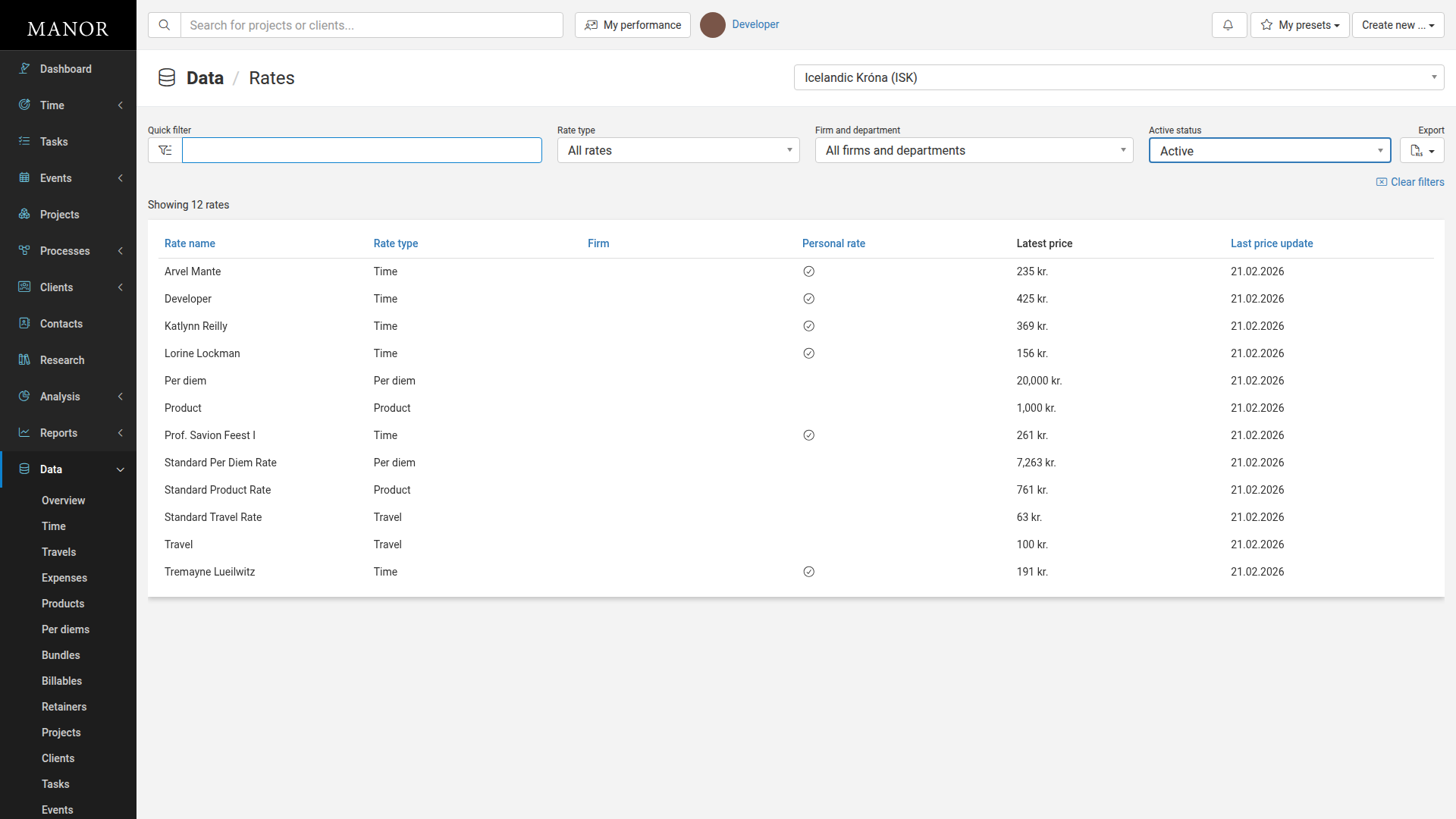
You can click a rate to open it and edit its details. Prices shown here are the latest recorded prices, not a history of how a rate has changed over time — to see what a rate was originally set to, see Pricing History.
Filtering rates
Use the filters at the top of the list to narrow down the rates shown:
- Quick filter — Type to search by rate name.
- Rate type — Choose All rates (default), Time, Travel, Product or Per diem.
- Firm and department — Limit the list to specific firms or departments.
- Active status — Choose Active (default), Inactive, or Both active and inactive.
- Currency — At the top right of the page, choose which currency the Latest price amounts are shown in.
The number of matching rates is shown above the table (for example, Showing 12 rates). If a search or filter matches nothing, the list shows The search returned no results.; use Clear filters to reset the filters. When no rates exist at all, the list shows There are no rates yet.
Sorting
Click a column heading to sort by that column, and click again to reverse the order. You can sort by Rate name (the default), Rate type, Firm, Personal rate and Last price update. The Latest price column cannot be sorted.
Exporting the list
To export the published rates to a spreadsheet:
- Click Export above the table.
- Choose Download as Excel spreadsheet.
The list is downloaded as an Excel file. See Exporting Tables to Excel for more about exports in Manor.
Best practices
Keep prices current — Regularly check the Last price update column so you know when rates were last changed before quoting or invoicing work.
Filter by type — Use the Rate type filter to focus on one kind of rate, for example all Time rates, when reviewing or comparing prices.
Check the active status — The list shows active rates by default. Switch Active status to Both active and inactive to also see rates that are no longer in use.
Confirm the currency — If your firm uses more than one currency, check the currency selector so you are reading prices in the currency you expect.
See Also
- Pricing Management — Create and edit rates, categories and default product numbers
- Pricing History — The initial price each rate was created with
- Price Monitoring — How client, project and activity pricing changes the effective price
- Active Currencies — Enable currencies and see exchange rates
- Data Management — Overview of all record types in the Data section
- Exporting Tables to Excel — How exports work in Manor