
What is All Billables?
All billables is a unified view in the Time section that shows every billable item logged across your firm—including time entries, travel, expenses, and products—in one convenient list. Unlike the individual billable type views, this gives you a complete overview of all billable work regardless of type.
Use All billables to:
- See everything at once — Review all billable items across all types and projects
- Audit billable work — Check that all logged work is properly recorded before billing
- Find specific items quickly — Search and filter across all billable types simultaneously
- Export for billing — Download billables for invoicing or reporting
Accessing All Billables
To access the All billables view:
- Click Time in the main navigation
- From the Time submenu, click All billables
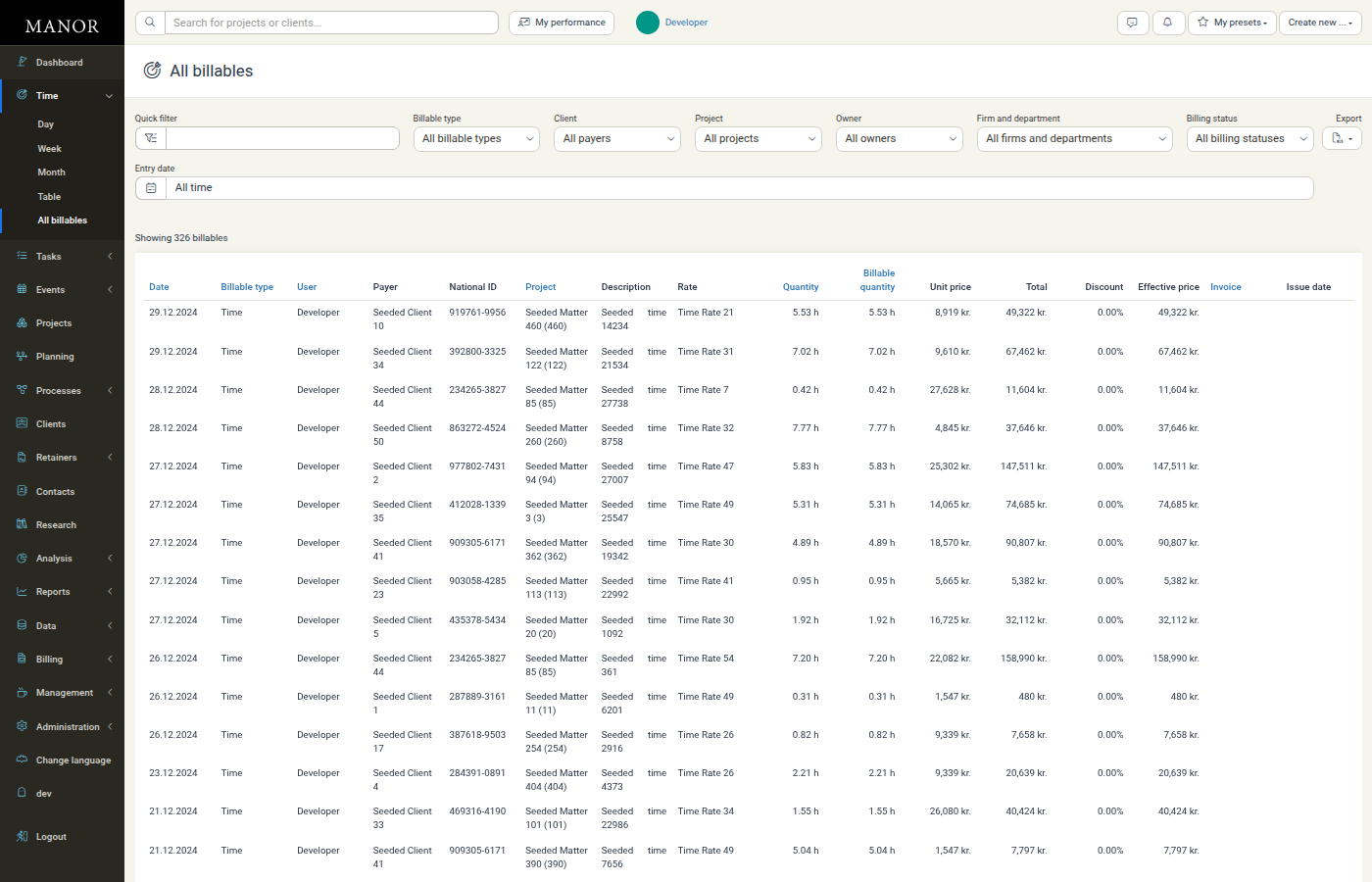
You'll see a filtered list of all billable items with powerful search and filtering options.
Viewing Billables
The All billables page displays billable items in a table format showing:
- Date — When the billable item was logged
- Billable type — Time, travel, expense, or product
- User — Who logged the billable
- Payer — The client being charged
- National ID — Client identification number
- Project — Which project the item belongs to
- Description — Details about the work performed
- Rate — The hourly or unit rate
- Quantity — The total quantity logged
- Billable quantity — The billable quantity after discounts
- Unit price — Price per unit
- Total — Total amount before discount
- Discount — Discount percentage applied
- Effective price — Final billable amount
- Invoice — Whether the billable has been invoiced
- Issue date — Date the invoice was issued
The table can be sorted by clicking column headers.
Filtering Billables
Use the filter options to narrow the list to what you need:
| Filter | What it does |
|---|---|
| Quick filter | Search by keyword to find specific billables |
| Billable type | Show only time, travel, expenses, products, or all types |
| Client | Filter to billables for a specific payer |
| Project | Show billables from a specific project |
| Owner | Filter by project owner |
| Firm and department | Limit to billables from a specific department |
| Invoice number | Filter by specific invoice numbers |
| Billing status | Show invoiced, pending, or all billables |
| Entry date | Filter by date range when the billable was logged |
Using the Quick Filter
- Click the Quick filter textbox
- Type a keyword (e.g., client name, project name, description)
- Press Enter or wait for results to update automatically
Using Dropdown Filters
- Click on any filter dropdown (e.g., All billable types)
- Select one or more options from the list
- The table updates automatically
Combining Filters
Stack multiple filters to narrow results. For example:
- Filter by Client = "Acme Corp"
- Filter by Billable type = "Time"
- Filter by Billing status = "Pending"
This shows only unbilled time entries for Acme Corp.
Exporting Billables
Export your filtered billables list for use in spreadsheets, reports, or external billing systems.
- Apply any filters you want (the export includes only visible billables)
- Click the Export button at the top right
- The file downloads to your computer in CSV format
Tip: Export before invoicing to verify what you're billing to clients.
Best Practices
Review Before Billing Before creating invoice proposals or invoices, filter for pending billables and review them for accuracy. Look for missing descriptions or suspicious amounts.
Use Project Filters When working on a specific project, filter by Project to see all billable items for that project in one view. This helps spot gaps or duplicates.
Check Billing Status Use the Billing status filter to see what has and hasn't been invoiced. The gap between pending and invoiced billables shows your unbilled work pipeline.
Combine Client and Date Filters Filter by Client and Entry date together to see all billables for a client in a specific period. This is useful for invoice proposals.
Export for Accountability Export and share the list with team leads or managers to confirm what has been logged before invoicing.
Spot High-Value Items Scan the Amount column to identify the highest-value billables. These deserve extra attention for accuracy.
Comparing to Data > Billables
The All billables view in the Time section is similar to the Billables view in Data, but optimized for time-tracking workflows:
- Time > All billables — Quick access from the Time section, focused on billables relevant to time tracking
- Data > Billables — Detailed view with additional fields and filters for audit purposes
Both show the same underlying data. Choose the one that fits your workflow.
Related Topics
- Time Tracking — Overview of the Time section and different time views
- Data > Billables — Detailed billables view in the Data section
- Invoice Proposals — Creating invoices from billables