
What are Locations?
Locations represent physical or organizational locations where your team members work. You can create locations (such as offices, branches, or geographic regions) and assign users to them. This enables location-based reporting, helps organize your team by where they're based, and supports multi-office or multi-regional operations.
Why Locations Matter
Using locations helps you:
- Organize by geography - Track where your team members are based
- Enable location-based reporting - Generate reports and analysis by location
- Manage multi-office operations - Support teams across multiple offices or regions
- Resource planning - See team capacity and utilization by location
- Compliance tracking - Track work by location for tax, labor, or operational requirements
Creating a Location
To create a new location:
- Navigate to Management from the main navigation menu.
- Click Locations in the Management submenu.
- Click New location.
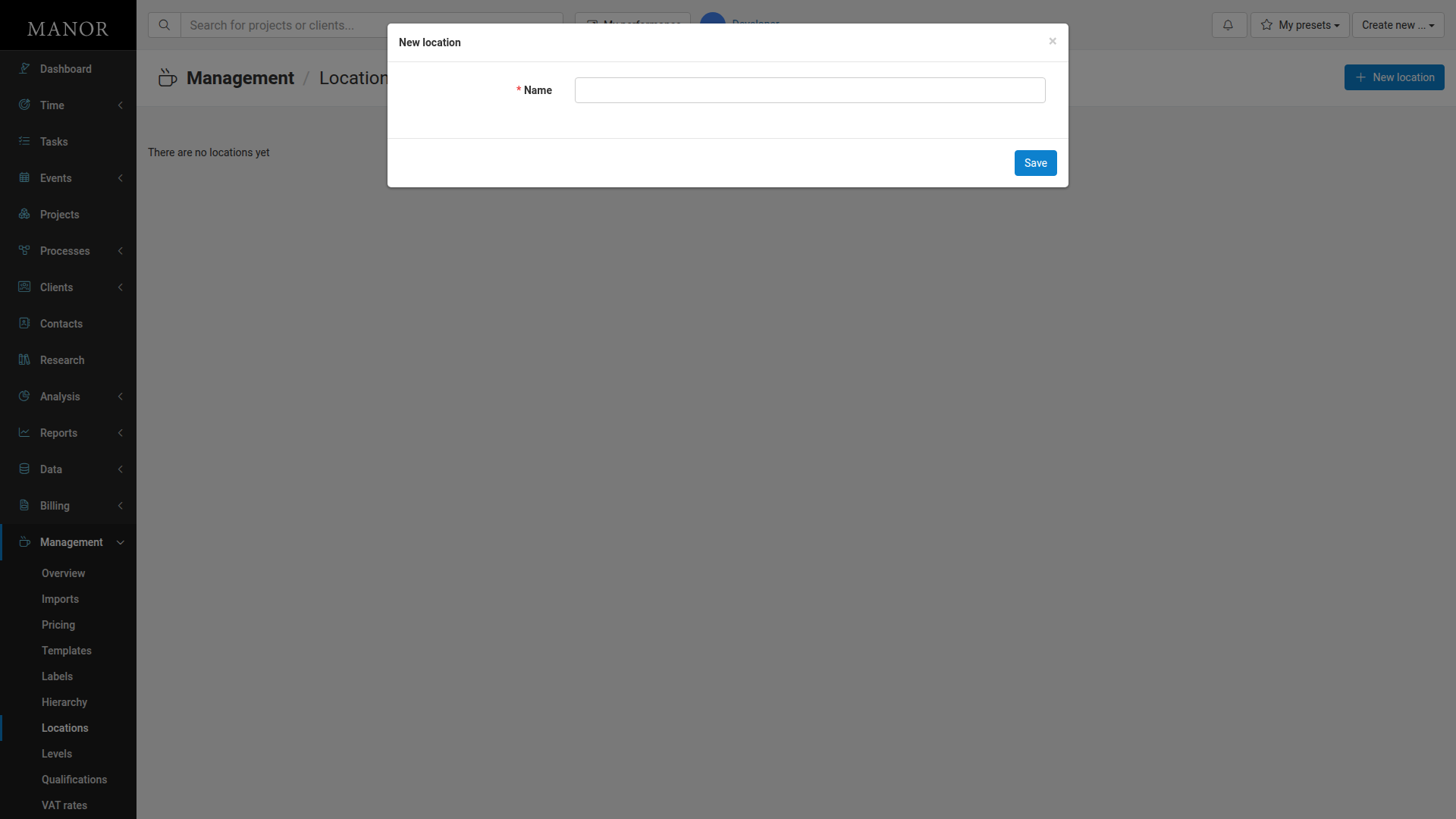
- Enter the Name for your location (e.g., "New York Office", "London Branch", "Remote").
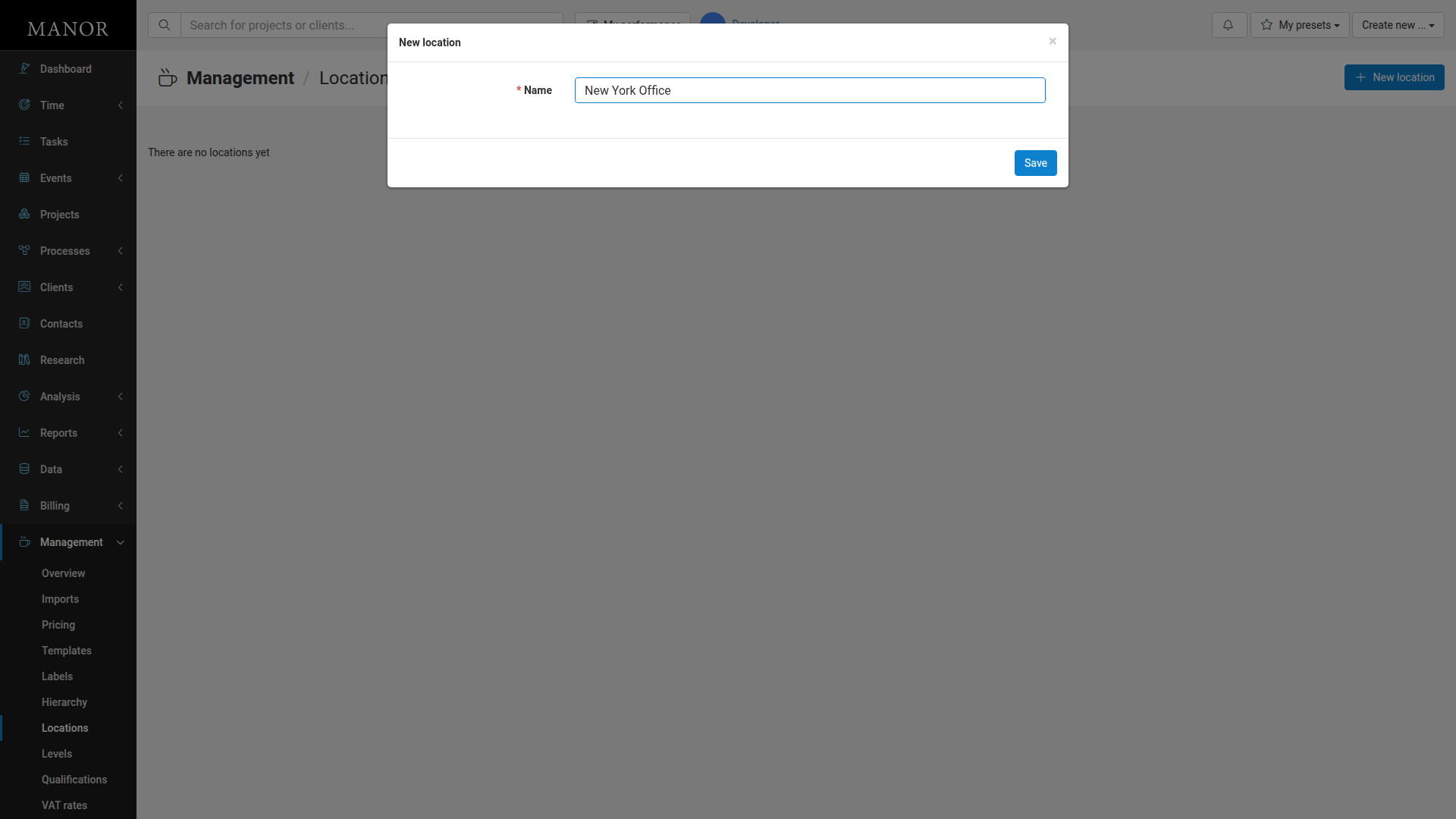
- Click Save to create the location.
Managing Locations
Viewing Locations
To view all locations in your system:
-
Navigate to Management → Locations.
-
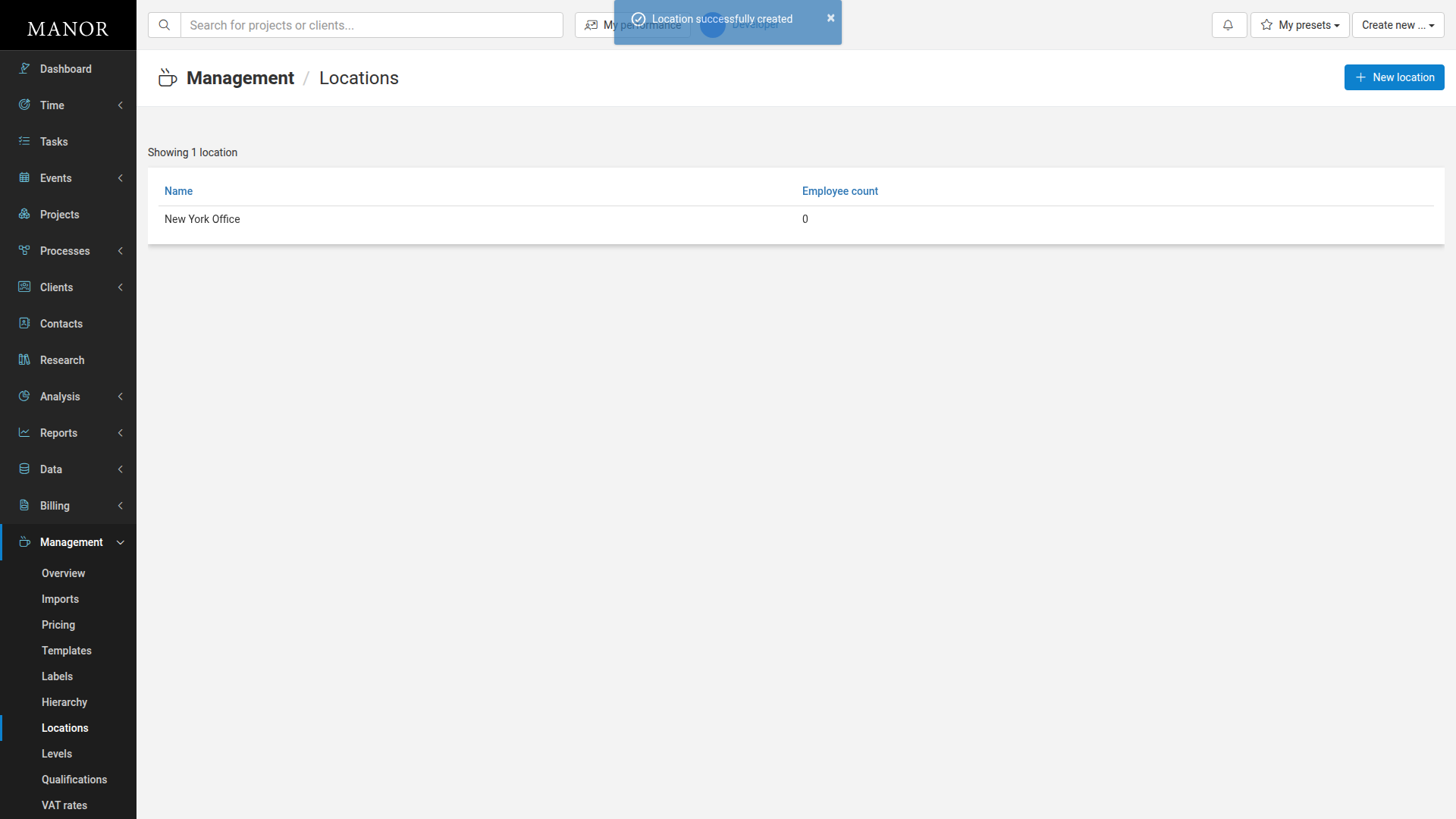
You will see a list of all locations with a count of employees assigned to each.
Editing a Location
To edit an existing location:
-
Navigate to Management → Locations.
-
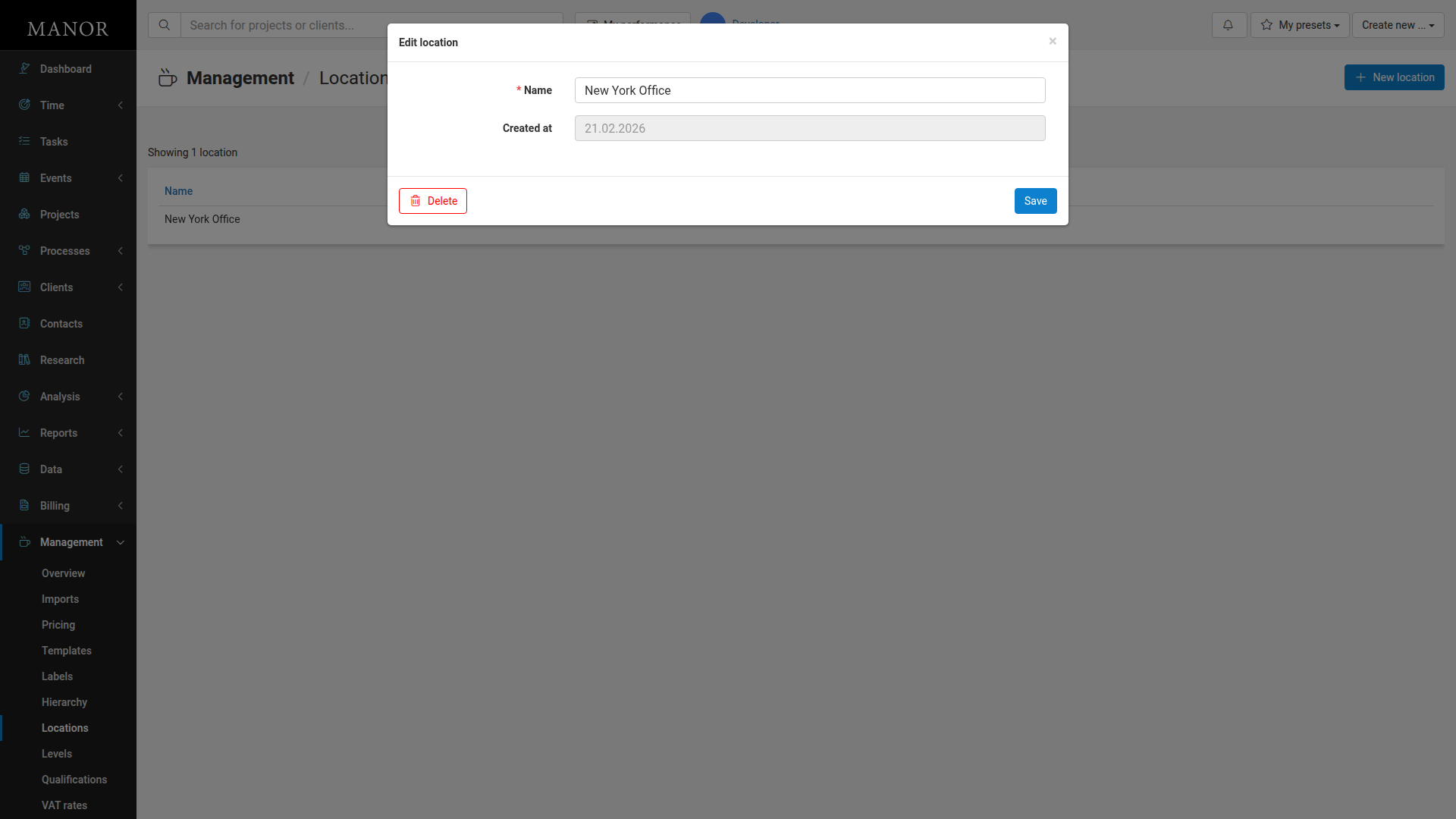
Click on the location name you want to modify.
-
Update the Name field as needed. The Created at date is displayed for reference and cannot be changed.
-
Click Save to apply changes.
Deleting a Location
To delete a location:
-
Navigate to Management → Locations.
-
Click on the location you want to delete to open the edit dialog.
-
Click the Delete button.
-
A confirmation dialog appears asking "Do you wish to continue?" Click Delete to confirm or Cancel to cancel the deletion.
Note: You can only delete a location if no users are currently assigned to it. If users are assigned, you must reassign or remove them first.
Best Practices
Use Clear Names
Choose location names that are clear and unambiguous. Examples: "New York", "London", "San Francisco", "Remote", "Hybrid".
Keep Locations Consistent
Establish a naming convention for your locations (e.g., "City Name" or "Office - City Name") to maintain consistency across your firm.
Assign All Users
Ensure all users in your system have a location assigned for complete and accurate reporting.
Review Regularly
Periodically review your locations and update assignments if team members move to different offices or regions.
Plan for Flexibility
Consider creating locations for both physical offices and work arrangements (e.g., "Remote", "Hybrid") to capture how your team works.
Location Examples
Here are common location types you might create:
- Geographic Locations: "New York", "London", "Tokyo", "Sydney"
- Office Branches: "Main Office", "Downtown Office", "Uptown Office"
- Remote Work: "Remote", "Work from Home", "Hybrid"
- Client Sites: "Client Office", "On-site"
- Regions: "North America", "Europe", "Asia Pacific"