
DK is one of the available invoicing integrations in Manor firm settings. When you select DK as your invoicing integration, Manor sends invoices electronically to your DK accounting software.
Note: Manor offers two separate DK integrations. This article covers the DK integration. If you prefer to export invoices as XML files for manual import into DK, see Connecting to DK (XML File Export) instead.
Accessing DK Integration
To access the DK integration option:
-
Navigate to Management → Firms from the main menu.
-
Select your firm to open the firm settings.
-
Find the Invoicing setup section.
-
Click Edit to configure the invoicing integration.
-
Select DK from the Invoicing integration dropdown.
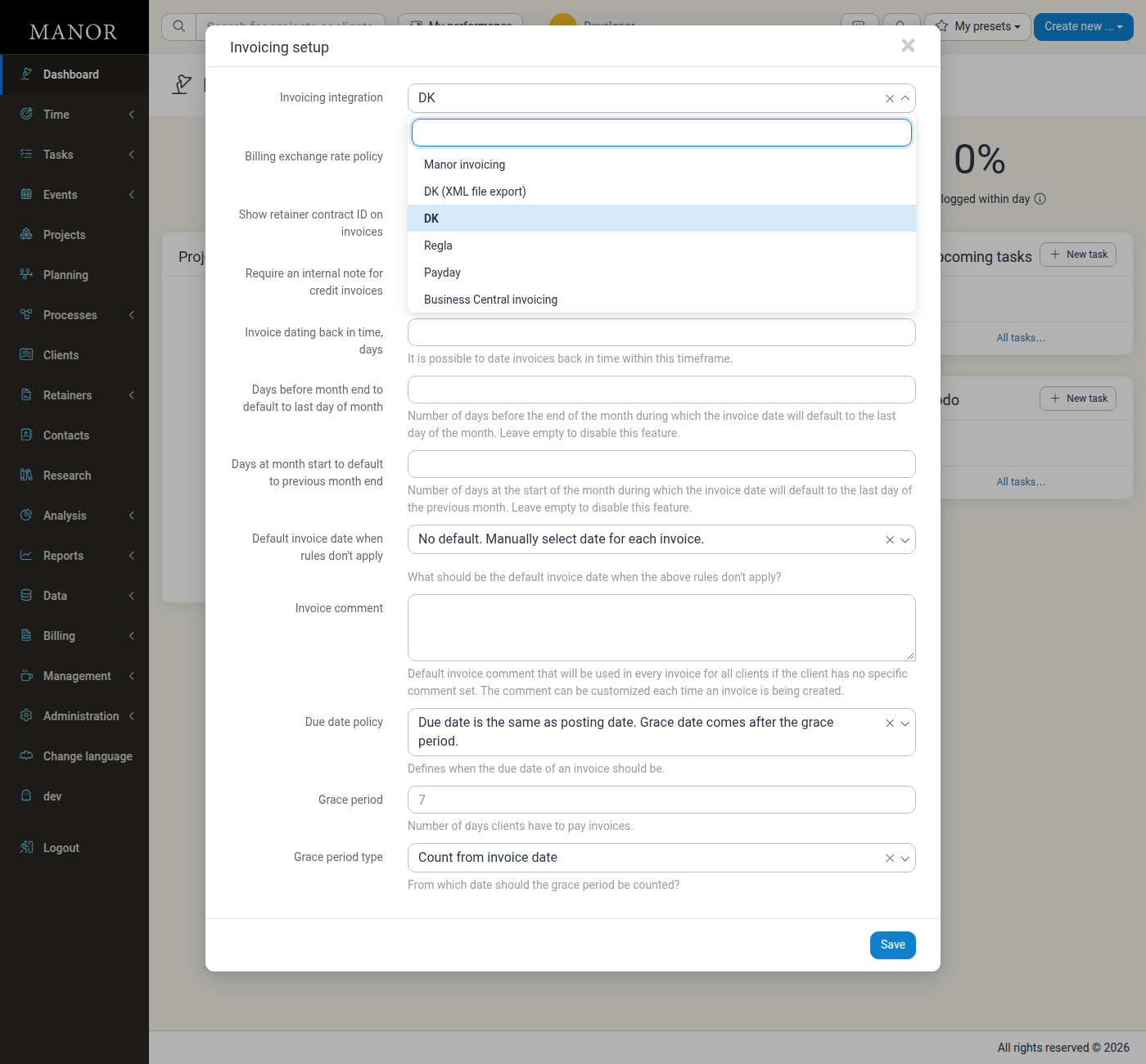
- Click Save to apply the selection.
Once saved, a new DK settings group appears on the firm settings page, where you configure the connection details described below.
DK Settings
The DK settings group contains the connection and invoice settings for the integration.
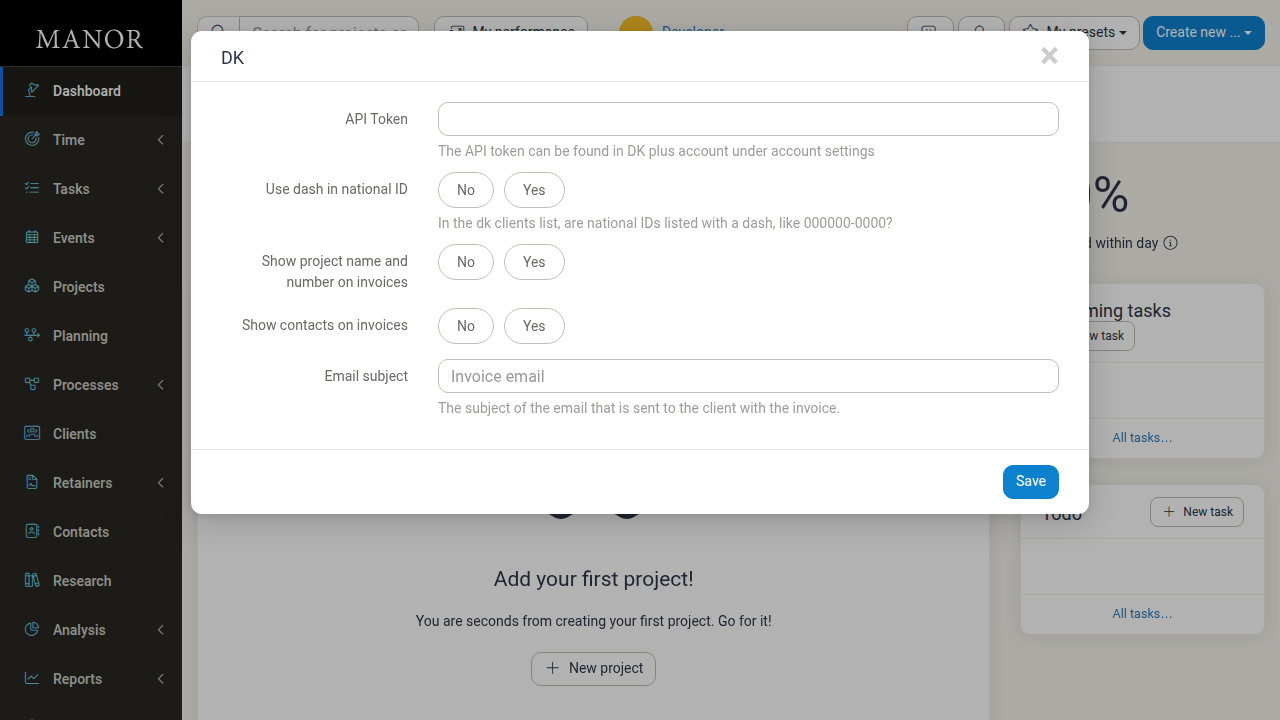
API Token
The API token is the credential Manor uses to connect to your DK account. You can find the token in your DK plus account under account settings. Paste the token into this field to activate the connection. The value is kept hidden after it is saved.
Use dash in national ID
Choose whether national IDs in the DK clients list are listed with a dash, for example 000000-0000. Select Yes if your DK account formats national IDs with a dash, or No if it does not. This ensures Manor's client national IDs match the format used in DK.
Show project name and number on invoices
Select Yes to display the project name and number on generated invoices, or No to leave them off.
Show contacts on invoices
Select Yes to display contact information on generated invoices, or No to leave it off.
Email subject
The subject line of the email that is sent to the client with the invoice. The default subject is Invoice email; you can change it to whatever your clients should see.
How Invoices Are Handled
Once the DK integration is connected and configured:
- Invoices created in Manor are sent electronically to DK.
- DK assigns the invoice number, which is then used on the Manor invoice.
- The client's national ID is used to match the invoice to the correct DK customer, so the Use dash in national ID setting should match your DK setup.
Issuing an Invoice to DK
This section describes what happens from the moment you issue an invoice after the DK connection has been configured. The invoicing form itself is the same as for any other integration — see Invoices for the full step-by-step walkthrough of building an invoice from balances. The paragraphs below focus on what is specific to DK.
Issuing is the same form, pushed automatically
When DK is your invoicing integration, you still create the invoice in Manor in the usual way:
- Go to Billing and start a New invoice from a balance (or from a project).
- Pick the billable items, client/payer, issue date, layout and period.
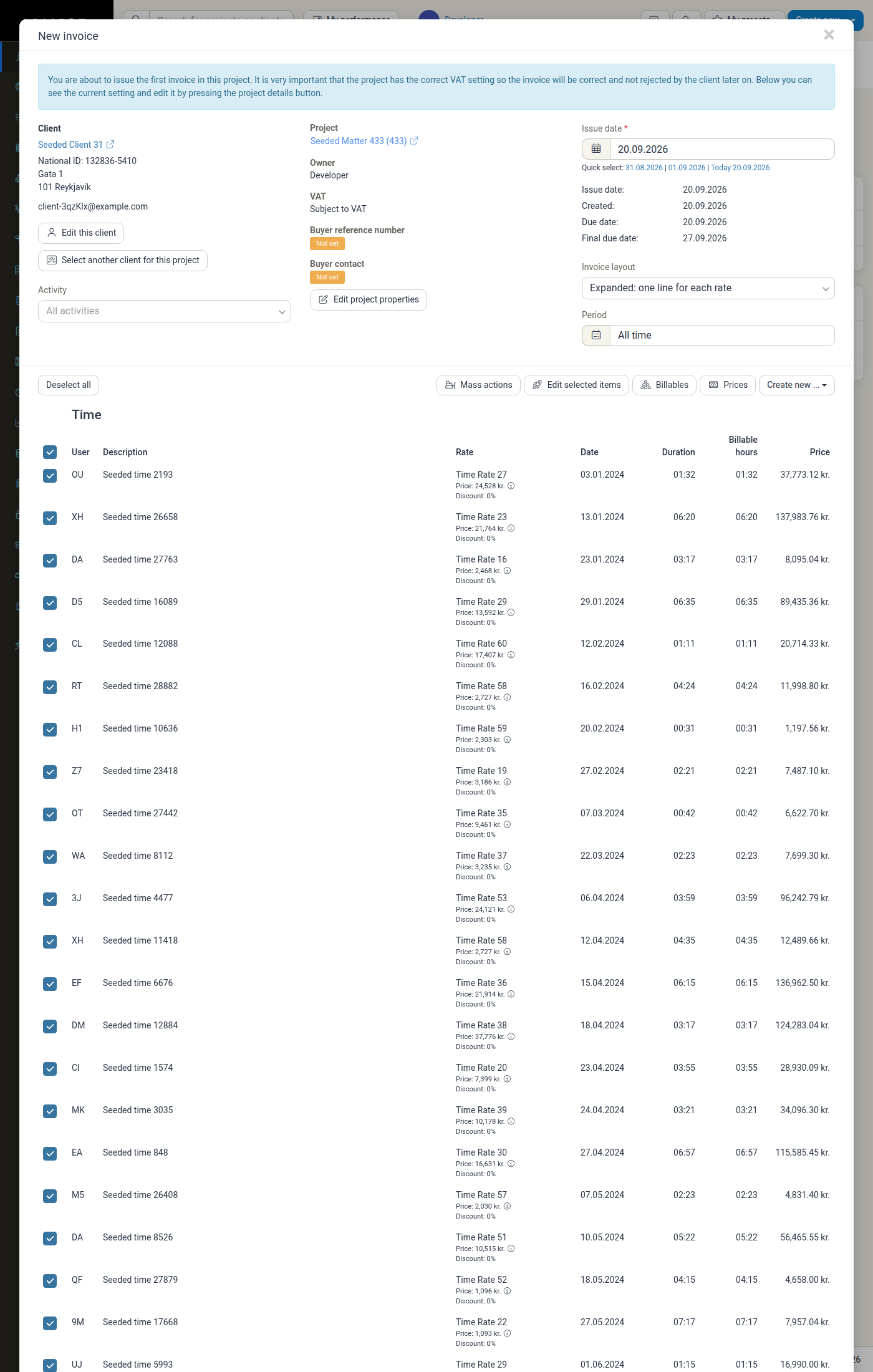
- Click Send invoice now.
There is no separate "send to DK" button for the DK integration. The moment you issue the invoice in Manor, Manor pushes it to DK for you as part of the same action. (Some other integrations, such as Regla, show a separate "Create this invoice in …" action on the invoice page — DK does not; the push always happens on issuing.)
In the background Manor will:
- Create or update the matching customer in DK, using the client's national ID to find the right customer.
- Build the invoice in DK with its lines, description, invoice date, final due date and currency.
- Post the invoice to DK.
- Read back the invoice number that DK assigns and store it on the Manor invoice, so Manor and DK refer to the same invoice number.
Product numbers are required
DK requires a product number on every invoice line. If you have not configured these, Manor warns you when you try to issue the invoice:
This setting has not been set yet: Product number for time
(and equivalent messages for travel, products, per diem and expenses). Set the product numbers before invoicing in Management → Pricing → Settings (the Rate settings page), under Product numbers:
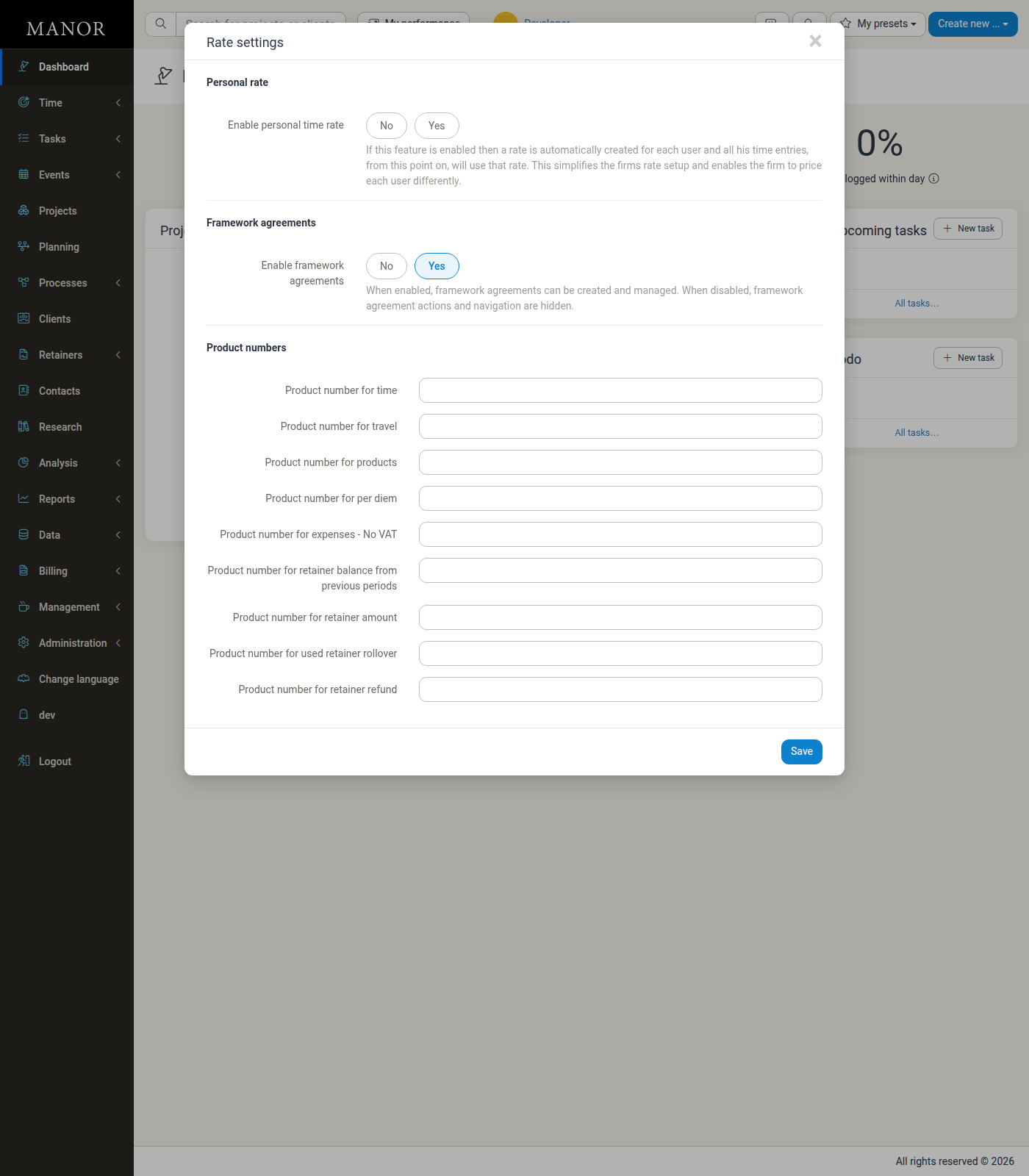
A product number can also be set on an individual rate, and per department, if you need finer control. If your firm is connected to Microsoft Dynamics 365 Business Central, the product numbers are taken from there instead.
Client email and the invoice email
When Manor creates the invoice in DK, DK can also email the invoice to the client. DK sends the email when the DK customer record has a send-to email address and DK is set up to send invoices by email — that is controlled on the DK side, using the customer's stored email. The Email subject setting in Manor supplies the subject line for that email.
If no email is sent (for example because the DK customer has no email address on file), the invoice is still created in DK — it simply is not emailed by DK.
National ID matching
The client's national ID must exist — and match the format in DK — for Manor to attach the invoice to the correct DK customer. This is why the Use dash in national ID option should mirror how your DK account lists national IDs (for example 000000-0000). If a client's national ID does not match, the invoice may be created against the wrong customer or rejected by DK.
Display options that affect the invoice
Two DK settings change what the issued invoice contains:
- Show project name and number on invoices — adds the project name and number to the invoice.
- Show contacts on invoices — adds contact information to the invoice.
Both are firm-level DK settings (see DK Settings above) and apply to every invoice pushed to DK.
What the user sees after issuing
- On success, the invoice is created in Manor and appears in the Billing → Invoices list, carrying the invoice number returned by DK.
- From the Invoices list you can open the invoice, download it (
Invoice downloader), credit it, and track its payment status (see below). - If DK rejects the invoice, Manor does not issue it. Instead Manor shows an error such as "Accounting software returned an error: …" and the invoice is not created. The most common causes are a missing/incorrect API token and a national ID that DK cannot match. Correct the cause and try again.
Could not be verified in this environment: the screenshots and steps above were verified against a test Manor instance, but a successful end-to-end push to a real DK account (and the DK-assigned invoice number coming back) could not be reproduced here because no valid DK API token/account was available. In the test instance, issuing the invoice correctly attempted the DK call and produced DK's "accounting software returned an error" response. Verify the successful path in your own DK account before going live.
Invoice Status and Payment Synchronisation
When Manor is connected to DK, DK is the source of truth for whether an invoice has been paid. Manor regularly pulls the payment status back from DK, so the invoice you see in Manor reflects what has actually happened with the payment in DK.
How DK statuses map to Manor's payment states
DK records each invoice's settlement state, and Manor translates that state directly onto the invoice's payment status:
| DK status | Manor payment status |
|---|---|
| Not settled | Unpaid |
| Partially settled | Partially paid |
| Settled | Paid |
So an invoice that has only been partly paid in DK shows as Partially paid in Manor, and once DK reports it as settled, Manor marks the invoice Paid. When the invoice becomes settled, Manor also records the date it was settled as the invoice's paid date.
Credit invoices are treated as settled in DK (both the original and the credit invoice are considered settled), and Manor reflects that the same way.
When the synchronisation runs
The synchronisation happens automatically in the background — there is no "sync now" button and nothing you need to trigger:
- Hourly. Manor checks DK for payment-status changes once an hour.
- What each run covers. Each run picks up invoices that have changed since the start of the previous month, so recently settled or partly settled invoices are updated without delay.
- Overnight wider sweep. Once a day, during the night, Manor widens the look-back window to cover the whole of the previous year. This catches late payments and settlements on older invoices that fall outside the hourly window.
Because the check is a background job rather than an instant notification from DK, a payment made in DK can take up to about an hour to show as paid in Manor. There is no per-invoice on-demand refresh and no webhook from DK.
What you see in Manor
You can see the payment status on the Billing → Invoices list, where each invoice is marked Paid, Partially paid or Unpaid (unpaid invoices are highlighted by their due date), and you can filter the list by paid status.
Because the invoice number is shared between Manor and DK, the invoice you see in Manor always corresponds to the same invoice in DK.
Could not be verified in this environment: the payment-status mapping and the synchronisation schedule above reflect how Manor and DK are wired together (confirmed in the application's invoicing integration logic), but a live end-to-end status change could not be observed in the test instance because it requires a real DK account with settled invoices. Treat this as the intended behaviour and confirm the actual refresh cadence with your DK administrator.
Related articles
- Invoices — the full invoice workflow (balances, form, preview, issuing, delivery, paid/unpaid tracking).
- Invoice Setup — invoicing integration, numbering, delivery and default invoice terms.
- Invoice Delivery — how delivery attempts and failures are tracked.
- Balances Overview — the billable balances you create invoices from.
- Connecting to DK (XML File Export) — the alternative file-export DK integration.
- Billing — overview of the whole Billing section.
Best Practices
Verify the API token
Make sure the token is copied correctly from your DK plus account under account settings. If invoices fail to send, the token is the first thing to check.
Set product numbers for every billable type
DK requires a product number on each invoice line. Configure Product number for time, travel, products, per diem and each expense VAT rate before you issue your first invoice.
Match national ID formatting
Set Use dash in national ID to match how national IDs are formatted in your DK account so clients are matched correctly.
Test before going live
After configuring the integration, create a test invoice to verify that it reaches DK correctly and that the DK invoice number comes back.
Review invoice content
Confirm that project names, numbers, and contacts appear on your invoices as expected by adjusting the relevant display settings.
Keep DK as the source of truth for payment status
Rely on the payment status that DK reports back rather than marking invoices paid manually, so Manor and DK stay consistent. Remember that a change made in DK can take up to about an hour to appear in Manor.