
What is the Tasks Data View?
The Tasks data view provides a centralized table of all tasks in the system. Unlike the Tasks section which focuses on creating and managing your personal and assigned tasks, the Data - Tasks view displays all tasks as searchable data with powerful filtering and export options.
This view is useful for:
- Finding tasks across the system — Search all tasks by name, description, or creator
- Analyzing task completion — Filter by finished status to find completed or pending tasks
- Tracking assignments — See who created and who is assigned to each task
- Exporting task data — Export the task list for reporting or analysis
- Date-based queries — Filter tasks by due date to find upcoming, overdue, or historical tasks
Accessing the Tasks Data View
- Navigate to Data from the main menu
- Click Tasks in the Data submenu
- The complete list of all tasks will display in a table format
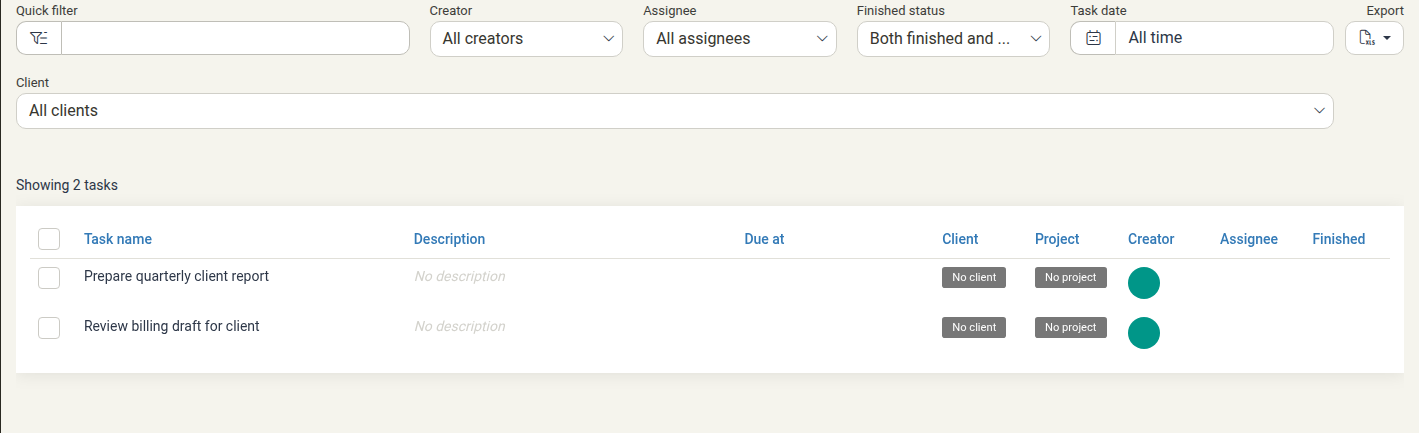
Understanding the Task Columns
The Tasks table displays the following information:
| Column | Description |
|---|---|
| Task name | The title or subject of the task (clickable to edit) |
| Description | A summary of the task details |
| Due at | The date when the task is due |
| Client | The client associated with the task, if any |
| Project | The project associated with the task, if any |
| Creator | The user who created the task |
| Assignee | The person assigned to complete the task |
| Finished | Whether the task has been marked as completed |
Filtering Tasks
The Tasks data view provides several filter options to narrow down results:
Quick Filter
The Quick filter textbox at the top allows you to search for tasks. Start typing a keyword and the results narrow down as you type.
Creator Filter
Click All creators to filter tasks by who created them. Select one or more creators to show only their tasks.
Use case: Find all tasks created by a specific team member.
Assignee Filter
Click All assignees to filter tasks by who they're assigned to. Select one or more assignees to show only tasks assigned to them.
Use case: View all tasks assigned to you or a specific colleague.
Finished Status Filter
Click Both finished and unfinished to filter by task completion status. Options include:
- Both finished and unfinished — Show all tasks regardless of completion status
- Finished — Show only completed tasks
- Unfinished — Show only pending tasks
Use case: Find all incomplete tasks that need attention.
Task Date Filter
Click All time to filter tasks by their due date. Alongside the presets (All time, Past, Future, month and day presets, and rolling ranges such as Last 3 months and Next 12 months), you can pick a custom from and to date.
Use case: Find tasks that are due or overdue in a specific time period for reporting or review.
Client Filter
Click All clients to filter tasks by the client they relate to. Only tasks whose project belongs to the selected client are shown.
Use case: Focus on all tasks for a particular client.
Sorting and Organizing Results
Click on any column header to sort by that column. Click again to reverse the sort order (ascending/descending). Common sorting options:
- Task name — Alphabetical order of task titles
- Due at — Sort by due date (earliest or latest first)
- Creator — Group tasks by who created them
- Finished — Show incomplete tasks first, then completed ones
Viewing Task Details
To view or edit a task:
- Click the task name in the Task name column
- A detailed view or edit form will open
- You can see all task information including description, due date, assignee, and project association
- Make changes if you have permission and click Save
Due Date and Due Time Are Both Required When an Alert Is Set
A task does not need a due date by default. However, as soon as First alert or Second alert is set to any option other than No alert, both the Due date and the Due time become required. A due date on its own is not sufficient — the task cannot be saved until a due time is provided too.
For example, choosing When the task is due or 5 minutes for an alert and leaving the due fields empty blocks saving and shows a validation message under each field:
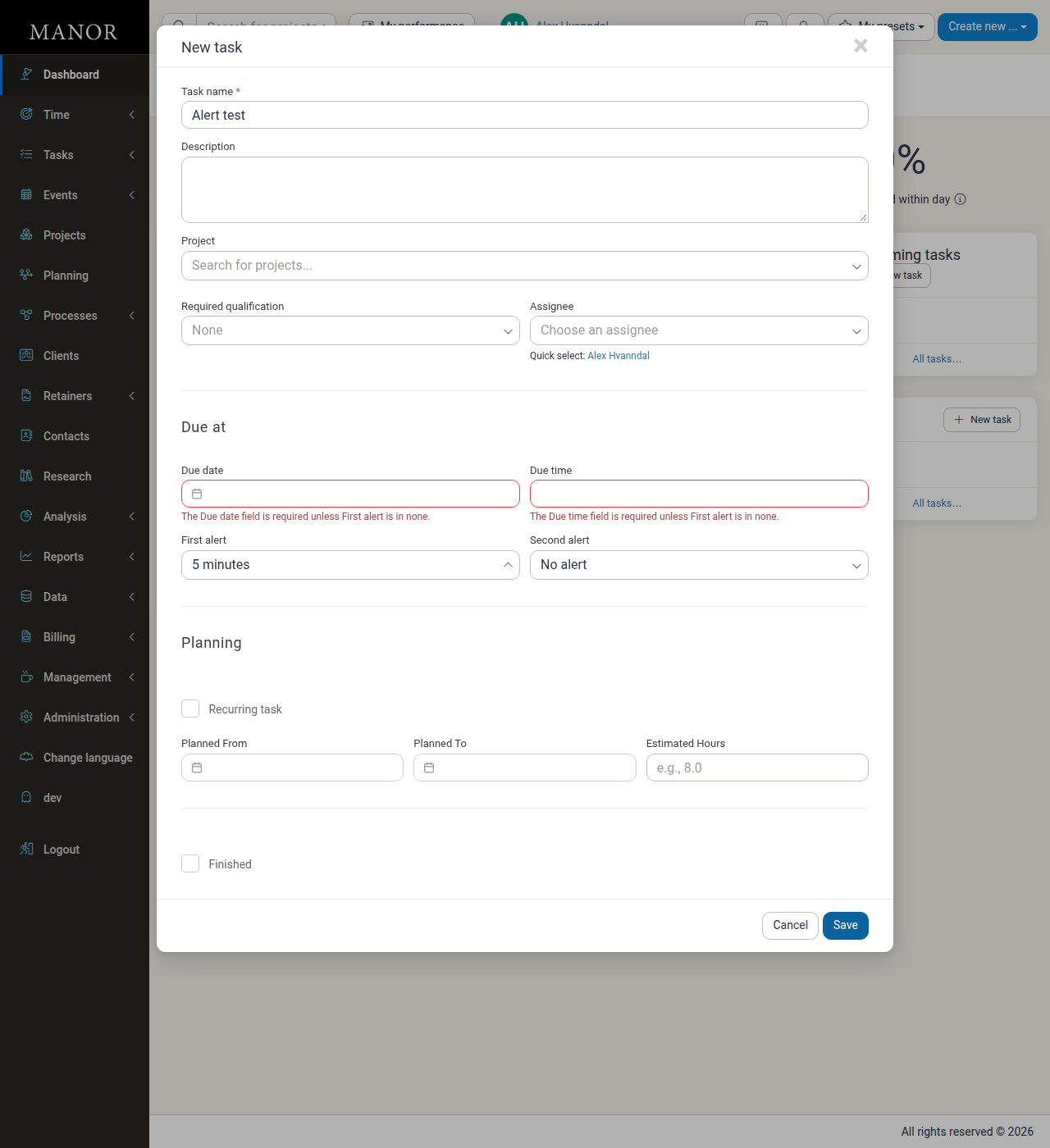
Either fill in both fields, or set the alerts back to No alert, to save the task without a deadline.
Recurring Tasks
When you check Recurring task, the Due at section — including Due date, Due time, First alert, and Second alert — is hidden and replaced by recurrence fields:
- Planned From — when the recurrence starts
- Planned To — when the recurrence ends
- Estimated Hours — how long the task is expected to take
- Recurrence frequency — how often the task repeats
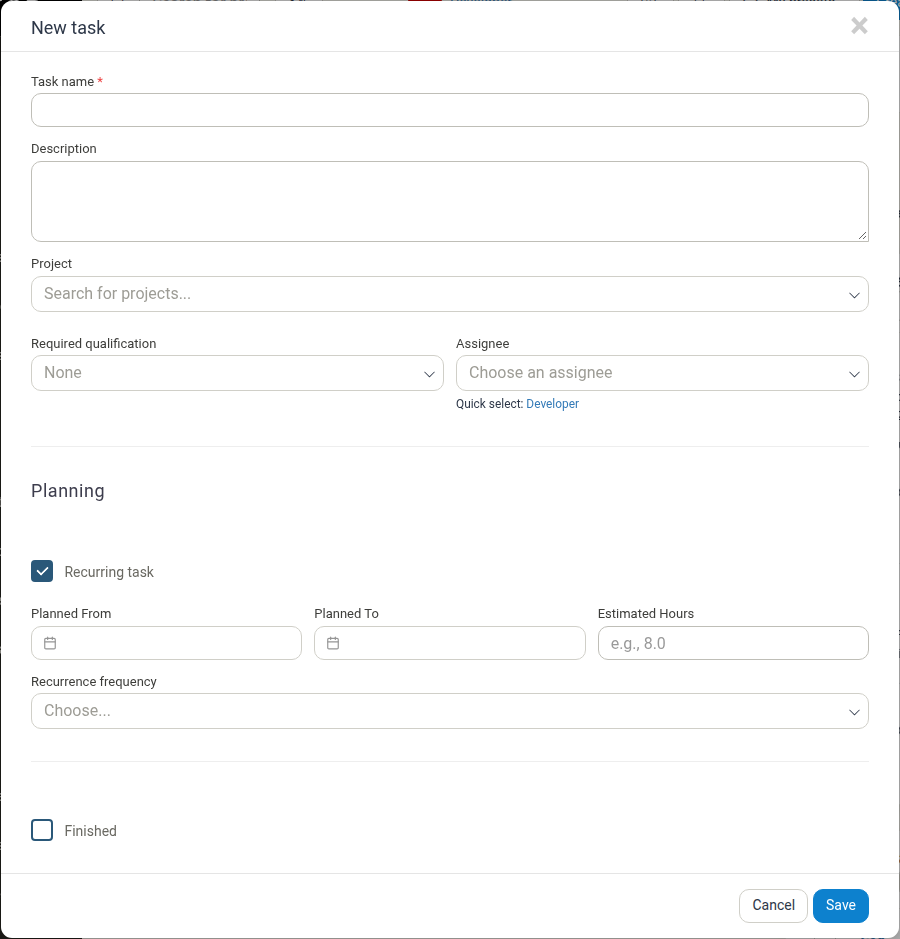
Because the alerts sit together with the Due at fields, they are not available while Recurring task is checked.
Created At Is Shown Only in the Edit View
The Created at field shows the date the task was created. It is read-only and appears only when you open an existing task in the Edit task view. It is not displayed on the New task form.
Activity and Assignee
Activity links the task to a specific activity on the selected project. Choose the project first, then select the activity the task relates to. This is the same activity that the linked work appears under on the project.
Assignee is the team member responsible for the task. The Quick select shortcut below the field lets you assign the task to yourself with a single click.
If the assignee you choose is not a participant on the selected project, Manor shows a warning directly below the field:
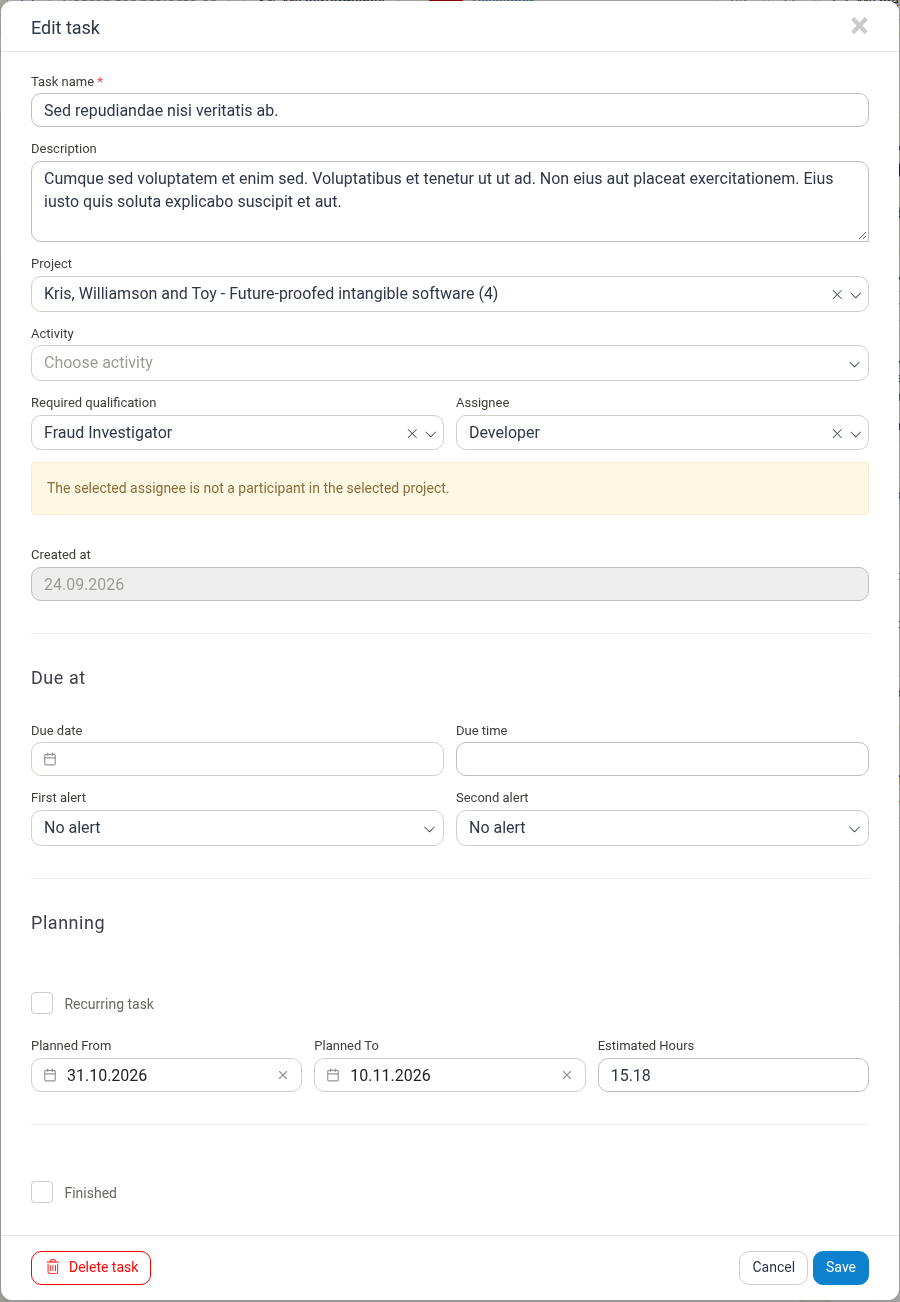
The warning is a reminder that the person may not be working on that project; the task can still be saved.
Exporting Task Data
To export the task list for use in external tools or reporting:
- Click the Export button
- Choose Download as Excel spreadsheet
- The file downloads to your computer with all tasks and their current filters applied
Use cases:
- Creating task reports for management
- Analyzing task distribution across teams
- Backup and archiving of task data
- Integration with external project management tools
Best Practices
Use filters before exporting
Apply filters to narrow down the task list before exporting to focus on relevant data.
Check the due date column
Sort by due date to identify overdue or upcoming deadline tasks.
Monitor unfinished tasks
Regularly filter for Unfinished to keep track of pending work.
Use quick filter for names
The quick filter is fastest for finding tasks by name or partial descriptions.
Cross-reference with assignees
Filter by assignee to see workload distribution across team members.
Comparing to Other Task Views
- Tasks section — For creating, editing, and managing tasks, with personal dashboard focus
- Data - Tasks — For viewing all tasks with advanced filtering, sorting, and export
- Dashboard — Quick overview of your upcoming tasks and to-dos
Related Features
- Tasks — Full task management and creation
- Data Overview — Introduction to all Data views
- Data - Events — View all events with similar filtering capabilities