
Introduction (Purpose & Benefit)
Bundles are a way to group related billable items (time entries, expenses, products, travels, and per diems) together under a shared date and project. By grouping billable items into bundles, you can easily see the total cost and revenue associated with a particular task or project on a specific date.
Key Fields & Their Meaning
- Date: The date of the bundle.
- Project: The project that the bundle is associated with.
- User: The user who created the bundle.
- Activity: The activity within the project that the bundle is associated with.
- Created at: The date the bundle record was created.
Creating a New Bundle
- Navigate to the project for which you want to create a bundle.
- Click the Bundles link on the project page.
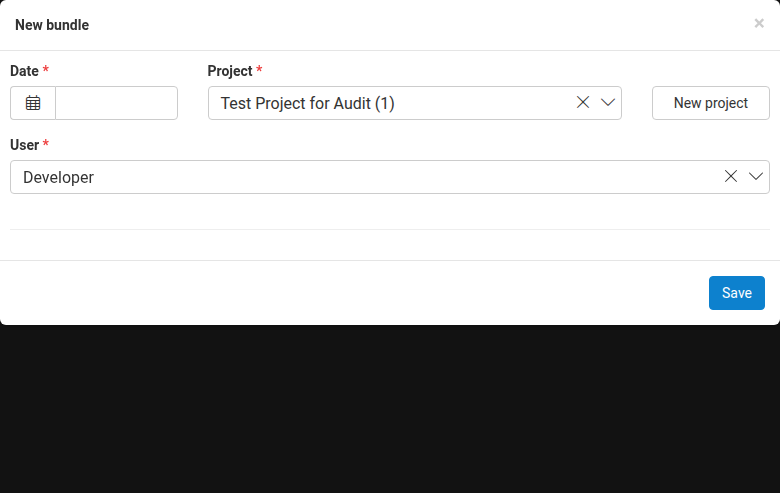
- Click the New bundle button.
- Enter the Date for the bundle.
- The Project is pre-filled with the current project.
- The User is pre-filled with your user.
- Select an Activity within the project (required).
- Click Save.
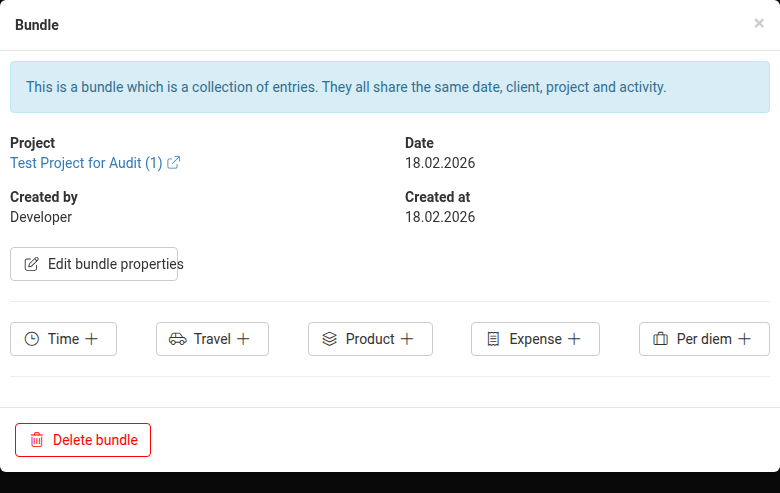
After saving, the bundle detail view opens, where you can add billable items to the bundle by clicking the buttons for Time, Travel, Product, Expense, or Per diem.
Managing Existing Bundle Records
Viewing Bundles
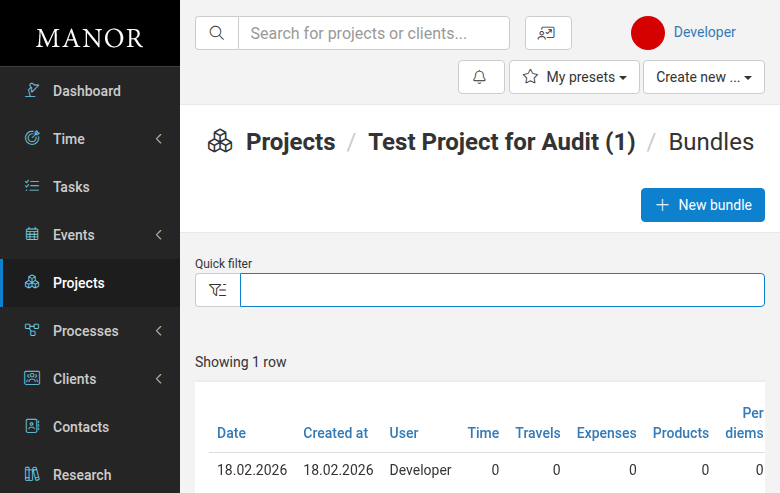
Access the bundles list by navigating to a project and clicking the Bundles link. The list displays all bundles with columns for date, creation date, user, activity, and counts of billable items.
Editing Bundles
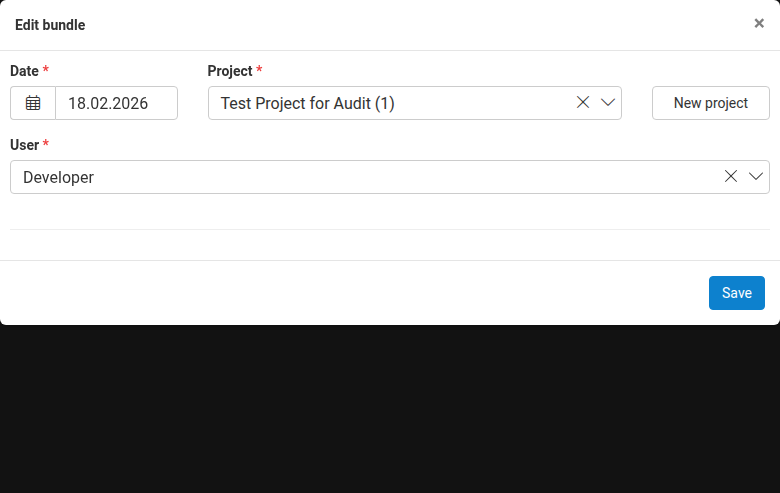
Click on a bundle to view its details. From the bundle detail view, click Edit bundle properties to modify the date, project, user, or activity.
Deleting Bundles
From the bundle detail view, click the Delete bundle button to remove the bundle. This action cannot be undone.