
Introduction
The Flextime report in the Payroll section summarises flextime for the firm's employees: how many hours each person was expected to work (their work quota), how many hours they actually logged, and how many hours they deposited into or withdrew from flextime. It is the quickest way to see flextime movements across the firm for a chosen period.
Requirement: The Flextime report page only appears in the Payroll menu when Enable payroll is set to Enabled with advanced payroll batches in Management > Settings > Features. With plain Enabled, the entry is not shown. See Payroll.
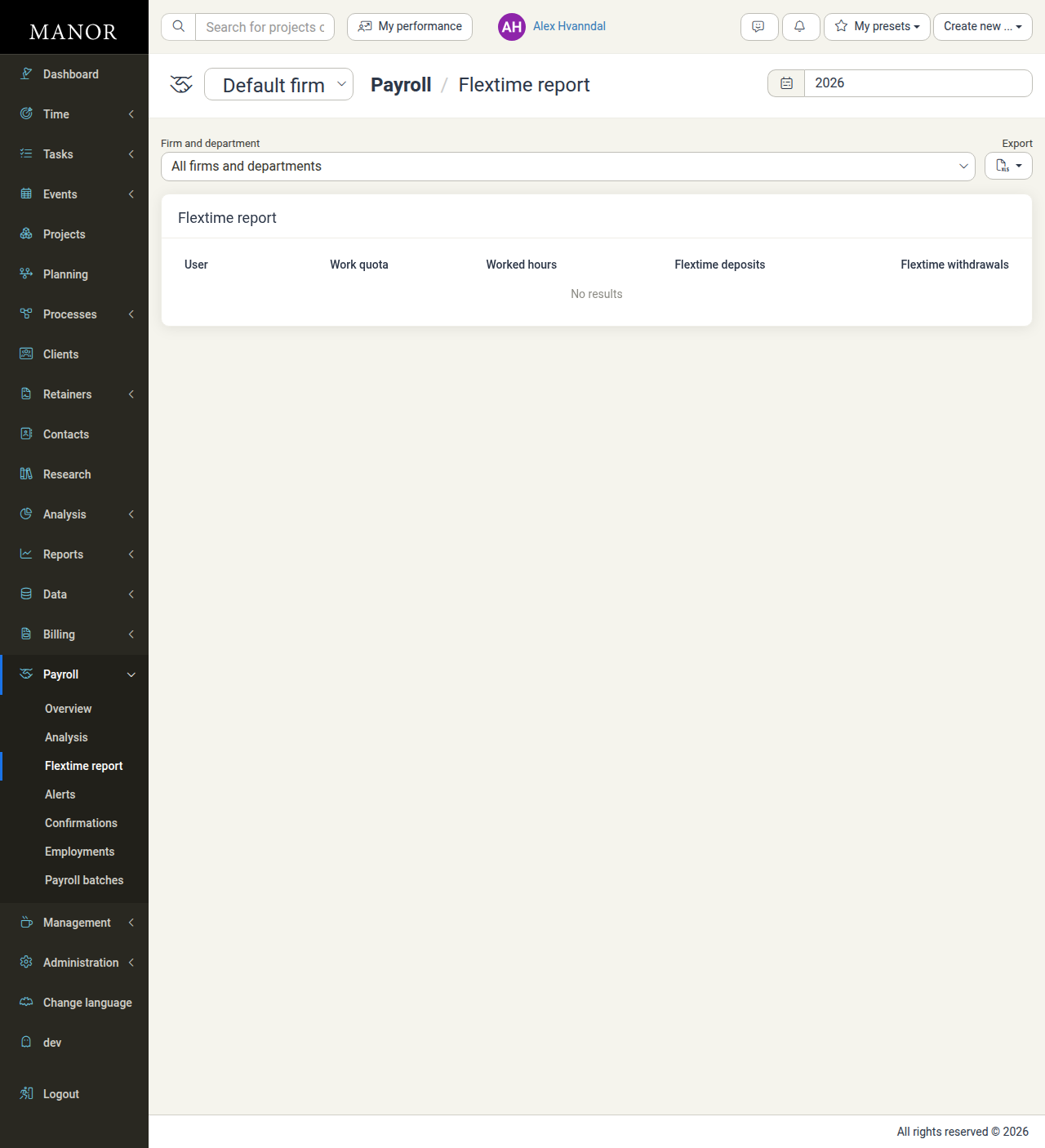
Accessing the Flextime report
- Open Payroll in the main navigation.
- Select Flextime report.
The page shows one firm at a time; use the firm selector at the top to switch firm.
Filters and options
| Control | Description |
|---|---|
| Date range | Shown next to the breadcrumb. Sets the period the report covers, and defaults to the current year. Besides free start and end dates it offers shortcuts such as All time, Past, Future, Last 3 months, Last 12 months, Next 3 months, Next 12 months, and individual months and years. |
| Firm and department | Restrict the report to a firm and/or a specific department (unit). Defaults to All firms and departments. |
| Export | Download the report. The menu provides Download as Excel spreadsheet. |
Report columns
The report is a table with one row per employee and these columns:
| Column | Description |
|---|---|
| User | The employee the row belongs to. |
| Work quota | The employee's expected hours for the selected period, based on the firm's daily working hours and the employee's employment ratio and employment dates. |
| Worked hours | The hours the employee actually logged in the selected period. |
| Flextime deposits | The hours the employee deposited into flextime (banked as time credit instead of being paid as overtime). |
| Flextime withdrawals | The hours the employee withdrew from flextime (time taken against their flextime balance). |
If no employees match the selected firm, department and period, the table shows No results.
How flextime works with the numbers
Flextime lets employees deposit extra hours as time credit instead of being paid overtime, and later withdraw the same hours as paid time off. Whether the report shows deposits, withdrawals or a computed balance depends on how flextime is configured for the firm:
- Active flextime — employees explicitly deposit overtime hours when confirming a pay period, and withdraw them later by filing time against the Flextime withdrawal project. Each employee's balance is bounded by an overdraft limit (how far the balance may go negative) and a maximum balance (the most they may accrue). The Flextime deposits and Flextime withdrawals columns reflect these explicit deposits and withdrawals.
- Passive flextime — the balance is calculated automatically from hours worked versus expected hours. There are no manual deposits or withdrawals, and no per-employee overdraft or maximum limits to manage.
- Disabled — flextime is not available and all overtime is paid.
Withdrawals are tied to the project selected as the Flextime withdrawal project in Payroll rules, and deposits reduce the overtime that is paid out. See Firm Payroll Settings for the flextime configuration and the balance limits, and Confirmations for how employees deposit flextime when confirming a period.
Tip: Because the report compares Worked hours against the Work quota alongside deposits and withdrawals, it is a useful cross-check before processing payroll: employees should not be withdrawing more flextime than they have accrued, unless the firm's overdraft limit allows it.
Exporting the report
- Set the date range, firm and department as needed.
- Click Export.
- Choose Download as Excel spreadsheet.
The spreadsheet contains the same columns as the on-screen table, one row per employee.
Best Practices
- Review before payroll — check deposits and withdrawals against work quotas and worked hours before processing a payroll batch. See Payroll Batches.
- Set sensible limits — configure the default overdraft limit and maximum balance so balances cannot drift unexpectedly. See Firm Payroll Settings.
- Export for records — download the Excel spreadsheet for each period and keep it with your payroll records.
Related Documentation
- Payroll — Overview of the Payroll section
- Analysis — Logged time over time per employee
- Confirmations — Confirming hours and depositing flextime
- Payroll Batches — Processing and exporting payroll runs
- Firm Payroll Settings — Flextime, balance limits and payroll rules