
Introduction
In many professional engagements, project expenses and professional fees must be divided among multiple clients or stakeholders. Examples include:
- Joint ventures or multi-party corporate transactions where legal or consulting fees are shared equally or by agreed percentage.
- Co-defendants or shared litigation costs.
- Cost-sharing between parent companies and subsidiaries or business partners.
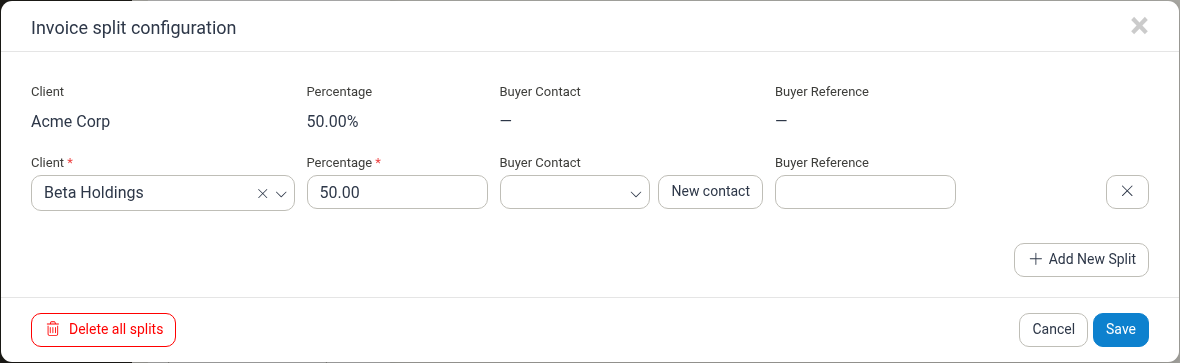
Manor's Invoice Split feature allows you to establish a structured percentage breakdown for a project. When invoicing the project, Manor automatically divides the unbilled fees and costs according to these rules, generating distinct invoices for each paying client with their respective buyer contact details and purchase order references.
See also: For a higher-level comparison of the different ways to bill several parties on one project (percentage splits, payer preferences, and per-entry payers), see Multiple Payers on a Project.
Note: Invoice splits are not available for projects covered by a retainer. When a project is linked to a retainer, its billable work is drawn from the retainer balance, so the project cannot be divided across multiple payers. See Project Retainer Coverage for details.
Key Concepts & Fields
When configuring an invoice split on a project, the following fields are defined:
- Primary Client Split: The main project client always appears as the initial split entry, defaulting to 100.00% until additional co-payers are added.
- Client (*): The client entity sharing responsibility for the project's invoices. The main project client is the first entry; each additional entry is a co-payer.
- Percentage (*): The exact percentage of total billed charges assigned to this client (e.g.,
50.00%,33.33%). The sum of all splits in the configuration must equal 100.00%. - Buyer Contact: An optional specific contact person for this client to appear on their split invoice.
- Buyer Reference: An optional purchase order, cost center, or reference code specific to that client's accounts payable department.
How Invoice Splits Work
- Pre-configuration: Once enabled on a project, all subsequent invoices prepared for that project recognize the split ratio.
- Billing Generation: During billing generation in the Billing module, Manor splits the unbilled balance proportionally across each configured recipient.
- Distinct Invoices: Each client receives their own standalone invoice reflecting their percentage share of the items, with that client's own buyer contact and buyer reference. All split invoices use the same invoice currency (the main payer's currency).
- Independent Payment Tracking: Each invoice is tracked separately on the Billing → Invoices list, so you can follow up with each payer independently.
Configuring Invoice Splits on a Project
Adding an Invoice Split
To configure split billing on a project:
- Navigate to Projects from the main menu and open the desired project.
- In the right-hand overview column, locate the Invoice split section.
- Click the New Split link (or Edit split configuration if splits already exist).
- The Invoice split configuration dialog opens, displaying the primary client at 100.00%.
- Click Add New Split to add a co-payer row:
- Select an existing Client (payer) from the client dropdown list. The dialog does not offer an inline create-client option — typing a name that does not match an existing client shows Nothing found. To use a new payer, first create the client from the Clients page (see Clients), then return here and select it.
- Enter the Percentage allocated to this client.
- Adjust the primary client's percentage so that the total equals 100.00%.
- (Optional) Select a Buyer Contact person for this split, or click New contact to add one.
- (Optional) Enter a Buyer Reference code.
- To add further parties (e.g., a three-way 33.33% split), click Add New Split again and configure each additional party.
- Click Save to apply the configuration.
Removing or Modifying an Invoice Split
- Open the project page and navigate to the Invoice split card.
- Click Edit split configuration to open the configuration dialog.
- To adjust percentages, update the percentage textbox for each party, ensuring the combined total equals 100.00%.
- To remove a single split party, click the remove (X) icon at the end of that party's row and return the percentage balance to the primary client.
- Click Save.
To remove every split at once, use Delete all splits in the dialog footer; the project then reverts to billing its main client for 100% of the charges.
Difference Between Invoice Splits and Payer Preferences
Manor provides two related mechanisms for non-standard invoicing:
- Invoice Splits: Divides the entire project balance across multiple clients simultaneously by percentage (e.g., 50% to Client A and 50% to Client B).
- Payer Preferences: Designates alternative clients who can be chosen to pay for specific billable items or activities instead of the project's primary client (100% reallocation per item or activity rather than proportional sharing across all items).
Best Practices
- Agree on rounding rules: In fractional percentage splits (such as 33.33% / 33.33% / 33.34%), confirm with clients upfront which party absorbs rounding differentials.
- Set buyer references per client: Each participating company usually requires distinct purchase order numbers. Enter these into the Buyer Reference field of each split row to ensure prompt payments.
- Configure prior to billing: Always configure or update invoice splits before generating invoice proposals for the period.
Related Documentation
- Multiple Payers on a Project — Overview of recording several payers on one project
- Project Retainer Coverage — Linking a project to a retainer (invoice splits are not available for retainer-covered projects)
- Project Billing Settings — Comprehensive guide to project billing configuration
- Invoices — Creating, reviewing, and sending client invoices
- Balances Overview — Monitoring project balances and unbilled work
- Clients — Managing client profiles and billing details