
What are Clients?
Clients represent the individuals or organizations that your firm provides services to. They are the cornerstone of your business, and managing them effectively is crucial for maintaining strong relationships, ensuring accurate billing, and tracking overall profitability.
Why Clients Matter
Managing clients well helps you:
- Track all work - See every project, invoice, and time entry associated with each client
- Bill accurately - Ensure invoices go to the right address with correct payment terms
- Maintain relationships - Keep contact information and preferences up to date
- Identify profitable work - Run reports to see which clients bring in the most revenue
- Stay compliant - Store national IDs and tax information securely
Creating a New Client
To create a new client:
-
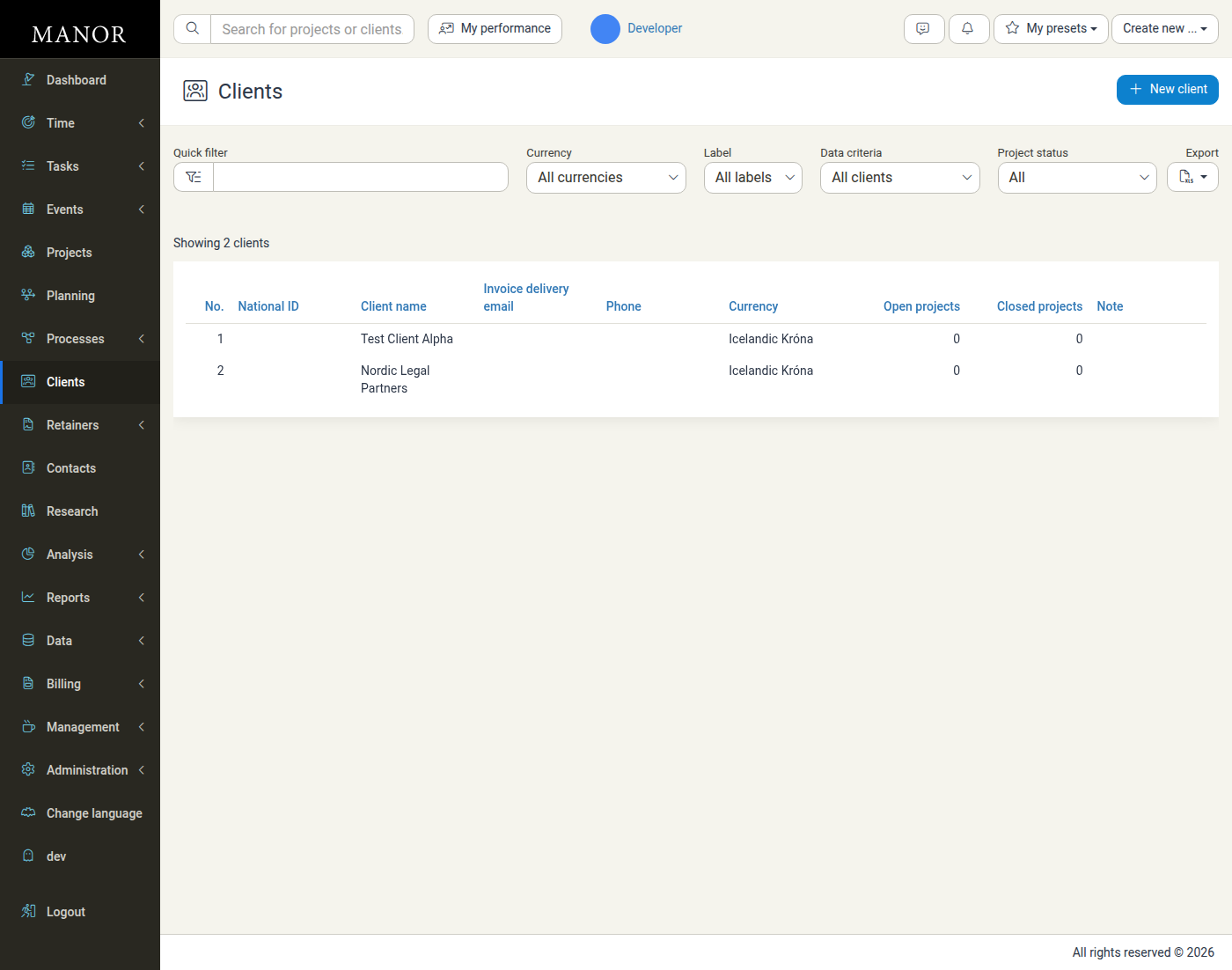
Navigate to the Clients page from the main menu.
-
Click the New client button in the top right corner.
-
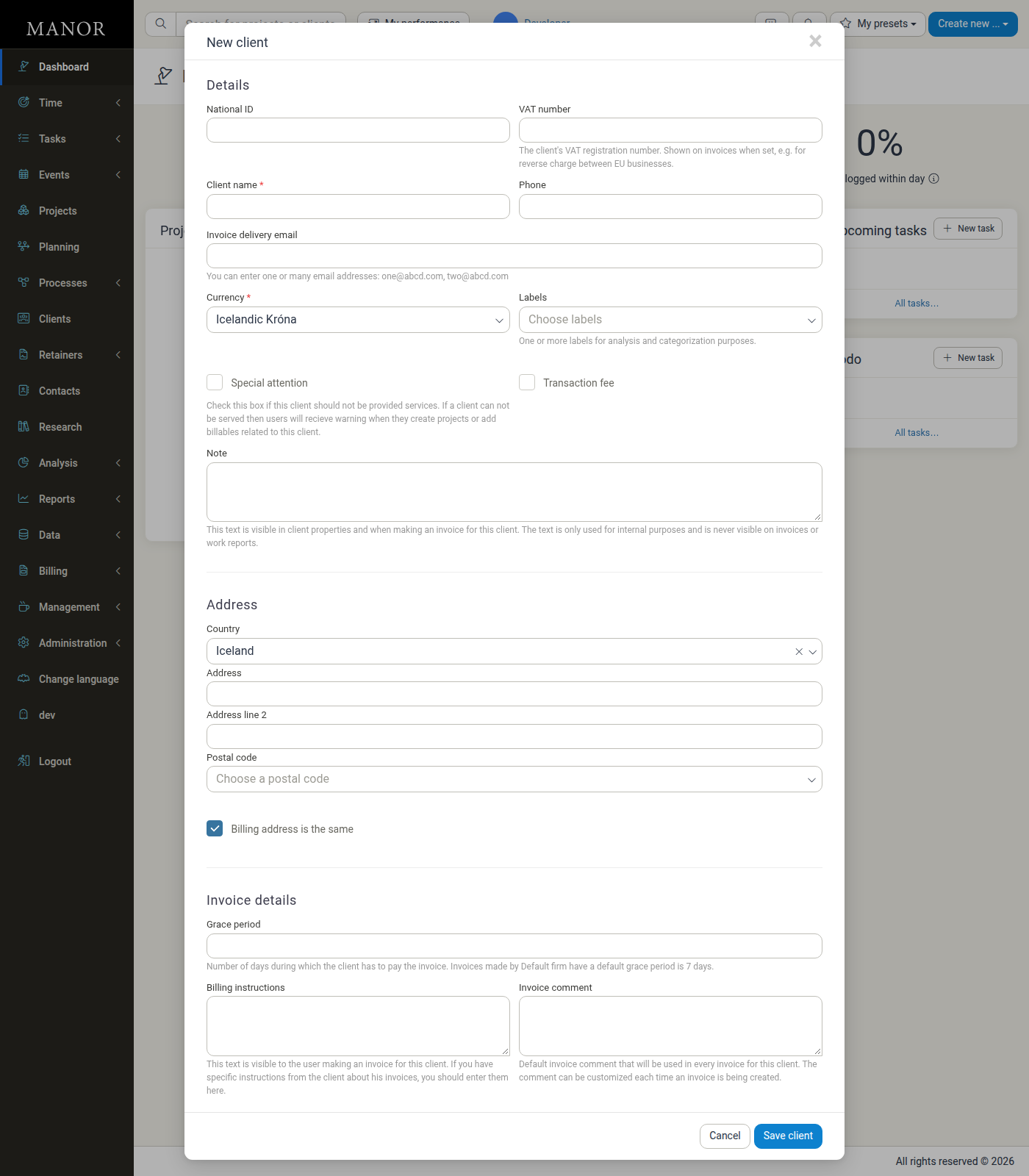
A form opens with three sections — Details, Address, and Invoice details. Fill in the client details:
Details
Required fields:
- Client name — The official name of the client
- Currency — The currency in which the client will be billed
Optional fields:
- National ID — Tax identification number
- VAT number — The client's VAT registration number. Shown on invoices when set, for example for reverse charge between EU businesses
- Phone — Primary phone number for contact
- Invoice delivery email — Email address(es) for sending invoices (one or many addresses separated by commas)
- Labels — One or more labels for analysis and categorization purposes. This field is only shown when your firm has created at least one client label
- Special attention — Flag for clients who should not be provided services. Users receive a warning when they create projects or add billables for a flagged client
- Transaction fee — Adds a transaction fee to invoices for this client
- Note — Internal note that is visible in client properties and when making an invoice for the client. It is never shown on invoices or work reports
-
Enter the address information under Address:
- Country — Client's country
- Address — Street address
- Address line 2 — Additional address line
- Postal code — ZIP/postal code
- Billing address is the same — Check if the billing address matches the physical address
-
Configure invoice settings under Invoice details:
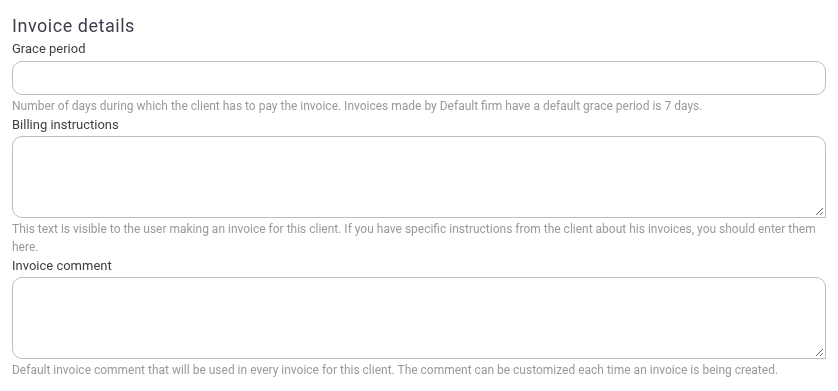
- Grace period — Number of days the client has to pay the invoice. Defaults to your firm's default grace period
- Billing instructions — Instructions shown to the user who makes an invoice for this client
- Invoice comment — Default comment that appears on every invoice for this client
-
Click Save client to create the client.
What You Can Do with Clients
Manage Billing
Set up how the client receives and pays invoices, including transaction fees and special attention flags for clients requiring extra handling.
Track All Associated Work
Every project, invoice, time entry, and expense links back to the client, giving you a complete picture of your relationship.
Organize Contact Information
Store multiple email addresses, phone numbers, and billing addresses to ensure smooth communication.
Apply Custom Settings
Override firm defaults for grace periods, invoice comments, and billing instructions.
Important Client Fields
When creating or editing a client, here are the key fields you'll see:
Client Name (required) The official name used on invoices and in all communications. Use the exact legal name for business clients, and consider a consistent naming format (e.g., "LastName, FirstName" for individuals).
National ID The client's national identification number. Required in some regions for legal and tax compliance. Check your local requirements before entering.
VAT Number The client's VAT registration number. Shown on invoices when set, for example for reverse charge between EU businesses.
Invoice Delivery Email Where invoices are sent. You can enter multiple email addresses separated by commas, useful for sending copies to both the client and your own office.
Currency (required) The currency for all billing. Amounts entered for this client are shown and billed in this currency.
Labels One or more labels for analysis and categorization purposes. The field is only shown when your firm has created at least one client label, and the label must be of the client type.
Special Attention A flag for clients who should not be provided services. Users receive a warning when they create projects or add billables for a flagged client, helping prevent accidental service delivery.
Transaction Fee Adds a transaction fee to each invoice for the client. Useful for covering payment processing costs.
Grace Period Number of days the client has to pay. Defaults to the firm's default grace period and can be changed for this client.
Billing Instructions Instructions that are visible to the user who makes an invoice for this client. Use it for specific instructions the client has about their invoices.
Invoice Comment A default comment that appears on every invoice. Use this for payment instructions, reference numbers, or other recurring information. The comment can still be customized each time an invoice is created.
Billing Address Is the Same as the Address Check this box if the billing address matches the physical address. Uncheck to enter a separate billing address.
Finding and Managing Clients
Viewing the Client List
All clients appear on the Clients page in a table format.
Each client row shows:
- No. — Client ID number
- National ID — Tax identification number
- Client name — Official client name
- Invoice delivery email — Email address for invoices
- Phone — Contact phone number
- Currency — Billing currency
- Open projects — Count of active projects
- Closed projects — Count of completed projects
- Note — Any internal notes
Filtering Clients
Use the filters at the top to find specific clients:
- Quick filter — Search by name or partial text
- Currency — Show only clients billed in a specific currency
- Label — Filter by one or more labels (shown only when your firm has created client labels)
- Data criteria — Show only clients that are missing important information, such as clients without a full address, without an email address, or without a national ID
- Project status — Show clients with open projects, with closed projects, or with no projects
You can also export the client list to an Excel spreadsheet with the Export button.
Editing a Client
- Click the client row to open the client's page
- Click Edit client
- Make your changes in the form
- Click Save client
Deleting a Client
-
Open the client record
-
Click Delete client in the top right corner
-
Confirm the deletion

Important: Deleting a client keeps the client associated with their projects. The client is marked as deleted rather than removed, so the projects and their data are preserved.
Using Client Data
Client information is displayed on the Clients page and includes counts of associated projects. You can view:
- Open and closed projects — The counts shown in the client list indicate active and completed projects
- Contact information — Email addresses and phone numbers for client communication
Best Practices
Manage Required Fields Always fill in the Client name and Currency fields, as these are required for creating a client record.
Use Notes for Internal Information The Note field is visible in client properties and when creating invoices, but is never visible on invoices or work reports. Use it for internal billing instructions or preferences.
Set Default Invoice Settings The Grace period defaults to the firm's standard setting but can be customized per client. The Invoice comment applies to all invoices for that client unless customized during invoice creation. Use Billing instructions for notes that only the person making the invoice should see.
Related Documentation
- Client Work Reports - Generate a single work report covering all work and billables across a client's projects