
A work report is a detailed, printable summary of the work and billables recorded on a single project, grouped by billable type. You can customize which chapters and columns appear, preview the result, and export it as a PDF or an Excel spreadsheet, or send it to the client by email.
Work reports are useful for:
- Client communication — Send clients a breakdown of what was done and how much time each activity took.
- Project documentation — Keep an archival record of the work performed on a project.
- Billing support — Attach documentation to an invoice to justify the charges.
- Project review — See which activities consumed the most time and resources.
:::note This article covers the work report for a single project. To produce one report covering all work and billables across every project of a client, see Client Work Reports. :::
Generating a Work Report
-
Open the Projects section and open a project.
-
In the project's action bar at the top of the page, click Work report.

-
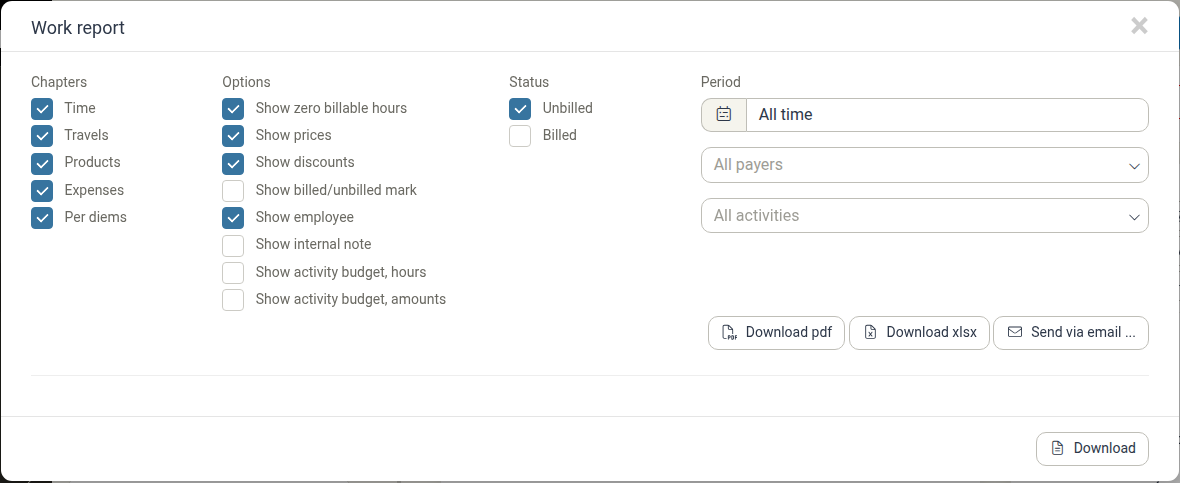
The Work report dialog opens. It is split into four columns — Chapters, Options, Status and Period — followed by a live preview of the report.
-
Adjust the chapters, options and filters as described below. The preview updates as you change them.
-
Use Download pdf, Download xlsx or Send via email ... to produce the final document.
Chapters
The Chapters column controls which kinds of billables are included. Each chapter appears as its own section in the report:
- Time — Time entries logged on the project.
- Travels — Travel entries, with distance or duration.
- Products — Products delivered on the project.
- Expenses — Expense items.
- Per diems — Per diem allowances.
All chapters are selected by default. Clear a checkbox to leave that section out of the report.
Options
The Options column controls which columns and details are shown within each chapter. By default, Show zero billable hours, Show prices, Show discounts and Show employee are selected.
- Show zero billable hours — Include rows that have no billable hours (for example, activities with no time logged).
- Show prices — Show the hourly rate or unit price and the total amount for each row.
- Show discounts — Show any discounts applied to the billables.
- Show billed/unbilled mark — Mark each billable as billed or unbilled.
- Show employee — Show which user logged the time or added the item.
- Show internal note — Include internal notes, which are normally hidden from clients.
- Show activity budget, hours — Show the hours budget for each activity.
- Show activity budget, amounts — Show the monetary budget for each activity.
Status
The Status column filters billables by their invoice status. Unbilled is selected by default, so only work that has not yet been invoiced is included.
- Unbilled — Billables that have not been invoiced.
- Billed — Billables that have already been invoiced.
Select both to include all billables in the report.
Period and other filters
The Period column narrows down which entries are included:
- All time — A date range. It defaults to All time; click it to choose a preset (for example Today, Last 3 months or a specific month) or a custom range.
- All payers — Restrict the report to a specific payer, or leave it at All payers.
- All activities — Restrict the report to a specific activity, or leave it at All activities.
Previewing and exporting
The report is previewed directly inside the dialog, below the filter columns. When the preview looks right, use the export actions:

- Download pdf — Save the report as a PDF file.
- Download xlsx — Save the report as an Excel spreadsheet.
- Send via email ... — Email the report to the client.
There is also a Download button below the preview that saves the report as a PDF.
The PDF file is named after the report type, the project name and the date, in the form Work report - Project name - [date].pdf. The Excel export contains the same report as a spreadsheet.
Note: The report is always rendered in the project's language, regardless of the language each user has chosen for their own Manor interface. This applies to the preview and to the exported files. The project language is set in the project's Language field: open the project, click Edit project, and change Language (its helper text reads "Controls the language used on invoices and reports"). A new project defaults to your firm's language, so change the Language on the project before generating a report in another language.
Tips
- Preview before sending — Check the preview so you know exactly what the client will receive. Clear Show internal note if you do not want internal notes included.
- Include prices for billing justification — When you send a work report alongside an invoice, keep Show prices selected so the client can see how the charges were calculated.
- Choose the right status — Select Unbilled to document what still needs to be invoiced, or both statuses to produce a complete project history.
- Adjust the period — Use the Period filter to report on a month, a quarter or another range instead of the whole project.
Related Documentation
- Client Work Reports — Produce one work report covering all of a client's projects.
- Progress Analysis — See time tracking broken down by activity and period.
- Profit Analysis — Track a project's profitability and financial performance.
- Activities — Manage a project's activities and budgets.
- Billing — Turn billables into invoices.