
A client work report summarises all work and billables across every project belonging to a client, in a single document. Instead of opening one project at a time, you generate the report once from the client and Manor groups the entries by project.
Note: The report is rendered in the project's language, not in the language you have selected for your own Manor interface. This applies to the PDF preview and to the PDF and Excel downloads. The project language is set in each project's Language field (open the project and click Edit project); when a project is created it defaults to your firm's language. Because a client work report can cover several projects, it uses the language of the first project included in the report; to change the language, change the Language on that project first.
If you only need the work for a single project, use the project work report instead.
When to Use a Client Work Report
- Recurring client reporting — Send one monthly or quarterly summary of everything you did for a client, regardless of how the work was split between projects
- Consolidated billing support — Provide a single document that justifies the charges across all of a client's projects
- Client reviews — Give the client a complete picture of activity and cost per project in one file
- Archival records — Keep one report per client covering all their projects
Accessing the Client Work Report
-
Navigate to the Clients section and open the client.
-
Click the Work report button at the top of the client page.

-
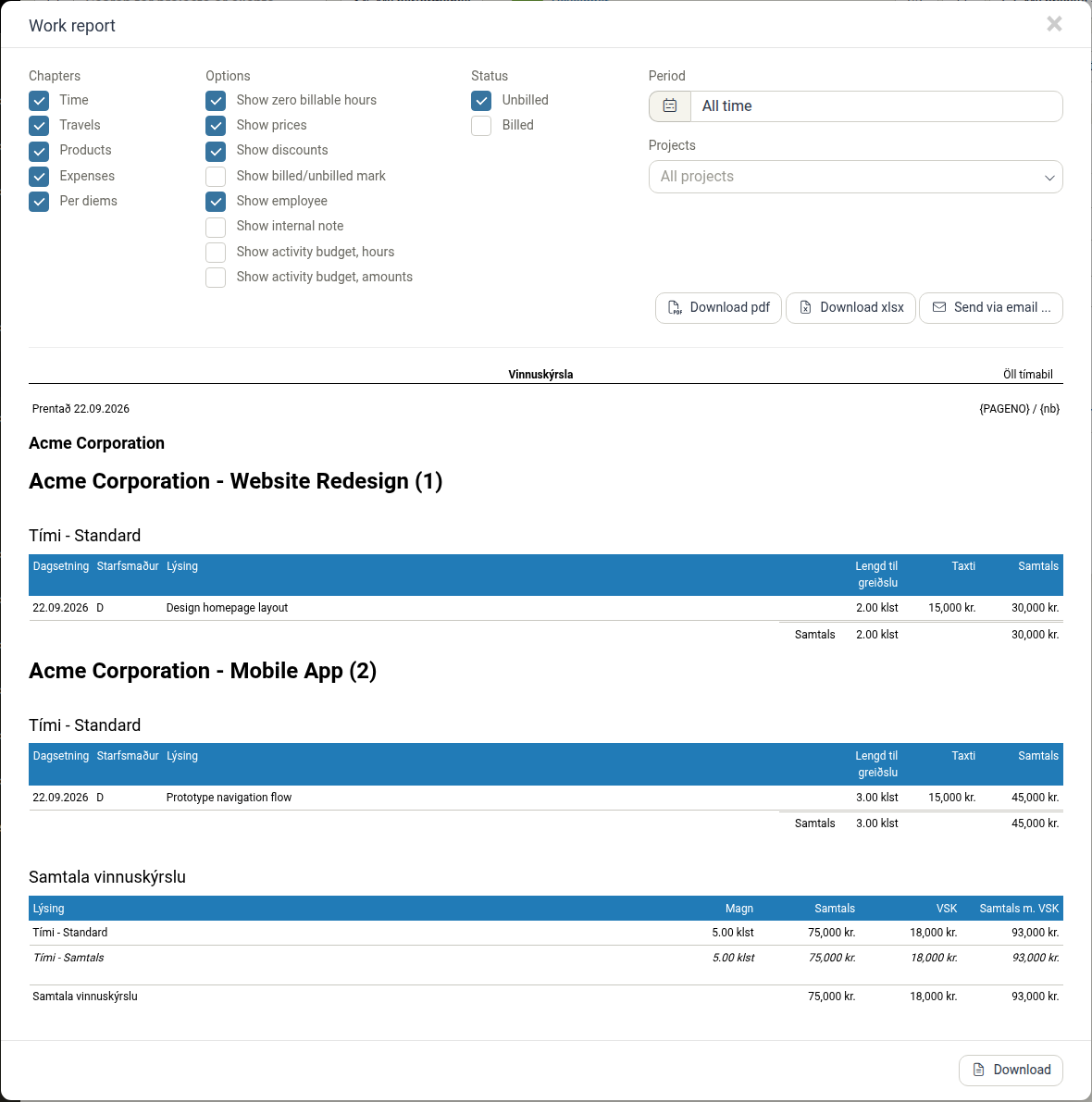
The work report dialog opens with the same chapters, options, status and period controls as the project work report, plus a Projects filter to choose which of the client's projects to include.
Customizing Your Client Work Report
Chapters
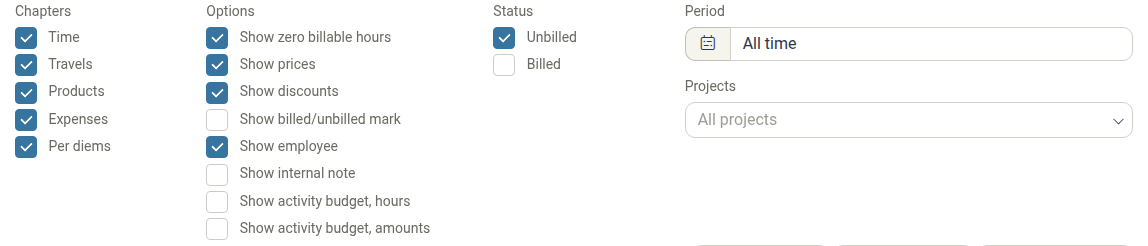
Select which types of billables to include. All chapters are selected by default — uncheck any that you don't want:
- Time — Include time entries logged on the client's projects
- Travels — Include travel entries with distance or duration
- Products — Include products sold or delivered
- Expenses — Include expense items
- Per diems — Include per diem allowances
Options
Control how billables are displayed:
- Show zero billable hours — Include activities with zero logged hours
- Show prices — Display hourly rates, unit prices, and total amounts
- Show discounts — Display any discounts applied to billables
- Show billed/unbilled mark — Indicate whether each billable is billed or unbilled
- Show employee — Display the employee who logged the time or added the expense
- Show internal note — Include internal notes (normally hidden from clients)
- Show activity budget, hours — Display time budget information for each activity
- Show activity budget, amounts — Display monetary budget information for each activity
Status Filter
Filter which billables to include based on invoice status:
- Unbilled — Include billables that have not yet been invoiced (selected by default)
- Billed — Include billables that have been invoiced
Select both to include all billables in the report.
Period
Choose a date range for the entries, or leave the period as All time to include the client's entire history. The period picker offers quick ranges such as Today, Last 3 months, Last 12 months, and Next 3/12 months, as well as specific months and years.
Projects
Use the Projects filter to limit the report to specific projects. By default it is set to All projects, which produces a report covering all of the client's projects. This filter is unique to the client work report — the project work report does not have it because it is already scoped to one project.
Previewing and Downloading
-
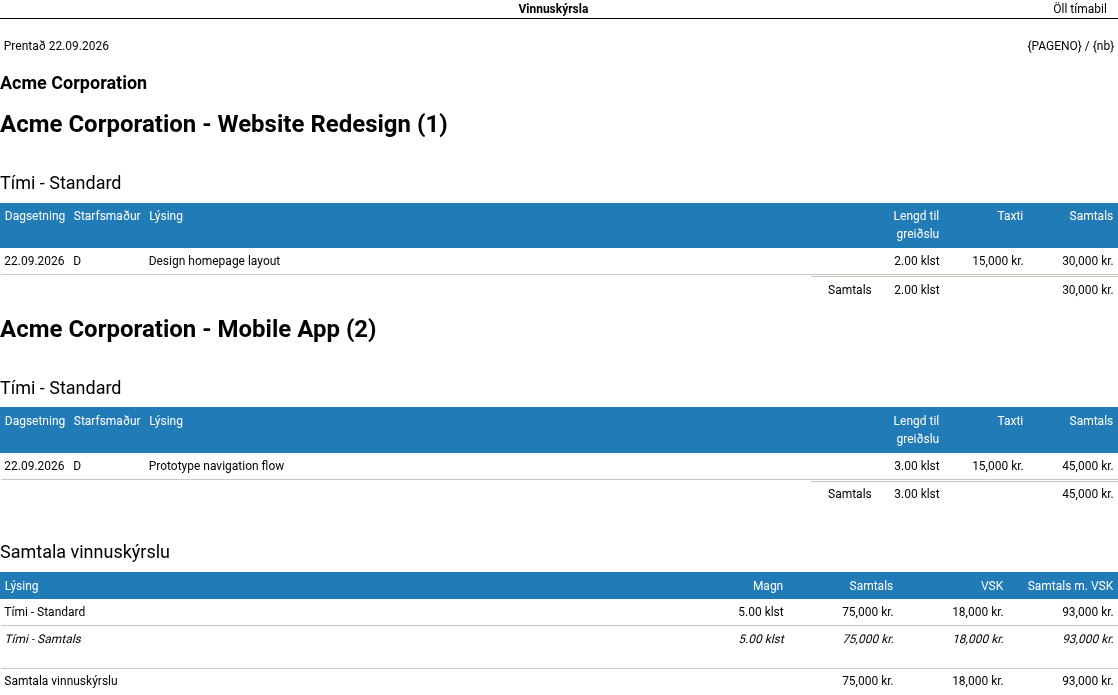
After configuring the options, the report is previewed directly inside the dialog, grouped by project.
-
Use the export actions to produce the final file:
- Download pdf — Export the report as a PDF
- Download xlsx — Export the report as an Excel spreadsheet
- Send via email ... — Send the report to the client by email
A Download button below the preview also saves the report as a PDF.
Best Practices
- Preview before sending — Check the preview so the report contains what you intend to share. Uncheck Show internal note if you don't want client-visible notes included.
- Include prices for billing justification — When sending a report alongside an invoice, keep Show prices selected so clients understand the value of the work.
- Narrow the period for recurring reports — Set a period (for example the last month) rather than All time when producing regular client summaries.
- Use the Projects filter for partial reports — If a client only wants details for certain projects, select just those projects instead of All projects.
- Archive for compliance — Download and save client work reports regularly for audit trails.
Related Features
- Work Reports — Generate a work report for a single project
- Progress Analysis — View time tracking data broken down by activity and time period
- Profit Analysis — Track project profitability and financial performance
- Billing — Convert billables into invoices
- Client Management — Create and maintain client records