
This guide explains how editing works across Manor. The same handful of patterns applies to almost every record you can change — time entries, clients, projects, prices, tasks, settings, and more — so once you know them, you can edit anything with confidence.
How records are opened
Manor does not let you type directly into list tables. Tables in Data, the Time views, and elsewhere are read-only lists: you use them to search, filter, sort, and export, then open the record you want to change.
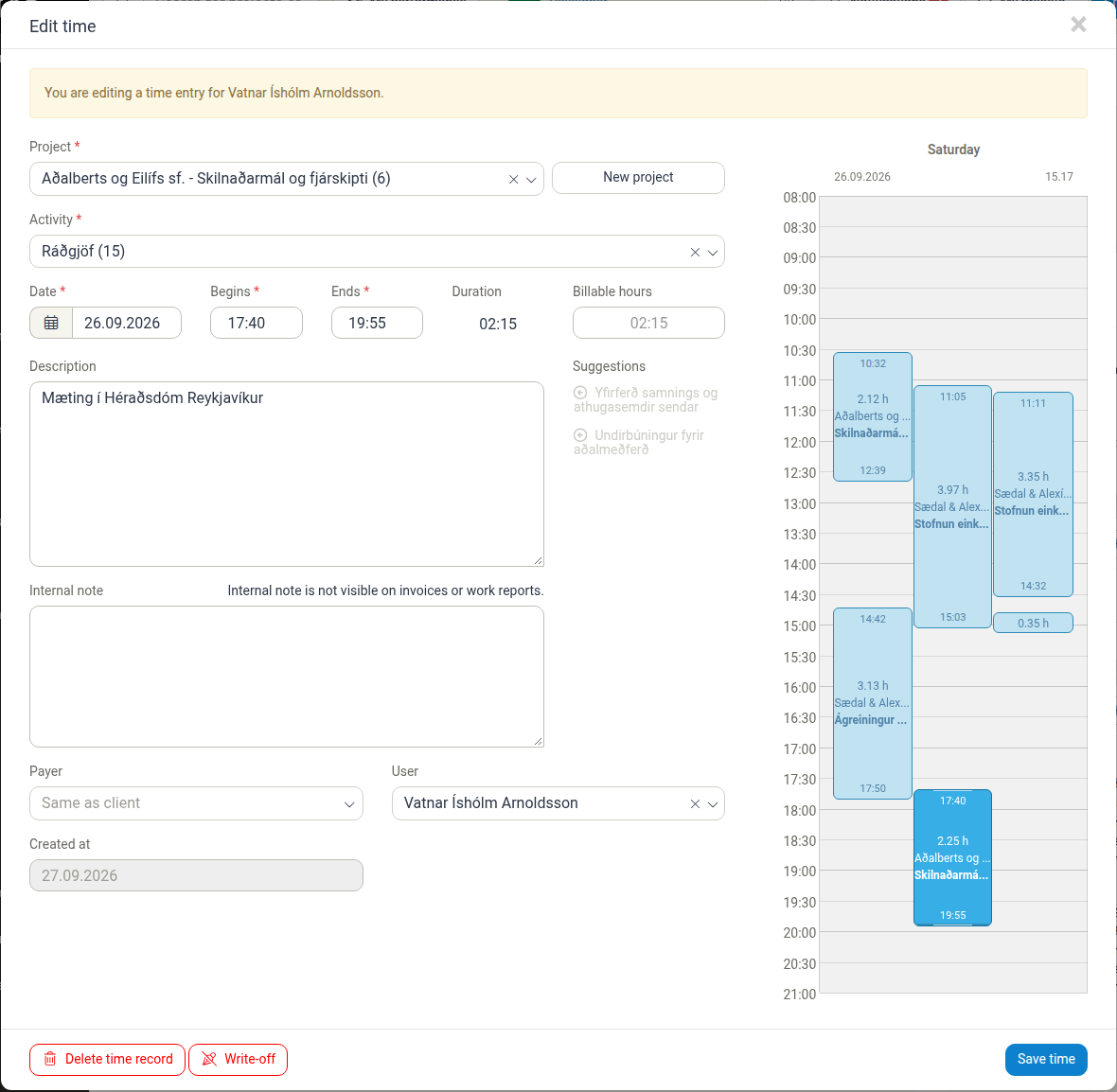
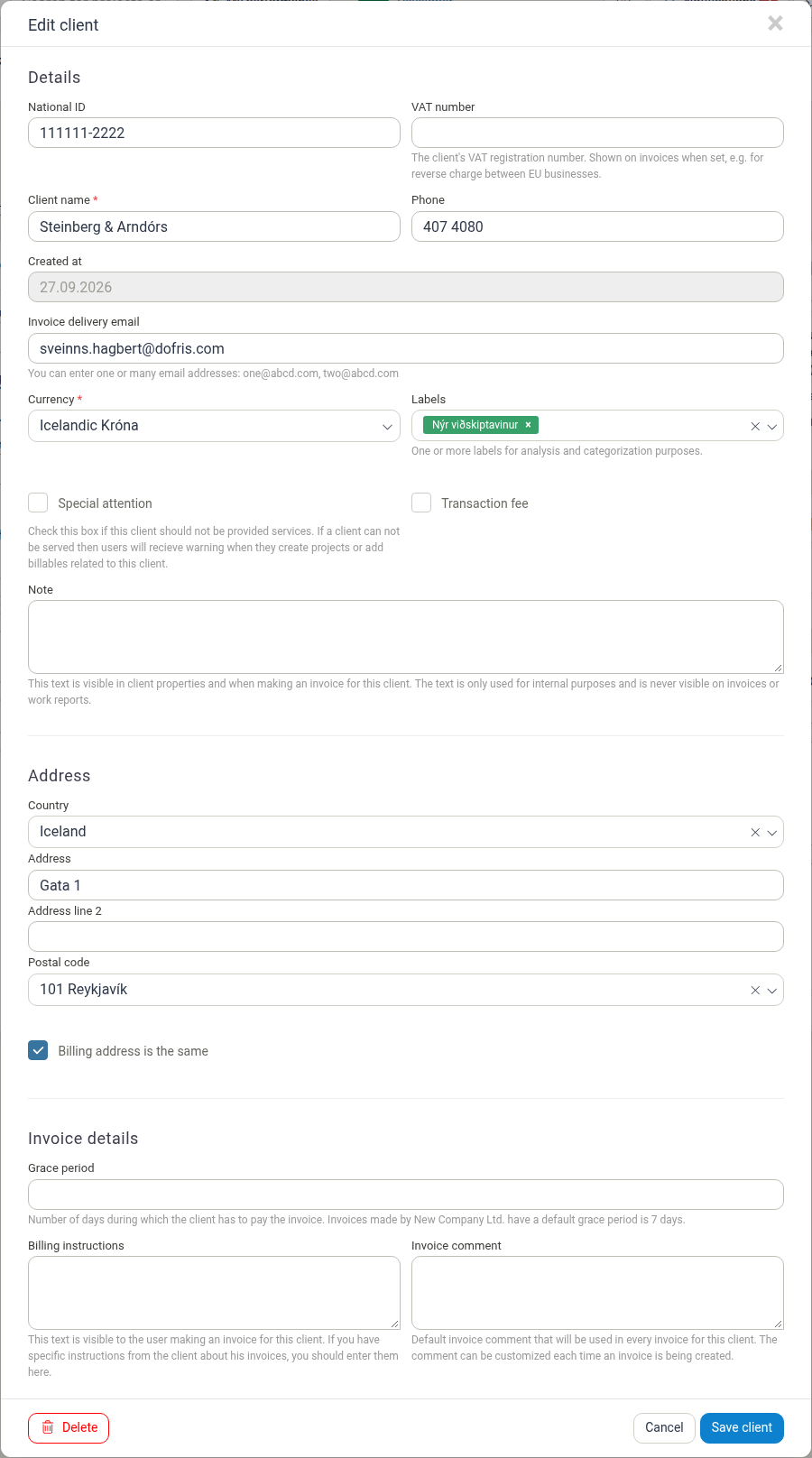
Editing normally happens in a dialog that opens over the page you are on — time entries, tasks, projects, prices, and many administration records all work this way. A few records, such as clients, also have a full detail page you can browse; from there, choose the Edit action (for example, Edit client) to open the edit dialog. Whichever route you take, you land on a form with the record's current values and finish by clicking Save.
To open a record, click its row in the list, or click the record's name or number where it appears as a link.
Some fields on a form are shown for information only and cannot be changed, such as a record's Created at date, or a time entry's Duration. Read-only values are usually shown disabled or without an input box.
How saving works
Editing in Manor requires an explicit action. There is no auto-save, and edits are not saved as you type.
- Dialogs and edit pages have a Save button. The button is named after the record, such as Save time, Save client, or simply Save.
- Nothing is written until you click Save. Closing a dialog with the X or Cancel leaves the stored record unchanged.
- After saving, the dialog closes and the list behind it refreshes with your new values. There is no separate confirmation toast to wait for — the updated value in the list is your confirmation.
- Some quick toggles act immediately. Simple actions such as ticking a task as finished or checking a checkbox in a settings form are applied when you click them, rather than through a separate Save step.
Note If a record is edited by someone else while you have it open, saving your version overwrites theirs. Review the values on screen before you save.
Editing several records at once
For billable records (time, travel, expenses, products, and per diems) you can change many entries together instead of one at a time.
- Open the list where the records live, such as Data > Time or Time > Table.
- Tick the checkbox at the start of each row you want to change. A selection bar appears naming how many rows you have selected — for example "1 time selected" on Time > Table, or "1 billable selected" / "2 billables selected" on Data > Billables — followed by the available actions.
- Choose an action. Bulk actions shared across billable types include Edit selected items, Change user, Change billable hours, Change payer, Change rate, Write-off, Undo write-off, Copy, Move, and Delete.
While rows are selected, a Calculated totals row also appears directly beneath the action buttons, summarising the selection inline and aligned to the table columns. Columns without a value for the current selection show an em dash (—). The row stays visible for as long as a selection is active.
Edit selected items opens one dialog for all selected records at once. Only a few fields can be changed in bulk — typically the description and the billable quantity — while values such as the date and duration are shown for context only. After you click Save, the change is applied to every selected record.
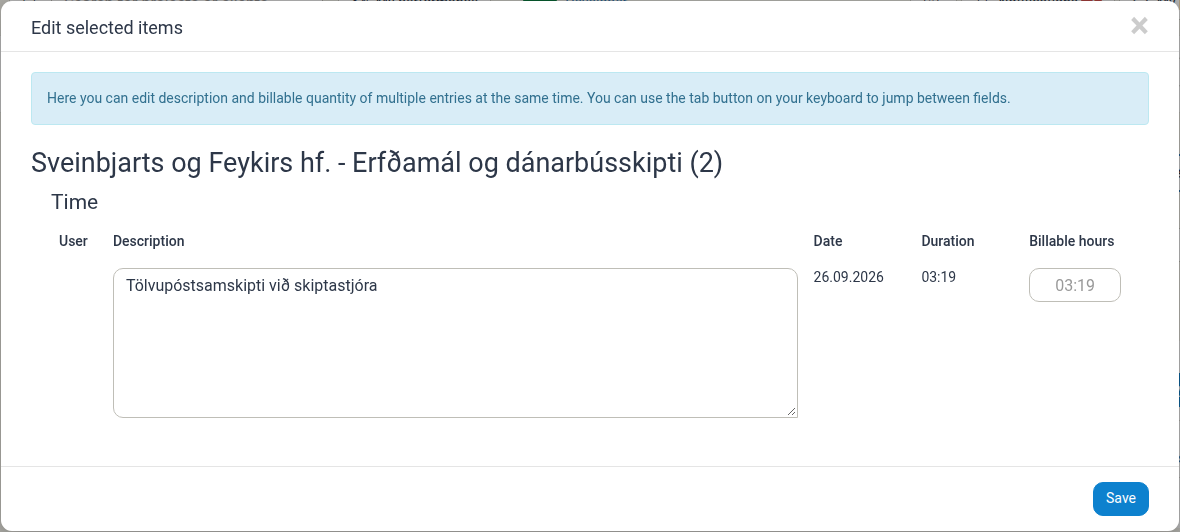
Warning Bulk changes overwrite the current values on every selected record with no undo. Check the selection count and the affected records before saving, and use Copy or Move if you want to keep the originals.
Tasks have their own smaller set of bulk actions, such as Mark as finished, Mark as unfinished, Assign to user, Copy, Move, and Delete.
Overrides, defaults, and placeholders
Many fields in Manor have a sensible default that is filled in for you. Understanding the difference between a stored value and a default keeps you from saving something you did not intend.
How to tell them apart
- Stored values are the values actually saved on the record. They are shown in normal text.
- Defaults, hints, and inherited values are shown as grey, lighter text inside the field, often in the same place a value would appear. Grey text is a hint about what will be used, not a value you have saved.
- Helper text below a field (for example, "Internal note is not visible on invoices or work reports.") describes what the field does. It is never saved as data.
Common examples
| Field | What you see | What it means |
|---|---|---|
| Payer on a time entry | Grey Same as client | No payer has been chosen, so the client on the project is used. Choosing a payer stores an explicit choice. |
| Billable hours | Grey hint value | The suggested figure based on the entry's duration. Typing a value stores it; leaving it alone keeps the suggestion. |
| Grace period on a client | Empty field with helper text | Falls back to the firm's default invoicing grace period until you enter a number. |
| Prices and rates | Base price shown as a hint behind an empty price cell | Until you enter a price, the inherited price applies. |
Clearing an override
To remove a value you set and go back to the inherited default, delete the text in the field and save. The field returns to showing its grey default, and the record behaves as if you never overrode it. For example, clearing the Payer field on a time entry puts it back to Same as client.
Note A field that shows grey text is not empty — something is still in effect. If you need a different value, type it in; if you need the default, leave the field as it is.
Validation and errors
Manor checks your input before saving.
- Required fields are marked with a red asterisk (*) — for example Project *, Activity *, Client name *, and Currency *. These fields must have a value before the record can be saved.
- Warnings ask for confirmation. When a value looks unusual but is still allowed, Manor shows a Warning dialog with Cancel and a confirm button. For example, saving a time entry with no duration asks: "This time entry has no duration. Are you sure you wish to save?" Choosing Cancel returns you to the form so you can correct it.

Unsaved changes
If you have made changes to a record and try to leave without saving — by clicking Cancel or the X — Manor warns you.
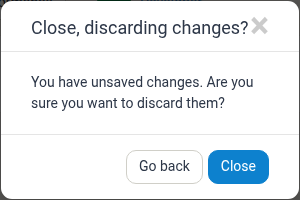
- Go back returns you to the record with your edits intact.
- Close discards your changes and closes the record without saving.
Navigating away to another page does not save anything; if you did not click Save, your edits are lost.
Are edits recorded?
Yes. Creates, edits, and deletions made through the interface are recorded in the Activity log. Administrators can open Administration > Activity log and see who changed a record, when, and what the previous and new values were.
See Activity log and audit requests for how to filter and drill into these records.
Note Some changes are made by Manor itself rather than by a person — for example automatic recalculations of balances, invoice totals, or internal bookkeeping counters. These background updates are not shown as user activity in the Activity log.
A known quirk: reopened dialogs and placeholder values
In one specific place, a dialog can display its default hints even though your earlier manual values were saved and are still in effect.
The Edit work quota dialog on a pay period is the concrete example. When you enter hours per day and save, those values are stored, applied to payroll, and survive later saves of payroll settings. However, if you close the dialog and open it again, the fields may show the default daily hours as grey hints instead of the values you stored. The saved values have not been lost or changed — only the display is misleading until you enter a value again.
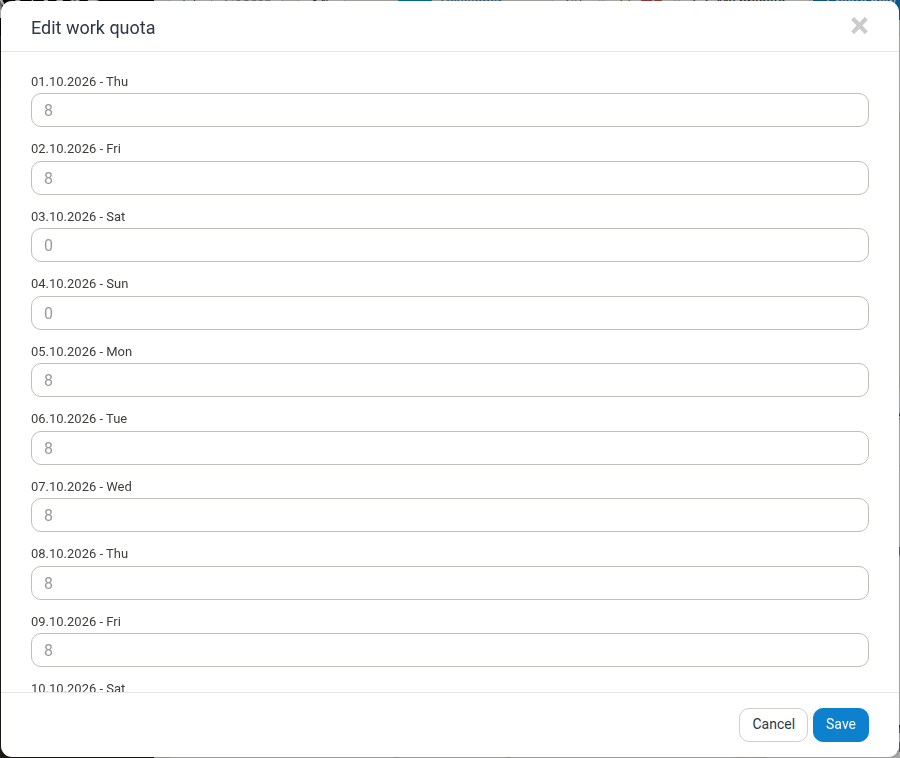
Warning This placeholder-versus-stored-value mismatch is specific to the Edit work quota dialog. It is not a general behaviour of Manor forms. Elsewhere, a field that shows a grey default genuinely means no value has been stored, and your saved values are shown back to you when you reopen a record.
If you need to be certain what is actually stored for a pay period, check the Work quotas table on the pay period page or the Activity log rather than relying on the dialog contents alone.
Related articles
- Data Management — browse and open records of every type.
- Quick Create — create new records from anywhere.
- Activity log and audit requests — confirm exactly what changed on a record.
- Organizing Work — the day-to-day hub for time, tasks, and events.
- Pricing History — the history of changes to prices and rates.