
Introduction
The length of the workday is the number of hours employees are expected to work each day. In Manor this expectation is expressed through a few related settings that together define what "a normal day" looks like:
- A company-wide Daily target that acts as the default for everyone.
- An individual Daily target that can override the company default per user.
- The firm's Calendar working time, which controls the time window shown on calendar views, and its Office hours, which describe the standard business day.
- The firm's Daily working hours (and optional Friday working hours), used when payroll calculates expected hours and overtime.
These values do not change the hours you actually log — they change how Manor presents the day, what it treats as a full day, and when it considers work to be overtime. This topic explains where each value lives and how it affects calendars and time entry. For the payroll-specific aspects of the same settings, see Firm Payroll Settings.
Where the workday length is configured
The workday length can be set at three levels:
| Level | Setting | Where to configure it | Applies to |
|---|---|---|---|
| Company | Daily target (default for all users) | Management > Settings > Daily target | Every user without an individual override |
| User | Daily target | Profile > Profile details (a user's own profile) | The individual user |
| Firm | Calendar working time (start/end of day) and Office hours | Management > Firms > [Firm Name] > Calendar working time / Office hours | All users in the firm |
| Firm | Daily working hours and Friday working hours | Management > Firms > [Firm Name] > Payroll settings | Payroll calculations for the firm |
Company default: the Daily target
The Daily target is "a dashboard metric of how many hours every user in the company should work per day." It is the baseline that Manor compares each person's logged hours against.
To set the company default:
- Navigate to Management > Settings.
- Locate the Daily target card.
- Click Edit.
- Enter the number of hours per day in
HH:MMformat — for example08:00for an eight-hour day. - Click Save.
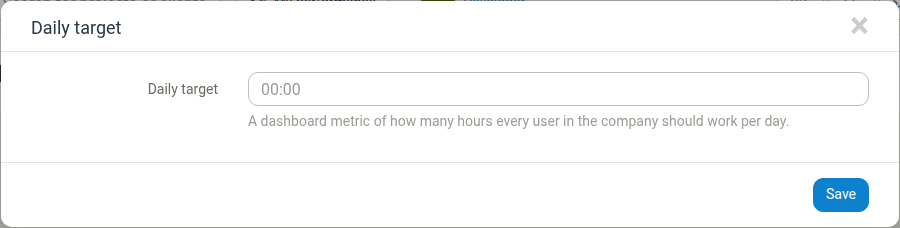
Every user who has not set an individual value inherits this default. The card also shows the current value (for example, 00:00 when it has never been set).
Note: A Daily target of
00:00means no target is defined. Manor shows a reminder on the Dashboard (Set your daily target!) prompting users to enter their own value in that case.
Personal override: the user Daily target
Individual users can override the company default from their own profile. This lets a part-time employee, for example, set a four-hour day while the rest of the company keeps eight hours.
To set a personal daily target:
- Open your profile by clicking your name in the top-right corner and selecting Profile details (or go to
/profile). - Find the Daily target field.
- Enter the expected hours per day, for example
08:00. - Click Save profile.

The field's helper text reads: "A dashboard metric of how many hours you should work per day. The default value is set in common company settings." Leaving it empty means the company default applies.
Firm calendar window: Calendar working time and Office hours
Calendar views and the day/week time entry grids display a portion of the day. Two firm-level settings control that window:
- Calendar working time — the Start of day and End of day shown on the Time calendars.
- Office hours — the firm's Office hours start, Office hours end and Timezone, used to describe the standard business day.
Calendar working time
- Navigate to Management > Firms.
- Open the firm and go to Calendar working time.
- Set Start of day and End of day in the
HH:MMtime fields (for example08:00and18:00). - Click Save.
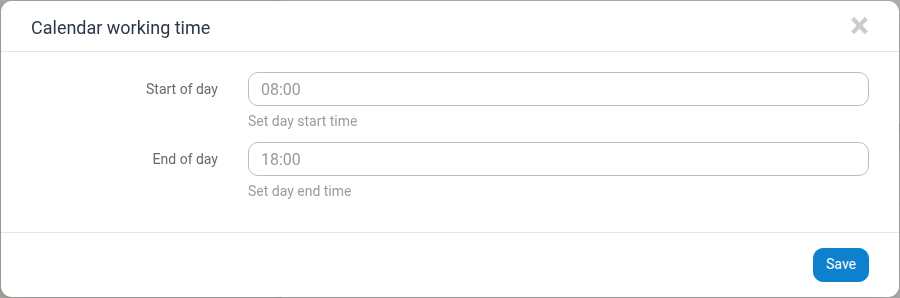
The window you set here determines which hours the Day and Week time entry grids display by default, so users see their own working window rather than a full 24-hour day.
Office hours
- Navigate to Management > Firms.
- Open the firm and go to Office hours.
- Set Office hours start and Office hours end, and confirm the firm's Timezone.
- Click Save.
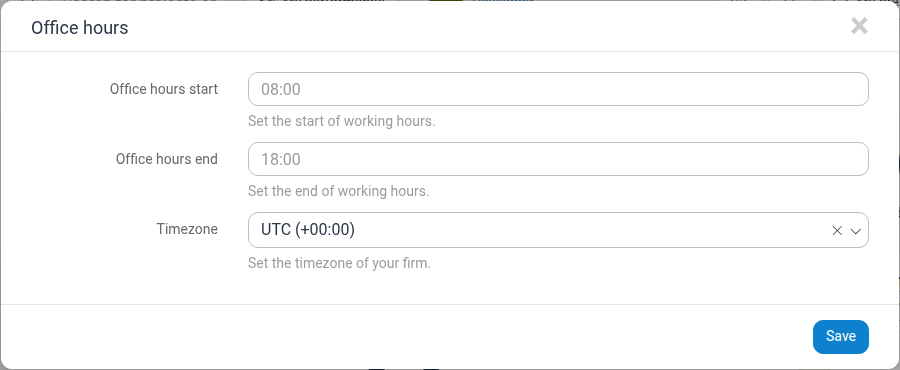
Office hours describe the firm's standard working hours and timezone. They provide the scheduling context used across firm-level reporting, planning and calendar displays.
Firm payroll working hours
When payroll is used, the firm also defines the expected number of hours per day. This is configured under Payroll settings and is documented in full in Firm Payroll Settings.
- Navigate to Management > Firms.
- Open the firm and go to Payroll settings.
- In the Period settings section, set Daily working hours (for example
8for an eight-hour day). - Optionally set Friday working hours to override the daily value on Fridays (for example
6for a shorter Friday). Leave it empty to use the daily working hours on every weekday. - Click Save.
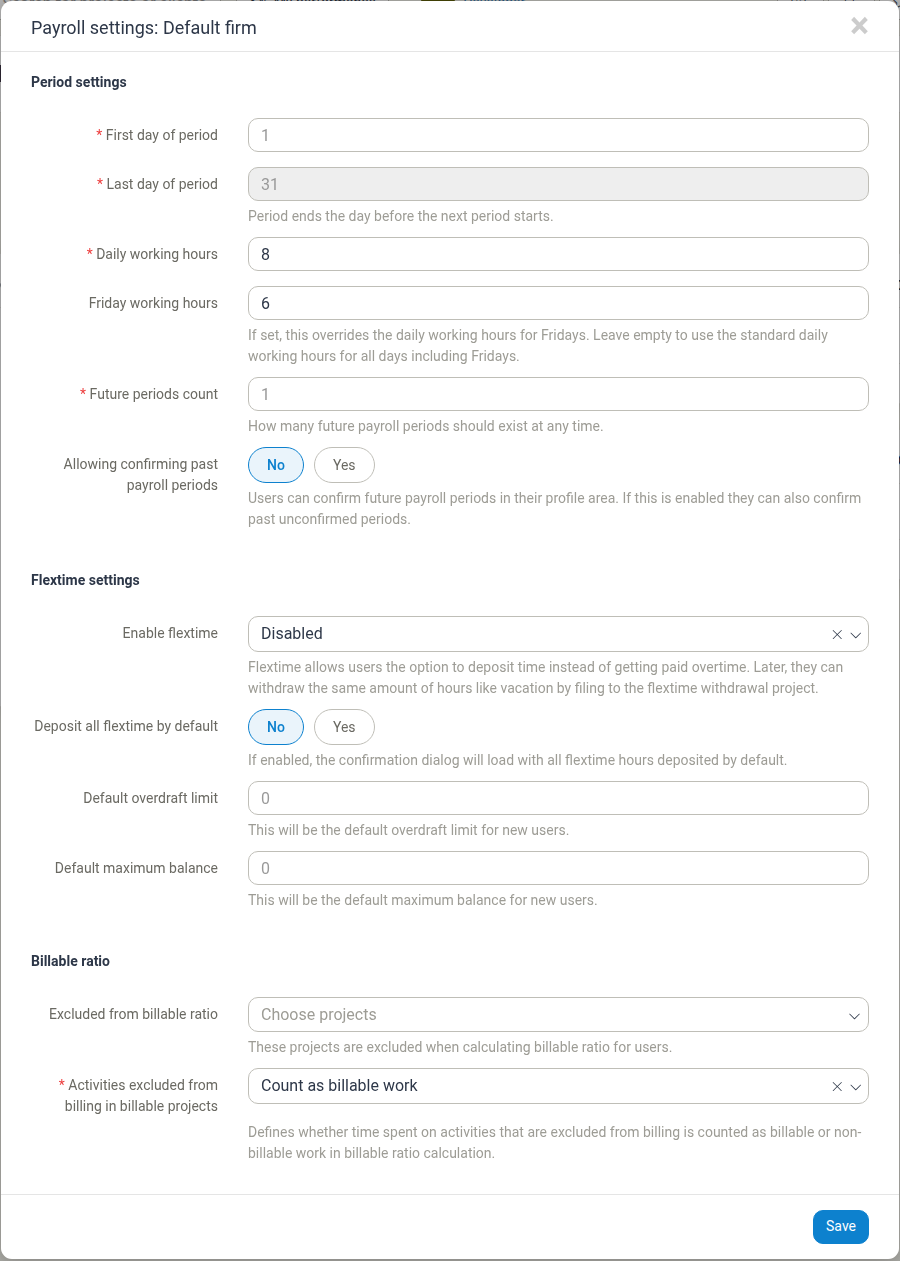
Manor uses these values to calculate the expected hours for a payroll period and to determine when an employee has worked overtime. By comparison, the Daily target described above is a display metric, while Daily working hours feeds payroll calculations.
Note: An unset Friday working hours still shows as 0 in this dialog. Clicking Save while it displays 0 stores an explicit override of 0 hours for Fridays, which lowers every pay period's expected hours. To fall back to the standard daily hours on Fridays, clear the field so it is empty before saving.
Important: Saving the payroll settings recalculates the work quota of all existing pay periods for the firm, including closed ones — not just future periods. See Firm Payroll Settings for details on the recalculation.
How the workday length affects calendars and time entry
Calendar window — The firm's Start of day and End of day define the visible span of the Day and Week time entry grids. Setting an 08:00–18:00 window means the grid opens on working hours instead of midnight, so users can log and review time without scrolling.
Day and Week views — These grids show the configured hourly window, with each day displaying its Hours logged total and a running Total for the day.
Dashboard — The Dashboard compares logged time against the target with the metrics Time logged today, Time logged this month and Time logged within day (the percentage of the day's target already logged). This is where the Daily target is most visible.
Time entry — Start and end times are entered in HH:MM format; Manor calculates the duration automatically. The workday length itself does not restrict what can be logged, but it is the yardstick used to judge whether a day is full, short or over.
Payroll and flextime — Expected hours, overtime and flextime balances are derived from the firm's Daily working hours (with the optional Friday override). Setting this value accurately keeps overtime and balance calculations correct.
Best practices
- Set the company Daily target first — It is the default for everyone and avoids every user having to configure it individually.
- Use personal overrides for part-time arrangements — Keep the company default at the full-time norm and let affected users adjust their own Daily target.
- Match the calendar window to real working hours — A sensible Start of day/End of day makes time entry faster and more intuitive.
- Keep payroll hours and the Daily target consistent — Where both are used, align them so the expectation shown to employees matches what payroll calculates.
- Account for shorter days explicitly — Use Friday working hours rather than lowering the daily value for everyone.
- Communicate changes — Changing working hours or targets affects how everyone's day is measured, so tell employees before the change takes effect.
Related documentation
- Firm Payroll Settings — Payroll periods, working hours, flextime and account mappings
- Firms — Firm configuration, including office hours and calendar working time
- Global Settings — Organization-wide settings including the Daily target
- Calendars — Day, Week and Month calendar views
- Time Tracking — Logging and reviewing time entries
- Users — Creating users and managing their settings
- Time Unit and Increment Settings — Time units, increments and granularity