
Overview
Many tables and grids in Manor can be downloaded as a Microsoft Excel (.xlsx) file so you can work with the data outside Manor — for example to build your own pivot tables, reconcile figures, or share a snapshot with someone who does not have access to Manor.
The export always produces a real Excel workbook (.xlsx) that opens in Excel, Google Sheets, LibreOffice Calc, and similar tools. There is one export format (Excel); it is triggered from a small Export control on the page rather than from a separate dialog with multiple choices.
Note: The graphical Reports and Analysis pages show charts and summary tables rather than raw rows, and they do not have their own Excel export. To export the underlying records, use the matching table in the Data section (see below).
Which Tables Support Excel Export
| Where | What you can export | Export control |
|---|---|---|
| Data → Time, Travels, Expenses, Products, Per diems, Billables, Retainers, Projects, Clients, Tasks, Events, Published rates | The list of records on the page | Export button with a "Download as Excel spreadsheet" menu item |
| Planning (Resource Planning) | The allocation grid for the selected period, granularity, grouping, and view mode | Export → Excel button |
| Work reports (client, project, and retainer) | The formatted work report with amounts | Download xlsx button (alongside Download pdf) |
| Project Management (Gantt) | The project plan | Download button (produces project.xlsx) |
Not every list exports: for example, the Data → Bundles page has no export control. The Export button on a supported table is shown even when the table has no rows, so an empty page does not by itself mean export is unavailable.
Exporting a Data Table
This is the most common export and covers all of the billable and record tables in the Data section.
- Open the table you want to export, for example Data → Time.
- Use the filters on the page (Quick filter, Client, Project, User, Entry date, and so on) to narrow the list to exactly the rows you want. The export uses the current filtered and sorted view, not the whole table.
- Click Export in the filter bar to open the menu.
- Click Download as Excel spreadsheet.
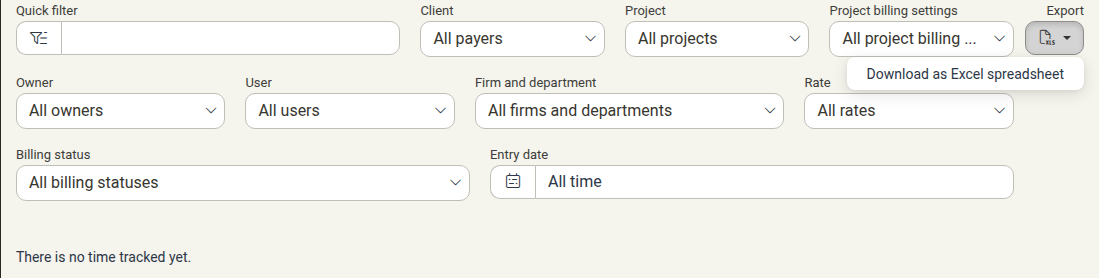
The file downloads immediately. For very large result sets a short progress indicator is shown while Manor prepares the file, after which the download begins.
Exporting the Planning Grid
- Open Planning.
- Choose the Firm and department, Time granularity (Day, Week, Month, Year), Group By (User or Task), and View mode (Percentages or Hours) that you want reflected in the file.
- Click Excel in the Export group.
- The current grid is downloaded as an Excel file.

What the File Contains
- Format: A single
.xlsxworkbook. - Headers: The exported sheet includes a header row with the column names (for example Date, Employee, Project, Client, Hours, Rate, Amount), so the data is ready to filter and sort.
- Scope: All rows that match your active filters and sort order — not just the rows visible on the current page. Columns that have no meaningful value for a given table are omitted.
- Formatting: Numbers and values are written as real values (not text), currencies and dates keep a sensible format, and where a table has totals a subtotal row with a sum formula is added.
- File name: Manor names the file automatically, based on the table and the date and time of the export, for example
Manor_times_<date>_<time>_<n>.xlsxfor a time export orPlanning - Day - By person - <from>_<to>.xlsxfor a Planning export.
Limitations and Tips
- The Reports and Analysis charts are not exported directly. Their figures are aggregations. To get the numbers in Excel, export the corresponding Data table instead, or reproduce the view with its filters.
- Export respects the current view. Filters, the quick filter, and the sort order all carry over. Clear or change the filters before exporting if you need a different scope.
- Very large exports take longer. Small exports download instantly; larger ones are prepared in the background with a progress indicator before the download starts. An export covering an extremely large number of rows is refused, because a single Excel sheet cannot hold more than 1,048,576 rows — narrow the filters and export in batches instead.
- Prepared exports are temporary. If a large export is generated in the background and you do not download it straight away, it is cleaned up automatically after a short period. Simply run the export again if the link has expired.
- Some exports come from specific pages. Work reports are exported from the work report dialog with a Download xlsx button (or Download pdf for the PDF), and the project plan with a Download button on the timeline — not from the Export menu.
- Access follows the page. You can only export tables you are allowed to view. If you do not see an Export control, you may lack access to that page or that table.
Best Practices
- Filter first, export second. Set the date range, client, or project before exporting so the file contains only what you need.
- Check the file name. Manor generates the name automatically; rename the file when you save it to keep multiple exports easy to tell apart.
- Use Excel, not the screen, for heavy analysis. Export once with the filters you want, then use Excel formulas and pivot tables rather than re-running the export repeatedly.
- Keep sensitive exports secure. An exported file is unencrypted and can be shared freely, so treat it with the same care as the data in Manor.
Related Documentation
- Reporting — Overview of the reports available in Manor
- Analysis — Revenue accrued, revenue billed, and time analysis
- Data Analysis Guide — How to analyse billable revenue and hours
- Analysis (Data) — The Analysis feature in the Data section
- Data Overview — The unified view of all raw records
- Resource Planning — Viewing and exporting resource allocations
- Work Report — Client, project, and retainer work reports