
Introduction
Anti-Money Laundering (AML) is an optional extension that helps your firm track due diligence for clients that engage in high-risk financial services. When the extension is enabled, projects are flagged with the services you provide to the client, and Manor keeps a record of the due diligence investigations performed for each client.
The extension works from the client outwards: you mark which risky services a project involves, and Manor then shows you which clients need an investigation, which are currently covered, and which are not required to have one.
Why Use AML?
Using AML helps you:
- Flag risky engagements — Record which high-risk financial services a project involves.
- Focus on clients that need attention — The AML area lists clients whose services require due diligence but where no valid investigation exists yet.
- Keep a record of investigations — Store validity periods and whether enhanced due diligence was performed for each client.
- Stay alert — Projects that require due diligence but whose client has no valid investigation raise an alert.
Note: AML is disabled by default. A system administrator must enable it before any of the features below are available.
Enabling AML
Only users who can manage global settings can enable the extension.
-
Click Management in the main navigation and select Settings.
-
Find the Features section and click Edit.
-
In the dialog, set Enable anti-money laundering to Yes.

-
Click Save.
Once enabled, an AML item appears at the bottom of the main navigation sidebar, next to the Administration items.
Note: Turning the extension off again hides the AML area and the project AML section, but does not delete the records already stored.
Accessing the AML Area
Click AML in the main navigation sidebar. The AML page lists the clients that have projects with risky services, together with their due diligence status.
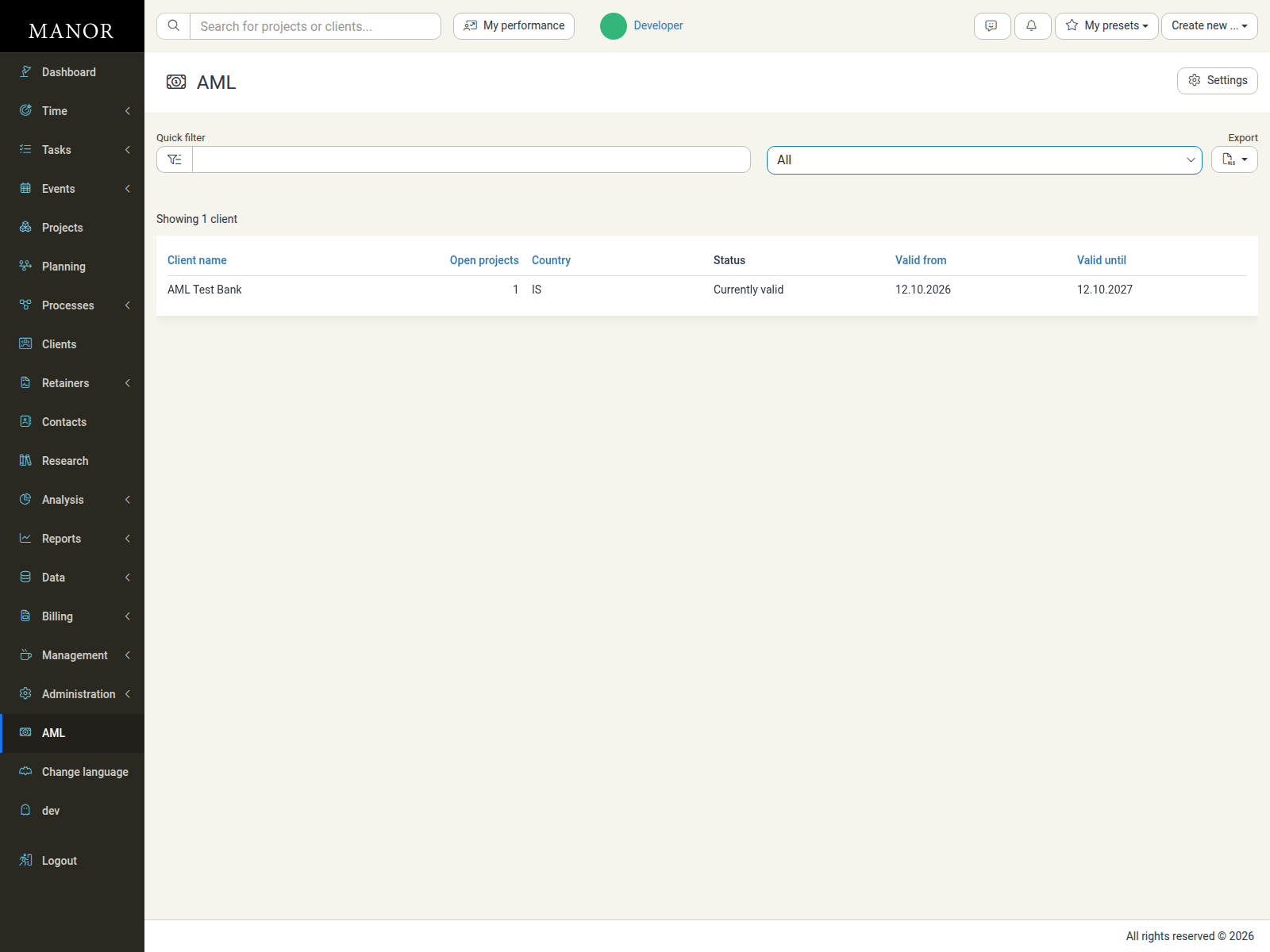
If no client currently matches the selected filter, the page shows "The search returned no results." Use the Quick filter or the status filter to widen the search.
Flagging Projects with Risky Services
Due diligence is driven by the services you provide on a project. When AML is enabled, the project creation and edit form gains an AML section.
The AML Section on the Project Form
The AML section asks whether the client requires due diligence, and, if so, which of the following risky services the project involves:
- Represent the client in financial or real estate transactions
- Consult on financial or real estate transactions
- Handle money, financial securities and other assets
- Create or manage bank accounts
- Participate in financing a corporation
- Assist in starting, running or managing corporations, trusts or similar entities
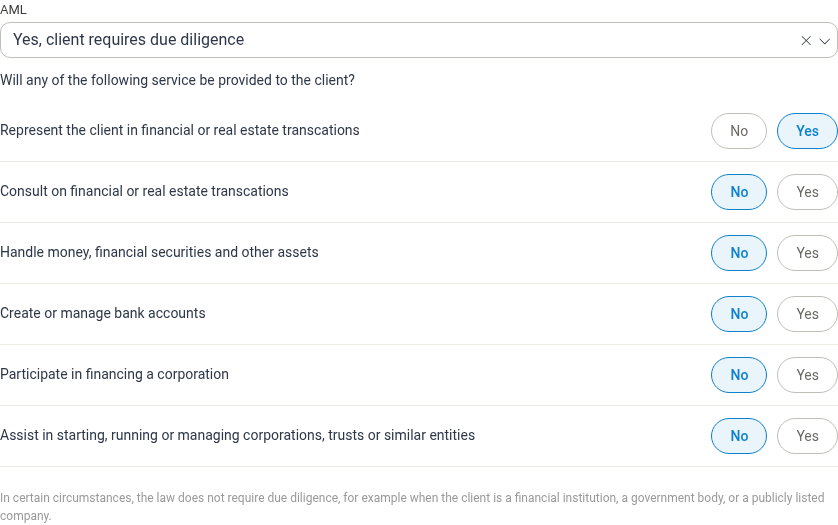
Each service is answered with a No/Yes toggle.
The section also notes the exemptions: in certain circumstances the law does not require due diligence, for example when the client is a financial institution, a government body, or a publicly listed company.
For new projects, the AML selection in this section is required — you must indicate whether due diligence is needed (and, depending on the AML settings, answer each service question) before the project can be saved.
Reviewing Clients
The Client List and Status Filter
The AML page lists one row per client. Each row shows the client name, the number of open projects, the country, the due diligence status, and the validity period of the current investigation.
The status filter controls which clients are listed:
- All — every client, regardless of status.
- Due diligence required — clients whose services require due diligence but that have no currently valid investigation.
- Currently valid — clients with a valid investigation.
- Due diligence not needed — clients flagged as not requiring due diligence.
Use the Quick filter to search by client name, and Export to download the list as an Excel spreadsheet.
Client Detail
Click a client name to open its AML detail page.
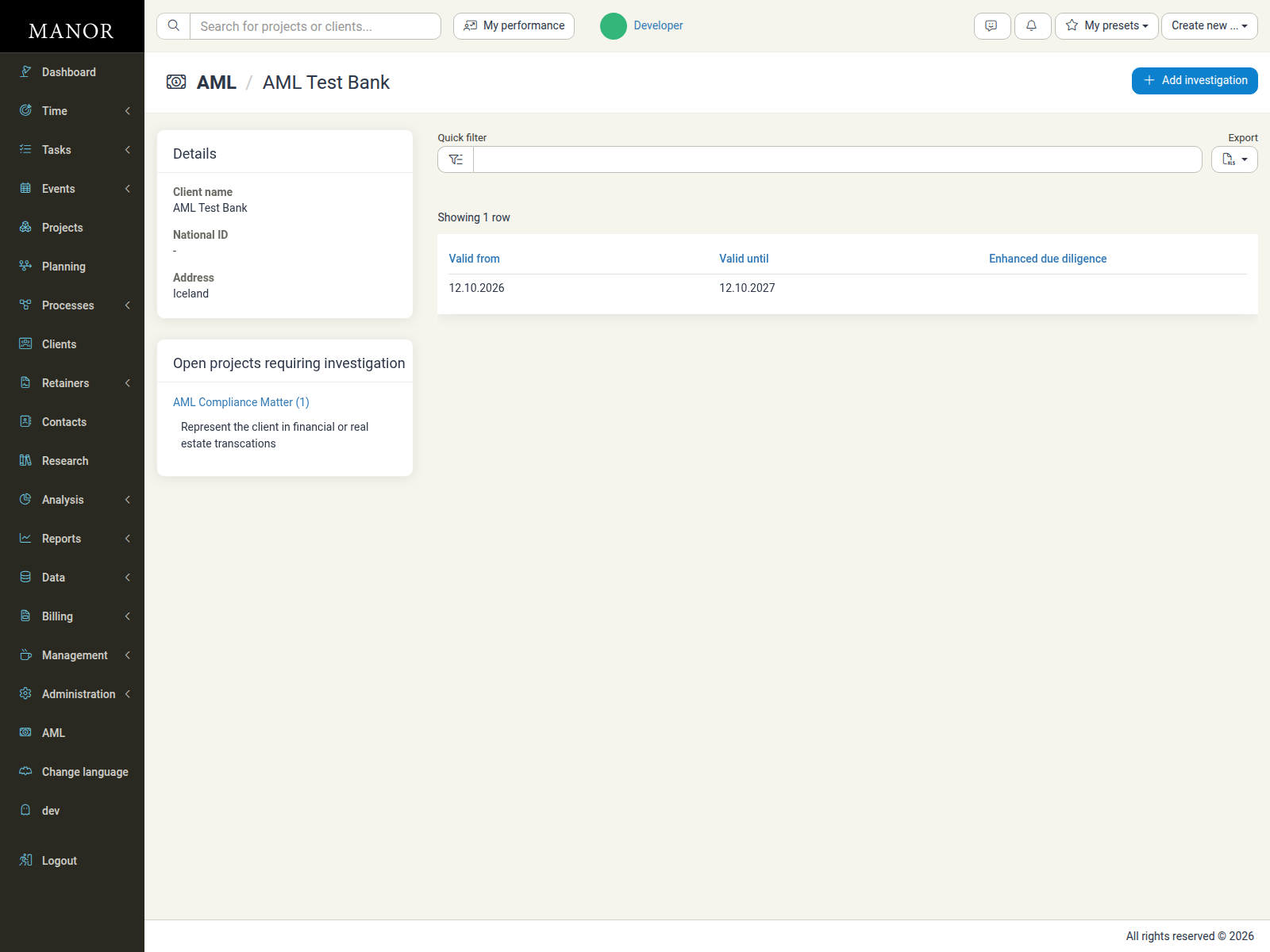
The page shows:
- Details — the client's name, national ID and address.
- Open projects requiring investigation — open projects with services that require due diligence, with the relevant service shown beneath each project.
- Open projects not requiring due diligence — open projects flagged as not requiring due diligence (when any exist).
- A table of the client's investigations, with columns for Valid from, Valid until and Enhanced due diligence.
Adding and Editing a Review
To add an investigation, open the client and click Add investigation. Click an existing row to edit it.
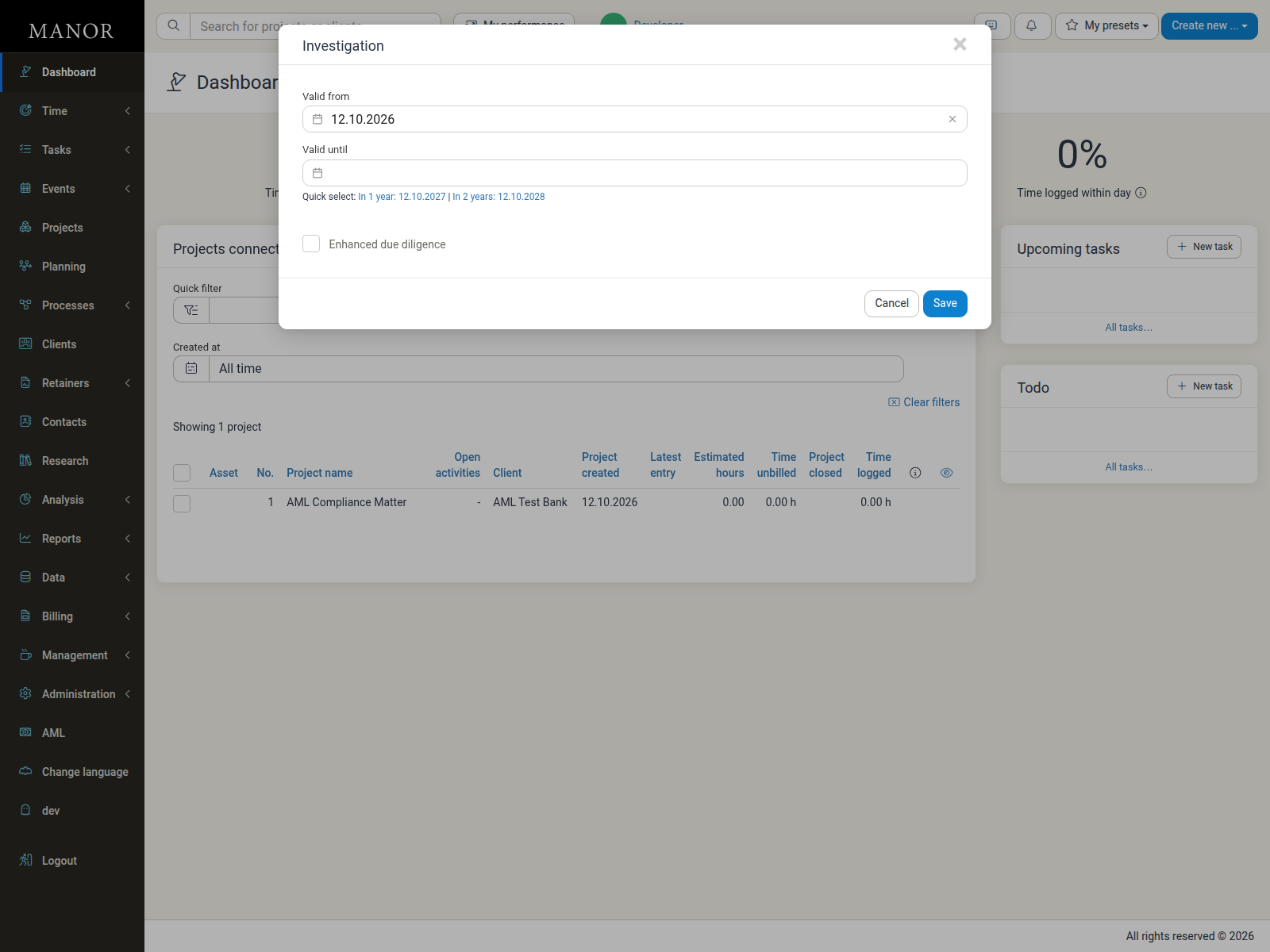
The investigation dialog lets you set:
- Valid from — the start date of the investigation (defaults to today).
- Valid until — the end date. Use the Quick select links (In 1 year / In 2 years) to pre-fill a common period.
- Enhanced due diligence — tick if enhanced due diligence was performed.
Click Save to store the record.
AML Settings
The AML area has its own Settings dialog, opened from the Settings button at the top right of the AML page.
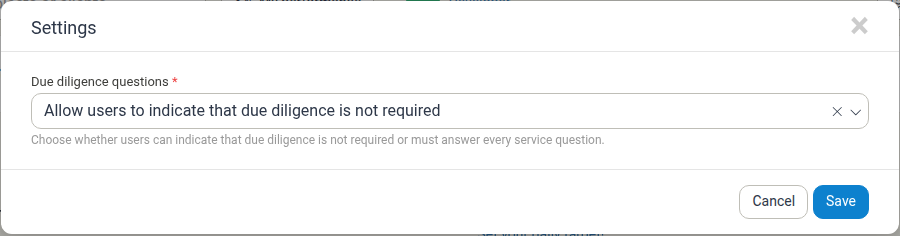
The Due diligence questions option controls how users may answer the AML section on projects:
- Allow users to indicate that due diligence is not required — users can record that a project does not require due diligence.
- Require users to answer every service question — users must answer each risky service question individually.
Click Save to apply the change.
Alerts and Audit Trail
When a project has risky services enabled and its client has no currently valid investigation, Manor raises an alert on the project: "This project requires due diligence for anti-money laundering."
Changes to a project's AML services are also recorded in the project's audit log, so you can see when an AML answer was set to Yes or No.
Best Practices
- Review the "Due diligence required" list regularly — this filter shows exactly which clients still need attention.
- Keep validity periods current — renew investigations before they expire so the client does not fall back into the "due diligence required" list.
- Record enhanced due diligence — tick the checkbox where a higher level of checking was carried out, so the record reflects what was actually done.
- Confirm the settings with your compliance lead — decide whether users may exempt projects or must answer every service question.
Related Documentation
- Clients — Managing client records
- Project Creation — Creating projects, including the AML section
- Global Settings — Enabling extensions under Management → Settings
- Management Overview — Central hub for organizational configuration
- Activity Log — Reviewing changes recorded in the audit log