
Introduction
Travel entries allow you to record trips, mileage, and travel-related expenses incurred while working on client projects. By logging travel details—such as distance or trip count, purpose, rate, and vehicle type—you ensure accurate invoicing for clients, proper mileage reimbursements for team members, and clear visibility into project costs.
You can record travel from a project's Travels tab, through the global Create new... menu (Quick Create), or alongside related work in a bundle.
Travel Form Overview
The travel form is used both when entering a new trip and when viewing or updating an existing one. The form automatically adjusts its fields depending on the selected rate, the project's billing settings, and your user permissions.
Form Fields
| Field | Type | Required | Description & Behavior |
|---|---|---|---|
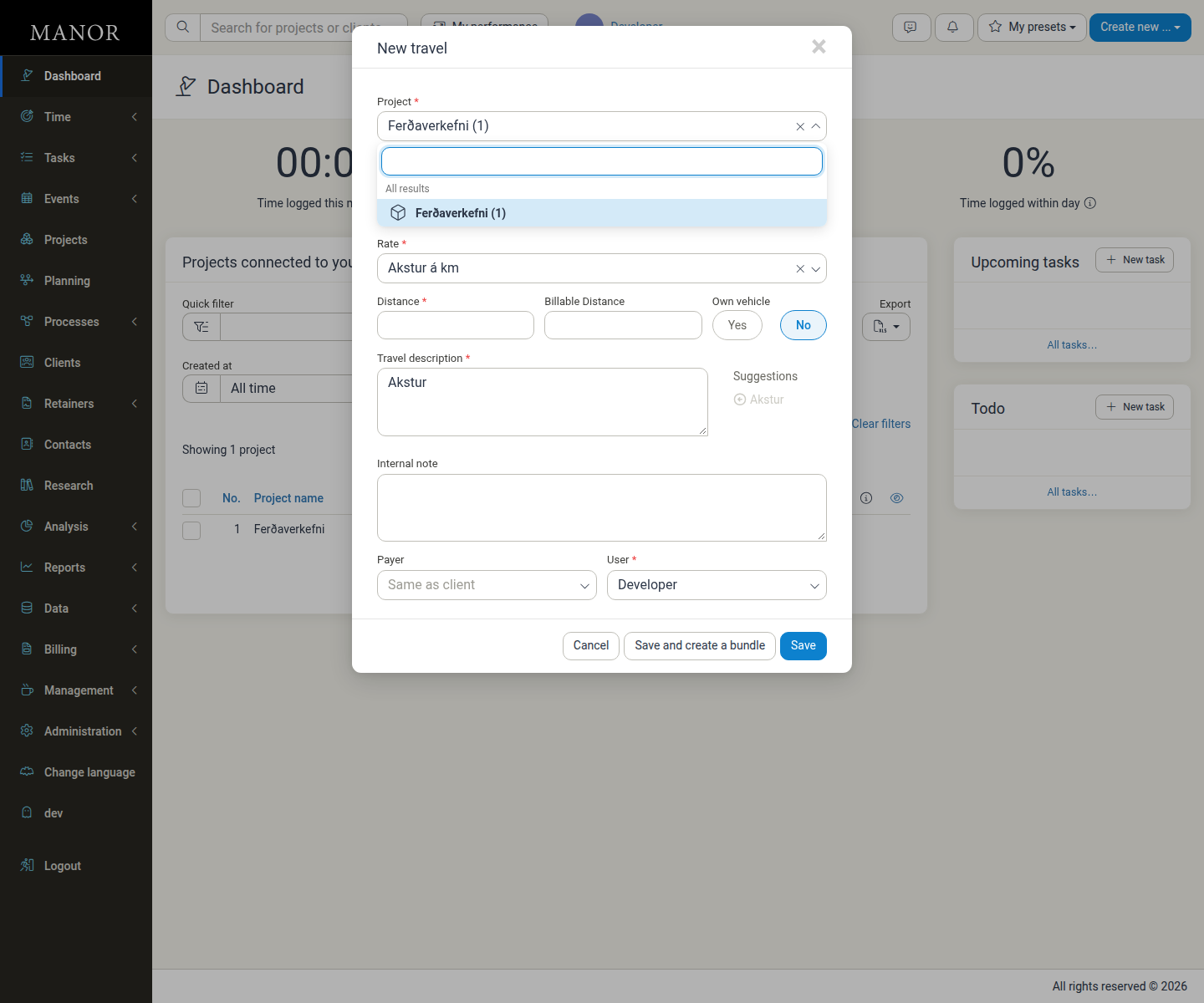
| Project | Search dropdown | Yes | The project associated with the trip. Pre-selected when opening the form from a project page. When editing, this field is locked if the trip belongs to a bundle, is part of an inter-firm settlement, or has already been processed in payroll. |
| Activity | Search dropdown | Conditional | The specific sub-activity within the project. Only appears if the project uses activities, and is required if there are active activities. Locked if the entry is bundled, part of a settlement, or processed in payroll. |
| Travel date | Date picker | Yes | The date the travel took place. Defaults to today (or the bundle date if created within a bundle). Includes a Quick select row with the last day of the previous month, the first day of the current month, and Today. Cannot be set to a date that falls within a locked project period. |
| Rate | Search dropdown | Yes | The rate applied to this travel entry. Defaults to your most recent rate or the project default. The chosen rate determines whether you enter Distance or Trips. |
| Distance | Number (up to 2 decimals) | Conditional | Total distance traveled in kilometers or miles. Appears and is required whenever a per-distance rate is selected. |
| Billable Distance | Number (up to 2 decimals) | No | The distance charged to the client. Visible only if you have permission to adjust billable amounts. Defaults to the total distance. If the project or activity is internal or non-billable, this field stays at 0.00 and cannot be edited. |
| Trips | Whole number | Conditional | Total number of trips made. Appears and is required whenever a flat per-trip rate is selected. |
| Billable Trips | Whole number | No | The number of trips charged to the client. Visible only if you have permission to adjust billable amounts. Defaults to the total trips. If the project or activity is internal or non-billable, this field stays at 0 and cannot be edited. |
| Own vehicle | Toggle (Yes / No) | No | Indicates whether you used personal transport rather than a company vehicle. Defaults to No. This field is locked once payroll has been processed for the period. |
| Travel description | Text area | Yes | The purpose and details of the trip (e.g., "Client site visit," "Off-site inspection"). Pre-filled with "Travel" by default, and suggests matching descriptions from previous entries as you type. |
| Internal note | Text area | No | Private notes for your team. Never appears on client invoices or external reports. |
| Labels | Multi-select search | No | Tags used to organize and categorize work items. Appears only if labels are set up in your system or if the existing travel entry already has labels attached. |
| Payer | Search dropdown | No | The client or organization responsible for paying for the travel. Visible only if your role permits selecting an alternative payer. Defaults to the project's client. Unavailable if the project is non-billable or closed. |
| User | Search dropdown | Yes | The team member who traveled. Visible only if you have permission to enter travel on behalf of others. Defaults to you. Locked when editing a bundled entry. |
| Created at | Display timestamp | No | Shows when the travel entry was first recorded. Appears only when viewing or editing an existing entry. |
Form Behavior, Permissions & Project Rules
The travel form adapts to keep your records consistent and adhere to project and payroll rules:
1. Distance vs. Trip Rates
Travel rates calculate costs in one of two ways:
- Per-Distance Rates: The form shows the Distance field (and Billable Distance if your role allows editing billable amounts). You can enter numbers with up to two decimal places.
- Per-Trip Rates: The form replaces distance with the Trips field (and Billable Trips if permitted). Trips accepts whole numbers only.
Switching between rates automatically updates the form to show the appropriate input fields.
2. User Permissions
What you can see and edit on the form depends on your user role:
- Adjusting Billable Amounts:
- Displays the Billable Distance and Billable Trips fields.
- Without this permission, the billable amount always matches the total distance or trips entered.
- Gives access to the Write-off option in the form footer.
- Choosing an Alternative Payer:
- Displays the Payer field. Without this permission, the charge is always billed to the project's primary client.
- Logging Travel for Others:
- Displays the User field. Without this permission, travel is always logged under your own name.
- Creating and Editing:
- Required to add new travel entries or modify existing records.
- Viewing History:
- Displays the change log in the footer when editing an existing entry, showing who made updates and when.
3. Project & Activity Billing Rules
- Non-Billable Work: If a project or selected activity is set to non-billable or internal:
- Billable Distance or Billable Trips automatically sets to zero and cannot be changed.
- The Payer field is disabled because the entry will not be invoiced.
- Required Activities: If a project uses activities, you must select one before saving. If the project does not use activities, the field remains hidden.
4. Locked Periods & Project Status
- Locked Dates: If a project has a lock date set to protect finalized periods:
- Choosing a travel date on or before the lock date displays an informational warning banner.
- If your role cannot bypass locked dates, the Save button is disabled with an explanation.
- Fully Locked Projects: If a project is locked entirely, new travel entries cannot be added and existing ones cannot be changed.
- Closed Projects: If a project has been closed, a banner notifies you that the project is closed, and all form fields are set to view-only.
5. Invoiced & Written-Off Entries
- Already Invoiced: If a travel entry has already been included on an invoice, an alert banner informs you that the entry has been billed, and fields cannot be edited to protect historical accounting records.
- Written Off: If an entry was written off, a banner indicates that the entry has been written off, and billable quantity fields are locked. Authorized team members can use the Undo write-off button in the footer to restore it.
6. Payroll & Inter-Firm Settlements
- Processed Payroll: When travel entries have been included in a completed payroll run, fields such as vehicle type, dates, rates, and distances are locked to keep payroll records accurate. A warning banner appears if a manager with override permissions edits the record.
- Closed Pay Periods: If the travel date falls within a closed payroll period, an alert warns that changes could affect payroll reporting.
- Inter-Firm Settlements: When working on shared projects involving partner firms:
- If your organization tracks settlement billing separately, only billable quantities can be changed on settlement records; other fields are locked.
- An informational banner clearly shows whether you are viewing the original travel entry or its corresponding settlement item.
7. Bundled Entries
- If a travel entry belongs to a Bundle (grouped with related time or expenses), its Project, Activity, Date, and User are managed together at the bundle level and cannot be changed individually.
- An alert banner reminds you: "This billable is part of a bundle. Changing project or user must be done at the bundle level."
Helpful Prompts & Confirmations
When saving a travel entry, Manor may display a confirmation prompt:
- Different Billable Quantity: If the Billable Distance (or Billable Trips) differs from the actual distance or trips traveled, Manor asks for confirmation to ensure the adjustment was intentional.
- Settlement Project Setup: If you record travel on a project that shares work with a partner firm requiring a settlement project, Manor can prompt to automatically set up the corresponding settlement record upon saving.
Creating a New Travel Entry
Method 1: From a Project Page
-
Go to Projects and open the relevant project.
-
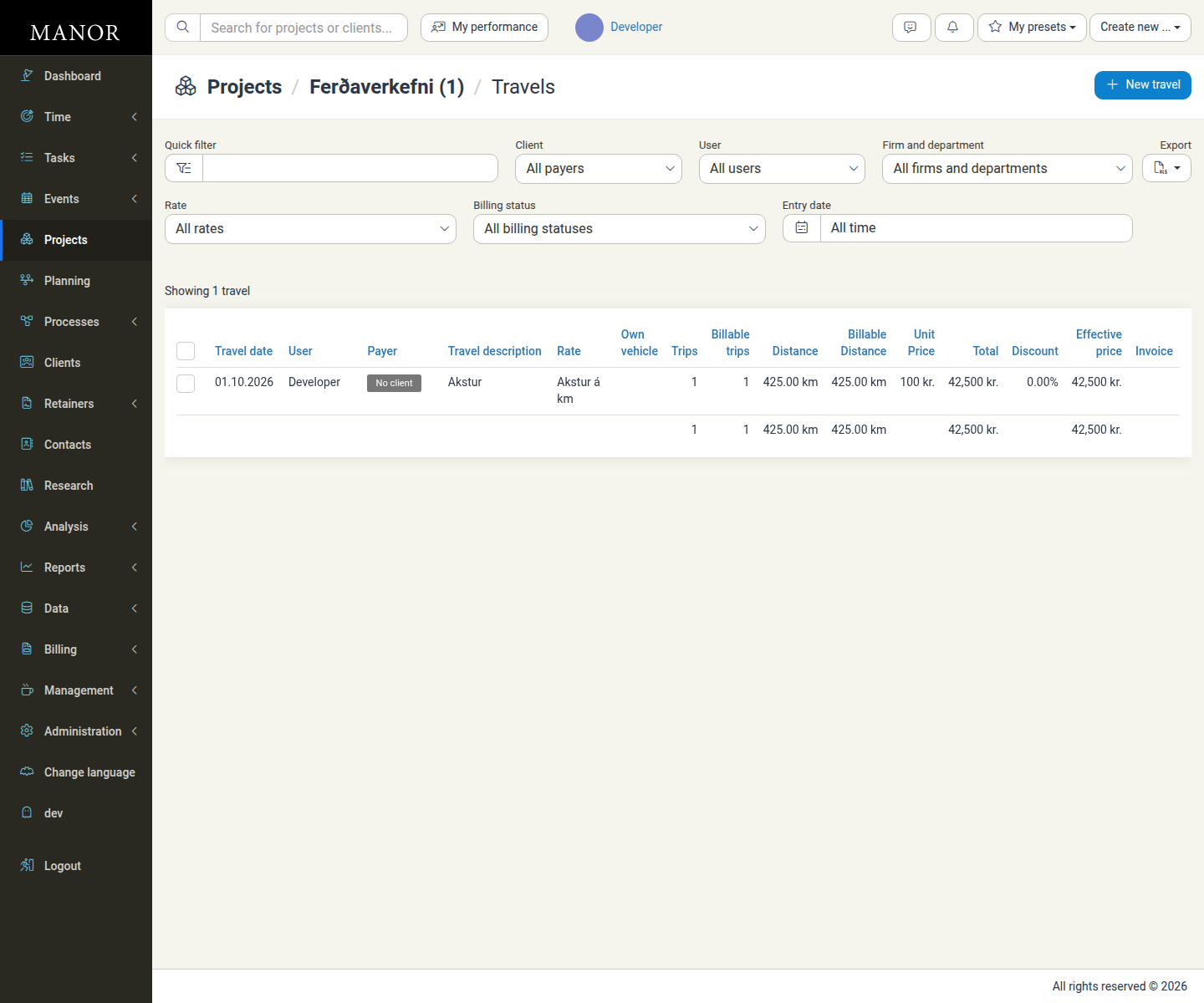
Click the Travels link in the project header or billables summary card.
-
Click New travel in the top right corner.
-
The form opens with the project pre-selected.
-
Enter the date, rate, distance (or trips), vehicle choice, and a brief description.
-
Click Save (or Save and create a bundle if you want to group this item with other billable work).
Method 2: Using Quick Create
- Click Create new... in the top navigation bar from anywhere in Manor.
- Choose Travel from the menu.
- Search for and select the Project.
- Fill in the required details and click Save.
Managing and Editing Travel Entries
Finding and Filtering Travel Entries
You can review all travel entries for a project in the table on its Travels tab. Use the filters to locate specific entries:
- Quick filter — Search descriptions and notes by keyword.
- Client — Filter by the responsible payer.
- Activity — Filter by specific project sub-activity. Appears only when the project uses activities.
- User — Filter by the team member who traveled.
- Firm and department — Filter by company division or department.
- Rate — Filter by the travel rate applied.
- Billing status — Filter by billable or non-billable entries.
- Entry date — Filter by travel dates.
Editing a Travel Entry
- In the project's travel list (or under Data > Travels), click the entry you wish to update.
- The travel details open in an edit window.
- Update any editable fields.
- Click Save to save your changes.
Writing Off a Travel Entry
If travel occurred but should not be charged to the client:
-
Open the travel entry.
-
Click Write-off in the bottom-left corner of the window (available to users with billable editing permissions).
-
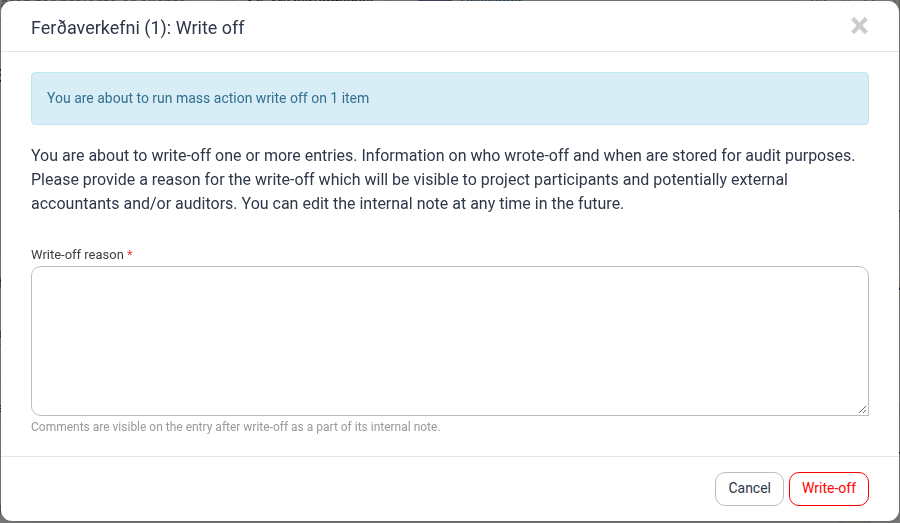
A Write off window opens. Enter a reason in the required Write-off reason field. The reason is stored for audit purposes, is visible to project participants and any external accountants or auditors, and is added to the entry's internal note (which you can edit later).
-
Click Write-off to confirm. Manor sets Billable Distance (or Billable Trips) to
0. This keeps the travel entry on record for vehicle mileage tracking and internal reimbursements, while ensuring the client is not invoiced. -
A banner confirms that the entry has been written off (for example, "This travel has been written off. Its billable distance is therefore not editable unless the write-off is undone.").
-
If you need to reverse this later, open the entry and click Undo write-off.
Deleting a Travel Entry
- Open the travel entry and click Delete travel in the bottom-left corner.
- Alternatively, select multiple entries using the checkboxes in the travel table and use the bulk delete option.
- Entries that have already been billed, finalized in payroll, or part of a billed settlement cannot be deleted.
Best Practices
- Record travel promptly: Log trips as soon as they occur so that odometer readings and journey details stay accurate.
- Select the right rate type: Use per-distance rates for vehicle mileage and per-trip rates for fixed travel allowances or flat-rate journeys.
- Track personal vehicle use: Mark Own vehicle as Yes when using personal transport so internal mileage reimbursement and payroll reporting remain accurate.
- Use write-offs instead of deleting: If a trip cannot be charged to a client, use Write-off instead of deleting the entry. This preserves the operational record for expense and mileage tracking while preventing invoice charges.
- Review billable distances: Check that your billable distance matches client billing arrangements (for example, if travel within local city limits is excluded from billing).
Related Topics
- Quick Create — Creating travels and other records from anywhere
- Travel Entries in Data — Viewing and auditing travel records across the firm
- Project Billing Settings — Setting up billing status and rates for projects
- Custom Role Permissions — Managing user permissions for billing and travels
- Bundles — Grouping travel entries with time entries and expenses