
What is Organizing Work?
The Organizing Work section is your daily operations hub for managing time, tasks, events, and project activities. Here you log time entries, track work in real time with the running Timer, plan your day with Tasks and Events, record project Notes, organize project documentation and physical Containers, locate work via Global search, and track project progress. This section helps you stay productive and ensures all work is properly recorded for billing and analysis.
Think of Organizing Work as your daily planner and time tracking center. While other sections like Projects and Data let you manage projects and records, the Organizing Work section helps you execute day-to-day activities.
Accessing Organizing Work
The main features of Organizing Work are accessible through the main navigation:
- Time — Log hours and view time tracking across different time periods
- Tasks — Manage to-do items and track progress
- Events — Schedule and manage calendar events
- Research — Search for documents and information
- Dashboard — See an overview of your current workload
Additional organizing work features are available in the Time section submenu, the top navigation, and across daily workflows:
- Day — View and log time for a specific day
- Week — See your entire week of time and activities
- Month — Monthly overview of logged time
- Table — List view of all time entries
- All billables — View billables across all types (time, travel, expenses, products, and per diems)
- Timer — Track billable work in real time with a running stopwatch
- Global search — Fast access to find and jump to open projects and clients
- Quick create — Create new records rapidly from any view
- Notes — Document discussions, decisions, and updates in project activity feeds
- Calendar sync — Integrate external calendars (Google, Microsoft 365, Court events) to generate beats automatically
- Containers — Manage physical storage boxes and file locations for project documents
Understanding Organizing Work Features
Time Tracking & Real-Time Recording
Track and log hours spent on projects and activities with Time tracking:
| Type | What it is | Use for |
|---|---|---|
| Day view | Single day time entry layout | Logging time for today or a specific day |
| Week view | Weekly overview of logged hours | Seeing your entire week and filling gaps |
| Month view | Monthly perspective on time entries | Planning and reviewing monthly patterns |
| Table view | List of all time entries | Searching and bulk managing time entries |
| All billables | Combined view of all billable types | Seeing all work across time, travel, expenses, products, and per diems |
| Timer | Real-time stopwatch tracker | Recording time as you work and saving directly to your timesheet |
Day View
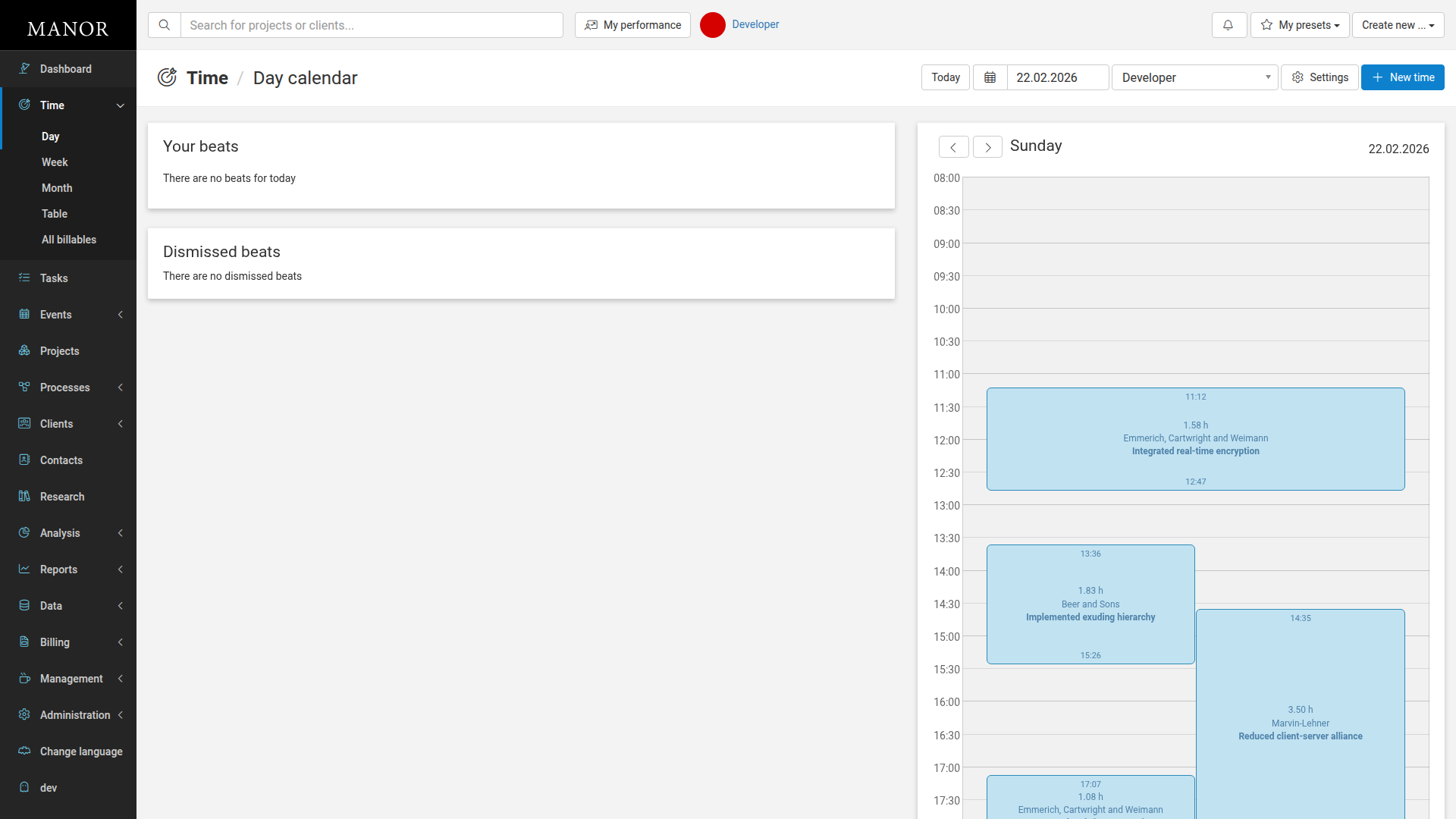
The Day view displays time entries for a single day in a calendar grid. You can see all time logged for that day and navigate between days. It also shows beats (automated time entry suggestions) if available. At the bottom, you can see the total hours logged for that day.
Week View
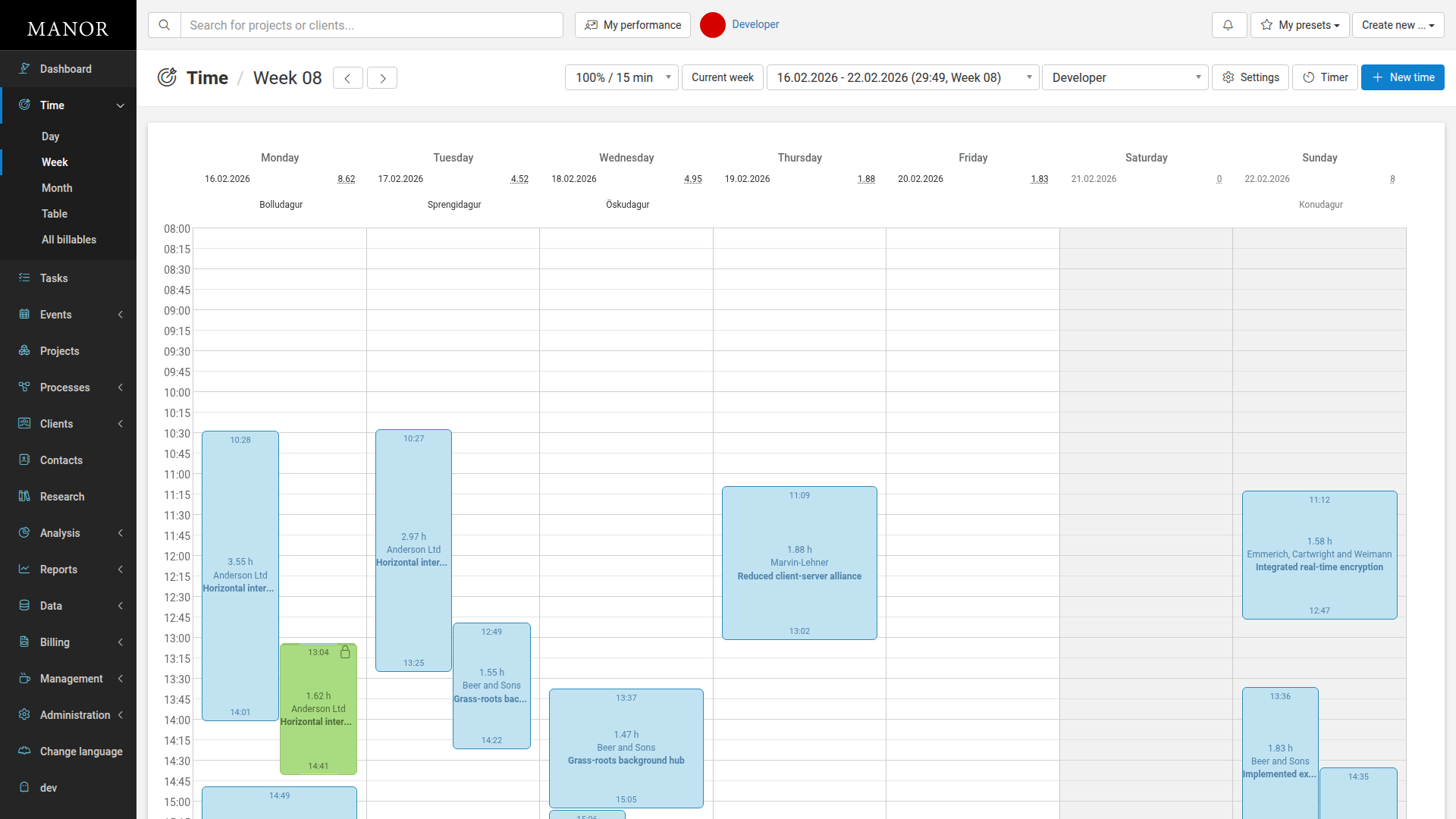
The Week view shows your entire week of time entries in a calendar format. Each day displays the hours logged and the activities completed. This view helps you see your weekly workload at a glance and identify gaps in time logging.
Month View
The Month view provides a calendar grid for the entire month, showing which days have time logged and total hours per day. This helps you plan and review your work patterns over a longer period.
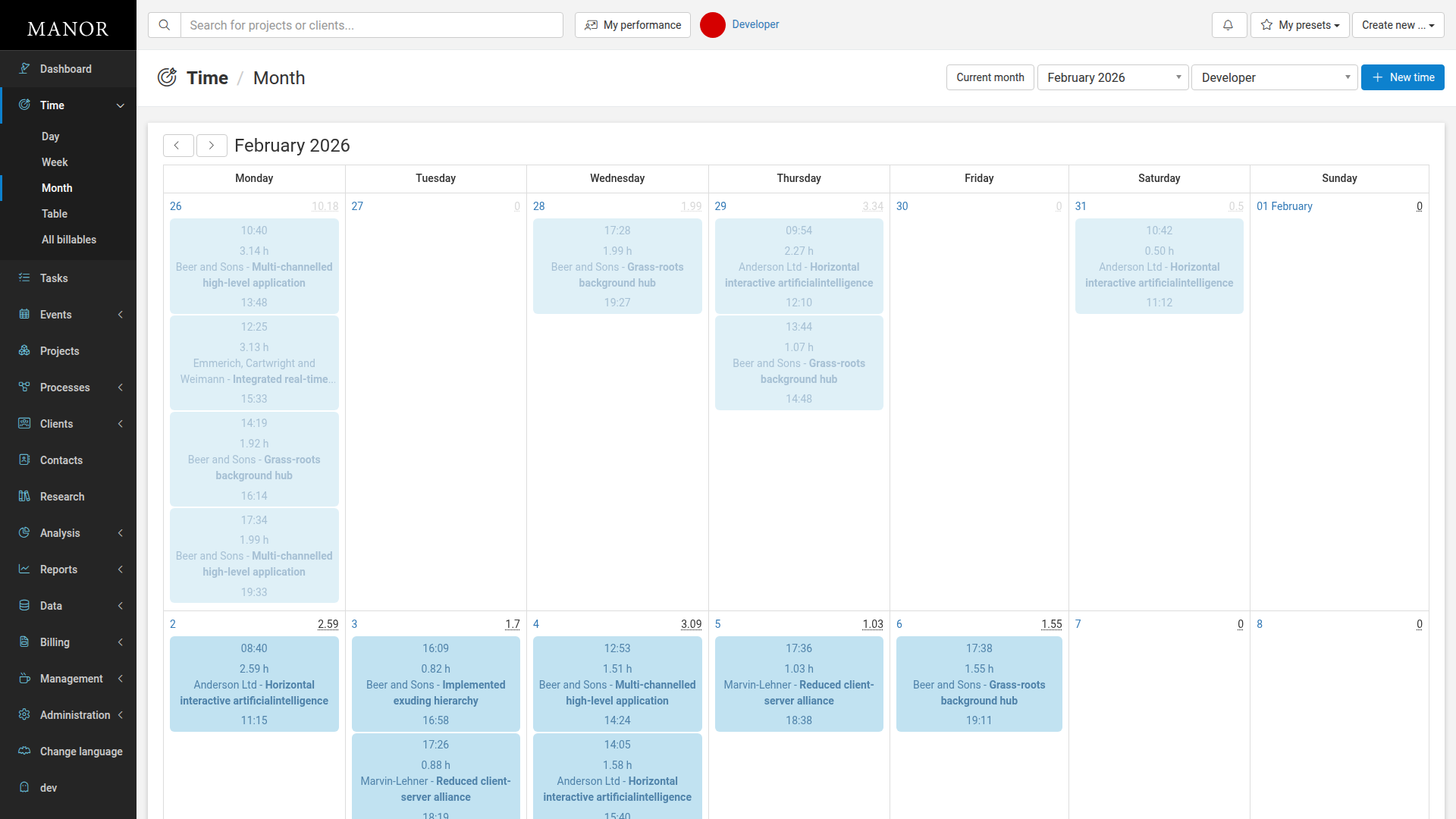
Table View
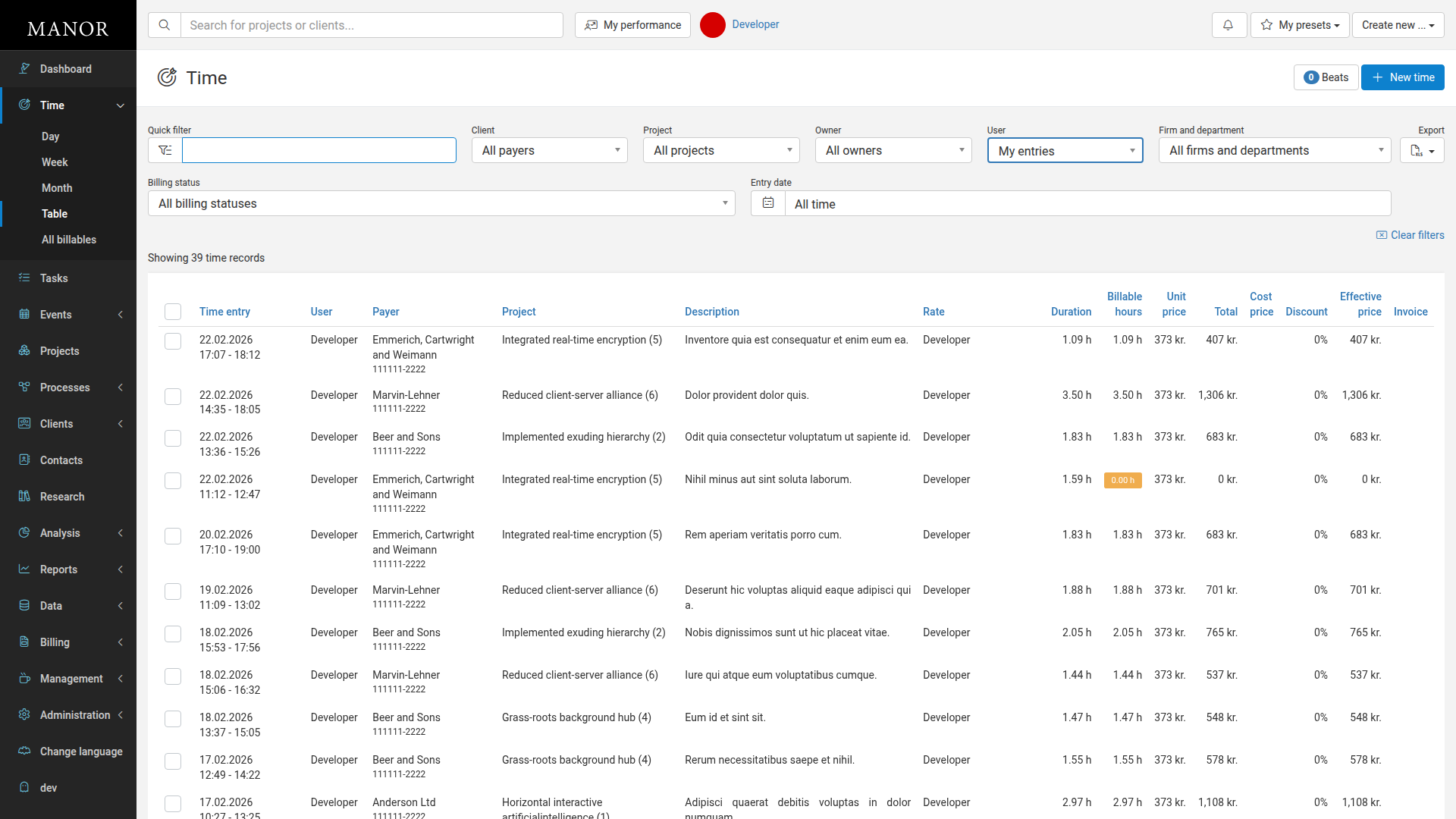
The Table view presents all time entries in a sortable, filterable list. You can search by client, project, owner, user, and other criteria. Columns show time entry details, user, payer, project, description, rate, duration, billable hours, and invoice status. This view is useful for finding specific time entries and performing bulk actions.
Running Timer
The Timer allows you to track hours on the fly. Start the timer when you begin working, assign a project and activity, and leave it running in the background as you move across Manor. Once done, save the entry directly into your timesheet.
Tasks & Activities Planning
Manage work items, meetings, and maintain action lists:
| Feature | What it is | Use for |
|---|---|---|
| Tasks | To-do items with due dates and assignees | Planning work and tracking progress |
| Events | Calendar entries for meetings and appointments | Scheduling and coordinating activities |
| Dashboard | Overview of current workload | Getting a quick status of your work |
Project Support & Documentation
Tools that enhance project organization, documentation, and external connectivity:
| Feature | What it is | Use for |
|---|---|---|
| Beats | Automated time entry suggestions | Faster time logging based on calendar and email activity |
| Calendar sync | External calendar integration (Google, Outlook, Court events) | Automatically feeding external events into Manor as beats |
| Notes | Text updates and logs on project timelines | Capturing project decisions, meeting summaries, and communications |
| Research | Document search capability | Finding information across all project documentation |
| Containers | Physical box and shelf tracking | Managing physical document storage and archiving for projects |
| Global search | Header search input with shortcut support | Instant lookup of active projects and clients |
Typical Organizing Work Workflow
Daily Routine
- Start your day — Check the Dashboard to see today's tasks and events.
- Plan your work — Review your Tasks for the day and prioritize.
- Log time or start a timer — Use the Day view in Time tracking to record time, start the Timer as you begin work, or review suggested Beats pulled via Calendar sync.
- Document decisions — Post Notes to project activity feeds after meetings or significant milestones.
- Update status — Check off completed tasks as you finish them.
- End of day review — Check that all time is logged and billable in All billables.
Weekly Planning
- Navigate to Time > Week to see your weekly overview.
- Review hours logged and identify gaps.
- Check Tasks for upcoming deadlines.
- Review Events for scheduled meetings and commitments.
- Plan the next week's focus based on project priorities.
Task Management
- Create new tasks through Tasks or the Dashboard.
- Assign tasks to team members.
- Set due dates aligned with project schedules.
- Check off tasks as they are completed.
Best Practices
Log time consistently or use the Timer
Log time as you work using the Timer or log your hours at the end of each day. Waiting until week-end to recall hours leads to errors and missed billable time.
Use projects and activities
Always assign time and notes to the correct project and activity. This ensures accurate billing and helps with project profitability analysis.
Sync external calendars
Connect Google Calendar or Microsoft Office 365 with Calendar sync so your meetings are surfaced as Beats for effortless time entry creation.
Record notes on project feeds
Keep project teams aligned by logging decisions, summaries, and action points via Notes.
Keep physical records organized
If your organization handles paper files, associate them with Containers to maintain an audit trail and simplify document retrieval.
Keep tasks current
Maintain your task list as your working to-do list. Complete or delete tasks that are no longer relevant to keep your list meaningful.
Review your data
Use the Time views and All billables to understand your work patterns. Are you billing correctly? Are you spending time where you think you are?
Integrations with Other Sections
- Billing — Time entries and records in All billables become invoices to clients.
- Projects — Tasks, time, Notes, and Containers are associated with specific projects.
- Data — All organizing work records appear in the Data section for audit and review.
Tips for Efficient Organizing
Set daily targets — Configure your daily time target so you can see progress toward your goals.
Related Sections
- Projects — Full project management and collaboration
- Data — Browse and audit all records in the system
- Analysis — Analyze time and revenue patterns
- Administration — Manage user access and integrations
Related articles
- Editing Records — how to open, change, and save records, including bulk edits, defaults, and unsaved-change warnings.
- Quick Create — create new records from anywhere in Manor.