
Introduction
The top-level Vacation area is where the people who manage others keep an eye on time off. Instead of one employee's own requests, it shows the whole team's vacation at a glance and gives you the tools to respond to what your colleagues have asked for.
It has two pages:
- Overview — a calendar-style picture of who is away, and when, across your firm or department.
- Vacation requests — the approval inbox, a table of submitted requests that you approve or deny.
Note: This is the manager-facing side of vacation. Employees submit and track their own requests from Profile > Vacation requests — see Vacation requests. If you only ever deal with your own time off, that profile page is the one you need; this article is about viewing and processing other people's requests.
The Vacation entry only appears in the main navigation when you have been granted the vacation permissions (see Who can see it). It does not depend on payroll being switched on.
Where to find it
Vacation sits in the main navigation on the left, below Payroll when the Payroll section is present.
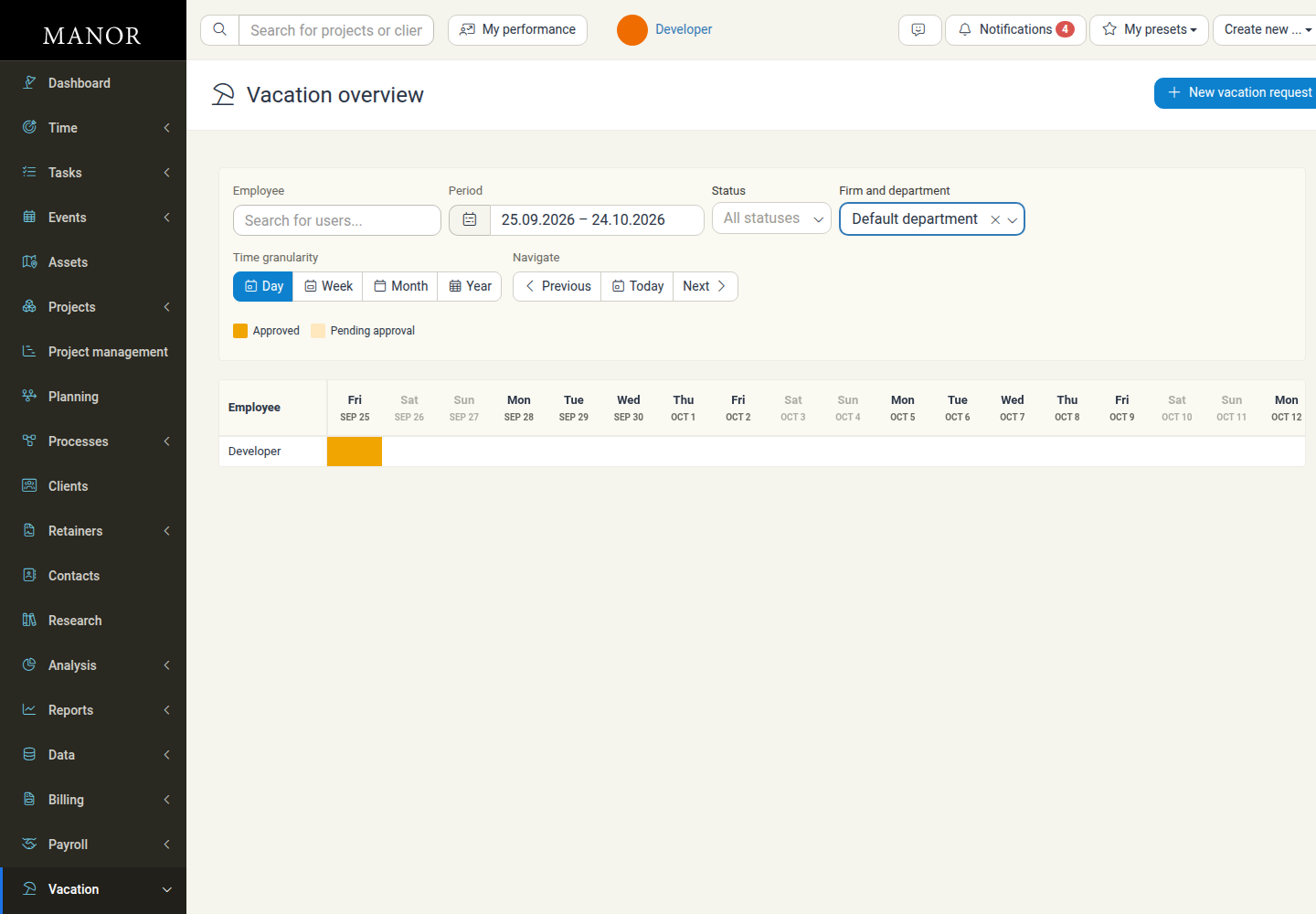
Expand it to reach the two child pages:
- Overview — the team vacation calendar.
- Vacation requests — the approval inbox.
When there are requests waiting for a manager's response, a red badge shows the number of pending requests both on the Vacation parent item and on the Vacation requests child.
The Overview page
Vacation > Overview answers the question "who is off, and when?". Each row is a person; each column is a day, week, month or year, depending on the granularity you pick. A coloured cell marks a vacation day.
Filters and controls
At the top of the page:
| Control | What it does |
|---|---|
| Employee | Search for one or more people by name to narrow the grid. |
| Period | The date range shown in the grid. It opens a date picker and defaults to a 30-day window starting today. Ranges are capped at 366 days. |
| Status | Show Approved days, Pending approval days, or All statuses. |
| Firm and department | Limit the view to a firm or department. Managers who only manage departments are always limited to the departments they manage. |
| Time granularity | Switch the columns between Day, Week, Month and Year. |
| Navigate | Previous, Today and Next step the visible period backwards or forwards. |
Below the controls, a legend explains the colours: Approved and Pending approval.
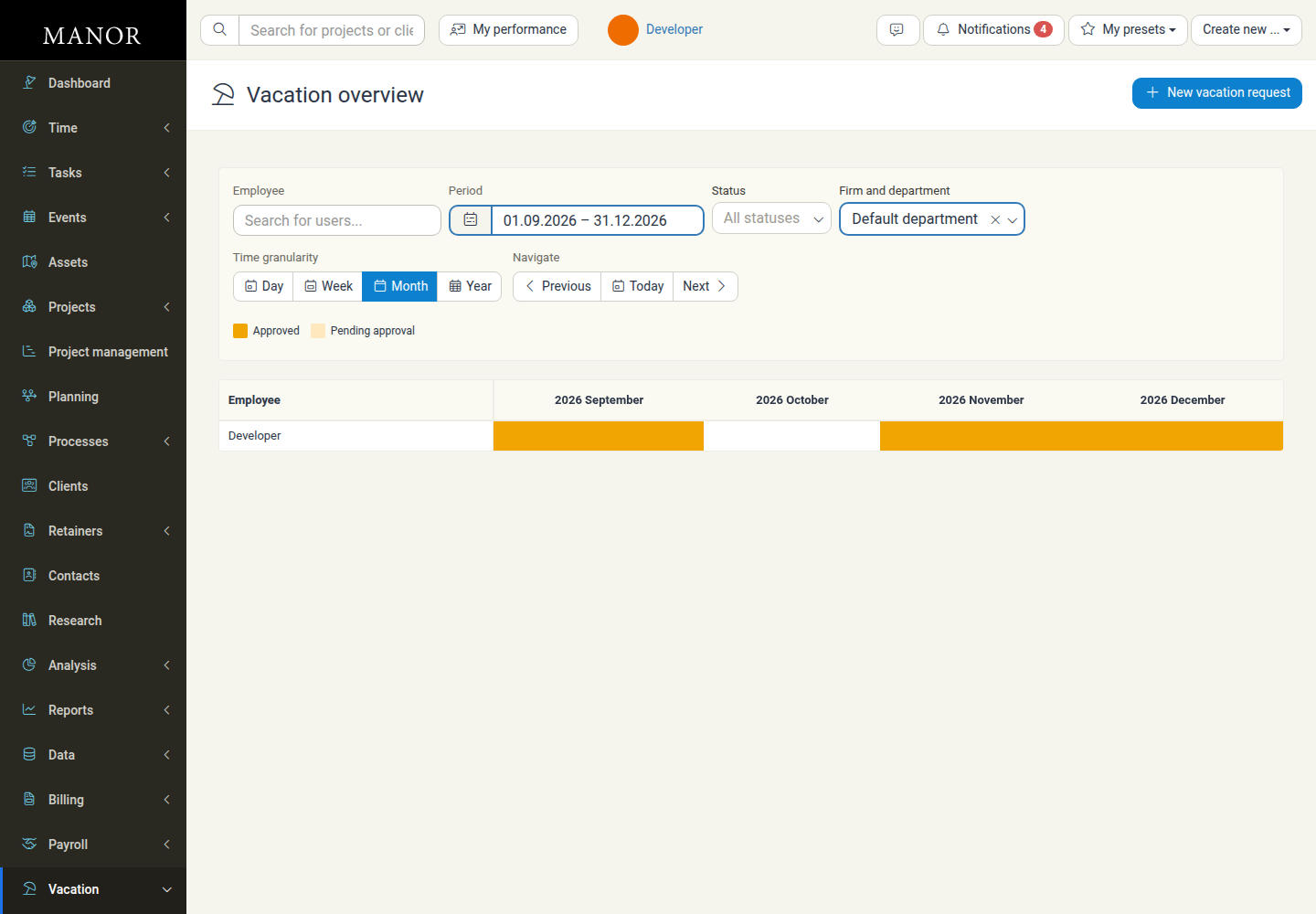
Where a person has a vacation day, the matching cell is filled with the approved or pending colour. If you can process the request behind a cell, clicking it opens that request so you can act on it straight away; days you are not responsible for are shown without a link.
Tip: Use Month or Year granularity to spot clashes and busy periods early — for example, when several people are planning to be away at the same time — and switch to Day to check individual dates.
The Vacation requests page
Vacation > Vacation requests is the list of submitted requests. It opens filtered to Pending approval, so the work that needs your attention is front and centre.
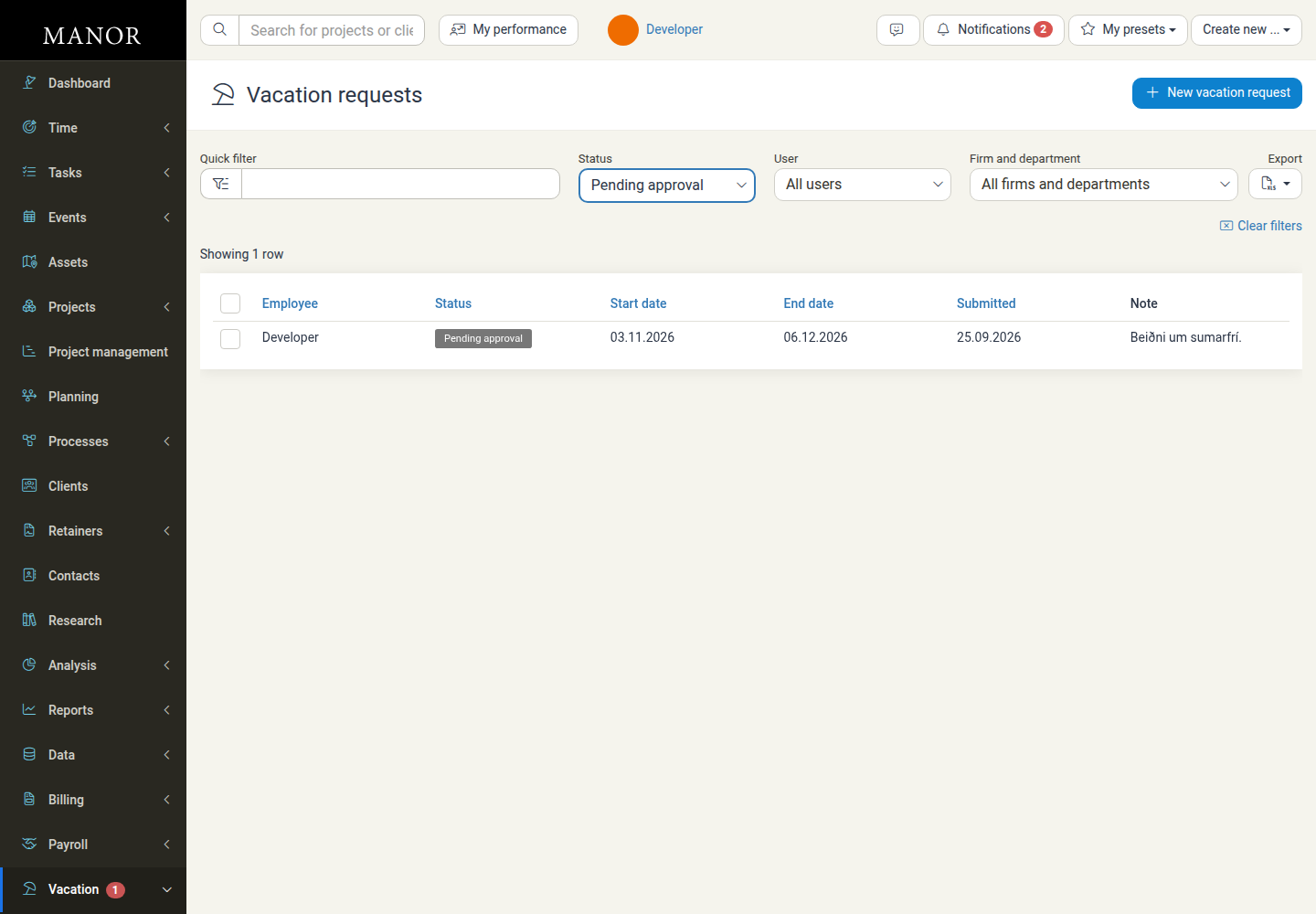
Columns
| Column | Description |
|---|---|
| Employee | The person the request belongs to. Click the name to open the request. |
| Status | Where the request is in the approval process — see Request statuses. |
| Start date | The first day of the requested time off. |
| End date | The last day of the requested time off. |
| Submitted | The date the employee submitted the request. |
| Note | The employee's comment, for example the reason for the absence. |
The list is ordered with the most recently submitted requests first. You can click a column heading to re-sort.
Filters and export
| Control | What it does |
|---|---|
| Quick filter | Free-text search across the list. |
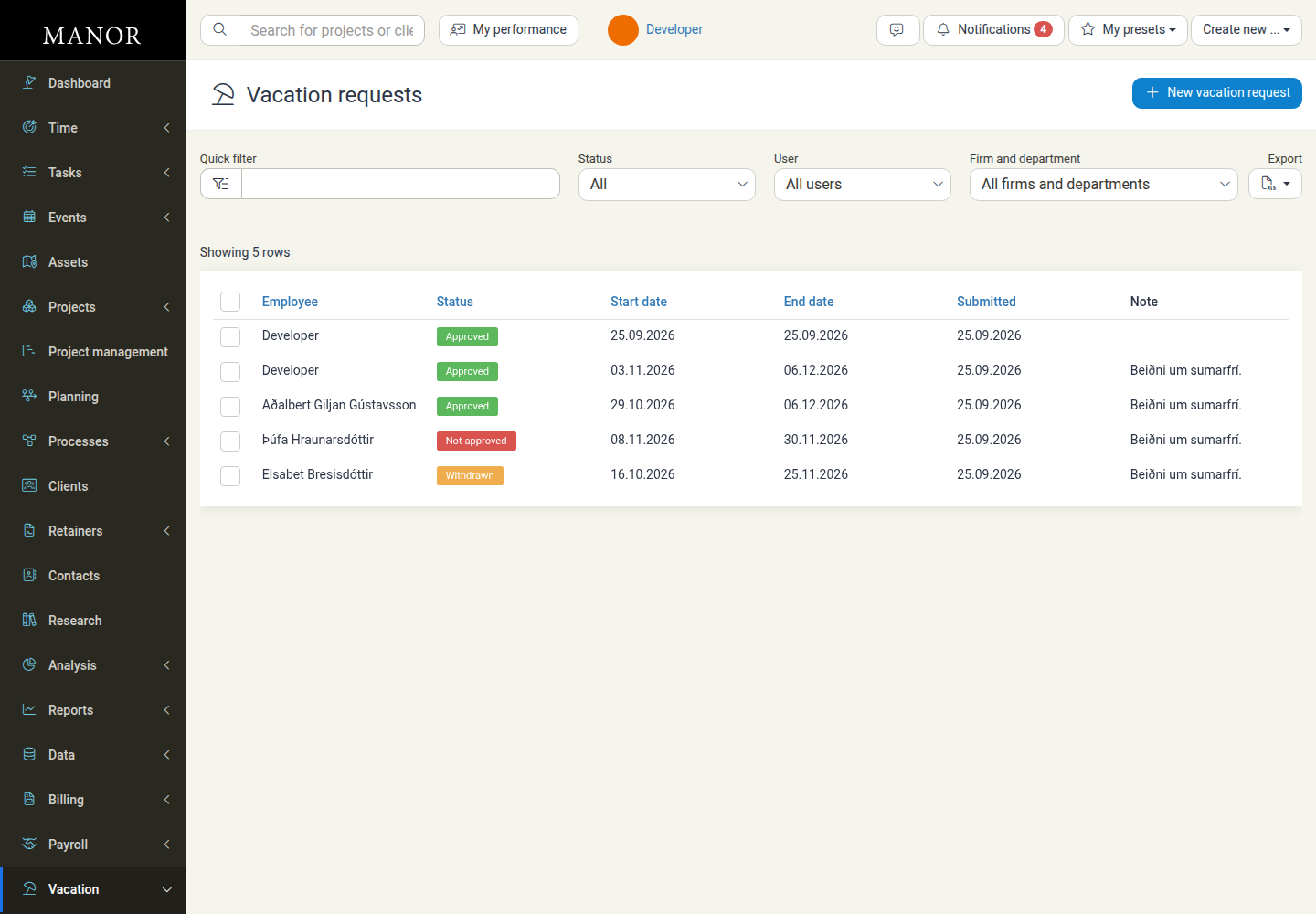
| Status | Filter by Pending approval, Approved, Not approved or Withdrawn, or choose All to see everything. Defaults to Pending approval. |
| User | Show the requests of one person. |
| Firm and department | Limit the list to a firm or department. Managers who only manage departments are always limited to the departments they manage. |
| Export | Download the (filtered) list as an Excel spreadsheet. |
| Clear filters | Reset all filters back to their defaults. |
Choosing All in the Status filter lets you see the full history of submissions and their outcomes:
Opening a request
Click an employee name, or a coloured day in the overview, to open the request.
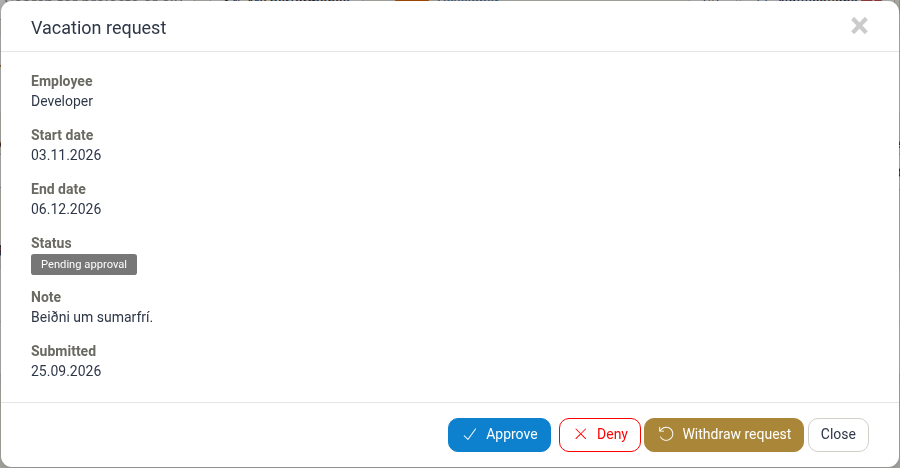
The detail view shows the Employee, Start date, End date, Status, Note (only when one was entered) and the date it was Submitted. The buttons that appear depend on the request's status and your rights:
- Approve — available while the request is Pending approval. It sets the request to Approved and notifies the employee.
- Deny — available while the request is Pending approval or Approved. It sets the request to Not approved and notifies the employee.
- Withdraw request — available on your own request while it is Pending approval or Approved. It sets the request to Withdrawn. Withdrawal is the employee's own action, so it does not appear when you are looking at another person's request.
Note: The manager pages do not offer an edit action for someone else's request — you approve or deny it instead. Only the employee can correct the dates or the note of their own pending request, so if the dates are wrong, deny the request and ask them to submit a corrected one.
After you respond, the employee receives a notification: "Your vacation request status changed to Approved" or "Your vacation request status changed to Not approved", depending on the outcome.
Approving someone else's request
Approving does not file any hours and does not draw anything from a balance. It records the agreement that the person will be away, and it unlocks the Add vacation time entries shortcut on that employee's own Profile > Vacation requests page so they can file the days as time entries. See Vacation requests.
Filing a request for someone else
The New vacation request button is available on the manager pages too. When the person opening the window holds a vacation request permission, the window shows an extra Employee field at the top, so the request can be filed on behalf of someone else. It defaults to you. The Start date, End date and Note fields behave as described under Vacation requests, and the new request then follows the normal approval path.
Request statuses
| Status | Meaning |
|---|---|
| Pending approval | Submitted and waiting for a manager to respond. |
| Approved | A manager has accepted the time off. |
| Not approved | A manager has declined the request. |
| Withdrawn | The employee cancelled the request (also possible after approval). |
Note: Once a request is Not approved or Withdrawn it leaves the pending queue, and the detail view offers only Close — there is nothing left to decide.
Handling many requests at once
When several requests have built up, tick the checkboxes on the left of the rows you want to process. A bar appears above the table showing how many requests are selected, with Approve and Deny buttons.
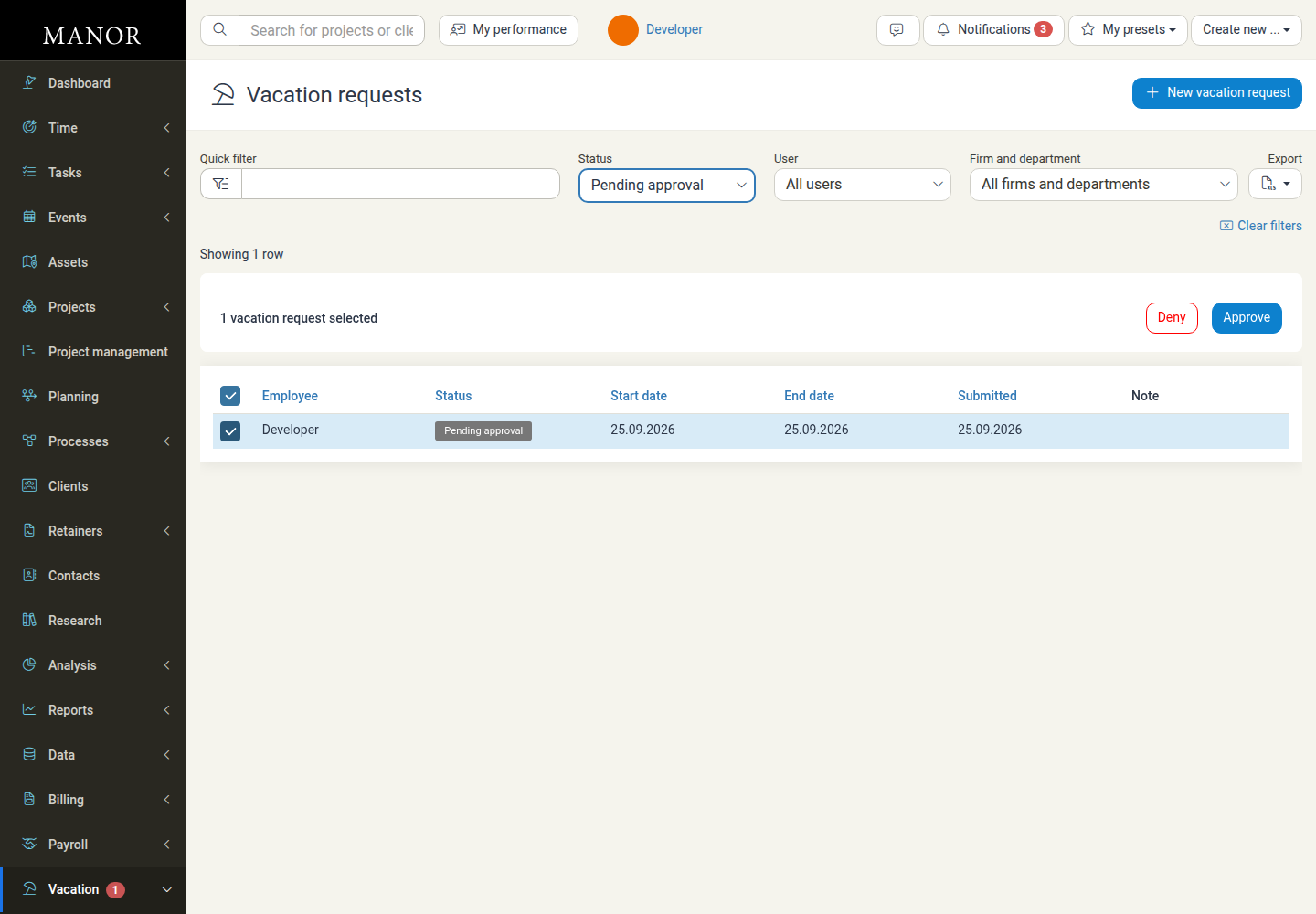
Pick Approve or Deny, confirm in the dialog that appears, and all the selected requests are processed in one go.
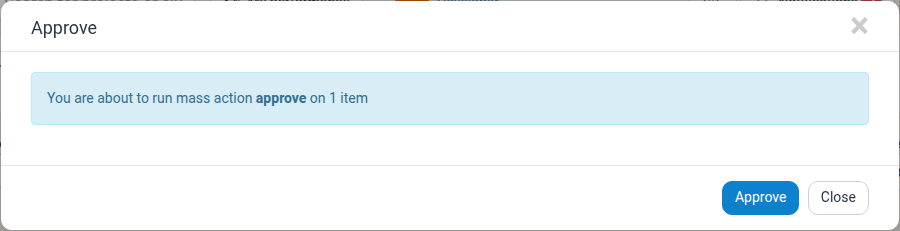
- Mass approve only affects requests that are still Pending approval.
- Mass deny affects requests that are Pending approval or Approved.
- Requests in your selection that have already been approved, denied or withdrawn are skipped, and Manor tells you how many were skipped.
Tip: Before you mass-approve, glance at the Note column and the overview for clashes — it is easy for a whole team to pick the same days off.
The pending-count badge
While you are on any page, the Vacation navigation entry shows a red badge with the number of vacation requests still waiting for a response.
- Managers with full vacation rights see a count of all pending requests.
- Managers who only manage departments see the count for the departments they manage.
The badge disappears as soon as nothing is pending. It is the quickest way to notice that new requests have arrived — the requests page itself also opens on the pending view so you can clear them without changing any filters.
Who can see it
The Vacation area, and each of its pages, is controlled by permissions rather than by payroll settings:
| Permission | Gives access to |
|---|---|
| Can view vacation overview | The Overview page for all users, both filed and requested vacation. |
| Can view vacation overview as department manager | The Overview page for users in the departments you manage only. |
| Can manage vacation requests | The Vacation requests page, and managing requests, for all users. |
| Can manage vacation requests as department manager | Responding to vacation requests from the departments or firms you manage. |
The Vacation entry appears in the navigation as soon as you hold any of these permissions; the Overview child appears when you can view the overview, and the Vacation requests child appears when you can manage requests. The pending-count badge is shown to anyone who can manage requests.
If you think you should have access, ask your local administrator. Permissions are granted through roles — see User Roles and Custom Role Permissions.
Relationship to payroll
Approving a request registers no hours by itself. The employee files the accepted days as time entries (from Profile > Vacation requests, using Add vacation time entries) so the hours land on the firm's vacation project.
From that point the hours behave like any other logged time and flow into pay periods and payroll batches. See Payroll and Confirming your hours (self-service).
Good practice
- Clear the pending queue regularly — the badge makes it obvious when requests are waiting; responding quickly keeps employees informed.
- Use the overview for planning — check the team calendar before approving overlapping requests.
- Filter before exporting — the Export download respects the current filters, so narrow the list first if you only need a subset.
- Leave withdrawal to the employee — deny a request rather than withdrawing someone else's.
- Watch department scoping — if you manage a department, your view is deliberately limited to it.
Related Documentation
- Vacation requests — The employee-facing page for submitting and tracking your own time off
- Payroll — Overview of the Payroll section
- Confirming your hours (self-service) — Reviewing and confirming logged hours for a pay period
- Firm Payroll Settings — Leave mappings, working hours and payroll rules
- User Roles — Roles and the permissions they grant
- Custom Role Permissions — Fine-grained access control