
What is a Preset?
A preset is a template for time entries that saves you time by pre-filling common details. Instead of entering the same project, description, or duration every time you log work, you can create a preset once and then create entries with one click.
Think of a preset as a "recipe" — you define which fields matter for that particular type of work, and Manor remembers them for next time. You pick a preset from the My presets menu in the top toolbar, and the New time form opens pre-filled.
Accessing Presets
The My presets button in the top toolbar gives you quick access to your presets, and the management page lives under your profile settings.
-
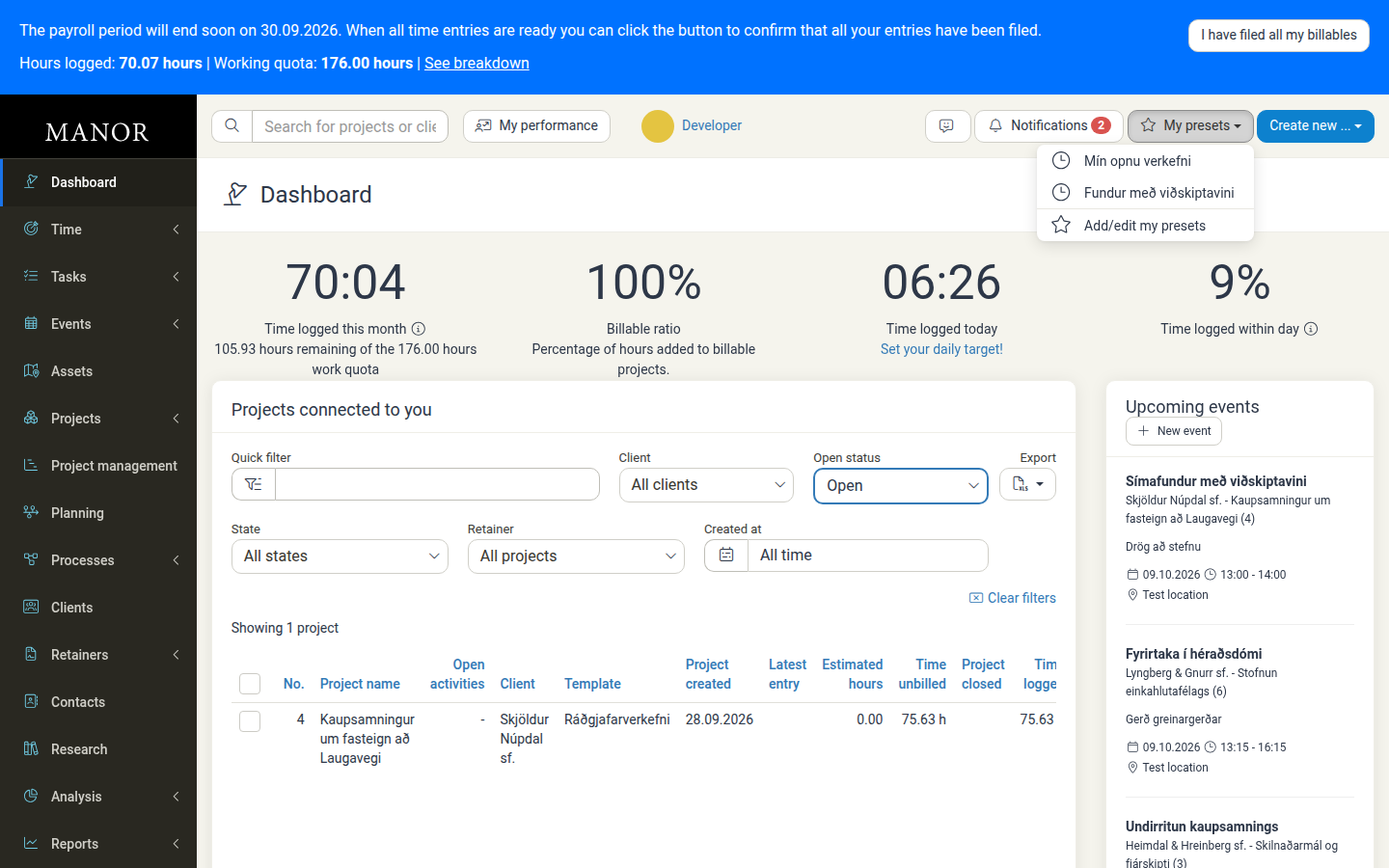
In the top toolbar, click My presets to open a menu listing your saved presets.
-
Click Add/edit my presets at the bottom of the menu. This opens the Presets page under your profile settings.
You can also reach the same page by clicking your name in the top-right corner and then clicking Presets in the settings menu on the left.
-
You'll see a list of your saved presets (empty at first) and a New preset button.
Creating a Preset
To create a preset:
-
On the Presets page, click New preset.
-
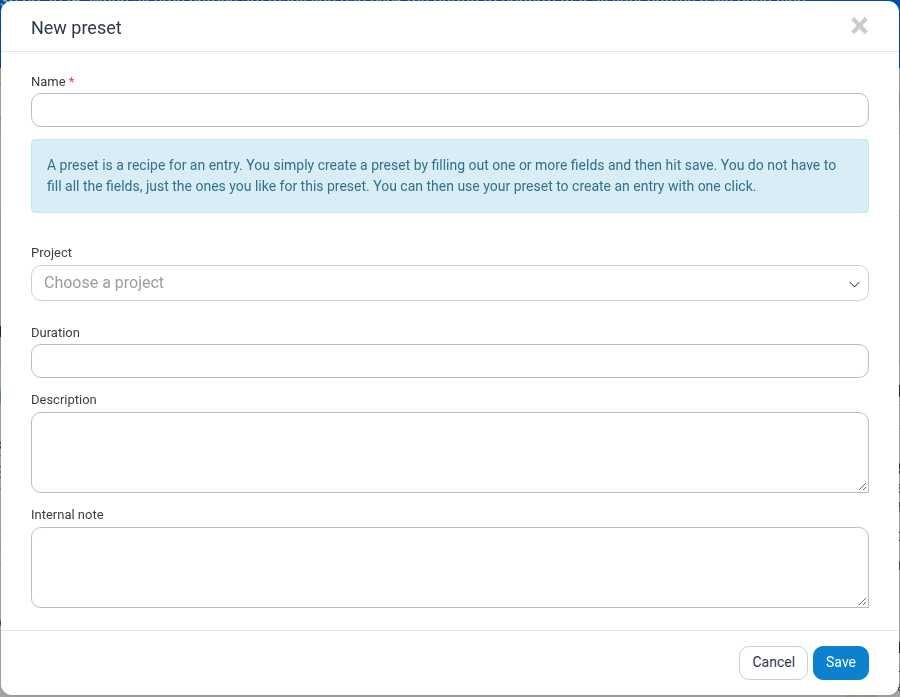
The New preset dialog opens. Enter a Name (required) — something descriptive like "Client review meeting" or "Research work".
-
Fill in the fields you want to pre-fill. You don't have to complete all of them — only add fields that are common to this type of work:
- Project — The project this work belongs to
- Duration — How long this typically takes (e.g.,
1:30for 1 hour 30 minutes) - Description — A summary of the work (e.g., "Client meeting - strategy discussion")
- Internal note — Private notes only you can see
-
Click Save to create the preset.
Using a Preset
Once you've created a preset, using it takes two clicks. You always start from the My presets menu in the top toolbar, not from the time entry form.
-
In the top toolbar, click My presets.
-
Click the preset you want to use.
-
The New time form opens with that preset's fields already filled in — for example the project, activity, duration and description.
-
Adjust anything that is different this time:
- Change the date or time
- Change the duration if needed
- Edit the description or internal note
-
Click Save time to log the entry.
There are no preset shortcut buttons inside the time entry form itself. To use a preset you always start from the My presets menu.
Editing a Preset
To modify a preset:
-
Go to the Presets page (My presets → Add/edit my presets, or your profile settings).
-
Click the row of the preset you want to change. The Edit preset dialog opens.
-
Update any fields and click Save.
All future entries created from this preset will use the updated values.
Deleting a Preset
To remove a preset you no longer use:
-
Go to the Presets page (My presets → Add/edit my presets, or your profile settings).
-
Click the row of the preset to open the Edit preset dialog.
-
Click Delete (bottom left of the dialog) to remove the preset.
Deleting a preset does not affect time entries you've already created with it.
Preset Fields Explained
| Field | What it does |
|---|---|
| Name | The label shown when selecting a preset. Keep it short and descriptive. |
| Project | The project this work belongs to. |
| Activity | The activity within the project (shown when editing an existing preset). |
| Duration | A default time duration in HH:MM format (e.g., 2:00 for 2 hours). You can always adjust this when creating an entry. |
| Description | A template description for the work. This helps you remember what this preset is for and provides a starting point for each entry. |
| Internal note | A private note visible only to you. Useful for reminders about how to categorize or bill this work. |
| Created at | Read-only. The date the preset was created (shown when editing an existing preset). |
Presets only apply to time entries. They are not saved list views — a preset cannot store filters, columns, sorting or dashboard settings. See Saved List Views and Presets.
Best Practices
Create presets for recurring work If you regularly do the same type of work (e.g., daily standup meetings, client review calls, specific project phases), create a preset to save time.
Use descriptive names Name your presets clearly so you can quickly find the right one. Use names like "Code review - Project X" rather than "Work" or "Time entry".
Don't over-populate fields Only pre-fill fields that are actually consistent. If the duration varies widely, leave it blank and enter it when logging time.
Combine with your daily target Use presets alongside your daily target (set in profile settings) to track whether you're hitting your daily hour goals efficiently.
Review and prune presets regularly Over time, you may accumulate presets for old projects or work types. Periodically delete presets you no longer use to keep your preset list clean.
Use internal notes for billing reminders If a type of work should be billed at a specific rate or to a specific cost center, add a note in the internal note field as a reminder.
Common Use Cases
Recurring meetings Create a preset for daily standups, weekly planning meetings, or client check-ins with the typical duration pre-filled.
Project phases If you work on the same project in distinct phases (design, development, testing), create separate presets for each so you can quickly categorize your time.
Administrative work Create presets for internal tasks like training, admin work, or research that don't belong to a specific client.
Billable vs. non-billable work Use the project selection to separate billable client work from internal firm work — presets make it quick to categorize correctly.
See Also
- My Presets — How to reach and use your presets from the toolbar.
- Saved List Views and Presets — Why list views and dashboards cannot be saved as presets.
- Time Tracking — How time entries work in Manor.