
Deleting a project removes it from Manor together with the work attached to it — its unbilled items, tasks, notes, invoice proposals and research copies. Because deletion has a lasting effect, Manor asks for the right permission, blocks deletion when an invoice already exists for the project, and shows a confirmation dialog before anything is removed.
This article explains how to delete a project, what restrictions apply, and the difference between deleting and closing a project.
Permissions Required to Delete a Project
Not every user can delete a project. The Delete project ... button is only shown when you have permission to both edit and delete the project:
- Can delete projects. — Typically held by managers and administrators, this permission lets a user delete any project they can access.
- Can delete projects as participant (full access participant). — Typically held by standard employees, this permission lets a user delete a project only when they are the project owner or have full access to the project.
- No permission — Service portal users and users without either of the above permissions cannot delete projects. For these users the Delete project ... button is not shown at all.
Restrictions and Validations
Before a project can be deleted, Manor checks the following:
1. Invoices Exist (Project Cannot Be Deleted)
A project that has an invoice cannot be deleted.
- If an invoice has already been issued for the project, the Delete project ... button is shown greyed out (disabled) instead of active.
- Hovering over the disabled button shows the message: "A project with invoices cannot be deleted."
Important: This restriction protects accounting records. If work has already been invoiced, the project must remain in the system for auditing purposes. In such cases you should close the project instead of deleting it.
2. Unbilled Items
If a project has unbilled items (logged hours, travel, expenses, products, per diems or bundles) but no invoice, the project can still be deleted. In that case the confirmation dialog additionally lists the unbilled items and the total amount that will be deleted along with the project.
How to Delete a Single Project
Step 1: Open the Project
- Click Projects in the main menu.
- Click the project you want to delete to open its page.
Step 2: Click Delete project
In the toolbar just below the project name, alongside Edit budgets, New activity, Prices, Work report, Lock project ... and Close project ..., click the red Delete project ... button.

- If the button is active and red, you have permission and there is no invoice preventing deletion.
- If the button is greyed out, hover over it to see why it is disabled (a project with invoices cannot be deleted).
Step 3: Review the Confirmation Dialog
Clicking Delete project ... opens the confirmation dialog.
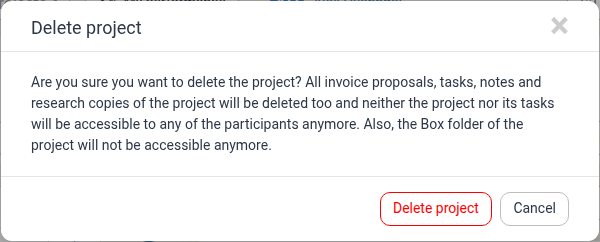
The dialog asks:
"Are you sure you want to delete the project? All invoice proposals, tasks, notes and research copies of the project will be deleted too and neither the project nor its tasks will be accessible to any of the participants anymore. Also, the Box folder of the project will not be accessible anymore."
If the project has unbilled items, the dialog also shows:
- This project has these unbilled items — a list of the unbilled records by type (for example times, travel, expenses, products, per diems), with a Total unbilled amount.
- These unbilled items will be deleted. — a warning that this work will be removed.
Step 4: Confirm or Cancel
- Click Delete project to confirm the deletion.
- Click Cancel (or the × close icon) to keep the project unchanged.
After you confirm, the project and its related items are removed and you are returned to the Projects list, where a confirmation message reports that the project was successfully removed.
What Happens When a Project Is Deleted?
When deletion is confirmed, Manor removes the items the confirmation dialog warns about:
- The project's invoice proposals, tasks, notes and research copies are deleted, and the project and its tasks are no longer accessible to any participant.
- The project's unbilled items — time, travel, expenses, products, per diems and bundles — are deleted, along with the amounts shown in the dialog.
- The project's Box folder (if Box integration is in use) is no longer accessible.
- The project itself is removed, so it no longer appears in the Projects list or in project pickers.
Issued invoices are never affected, because a project that has an invoice cannot be deleted in the first place.
Deleting Several Projects at Once
You can delete more than one project from the Projects list:
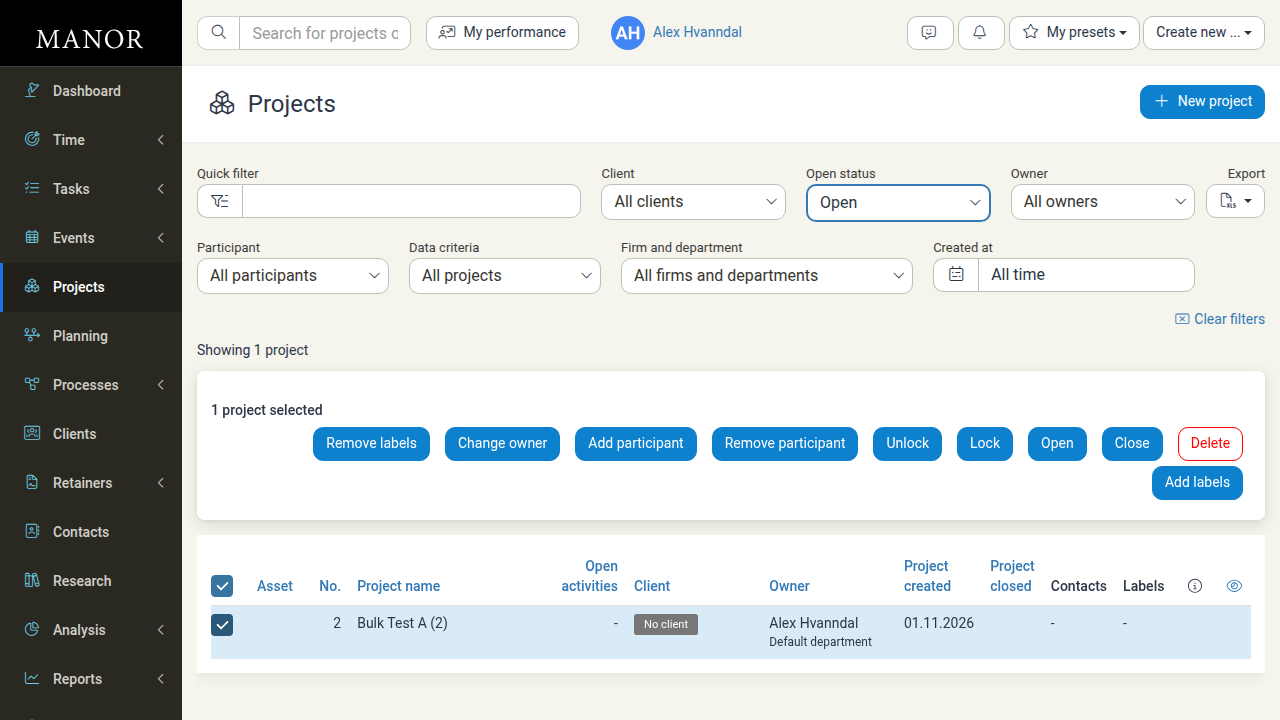
- Go to Projects.
- Tick the checkbox of each project you want to delete.
- With projects selected, a row of mass action buttons appears above the table — for example Close, Open, Lock and Delete. Click Delete.
- A confirmation dialog appears. It warns: "Are you sure you want to delete these projects? All tasks, notes and research copies of the projects will be deleted too and neither the projects nor their tasks will be accessible to any of the participants anymore. Also, the Box folder of the projects will not be accessible anymore." Its title and its confirm button reflect how many projects will be deleted — for example, Delete 2 projects when two projects are selected.
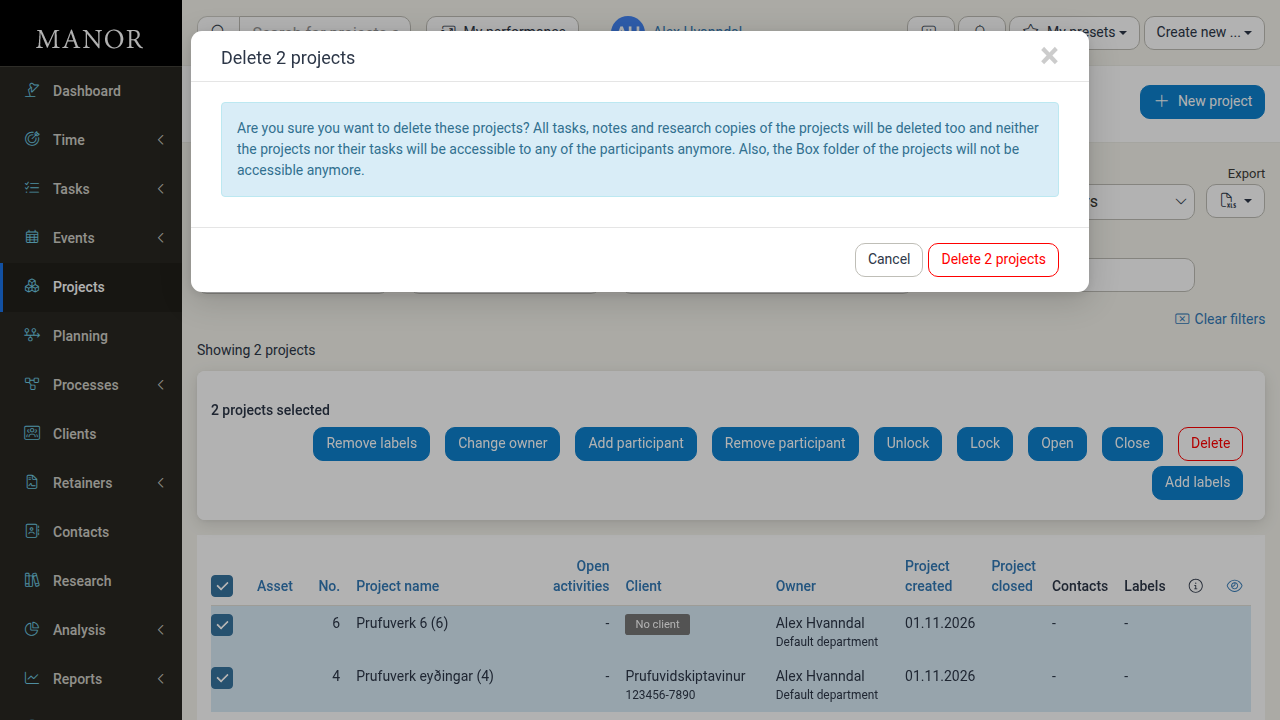
- Click the confirm button (for example, Delete 2 projects) to delete the selected projects.
Note: Mass actions only process projects you have permission to modify. Any selected project that cannot be changed is skipped.
Deleting vs. Closing a Project
In most everyday situations, closing a project is preferred over deleting it:
| Action | When to Use | Effect |
|---|---|---|
| Close project | Work is finished, deliverables are complete, or invoicing is finalized. | Keeps the project, its logged work, notes and invoices, and marks it as closed. A closed project can be reopened later. |
| Delete project | The project was created by mistake, is an unwanted duplicate, or is test data. | Removes the project and the unbilled work, tasks, notes and proposals attached to it. Only possible when the project has no invoice. |
To close a project instead of deleting it:
- Open the project page.
- Click Close project ... in the toolbar.
- Confirm the closure in the dialog.
Related Documentation
- Project Creation — How to configure new projects and settings
- Project Workflow Guide — The complete project lifecycle from planning to closure
- Project Billing Settings — Rates, VAT, and invoice options
- Invoices — Creating and managing client invoices