
Introduction
Integrations allow you to connect Manor with external services and control how your team uses those services. As an administrator, you can enable or disable integrations for your firm and manage which ones your users can control individually. Integrations help your team work more efficiently by connecting to tools they already use, like email and calendar services.
The Integrations page opens with an overview of every integration available in Manor and its current status across your organization. The integrations are grouped in a menu on the left under three headings — User integrations, Firm integrations and Global integrations — and at the top you see three summary figures: Enabled integrations, Integrations in use and User connections. Select an integration from the menu to open its detail page.
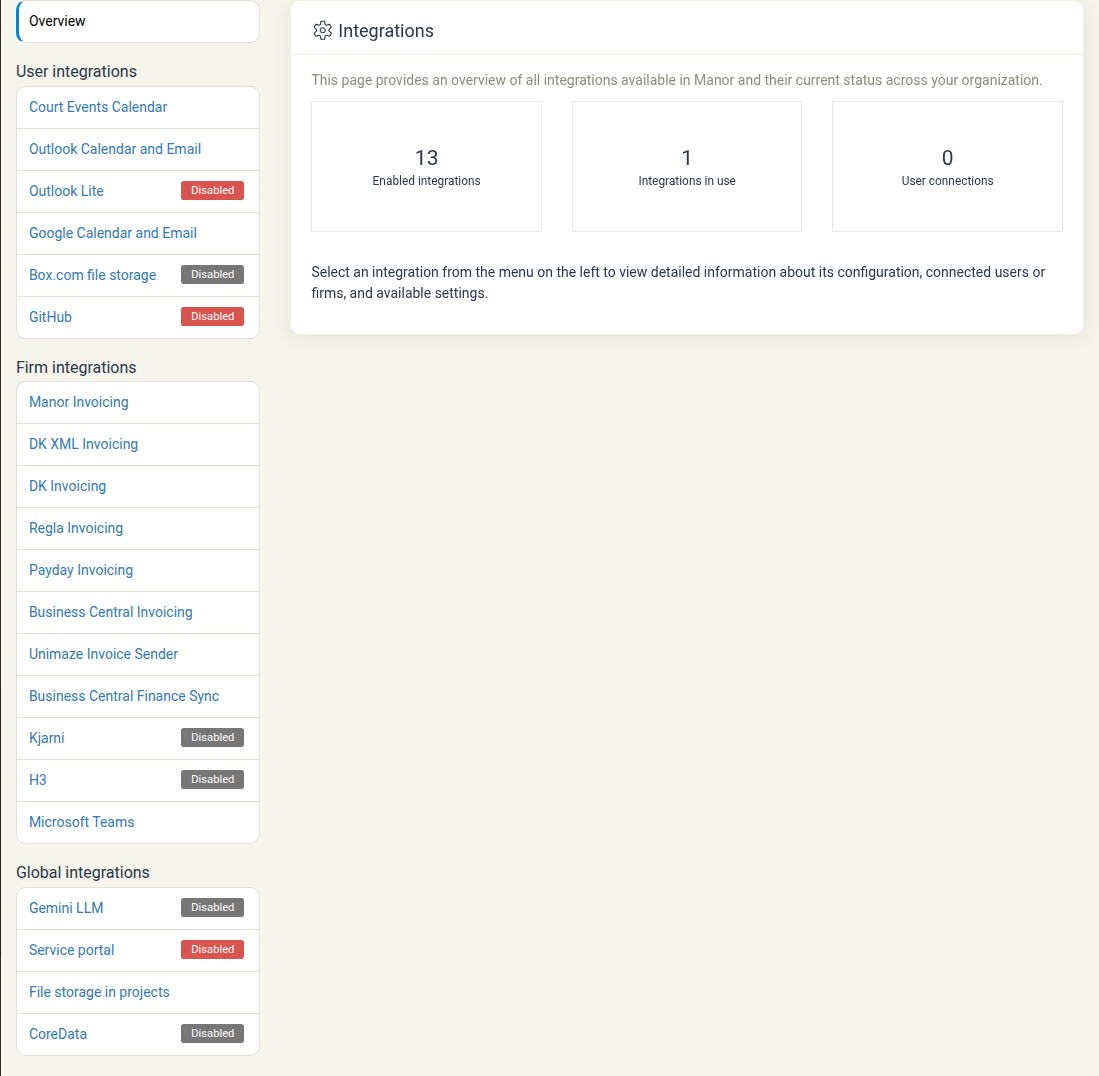
Key Integrations
User-Based Integrations
User-based integrations can be enabled or disabled individually by each team member in their profile settings. You control whether each integration is available to users at all.
Available user-based integrations:
- Court events — Allows users to import court events from external sources
- Outlook — Enables users to pull calendar and email data from their Outlook accounts
- Google — Enables users to pull calendar data from their Google accounts
System Integrations
System integrations are controlled at the firm level and cannot be customized by individual users.
Available system integrations:
- Outlook integration — When enabled, users can request calendar beats (events) from their Outlook account on demand. No background processes run. Access is limited to Mail.ReadBasic and Calendars.Read permissions, and all communication happens synchronously.
- Service portal — When enabled, a service portal can be configured with relevant DNS setup. Contact Manor support for assistance with setup.
- File storage in projects — When enabled, project participants can browse, upload, and download documents within the project.
Firm Integrations (Invoicing Backends)
Firm integrations are the accounting and invoicing backends a firm can post invoices to. They are listed under Firm integrations on the Integrations page — for example Manor Invoicing, DK XML Invoicing, DK Invoicing, Regla Invoicing, Payday Invoicing, Business Central Invoicing and Unimaze Invoice Sender. Each one has its own detail page.
Unlike user or system integrations, an invoicing backend is not switched on or off globally. Instead, each firm selects the backend it uses in its own invoicing setup (see Connecting to DK and Invoice Setup). The integration therefore always appears as Enabled — the useful question on its page is which firms have selected it.
Managing User-Based Integrations
- Navigate to Administration.
- Click Integrations.
- In the User based integrations section, click Edit.
- For each integration (Court events, Outlook, Google), select Yes to allow users to enable it individually, or No to prevent users from using it.
- Click Save.
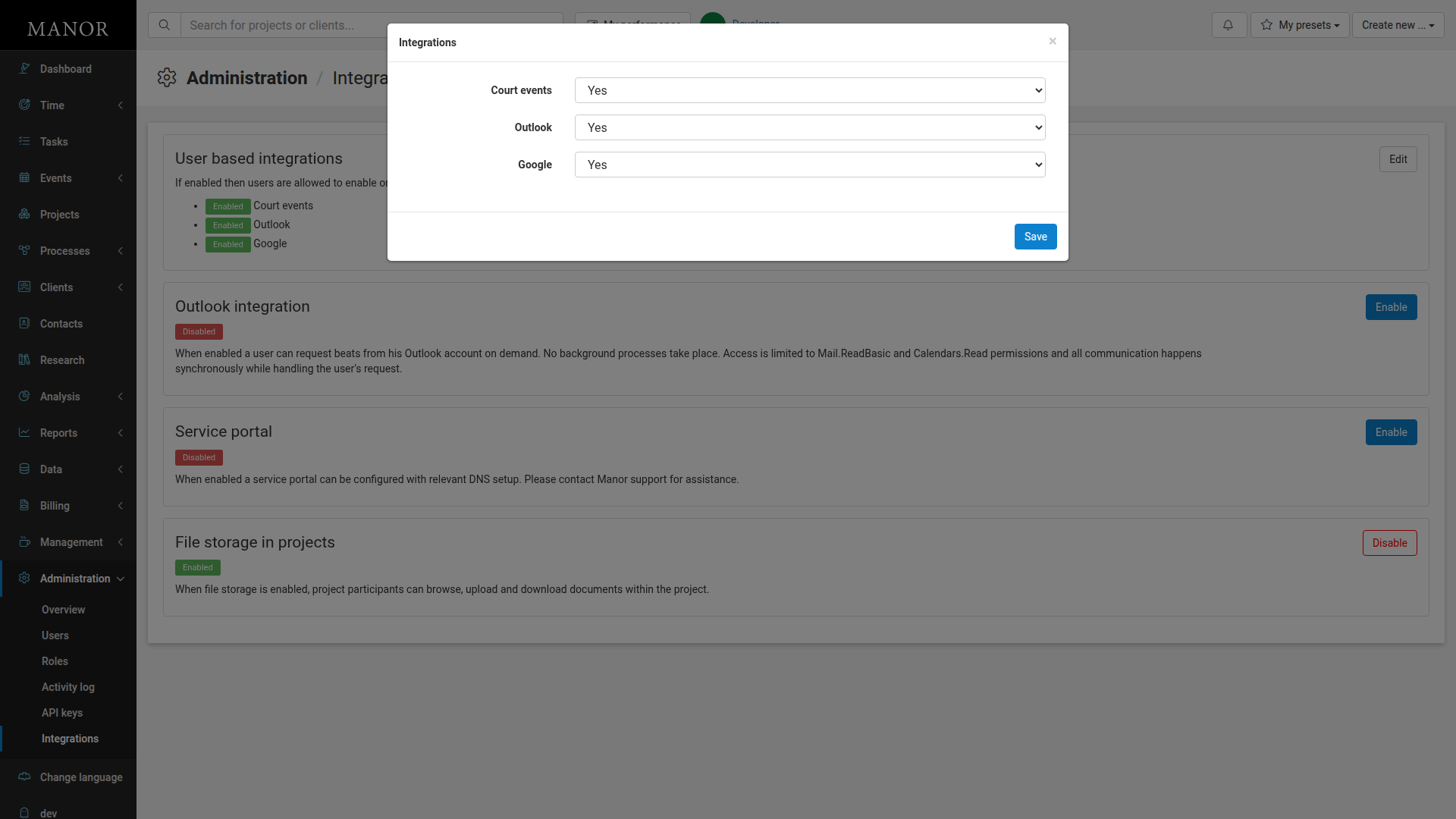
Once enabled, users can control these integrations in their personal profile settings. When disabled, the integration is not available to any user.
Managing System Integrations
Enabling Outlook Integration
- Navigate to Administration.
- Click Integrations.
- In the Outlook integration section, click Enable.
- Users can now request calendar events from their Outlook accounts on demand.
Important: This integration is read-only and uses limited permissions. No automatic background synchronization occurs — users request data on demand.
Enabling Service Portal
- Navigate to Administration.
- Click Integrations.
- In the Service portal section, click Enable.
- Contact Manor support to configure DNS setup and complete the service portal configuration.
Managing File Storage in Projects
File storage allows project participants to collaborate by uploading and downloading documents directly in projects.
Enabling file storage:
- Navigate to Administration.
- Click Integrations.
- In the File storage in projects section, click Enable.
Disabling file storage:
- Navigate to Administration.
- Click Integrations.
- In the File storage in projects section, click Disable.
When file storage is enabled, all project participants automatically gain access to upload and download documents in projects they participate in.
Reviewing the DK Invoicing Integration
The DK Invoicing page gives an administrator a quick way to see the status of the DK backend and which firms are using it.
To open it:
- Navigate to Administration.
- Click Integrations.
- Under Firm integrations in the menu on the left, click DK Invoicing.
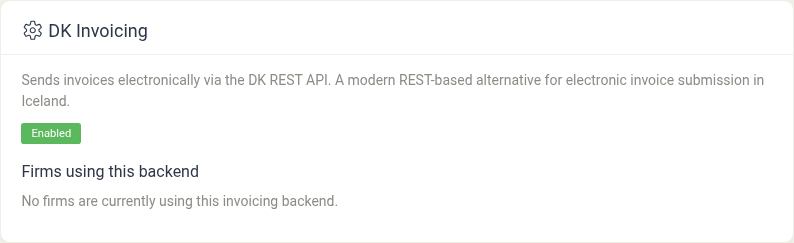
The page shows the following.
Description
A short explanation of what the backend does: DK Invoicing sends invoices electronically via the DK REST API and is the modern REST-based alternative for electronic invoice submission in Iceland.
Status
The integration is shown with a green Enabled label. This label does not reflect a per-firm choice you can switch here — invoicing backends are not toggled globally, so the label always reads Enabled. Whether DK is actually being used is determined by each firm's Invoicing integration setting.
Firms using this backend
This section lists the firms that have selected DK as their invoicing integration. It shows a table with a Firm column and an Actions column; the action Edit settings opens that firm's invoicing settings, where the DK connection (API token, national ID format, invoice display options and email subject) is configured — see Connecting to DK. If no firm has selected the DK backend, the section instead shows the message "No firms are currently using this invoicing backend."
Use this page to confirm at a glance whether DK invoicing is in use in your organization and to jump straight to the firms that use it.
Best Practices
- Enable only what you need — Review each integration carefully and enable only those that your team actually uses.
- Communicate changes to users — When you enable or disable user-based integrations, let your team know so they understand what's available in their profile settings.
- Monitor usage — Regularly review which integrations are active to ensure they align with your firm's technology strategy.
- Service portal requires support — If you want to set up a service portal, plan ahead and contact Manor support early in the process.
- Review invoicing backends centrally — Use the firm integration pages to see which firms use which accounting backend, and open a firm's settings directly from there when you need to change its connection.