
Your password is the primary key to your Manor account. This guide explains how to change your password, ensure it meets security requirements, and protect your account if you suspect a compromise.
Why Password Security Matters
A strong, unique password is essential for protecting your Manor account and the sensitive client and financial data it contains. Manor uses industry-standard security practices to keep your account safe, but your password strength is critical to that protection.
Accessing Password Settings
To access your password settings:
-
Click on your profile avatar or name in the top-right corner of the screen
-
On the profile page, click Password in the left sidebar
-
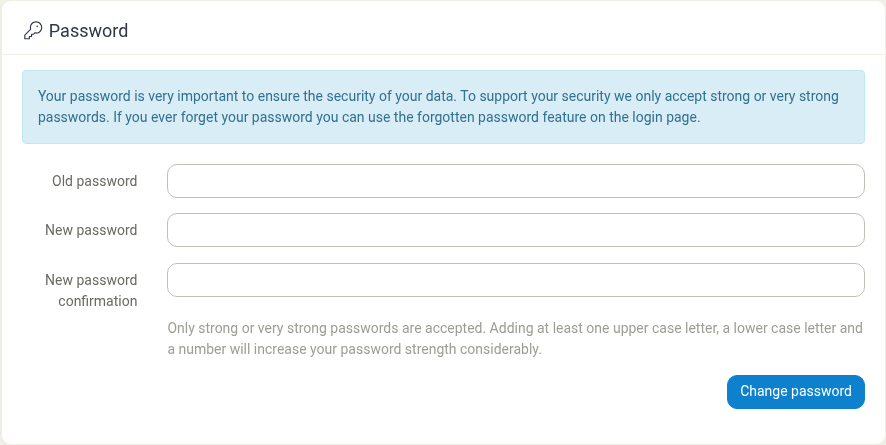
The Password page opens with the password change form
Changing Your Password
To change your password:
- Go to your Password settings
- Enter your Old password (your current password)
- Enter your New password
- Enter the New password confirmation (re-type the new password)
- Click Change password to save the change
The system will validate that:
- Your old password is correct
- Your new passwords match
- Your new password meets Manor's password strength requirements
Password Strength Requirements
Manor only accepts passwords that are judged to be strong or very strong. A password that is too weak is rejected with the message "The password must be strong or very strong."
The only fixed requirement is length:
- At least 8 characters. A shorter password is rejected with the message "The Password must be at least 8 characters."
Beyond length, Manor estimates how easy your password would be to guess, so the following all help:
- Mix uppercase and lowercase letters.
- Include numbers and special characters such as
!@#$%^&*. - Avoid common words, names, and predictable patterns (for example
password,123456, or your own name or username). - Use a longer passphrase of several unrelated words, which is often both strong and easy to remember.
The hint shown on the page puts it simply: "Adding at least one upper case letter, a lower case letter and a number will increase your password strength considerably."
Do not reuse a password that you use for another service.
Password Security Features
Manor protects your account with several security measures:
Two-Factor Authentication
When someone logs into Manor from a new device, a secondary confirmation is required in addition to the password. The confirmation is sent as a verification code via:
- Email — A code sent to your registered email address
- Text message (SMS) — A code sent to your registered mobile phone
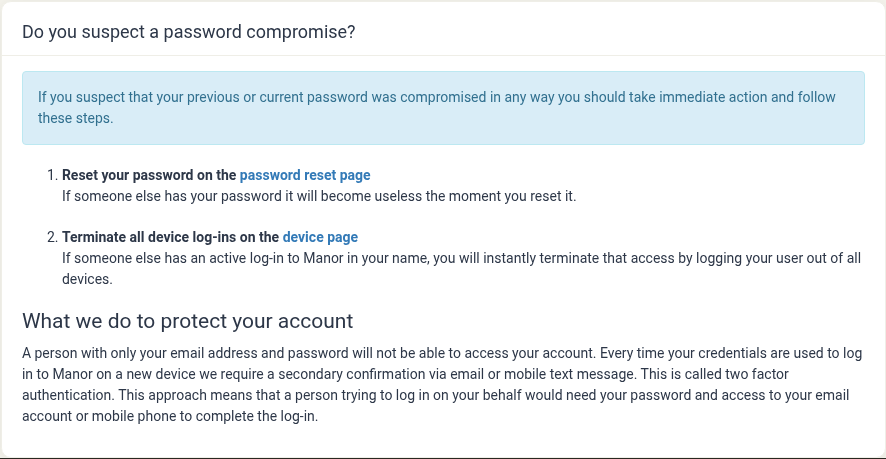
This means that a person with only your email address and password still cannot access your account — they would also need access to your email account or mobile phone. The password page summarises this under What we do to protect your account.
You can add an extra layer by setting up an authenticator app (TOTP) in the Authentication section of your profile. See Authentication for details.
Password Reset Feature
If you forget your password, use the password reset feature linked from the Password page (its prompt reads "If you ever forget your password you can use the forgotten password feature on the login page."):
- Go to the Manor login page
- Choose the option to reset a forgotten password
- Enter your email address
- Follow the email instructions to reset your password
- Log in with your new password
The reset process emails you a secure link that expires after a limited time, so act on it promptly.
If Your Password Is Compromised
If you suspect your password has been compromised or shared with someone who shouldn't have access, take immediate action. Manor lists these steps for you on the Password page, under Do you suspect a password compromise?
Step 1: Reset Your Password
Reset your password immediately using the password reset page. If someone else has your password, it becomes useless the moment you reset it.
Step 2: Terminate All Device Log-ins
To prevent unauthorized access:
- Go to your Devices page (in your profile menu)
- Review all active login sessions
- Log your user out of all devices
This instantly terminates any active log-in in your name on other devices.
Step 3: Review Account Activity
After securing your account:
- Go to Administration > Activity log
- Review recent activity to see if anyone else accessed your account
- Report any suspicious activity to your administrator
Best Practices for Password Security
Change your password when there's a reason to Rather than changing it on a fixed schedule, update your password if you suspect it has been exposed, shared, or reused on another site (current security guidance advises against arbitrary periodic password changes). If Manor or your administrator requires a change, you'll be prompted.
Never share your password Never share your password with anyone, including administrators. Legitimate administrators will never ask for your password.
Use a password manager Consider using a password manager (like Bitwarden, 1Password, or LastPass) to generate and store strong, unique passwords securely.
Don't reuse passwords Use a unique password for Manor. If you use the same password on multiple sites and one site is breached, attackers can try that password on other services.
Keep your email secure Your email account is used for password resets and two-factor authentication. Protect it with a strong, unique password.
Use a secure device Change your password only from a device you trust. Avoid using public computers or untrusted networks.
Enable two-factor authentication on email Since email is used for password recovery, securing your email account with two-factor authentication provides extra protection.
Monitor login devices Periodically review your active devices in the Devices section to ensure only you have access.
Common Password Issues
Password Won't Change
If you're having trouble changing your password:
- Incorrect old password — Make sure you've entered your current password correctly. It's case-sensitive.
- Passwords don't match — The new password and confirmation must be identical. You'll see "The Password confirmation does not match." Check for extra spaces.
- Weak password — If the new password is not strong enough you'll see "The password must be strong or very strong." Add length, mixed case, numbers, and symbols.
- Too short — If the new password is shorter than 8 characters you'll see "The Password must be at least 8 characters."
Still having issues? Contact your Manor administrator for assistance.
Forgot Your Password
If you can't remember your password:
- On the login page, choose to reset a forgotten password
- Enter your email address
- Check your email for a reset link (check spam/junk folder if needed)
- Click the reset link and create a new password
- Log in with your new password
The reset link expires after a limited time for security, so act quickly.
Suspect Unauthorized Access
If you suspect someone has accessed your account:
- Change your password immediately using the password reset feature
- Log out all devices from the Devices section
- Review activity in the Administration Activity log
- Check for 2FA codes — If you received unexpected verification codes, someone tried to access your account
- Alert your administrator — Report any suspicious activity
Related Features
- Devices — View active login sessions and log out from specific devices
- Authentication — Set up and manage an authenticator app (two-factor authentication)
- Activity log — Review recent actions on your account
Troubleshooting
I'm not receiving password reset emails
- Check your spam/junk folder
- Verify your email address is correct in your profile
- Wait a few minutes and request the reset again
- Contact your administrator if the issue persists
I can't log in after changing my password
- Make sure you're using the new password (not the old one)
- Password is case-sensitive — check your caps lock
- Use the password reset feature to create a new password
- Contact your administrator for additional help
Best Practices Summary
- Use a long, strong password with mixed characters.
- Use a unique password for Manor — never reuse it elsewhere.
- Change your password if you suspect it has been compromised.
- Keep your email account secure.
- Monitor your active devices.
- Act immediately if you suspect a compromise.
- Never share your password with anyone.
- Protect your email account with its own two-factor authentication.