
What is the Events Data View?
The Events data view provides a centralized table of all events in the system. Unlike the Events section which focuses on creating and managing calendar events, the Data - Events view displays all events as searchable data with powerful filtering and export options.
This view is useful for:
- Finding events across the system — Search all events by title, description, or creator
- Analyzing event patterns — Filter by date ranges to understand event frequency
- Tracking attendees and locations — See who created events and where they're scheduled
- Exporting event data — Export the event list for reporting or calendar synchronization
- Date-based queries — Filter events by date to find past, upcoming, or historical events
Accessing the Events Data View
- Navigate to Data from the main menu
- Click Events in the Data submenu
- The complete list of all events will display in a table format
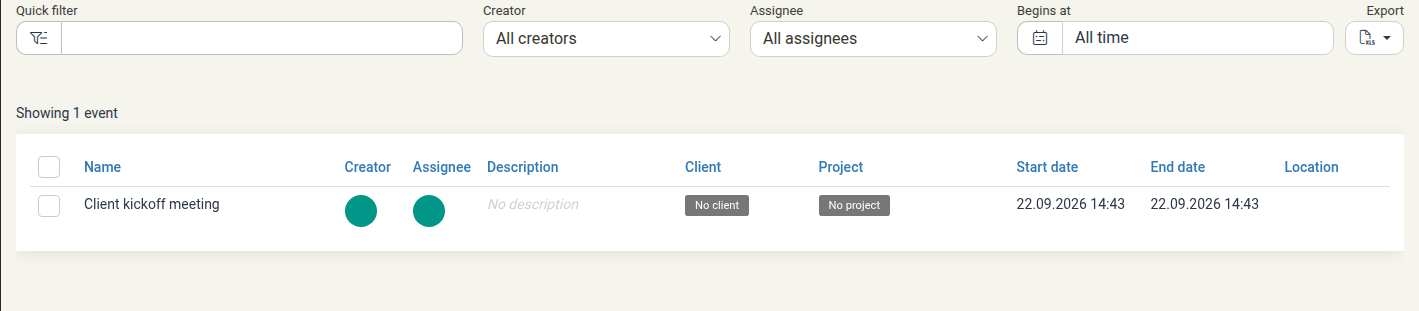
Understanding the Event Columns
The Events table displays the following information:
| Column | Description |
|---|---|
| Event name | The title of the event (clickable to edit) |
| Description | A summary or details about the event |
| Start date | The date and time when the event begins |
| End date | The date and time when the event ends |
| Client | The client associated with the event, if any |
| Project | The project associated with the event, if any |
| Location | The physical or virtual location where the event takes place |
| Creator | The user who created the event |
| Attendees | Number of people attending or the attendee list |
Filtering Events
The Events data view provides several filter options to narrow down results:
Quick Filter
The Quick filter textbox at the top allows you to search by event name or description. Type a keyword and press Enter to filter the results in real-time.
Use cases:
- Find events by location (e.g., "Conference room A")
- Search by client or project name
- Find events by attendee names
Creator Filter
Click All creators to filter events by who created them. Select one or more creators to show only their events.
Use case: Find all events created by a specific team member or organizer.
Assignee or Attendee Filter
Click the attendee filter dropdown to filter by who is attending or assigned to events. Select one or more attendees to show only their events.
Use case: View all events you're attending or events assigned to a specific colleague.
Status or Date Range Filter
Click All time to filter events by date. Options typically include:
- All time — Show all events regardless of date
- Today — Events scheduled for today
- This week — Events in the current week
- This month — Events in the current month
- Upcoming — Future events only
- Past — Historical events only
- Custom date range — Specify a start and end date
Use case: Find upcoming events within a specific timeframe for planning.
Sorting and Organizing Results
Click on any column header to sort by that column. Click again to reverse the sort order (ascending/descending). Common sorting options:
- Event name — Alphabetical order of event titles
- Start date — Sort by start date (earliest or latest first)
- Location — Group events by location
- Creator — Group events by who created them
- Client/Project — Organize events by client or project association
Viewing Event Details
To view or edit an event:
- Click the event name in the Event name column
- A detailed view or edit form will open
- You can see all event information including description, dates, location, attendees, and project association
- Make changes if you have permission and click Save
Exporting Event Data
To export the event list for use in external tools or reporting:
- Click the Export button in the top-right corner
- Select your preferred export format (e.g., CSV, Excel, ICS calendar format)
- The file will download to your computer with all events and their current filters applied
Use cases:
- Creating event reports for management
- Exporting events to share with teams
- Backing up calendar data
- Integration with external calendar applications (iCal/ICS format)
- Analyzing event patterns and scheduling trends
Best Practices
Use filters before exporting
Apply filters to narrow down the event list before exporting to focus on relevant data.
Filter by date range for reporting
When creating reports, use the date range filter to focus on specific periods.
Check location for planning
Sort by location to identify where multiple events are happening.
Monitor upcoming events
Filter for "upcoming" or "this week" to stay on top of scheduled meetings and activities.
Use quick filter for venues
The quick filter works well for finding all events at a specific location (e.g., "Conference room", "Client office").
Export for external sharing
Use ICS format export to share event calendars with team members or external stakeholders.
Comparing to Other Event Views
- Events section — For creating, editing, scheduling events, with calendar visualization
- Calendar view — Interactive calendar showing events month or week at a time
- Data - Events — For viewing all events with advanced filtering, sorting, and export
Related Features
- Events — Full event management and creation
- Calendars — Calendar management and organization
- Calendar Sync — Synchronize with external calendar applications
- Data Overview — Introduction to all Data views
- Data - Tasks — View all tasks with similar filtering capabilities