
Overview
Connecting Manor to Microsoft Dynamics 365 Business Central lets the two systems keep client payment details and invoice payment status in step. The connection is made per firm, from the firm's settings in Manor, and uses OAuth to authorize Manor against your Business Central environment.
This connection is separate from the Business Central invoicing option that sends invoices to Business Central. The Business Central client and invoice sync settings described here only handle client data and the payment status of invoices — they do not create or send invoices.
Note: This integration synchronizes client data (the preferred payment means on each client) and invoice payment status with Business Central. It does not push invoices to Business Central.
Accessing the Business Central Settings
- Navigate to Management in the main navigation.
- Click Firms.
- Click on your firm to open its settings page.
- Scroll down to the Business Central client and invoice sync section.
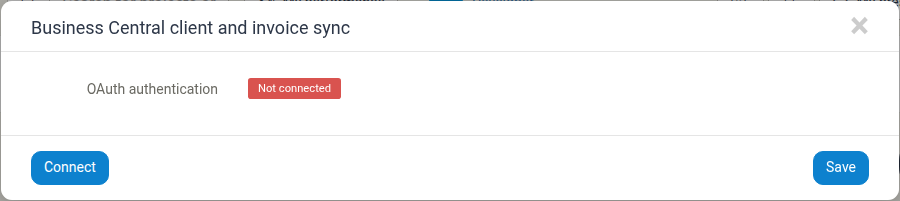
- Click Edit to open the settings dialog.
Connecting with OAuth
The dialog's OAuth authentication row shows the current connection status as either a red Not connected badge or a green Connected badge.
To connect
- Click the Connect button in the dialog.
- You are taken to Microsoft's sign-in page to authorize Manor.
- Enter your Microsoft account credentials and approve the authorization request.
- You are returned to Manor, and the status updates to Connected. A confirmation message, Connected to Business Central, is shown.
To disconnect
Once connected, the Connect button is replaced by a Disconnect button. Disconnecting asks you to confirm:
After disconnecting, client data and invoice payment status will no longer be synchronized with Business Central.
Configuring the Sync
After the firm is connected, additional settings appear in the dialog. Which settings you see depends on the Synchronization direction you choose:
- Company in Business Central — select the Business Central firm to integrate with.
- Payment terms for new clients — the payment terms code used for new clients.
- Synchronization direction — which way client data flows:
- Business Central → Manor (payment means only) — Manor reads each Business Central customer's payment method and sets the Manor client's preferred payment means accordingly. Manor does not write client fields back to Business Central.
- Manor → Business Central (all client fields) — Manor is the source of truth and creates or updates Business Central customers with the mapped client fields.
- Read payment means (Business Central → Manor) — shown for the Business Central → Manor direction. For each payment method code in Business Central, choose what it should map to in Manor.
- Payment means mapping (Manor → Business Central) — shown for the Manor → Business Central direction. For each payment means in Manor, choose the corresponding payment method in Business Central.
Click Save to apply your changes.
What Is Synchronized
- Client payment means — the preferred payment means on a client is kept in step with the payment method on the matching Business Central customer. The direction depends on the Synchronization direction setting above.
- Invoice payment status — Manor marks an invoice Paid when the matching invoice is paid in Business Central. This synchronization runs in one direction only, from Business Central to Manor; Manor does not push payment status back.
Clients are matched to Business Central customers by national ID.
How Often Synchronization Runs
- The synchronization runs automatically in the background, approximately every ten minutes. There is no button to trigger it manually.
- When you save a client that is connected to Business Central, Manor can also update Business Central straight away as part of the same action.
- Because the check is a scheduled background job, a change made in Business Central can take up to about ten minutes to appear in Manor.
Best Practices
- Verify the connection regularly — open the Business Central client and invoice sync section occasionally to confirm the status still reads Connected.
- Choose the direction deliberately — decide whether Manor or Business Central is the source of truth for client payment means before you start syncing, and set Synchronization direction accordingly.
- Match payment methods — map the payment methods on both sides so that a client's preferred payment means is set correctly.
- Test before relying on it — after connecting, change a payment method in Business Central and confirm it appears on the matching Manor client within about ten minutes.
Related articles
- Invoice Setup — selecting an invoicing integration, including Business Central invoicing.
- Integrations — reviewing the Business Central invoicing and finance-sync backends and the firms using them.
- Firms — the firm settings page where the connection is configured.
- Clients — where a client's preferred payment means is set.