
Overview
The Clients page in Manor's Data section (/data/client) provides a centralized directory of all client and organization records in the system. It uses the same table as the Clients page in the main menu, but without the New client button: the Data view is built for firm-wide data administration, currency and billing auditing, and tabular export, while the Clients section is where you create clients and work with each client's individual page.
Each row represents a client organization or individual, displaying contact information, invoice delivery preferences, default billing currencies, and project volume statistics.
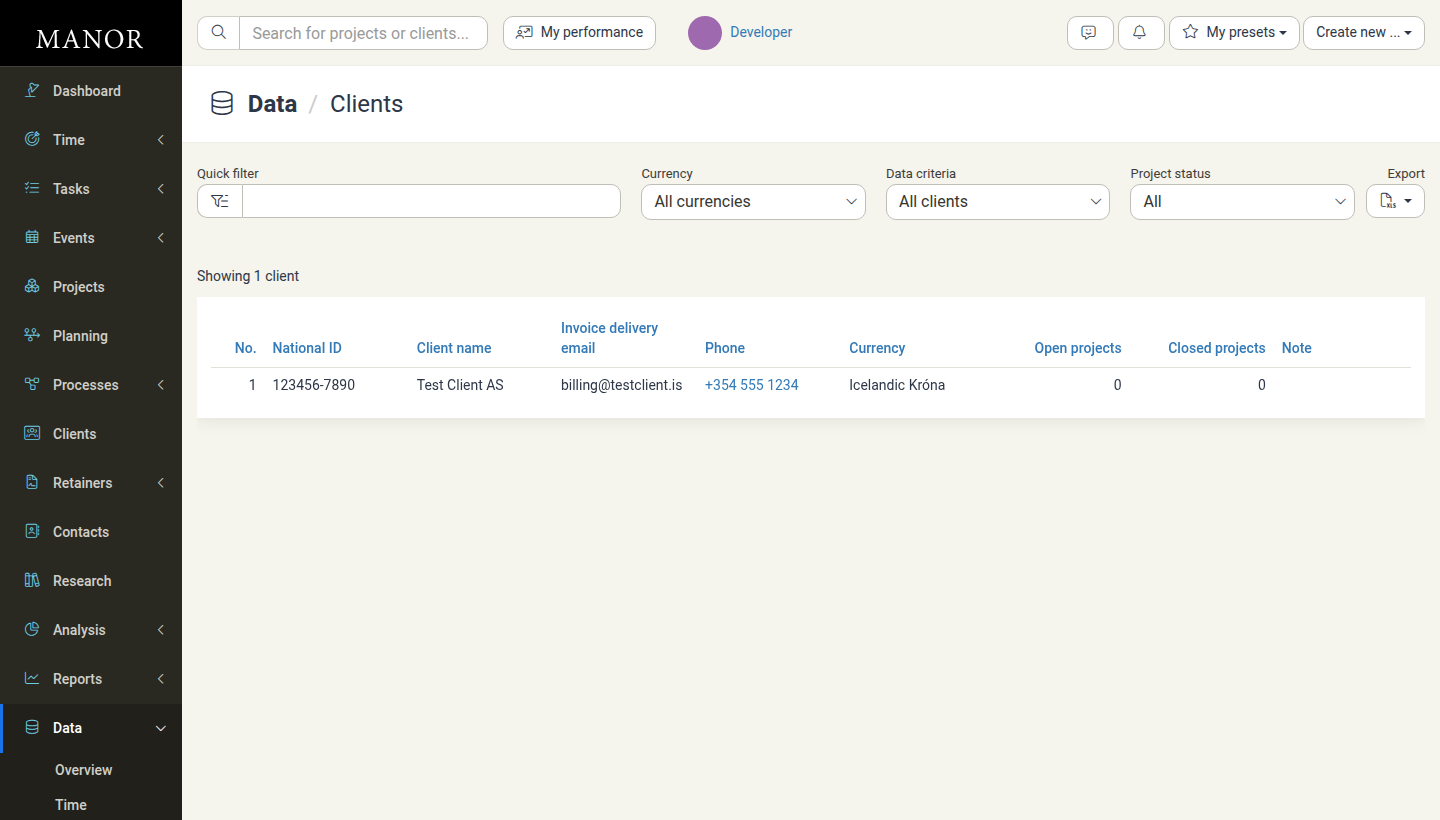
Clicking a row opens that client's page (/client/{id}), where you can edit the client. See Editing Records for how opening and saving records works.
Columns and Information Displayed
The Clients data table displays the following columns:
- No. — The unique internal identification number for the client (sortable). Clicking the client number opens the detailed client profile workspace (
/client/{id}). - National ID — The client's official national identification, business registration, or social security number (sortable).
- Client name — The full registered or display name of the client (sortable).
- Invoice delivery email — The dedicated email address configured to receive billing statements and invoices (sortable).
- Phone — Contact phone number formatted with clickable
tel:dialing links (sortable). - Currency — The default billing currency assigned to the client (e.g., Icelandic Króna, Euro, US Dollar; sortable).
- Open projects — The total number of active, non-archived projects currently open for this client (sortable).
- Closed projects — The count of completed or archived projects associated with this client (sortable).
- Note — Internal notes or instructions attached to the client record (sortable).
Filtering Clients
Use the filter options in the top panel to find and segment clients:
- Quick filter — Fast keyword search across client names, client numbers, email addresses, phone numbers, and national IDs. Notes are not searched.
- Currency — Filter clients by their designated default billing currency. The list contains All currencies plus the currencies actually assigned to clients, for example Icelandic Króna.
- Label — Filter clients by one or more labels. This filter is only shown when your firm has created at least one client label.
- Data criteria — Filter by data completeness:
- All clients — No data-completeness filtering.
- Clients without a full address
- Clients without an email address
- Clients without a national ID
- Project status — Filter clients by project activity:
- All — All clients regardless of project count.
- With open projects — Only clients that currently have active projects.
- With closed projects — Only clients that have closed projects.
- With no projects — Only clients that have no projects at all.
- Retainers — Filter clients by retainer status (With a retainer, With no retainer, With active retainer, With no active retainer). This filter is only shown when your firm has at least one retainer.
- Clear filters — Reset all active filters back to defaults. The link appears next to the Export button as soon as any filter is applied.
When the filter row is too narrow to show every filter, use Show more options to reveal the remaining ones.
Sorting and Exporting
Sorting
Click on any column header (No., National ID, Client name, Invoice delivery email, Phone, Currency, Open projects, Closed projects, Note) to toggle sorting in ascending or descending order.
Exporting Client Data
Click the Export button in the toolbar and choose Download as Excel spreadsheet. The file contains all clients that match the current filters and sorting, not just the rows visible on screen. This is commonly used for:
- Auditing client contact details and invoice delivery addresses.
- Performing currency audits across international clients.
- Reviewing client matter volumes to identify top active or dormant accounts.
- Exporting mailing or billing contact lists for external accounting systems.
Common Use Cases
Checking Invoice Delivery Information
- Set Data criteria to Clients without an email address or sort by Invoice delivery email to locate clients missing billing email addresses before generating invoice runs.
- Update a client directly by clicking its row to open the client's page.
Identifying Inactive or Dormant Clients
- Set the Project status filter to With no projects.
- Review accounts that have no active work for follow-up or archiving.
Currency Audits
- Filter by Currency to verify that international clients are assigned the proper billing currency rather than the firm's default base currency.
See Also
- Clients — Create clients and manage client details, billing settings, and invoice delivery.
- Client Management — Maintain client records and their billing preferences.
- Projects (Data) — Centralized inventory of all project records, including client matter histories.
- Billables — Unified view of all billable work logged across clients.
- Data Management — Directory of all record types in Manor.
- Editing Records — How records are opened, changed, and saved.