
Payday is an Icelandic cloud accounting system. When you select Payday as your firm's invoicing integration, Manor posts invoices to Payday as soon as you issue them, so your bookkeeping stays up to date without entering the same invoice twice.
Why connect to Payday?
- Automatic posting — an invoice you issue in Manor is posted to Payday straight away.
- Less manual entry — you no longer have to key the same invoice into both Manor and Payday.
- Faster reconciliation — invoices and their payment status are kept in step between the two systems.
Before you begin
- You have a Payday account and the Client ID and Client Secret for the integration (see Payday settings below).
- You have access to your firm's settings in Manor.
Selecting Payday as your invoicing integration
-
Go to Management → Firms.
-
Click your firm's row to open its settings page.
-
Find the Invoicing setup section and click Edit.
-
In the Invoicing integration dropdown, select Payday.
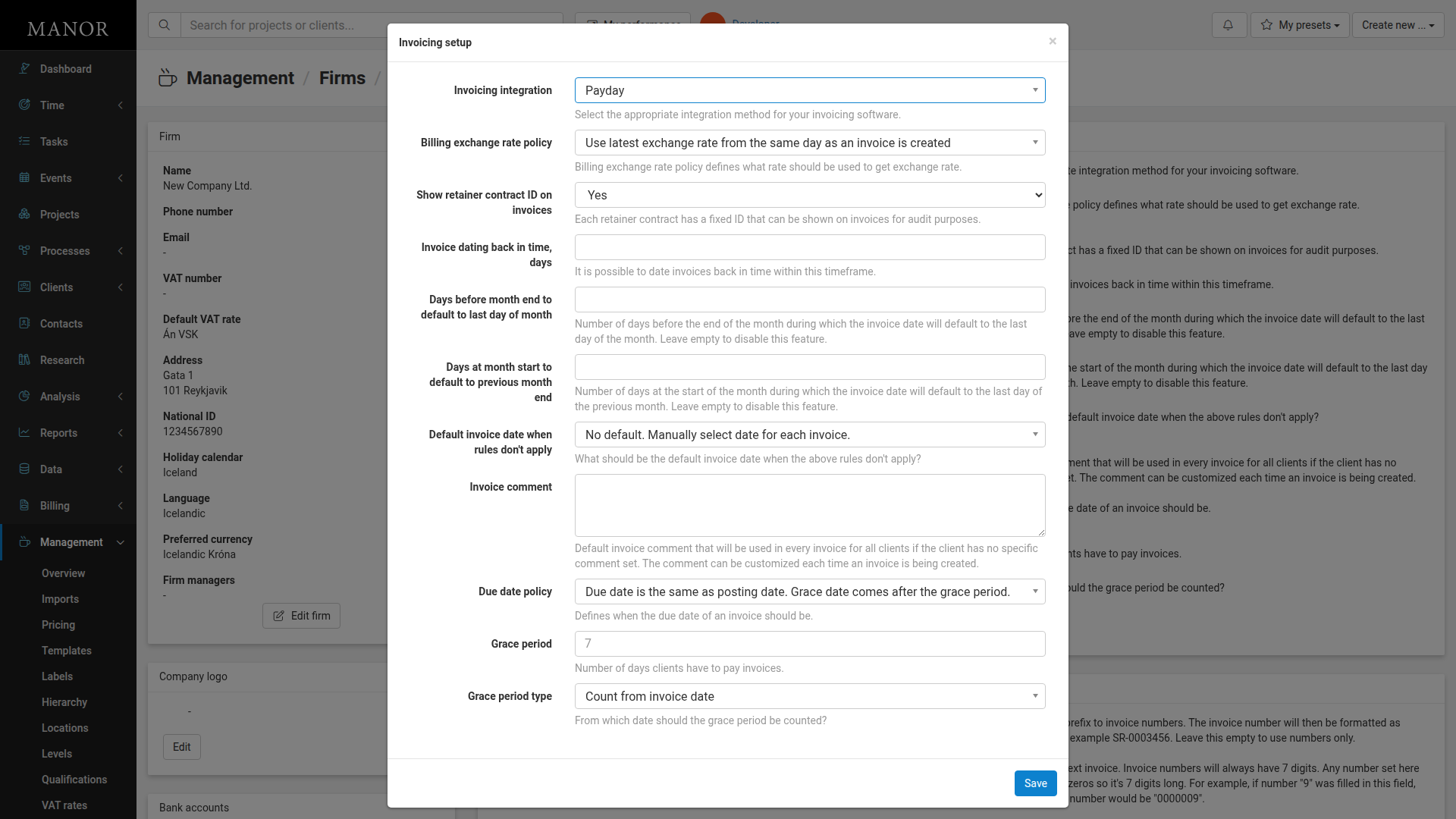
-
Click Save.
Once saved, a Payday settings section appears on the firm settings page.
Payday settings
The Payday section holds the connection details Manor uses to reach your Payday account.
Client ID
The Client ID for the Payday integration. You can find it in your Payday account under Settings → Company → Integrations.
Client Secret
The Client Secret for the Payday integration, found in the same place in Payday (Settings → Company → Integrations). After you save it, the value is hidden.
Send Electronic Invoices
Enable this if your customers are registered in Payday to receive electronic invoices. Note that an electronic invoice cannot be created for a customer without an Icelandic identification number (kennitala).
How invoices are handled
Once Payday is connected and configured, you create invoices in Manor in the usual way — see Invoices for the full walkthrough.
- Create the invoice in Manor from a balance as usual.
- Click Send invoice now. Manor posts the invoice to Payday as part of the same action — there is no separate "send to Payday" button.
- Manor confirms that the invoice was issued, and the invoice PDF produced by Payday can be opened from Manor.
- The invoice is available in your Payday accounting records.
Note: Invoices issued through Payday are created and delivered by Payday, so they do not appear under Billing → Delivery. See Invoice Delivery.
Could not be verified in this environment: the steps above reflect how the Payday integration is wired into Manor. A successful end-to-end posting to a live Payday account could not be reproduced here because no valid Payday credentials were available in this test instance. The same applies to the payment status: like the DK integration, Payday reports settlement status back to Manor (settled invoices show as paid), but the exact refresh cadence was not verified here. Confirm both in your own Payday account before going live.
Best Practices
Test before going live
Send a test invoice and confirm it arrives in Payday before using the integration for real invoices.
Keep credentials secure
Treat the Client Secret like a password: store it securely and rotate it periodically.
Related articles
- Invoices — the full invoice workflow (balances, form, preview, issuing, delivery and paid or unpaid status).
- Invoice Setup — invoicing integration, numbering, delivery and default invoice terms.
- Invoice Delivery — how delivery attempts and failures are tracked.
- Connecting to Regla — the Regla accounting integration.
- Connecting to DK — the DK accounting integration.