
An invoice proposal is a draft invoice. It holds the billables, payer, dates and other details you have prepared, but it is not yet a final invoice. Proposals let you prepare and review billing before it becomes an invoice that goes to the client.
An invoice proposal is created from the invoice form and reviewed on the Invoice proposals page. When a proposal is ready you accept it, which creates the final invoice.
What an invoice proposal is used for
- Prepare billing in advance - build up the invoice lines without issuing the invoice.
- Review before issuing - check payer, lines, hours and totals before they are final.
- Stage automatic delivery - proposals in Pending delivery are scheduled to be sent automatically.
- Give the client a preview - generate a proforma invoice PDF (see Proforma Invoices).
Creating an invoice proposal
You create a proposal while preparing an invoice, before issuing it:
- Go to Billing and start a new invoice (for example by clicking New invoice, which opens the balances list). See Invoices for how to select balances.
- The invoice form opens with the payer and selected billables filled in.
- Instead of issuing the invoice, click Save as invoice proposal. The work is stored as a proposal and appears on the Invoice proposals page.
If a proposal already exists for the same payer/project, the button becomes Update invoice proposal, so you can save your latest changes to it.
The invoice form also offers options that create a proposal and schedule its sending instead of issuing it immediately:
- Send invoice during office hours - saves the proposal and accepts it automatically during office hours.
- Save and schedule invoice sending - saves the proposal with a scheduled delivery date.
Both leave the proposal in the Pending delivery status until it is sent.
Tip: To issue an invoice straight away instead of staging a proposal, use the normal issue action on the invoice form. See Invoices.
Reviewing proposals on the Invoice proposals page
Open Billing in the main navigation and click Invoice proposals. The page lists the proposals in your firm.
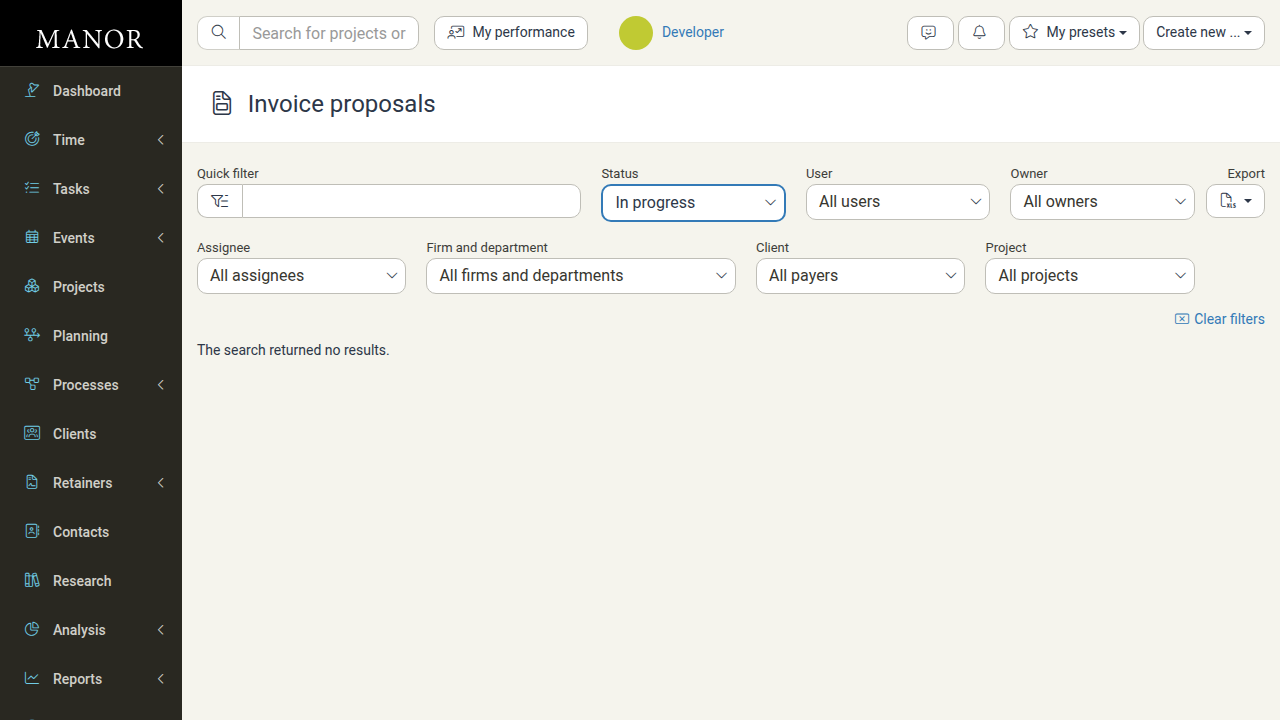
Filtering the list
Use the filters to narrow the list:
- Quick filter - free-text search.
- Status - All states, In progress, Pending delivery, or Accepted. The list opens on In progress by default.
- User, Owner, Assignee and Firm and department.
- Client and Project.
Proposal statuses
- In progress - the proposal is being prepared and has not been sent or accepted.
- Pending delivery - the proposal is scheduled to be sent automatically.
- Accepted - an invoice has been created from the proposal.
Accepting, cancelling and reviewing proposals
From the Invoice proposals list you can:
- Open a proposal - click a row. An In progress or Pending delivery proposal opens on the invoice form so you can review or change it; an Accepted proposal opens the invoice that was created from it.
- Accept proposals - the mass action that creates the final invoice(s) from the selected proposals. Once accepted, the proposal's status becomes Accepted and no longer appears under In progress.
- Cancel proposals - the mass action that discards selected proposals.
On the invoice form for an open proposal you can continue editing the lines and details, Preview it, or use Cancel invoice proposal to discard it.
Producing a proforma invoice
While a proposal is open, you can generate a proforma invoice - a PDF preview you can send to the client before the invoice is issued. On the proposal you can download the Proforma PDF or Send proforma via email. See Proforma Invoices for details.
Related articles
- Invoices - the full workflow for issuing a final invoice.
- Proforma Invoices - PDF previews for client review.
- Invoice Delivery - track successful and failed invoice deliveries.
- Invoice Splits - divide a project's billing across several clients.