
What are Notes?
Notes are text documents that help you record and organize important information related to projects. Unlike time entries or tasks, notes are flexible and can contain any information you want to preserve — decisions made, discussions held, important findings, or general project updates. Notes become part of the project's activity timeline and help keep team members informed of important developments.
Why Notes Matter
Using notes helps you:
- Document decisions - Record important project decisions and their rationale
- Share updates - Keep team members informed about project status and developments
- Maintain history - Create a permanent record of discussions and findings
- Improve communication - Centralize information so team members know where to find it
- Track progress - Log milestones and important events in project history
Creating a Note
From the Project Page
To add a note to a project:
-
Open the project by navigating to Projects and selecting the project you want to add a note to.
-
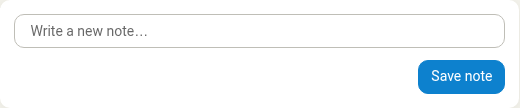
Scroll to the Activity section at the bottom of the project page.
-
Click in the Write a new note… field.
-
Type your note content. You can use multiple paragraphs to organize your information.
-
Click Save or press the appropriate button to post the note.
From the Dashboard
You can also create a quick note from the main navigation:
-
Click the Create new... button in the top navigation.
-
Select Note.
-
A form opens. Enter your note content.
-
(Optional) Select a project to associate the note with.
-
Click Save to create the note.
Viewing and Managing Notes
Finding Notes in a Project
Notes appear in the project's activity timeline in chronological order. The most recent notes appear first. Each note shows:
- Author - Who created the note
- Timestamp - When the note was created (e.g., "1 minute ago")
- Content - The full text of the note
Editing a Note
To edit a note you've created:
- Find the note in the project activity feed.
- Click on the note to open it for editing.
- Update the content as needed.
- Click Save to apply your changes.
Deleting a Note
To remove a note:
- Find the note in the project activity.
- Click on the note to open it.
- Click the delete button.
- Confirm the deletion if prompted.
Deleting a note removes it permanently from the project's activity history.
Best Practices for Notes
Be Clear and Concise
Write notes that are easy for others to understand. Use short paragraphs and organize complex information with line breaks.
Use Descriptive Titles
When possible, start your note with a clear subject (e.g., "Meeting Notes - Client Review" or "Decision: Change Project Timeline").
Date Important Information
If your note references a specific date or deadline, include it in the note content so it's clear when the information applies.
Link Related Information
Reference related tasks, time entries, or other project information to help team members understand the full context.
Keep It Professional
Remember that notes may be seen by clients, managers, or auditors. Write professionally and avoid informal language.
Review Before Posting
Read through your note once before saving to ensure it's accurate and complete.
Notes vs Other Record Types
Understanding when to use notes versus other features:
| Feature | Best For |
|---|---|
| Notes | General information, decisions, discussions, updates |
| Tasks | Work that needs to be done with a deadline |
| Time entries | Logging hours worked |
| Activities | Structured work items with budgets and billing |
| Events | Calendar items and scheduled meetings |
Organizing with Notes
While Manor doesn't organize notes into categories, you can use naming conventions to help organize them:
- [DECISION] - Important project decisions
- [MEETING] - Meeting notes and summaries
- [UPDATE] - General project updates
- [RISK] - Risks or issues identified
- [ACTION] - Action items and follow-ups
Using a consistent prefix makes it easy to scan the activity feed and find specific types of notes quickly.