
Balances show the total amount owed for billable work across your projects and clients. They serve as the foundation for creating invoices and tracking unbilled revenue.
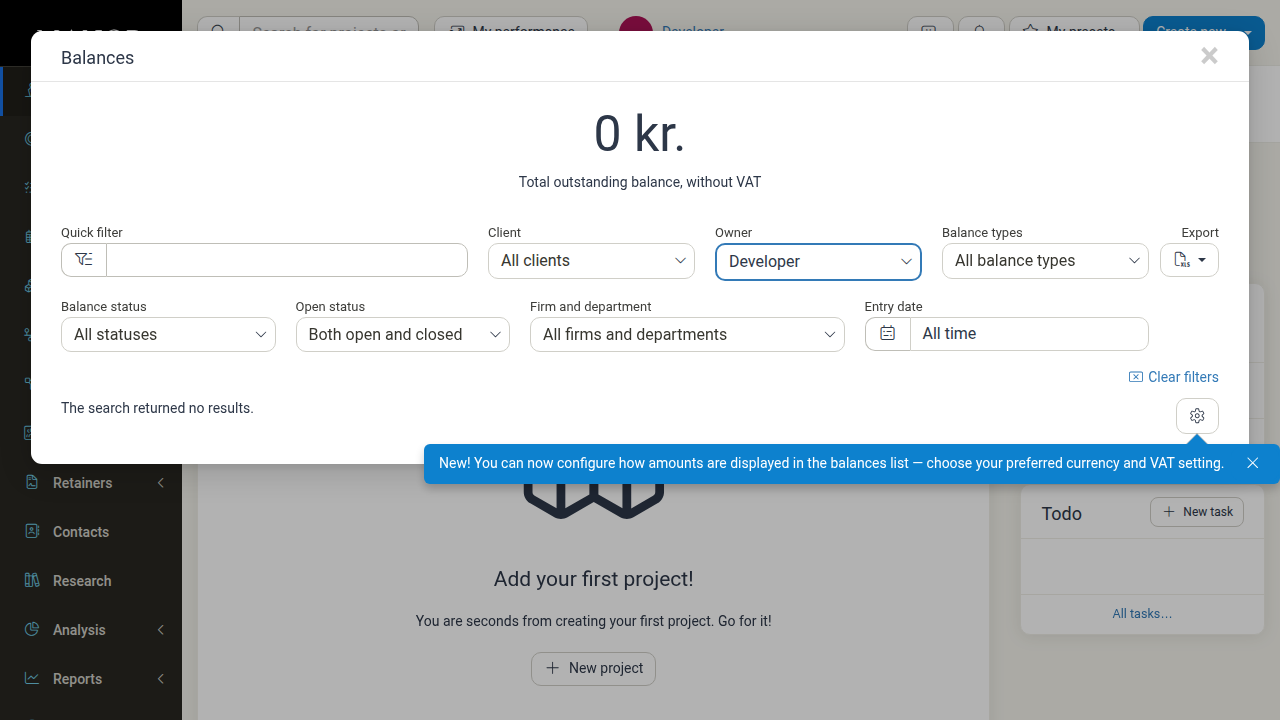
To access balances, navigate to Billing in the main menu (or click New invoice from the Invoices view). This opens the Balances list showing all outstanding items waiting to be invoiced.
For complete details on filtering, managing balance items, and generating invoices, see the comprehensive guide:
Summary of Key Features
- Total Outstanding Balance — View total unbilled amounts across the firm without VAT displayed prominently at the top.
- Granular Filtering — Narrow balances using quick filter keyword search and dropdown filters:
- Quick filter — Search across clients and projects.
- Client — Filter by specific client or all clients.
- Owner — Filter by project owner.
- Balance categories — Switch between Project balances and Retainer balances.
- Status — Filter by invoicing state (Active invoice proposals, Active snoozes, No status, All statuses).
- Open status — Filter by open projects, closed projects, or both.
- Firm and department — Filter by corporate entity or business unit.
- Entry date — Filter by recording timeframe (All time, custom period, etc.).
- Clear Filters & Quick Actions — Reset active search criteria with Clear filters or download balance lines via Download (dropdown item Download as Excel file).
- Display Customization — Configure personal viewing preferences via Balance Table Settings to show amounts inclusive or exclusive of VAT, and in either the client's currency or your firm's local currency.
- Invoice Generation — Select unbilled items directly from balances to initiate invoices or invoice proposals.
Related Topics
- Balances Overview — In-depth walkthrough of balance workflows
- Balance Table Settings — Personalize VAT and currency display preferences
- Invoices — Managing generated invoices
- Invoice Proposals — Drafting and reviewing billing proposals