
What are contacts?
Contacts are the people you deal with — the individuals at your clients and other organisations that you communicate with. Manor's Contacts section is a central directory where you store each person's name and contact details, so you always have the right email address or phone number to hand.
Contacts can be linked to projects, which makes it easy to see which of your projects a person is involved with.
Key fields
A contact stores the following information:
- Contact name (required) — the person's full name.
- National ID (optional) — the person's national identification number.
- Email (optional) — the person's email address.
- Phone (optional) — the person's phone number.
Viewing your contacts
Open the Contacts page from the main navigation. Every contact is listed in a table with the following columns:
- No. — the contact's ID number.
- Contact name — the person's name.
- Email — the person's email address.
- Phone — the person's phone number, shown as a clickable link that starts a call.
- National ID — the person's identification number, if you entered one.
Click any column header to sort the table by that column.
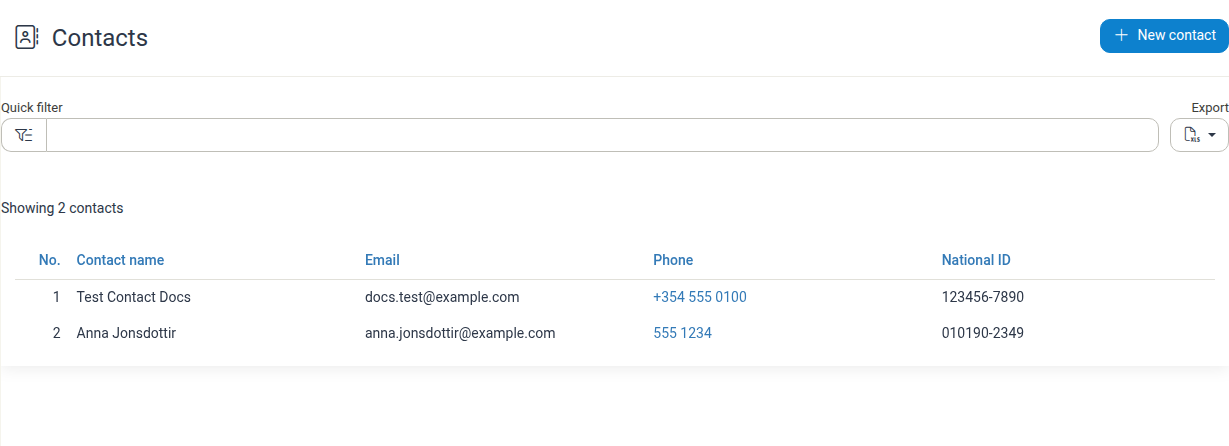
Above the table, Showing N contacts tells you how many rows are in the current view. If the directory is empty, the page instead shows a short invitation to add your first contact with a New contact button.
Finding a contact
Use the Quick filter field above the table to narrow the list:
- Click the Quick filter field.
- Type part of the contact's name, email address, phone number or national ID.
- The table immediately narrows to the matching contacts.
Click Clear filters to reset the list.
Creating a contact
- On the Contacts page, click New contact in the top right corner.
- Fill in the fields:
- Contact name — the person's full name (required).
- National ID — the person's identification number, if you have it.
- Email and Phone — the person's email address and phone number.
- Click Save.
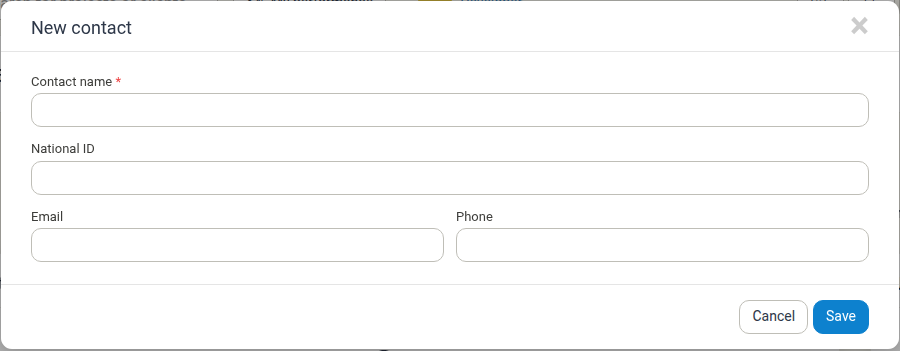
The new contact appears in the directory and you are taken to its detail page.
Viewing a contact's details
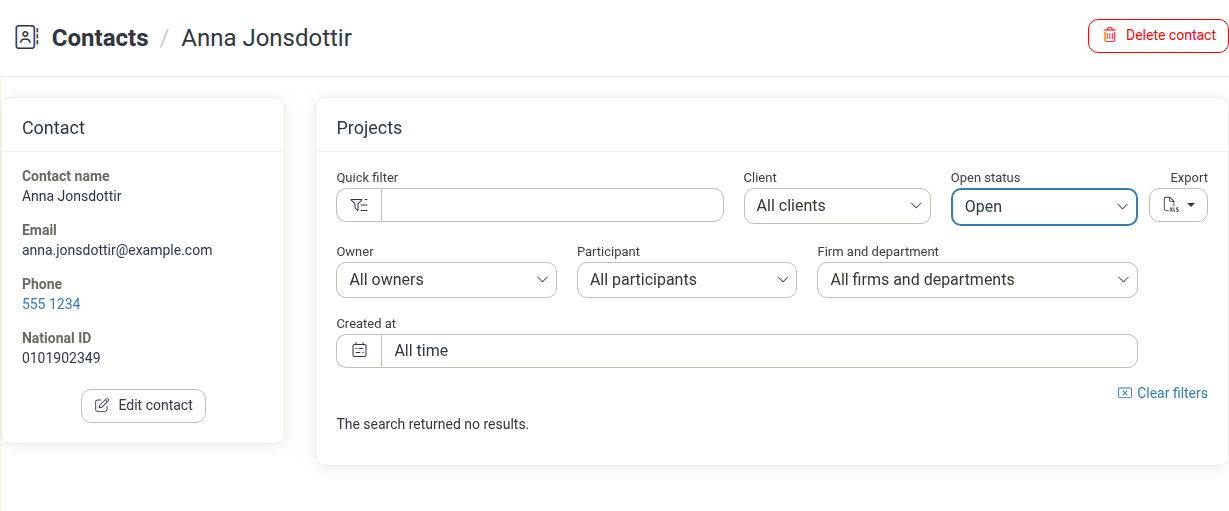
Click a contact's name or number in the table to open its detail page. The page has two cards:
- Contact — the stored Contact name, Email, Phone and National ID. The phone number is a clickable link that starts a call. Use Edit contact to change the details.
- Projects — the projects the contact is involved with. Use the filters (Quick filter, Client, Open status, Owner, Participant, Firm and department and Created at) to narrow the list, and Export to download it.
Editing a contact
- Open the contact from the list.
- Click Edit contact in the Contact card.
- Change any of the fields. The Created at date is shown for reference and cannot be changed.
- Click Save.
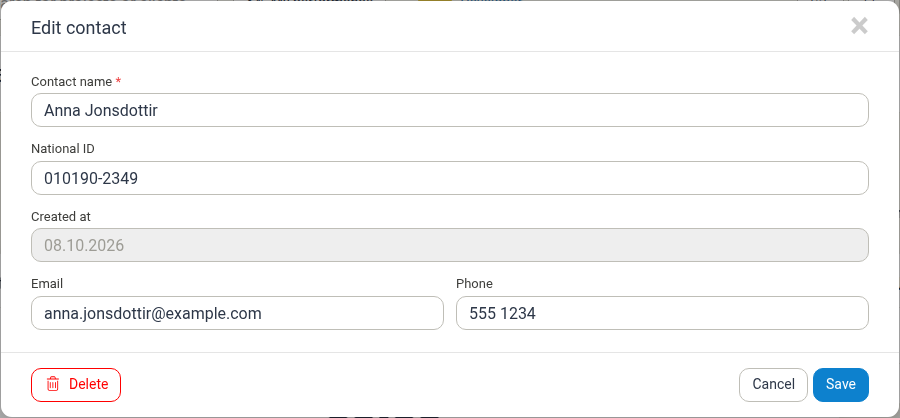
You can also delete the contact directly from this dialog with the Delete button.
Deleting a contact
- Open the contact and click Delete contact.
- Confirm by clicking Delete contact in the confirmation dialog.

You can also delete a contact with the Delete button in the edit dialog; Manor then asks you to confirm the action.
Deleting a contact removes it from the directory, but the contact is kept on any projects it was associated with and is marked as deleted there. This means existing project records are not affected.
Exporting contacts
To download the contact list as a spreadsheet:
- Go to the Contacts page.
- Click the Export button and choose Download as Excel spreadsheet.
- The file downloads to your computer.
Related features
- Clients — manage the client organisations your contacts belong to.
- Project Contacts — link contacts to the projects they are involved with.