
Introduction
Many users want the events they create in Manor — client meetings, court dates, deadlines — to also appear in the calendar they use every day, such as Microsoft Outlook or Google Calendar (Gmail). This article explains how to get Manor events into an external calendar and how the synchronization behaves.
How Manor events reach an external calendar
Manor does not provide a downloadable calendar file (.ics) or a subscribable calendar feed/URL that you could add to Outlook or Google Calendar manually. Instead, Manor connects directly to your Outlook or Google account and synchronizes events between the two systems. This is the supported way to see Manor events in Outlook or Gmail.
Because the connection is a live account integration rather than a feed, there is nothing to "subscribe" to — once the account is connected and a target calendar is selected, Manor events are written to that calendar automatically.
Note: The integration is two-way. Manor events are pushed to your external calendar, and events already in your external calendar are pulled into Manor. This article focuses on the Manor → external direction; for the external → Manor direction and beats, see Calendar Sync and Beats.
Before you start
- You need a Microsoft Office 365 / Outlook account or a Google (Gmail) account.
- You connect the account from your own Profile, since the integration is per user and private to you.
Step 1 – Connect your calendar account
-
Click your name in the top-right corner and open your Profile.
-
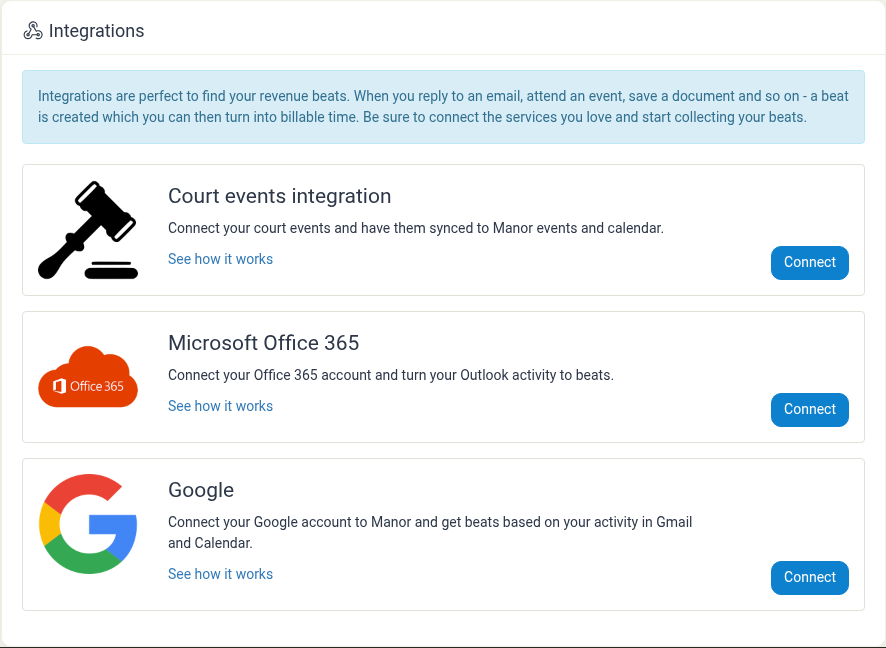
Select Integrations.
-
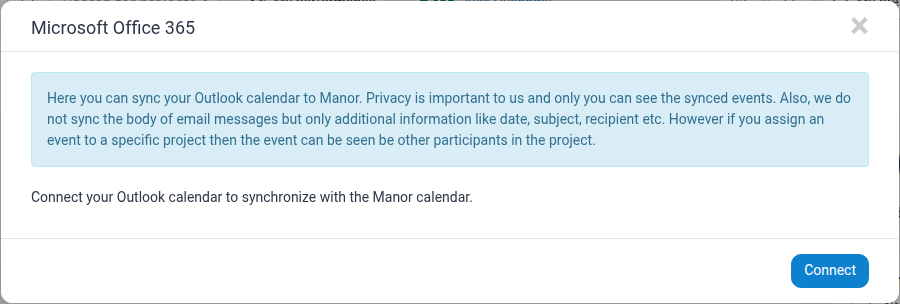
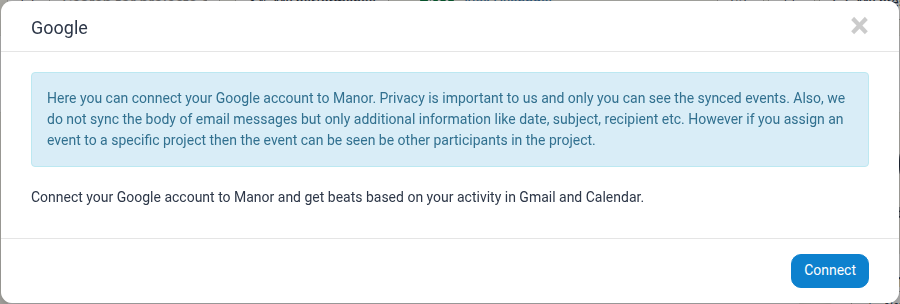
Click Connect next to Microsoft Office 365 (for Outlook) or Google (for Gmail/Google Calendar).
-
Complete the sign-in and consent steps for your Microsoft or Google account. Only you can see the events that are synced through your own connection.
Step 2 – Choose which calendars to sync
After the account is connected, reopen the integration (Profile → Integrations → the integration's card). You now see settings that control the synchronization:
- Sync events / Enable Google Calendar integration – turns the calendar synchronization on or off for this account.
- Synced calendars – the calendar(s) whose events are pulled from your external account into Manor ("Events in this calendar will be synced to Manor.").
- Manor calendar – the calendar in your external account that Manor events are written to ("This calendar will be used to store events created in Manor."). Select the external calendar where you want your Manor events to appear.
Choose the external calendar you want as the target for Manor events, review the calendars to pull from, and click Save.
If no outgoing calendar is selected, Manor cannot write events to your external calendar, and you may see a message such as "It appears that the Outlook settings hasn't been set. Please, set Outlook settings to enable Outlook integration."
Step 3 – Verify the events in Outlook or Google Calendar
After saving:
- New Manor events (and changes to existing ones) are sent to the external calendar you selected, so they show up alongside your other Outlook or Google Calendar appointments.
- For Outlook, a sync progress window estimates how many events are being retrieved and sent. The initial synchronization can take a while depending on how many events you have; it continues in the background even if you close the window, and you can check progress later from your profile.
- For Google Calendar, the events appear in the selected Google calendar and stay up to date as Manor changes them.
There is no separate "add subscription" step in Outlook or Google Calendar: the events arrive in the calendar you selected in Step 2. In Outlook or Google Calendar you can simply show/hide that calendar like any other calendar in the sidebar.
What gets synced
- Events you created or are assigned to. Not every event in Manor is copied — only events that belong to you.
- Events with a valid start and end time.
- If you link an event to a project, other participants in that project can see the event, since it belongs to the project.
- Synchronization stays within the same integration. Your Outlook connection syncs Outlook, and your Google connection syncs Google; Manor does not copy events from Outlook into Google Calendar, or vice versa.
Sync frequency and limitations
- Automatic and near real-time. Creating, editing, or deleting a Manor event sends the change to your external calendar almost immediately, and a background job reconciles any outstanding changes roughly every few minutes.
- Ongoing sync, not a one-time export. Events stay in sync as long as the account remains connected.
- No
.icsfile or feed URL. You cannot download a calendar file or subscribe to a Manor calendar URL. - Per-user connection. The sync uses your own external account, so it is not a way to publish Manor events to people who do not have a Manor account themselves.
- Managing events from the other side. Because the connection is two-way, deleting an event in one system is reflected in the other.
- Time zones. Events are created in the time zone of the relevant calendar/account, so make sure your time zone is set correctly; see Date and Time Settings.
Stopping the sync
Open the integration (Profile → Integrations → the integration's card) and choose Disconnect from the red menu. You can either:
- Disconnect – stops future synchronization; events already synced remain in both Manor and your external calendar.
- Disconnect and delete events – stops synchronization and also deletes the events in Manor that originated from the external calendar. Nothing is deleted from your external calendar.
Related Articles
- Calendar Sync – Connecting external calendars so activity becomes beats.
- Calendars – Overview of Manor calendars, views, and integrations.
- Events – Creating, editing, and managing Manor events and reminders.
- Beats – Turning calendar activity into billable time.
- Profile Integrations – Managing your connected accounts.
- Date and Time Settings – Time zone and format settings that affect how events appear.