
The Timer is a real-time time tracking tool that allows you to track work as it happens. Instead of manually entering hours after work is completed, you can start the timer when you begin work and save the tracked time when you finish.
Key Features
- Real-time tracking — Start a timer and watch the hours accumulate as you work
- Project assignment — Assign tracked time to a specific project
- Activity tracking — Categorize work with activities (optional)
- Start time adjustment — Set the correct start time, even if you started the timer late
- Description — Add context about the work being tracked
- Edit capabilities — Adjust project, start time, activity, or description before saving
- Instant save — Save tracked time directly to your timesheet
Using the Timer
Starting the Timer
-
Navigate to Time in the sidebar.
-
Click the Timer button in the toolbar.
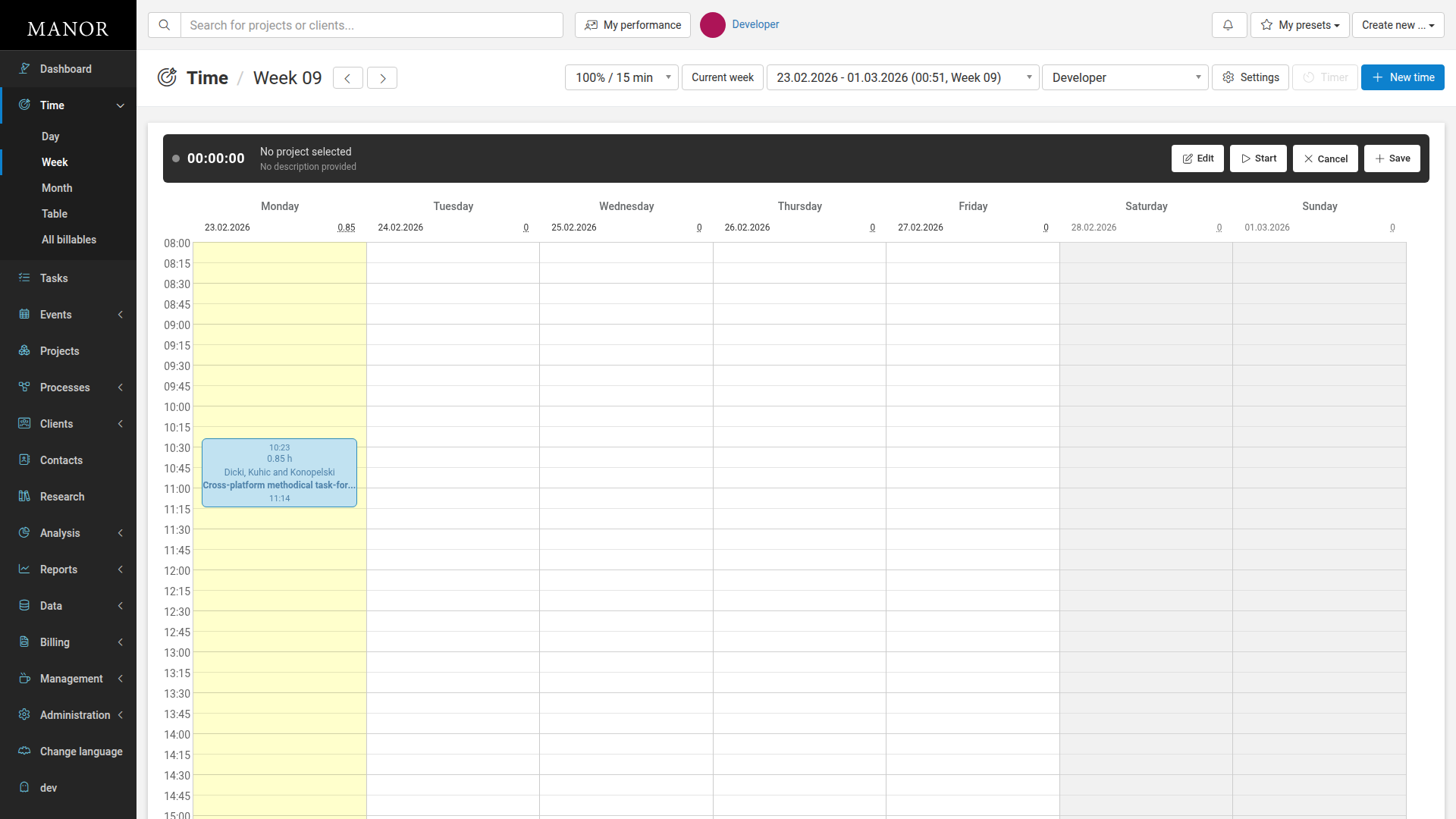
The timer panel appears at the top of the screen showing 00:00:00.
-
Click the Edit button to configure your timer.
-
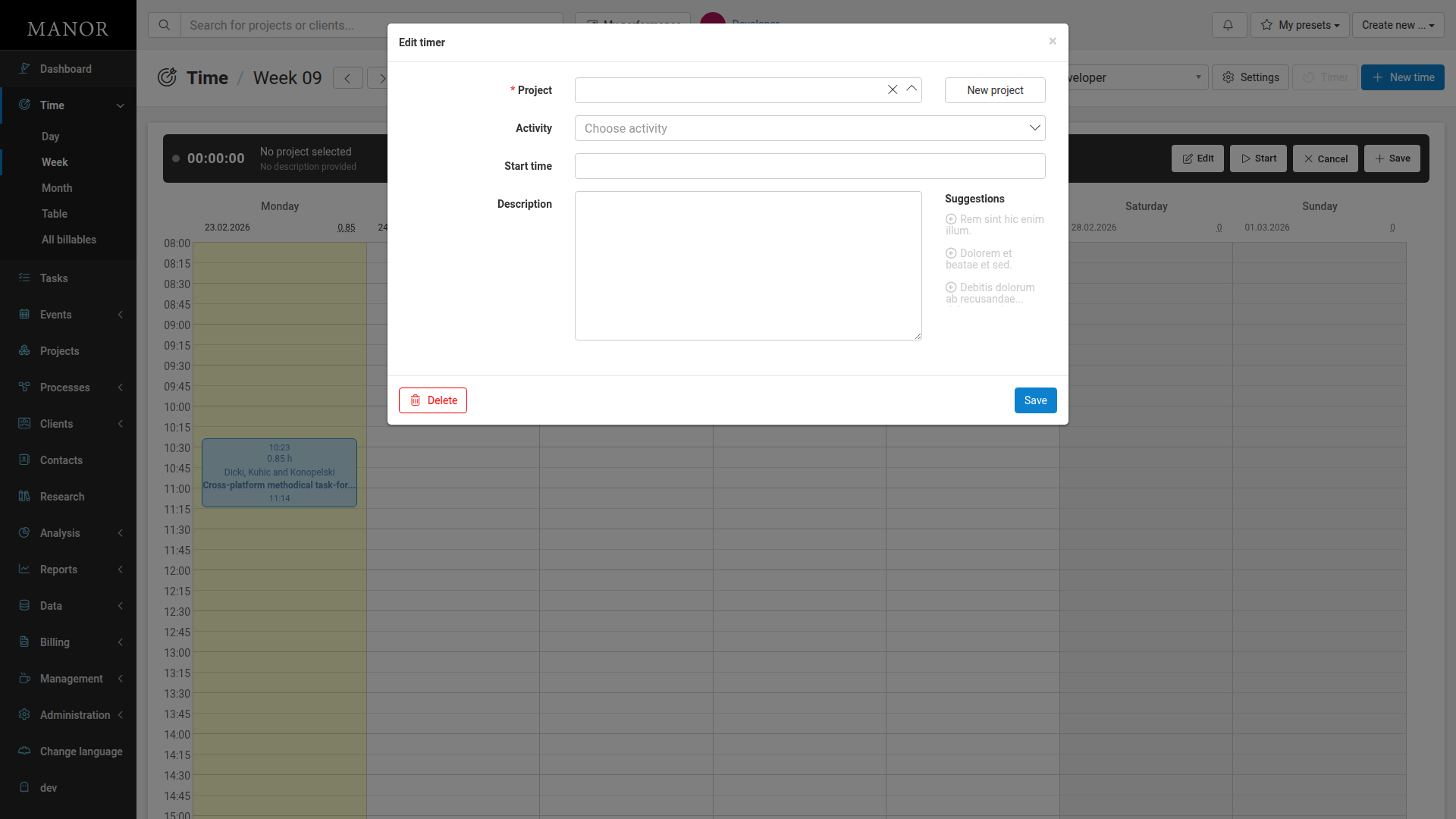
Select a Project from the dropdown. This is required.
-
Once a project is selected, you can optionally select an Activity to categorize the work.
-
Optionally set the Start time to indicate when work began. This is useful if you forgot to start the timer when you began working.
-
Optionally add a Description to explain what work is being tracked.
-
Click Save to close the dialog and apply your settings.
Running the Timer
-
With your timer configured, click the Start button.
The timer begins counting the elapsed time.
-
The time continues to accumulate. You can navigate elsewhere in Manor while the timer runs in the background.
-
When your work is complete, return to the Time section to stop the timer.
Saving Your Time
-
Click the Save button on the timer panel.
The tracked time is saved as a new time entry in your timesheet under the selected project.
-
The timer resets to 00:00:00 and is ready for your next session.
Canceling the Timer
If you need to discard the current timer without saving:
-
Click the Cancel button on the timer panel.
The timer stops and resets without saving any tracked time.
Editing a Running Timer
Even while the timer is running, you can adjust your settings:
-
Click the Edit button.
-
Modify the project, activity, start time, or description as needed.
-
Click Save to apply your changes and return to the running timer.
Best Practices
- Be specific — Select the correct project before starting so your hours are tracked to the right project.
- Assign activities — Use activities to categorize the type of work you're doing for better reporting.
- Add descriptions — Brief descriptions help you and your team understand how time was spent.
- Save regularly — Don't let the timer run for extended periods. Save your entry when a task or phase completes.
- Check the start time — Ensure the timer's start time reflects when work actually began, especially if you started work and only turned on the timer later.
- Review before saving — Always click Edit and verify your project selection before saving to ensure time is recorded correctly.