
The Firms feature allows you to manage organizational entities within Manor, each with its own settings for invoicing, banking, office hours, and operational configurations. Firms represent the companies or legal entities from which work is billed to clients.
Why Firms Matter
Managing firms effectively helps you:
- Organize legal entities — Represent separate companies or business units
- Configure invoicing — Set up invoice numbering, payment terms, and delivery methods per firm
- Manage banking — Link bank accounts for different currencies used in invoicing
- Standardize settings — Apply consistent office hours, time settings, and invoicing policies
- Control branding — Set company logos and invoicing layouts
- Track hierarchies — Organize departments within firms for reporting and resource management
Accessing Firms
To access the Firms section:
- Navigate to Management from the main menu.
- Click Firms.
The Firms page displays a list of all firms in your organization with basic information including whether the firm is the default one, name, units (departments), phone number, email, national ID, VAT number, and address.
Creating a Firm
- Navigate to Management in the sidebar and click Firms.
- Click New firm.
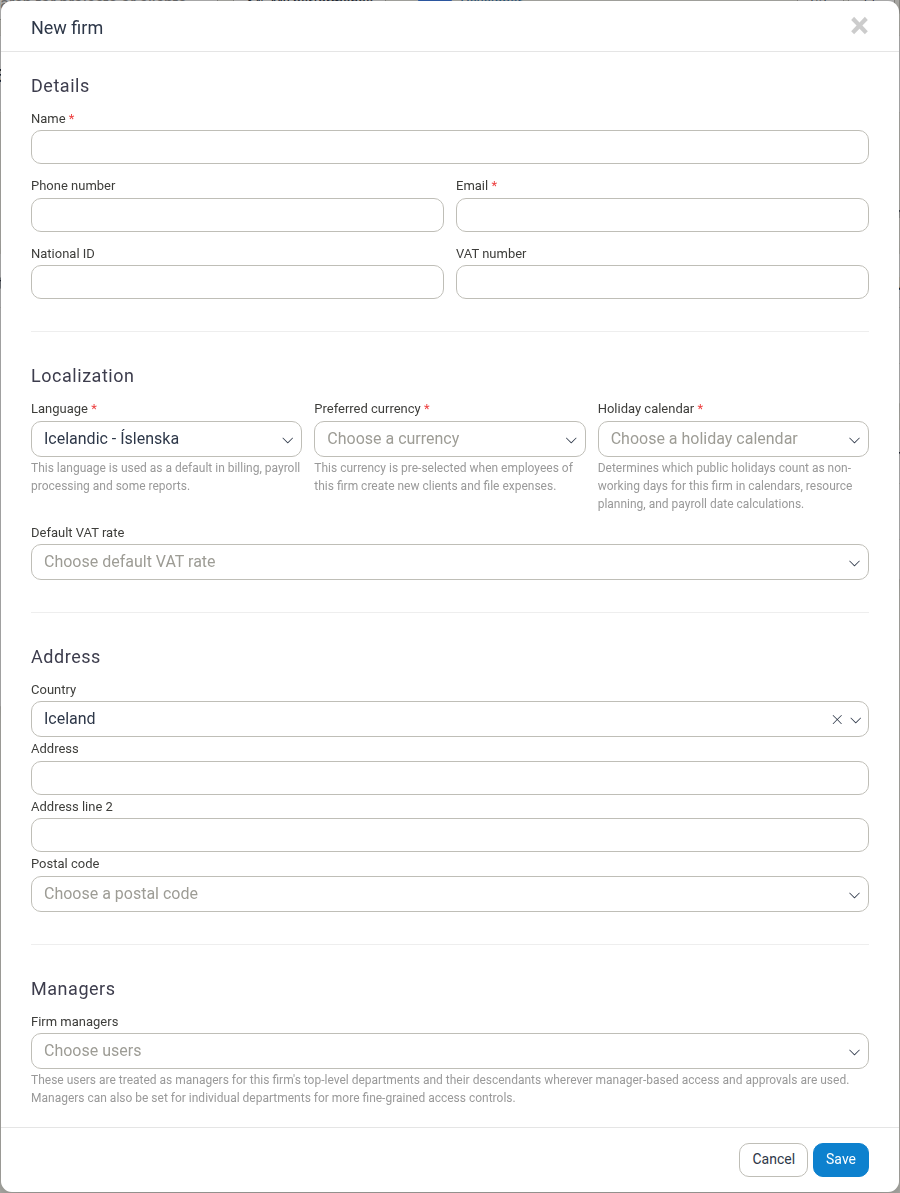
- In the New firm dialog, fill in the fields:
- Details — Name and Email are required. Optionally add Phone number, National ID, and VAT number.
- Localization — select the required Language, Preferred currency, and Holiday calendar, and optionally a Default VAT rate.
- Address — select a Country, then enter Address, Address line 2, and Postal code.
- Managers — optionally choose Firm managers. These users are treated as managers for the firm's top-level departments and their descendants wherever manager-based access and approvals are used.
- Click Save.
The new firm appears in the Firms list. Open it to configure its settings (see below).
Viewing Firm Settings
To view and configure a firm's settings:
- On the Firms page, click on the firm's row or name.
- The firm settings page displays all configuration sections organized by category.
The settings page opens with the firm's name as the page title and the breadcrumb Management / Firms / Firm name. It is divided into two areas:
- Firm details (left) — the firm's identity, logo, and bank accounts.
- Settings sections (right) — a series of cards, each showing the current values for a group of settings together with an Edit button.
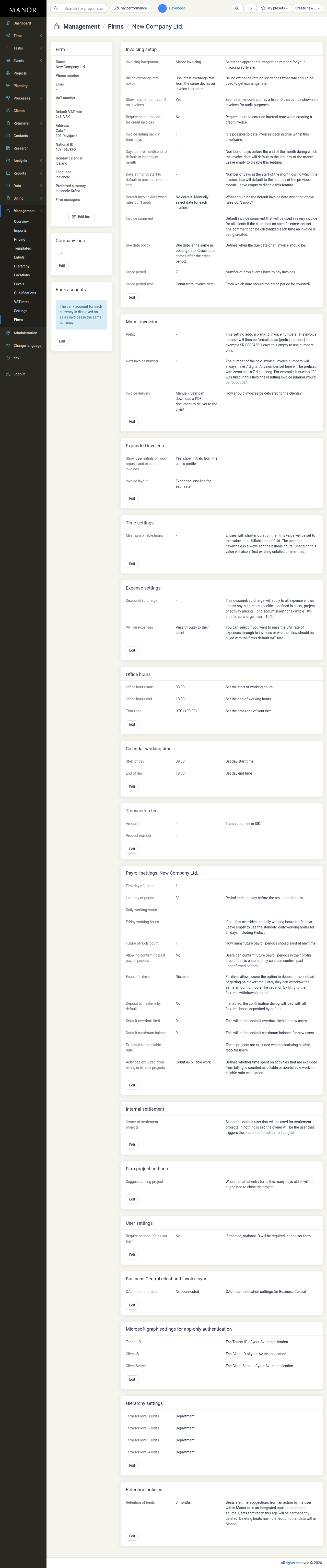
The Firm card has an Edit firm button; the Company logo and every settings card have an Edit button. Selecting one of these buttons opens the corresponding settings form in a dialog on top of the settings page. After you save, the dialog closes and the card shows the updated values.
Firm Configuration Sections
Firm Information
View and edit basic firm details:
- Name — Legal firm name
- National ID — Tax or registration ID
- VAT number — VAT registration number
- Phone number — Main contact number
- Email — Main contact email
- Default VAT rate — Default VAT rate for the firm's invoices
- Address — Business address
- Holiday calendar — Default holidays for the firm
- Language — Default language setting
- Preferred currency — Default currency
- Firm managers — Users treated as managers for the firm's top-level departments and their descendants wherever manager-based access and approvals are used
Company Logo
Upload and manage the firm's logo that appears on invoices and documents. Click Edit to upload or change the logo.
Bank Accounts
Configure bank account details for each currency used in invoicing:
- Domestic account — Bank details for the primary currency
- International accounts — IBAN and SWIFT details for other currencies
The bank account for each currency is displayed on sales invoices in the matching currency. See Bank Accounts for details.
Invoicing Setup
Configure how invoices are generated, numbered, and delivered:
Invoicing integration — Select the invoicing software for the firm, or Manor invoicing to use Manor's built-in invoicing Billing exchange rate policy — Choose how exchange rates are calculated Show retainer contract ID on invoices — Include retainer IDs for audit purposes Require an internal note for credit invoices — Require users to enter an internal note when creating a credit invoice Invoice dating back in time — Allow invoices to be dated up to a specified number of days in the past Days before month end to default to last day of month — Number of days before the end of the month during which the invoice date defaults to the last day of the month Days in month start to default to previous month end — Number of days at the start of the month during which the invoice date defaults to the last day of the previous month Default invoice date when rules don't apply — When other rules don't apply, use the specified default Invoice comment — Default text added to all invoices from this firm Due date policy — Define when invoice due dates are calculated Grace period — Number of days clients have to pay invoices Grace period type — Whether the grace period is counted from the invoice date or another date
Manor Invoicing
Configure invoice numbering and delivery for Manor's built-in invoicing:
Prefix — Add a prefix to invoice numbers (e.g., SR-0001234) Next invoice number — Starting number for sequential invoice numbering Invoice delivery — Manual (users download a PDF to send to the client) or automatic electronic delivery
Expanded Invoices
Configure how detailed invoices appear:
Show user initials on work reports and expanded invoices — Display employee initials from their profile on work reports and expanded invoices Invoice layout — Choose between different invoice formats (e.g., "Expanded: one line for each rate")
Time Settings
Configure time entry and billable hour rules:
Minimum billable hours — Entries shorter than this duration are rounded up to this value (Users can override this when needed)
Expense Settings
Configure how expenses are handled:
Discount/surcharge — Apply a firm-wide discount or surcharge to all expenses VAT on expenses — Pass through the expense's VAT rate or bill with firm's default rate
Office Hours
Set the firm's standard business hours:
Office hours start — Beginning of the workday (e.g., 08:00) Office hours end — End of the workday (e.g., 18:00) Timezone — The firm's timezone for scheduling and time zone conversions
Calendar Working Time
Configure working hours displayed on calendar views:
Start of day — Time when the work day begins on calendars End of day — Time when the work day ends on calendars
For how these values combine with the firm's office hours, the company- and user-level Daily target, and payroll working hours to define the length of the workday, see Workday Length.
Transaction Fee
Configure transaction fees charged on invoices:
Amount — Transaction fee in the firm's currency Product number — The product code for this fee
Payroll Settings
Configure payroll periods and accounting (if payroll module is enabled):
Payroll period — First and last days of the payroll period Daily working hours — Standard working hours per day Paid leave, sick leave, vacation projects — Projects that track leave time Flextime settings — Deposits and withdrawals of flexible work hours Leave accounts — Payroll account numbers for different leave types
See Firm Payroll Settings for details, and Workday Length for how the working hours settings fit together.
Internal Settlement
Configure how internal settlements between departments or firms are handled.
Owner of settlement projects — The user who is the default owner of internal settlement projects.
Firm Project Settings
Set firm-wide project defaults:
Suggest closing project — After this many days of inactivity, suggest closing the project
User Settings
Configure firm-level user requirements:
Require national ID in user form — Require a national ID when creating or editing user accounts
Business Central client and invoice sync
Configure the connection to Microsoft Dynamics 365 Business Central (if applicable):
OAuth authentication — Connect Manor to Business Central using OAuth
Microsoft graph settings for app-only authentication
Credentials for app-only authentication against Microsoft Graph:
Tenant ID — The Tenant ID of your Azure application Client ID — The Client ID of your Azure application Client secret — The Client secret of your Azure application
Hierarchy Settings
Customize the terminology for organizational levels:
Term for level 1 units — Name for the first organizational level (default: Department) Term for level 2 units — Name for the second organizational level Term for level 3 units — Name for the third organizational level Term for level 4 units — Name for the fourth organizational level
Retention Policies
Configure how long temporary data is kept:
Retention of beats — How long beats (time suggestions generated from an action by the user within Manor or in an integrated application or data source) are kept before they are permanently deleted. Deleting beats has no effect on other data within Manor.
Best Practices
Keep Firm Details Current
Update firm information regularly, especially VAT numbers, phone numbers, and addresses to ensure accurate invoices and customer communication.
Configure Office Hours Accurately
Set office hours that reflect actual business operations so that calendar views and time tracking displays are meaningful for employees.
Use Correct Exchange Rate Policies
Choose an exchange rate policy that matches your billing practices (same-day rates vs. historical rates) to ensure consistent pricing.
Test Invoice Settings
Before going live with invoicing, create a test invoice to verify numbering, layout, and payment terms are correct.
Organize Bank Accounts by Currency
For multi-currency operations, ensure each currency has a corresponding bank account so invoices display the correct banking details.
Set Appropriate Minimum Billable Hours
Configure this to match your billing granularity (e.g., 0.25 hours for 15-minute increments) but ensure it doesn't artificially inflate billable hours.
Review Payroll Settings
If using payroll features, carefully configure leave projects and account mappings to ensure accurate payroll processing.
Maintain Hierarchy Terminology
Use consistent and clear language for organizational levels so employees understand the firm's structure.
Related Documentation
- Bank Accounts — Configuring bank accounts for each currency
- Workday Length — Configuring daily working hours and how they affect calendars and time entry
- Firm Payroll Settings — Payroll periods, working hours, flextime and account mappings
- Global Settings — Organization-wide settings including the Daily target
- Hierarchy — Organizational units and reporting structure